Once an AI Agent has been created, you can run it manually from the agent menu and track its progress from the Processes section.
If the agent was configured with the review option enabled, you can also check the suggested changes before applying them to your catalog.
To run an agent manually:
- Open the menu for the agent.
- Select Run.
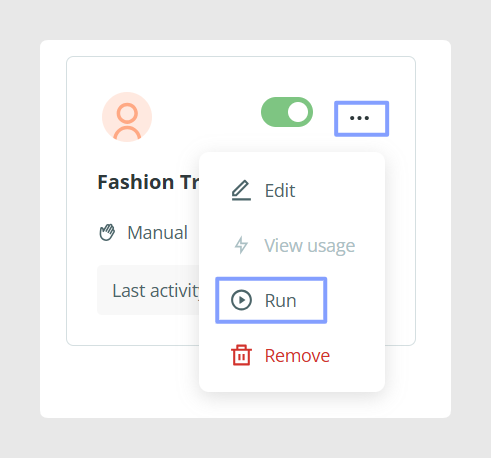
The process will start immediately.
You can track its progress in the Processes section.
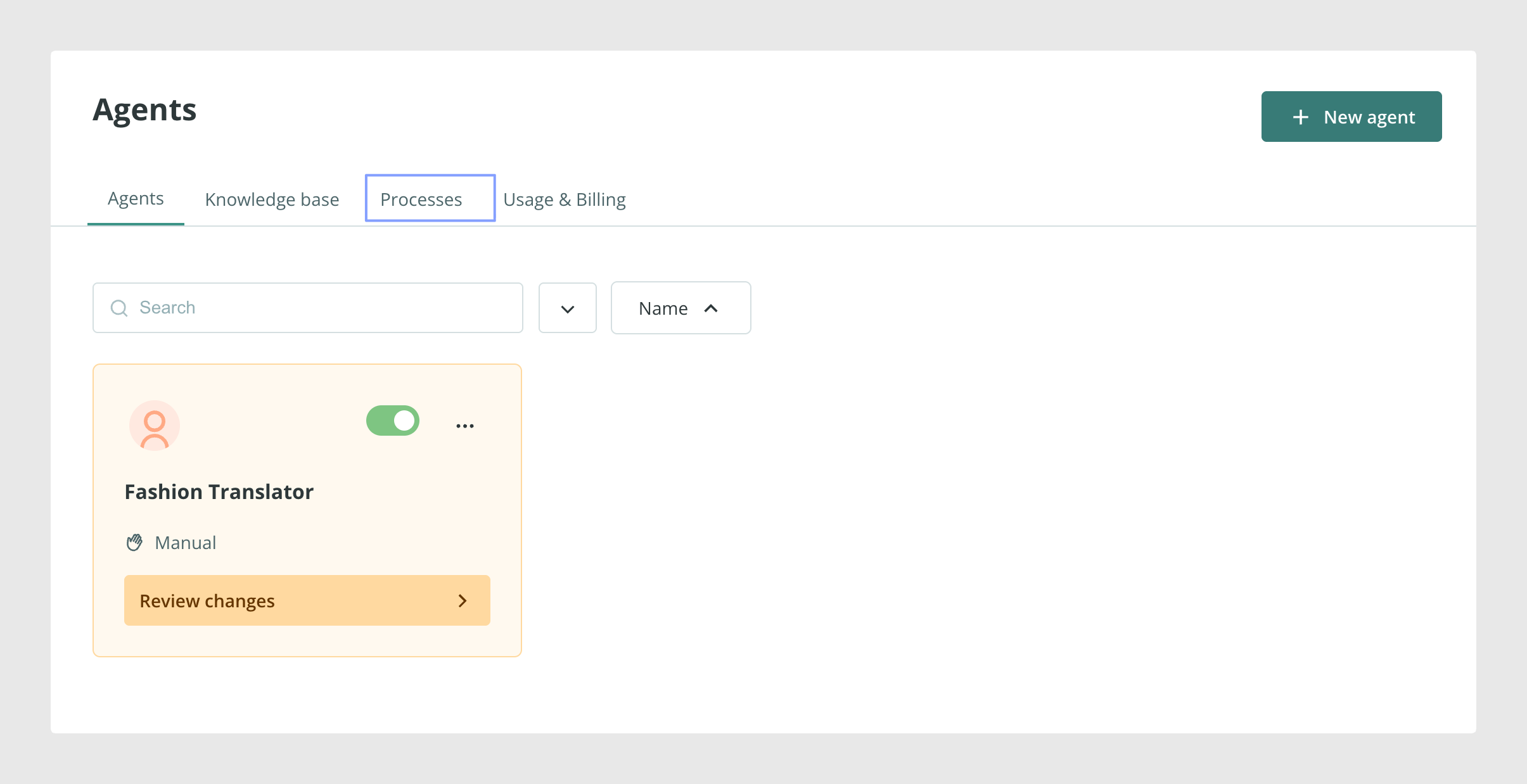
Agent processes
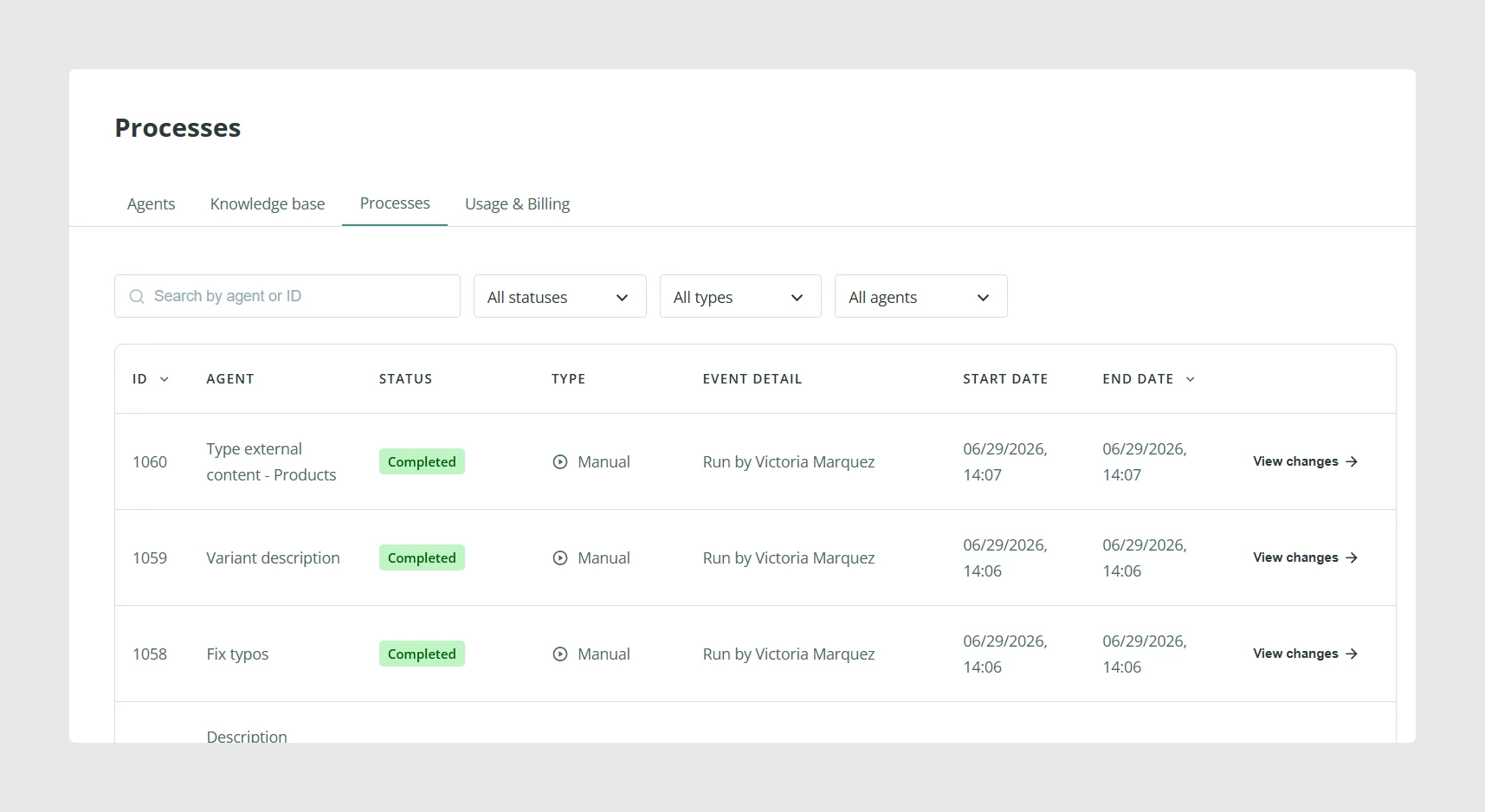
The Processes section shows both active and completed processes. This allows you to check whether an agent is still running, waiting for review, or already completed.
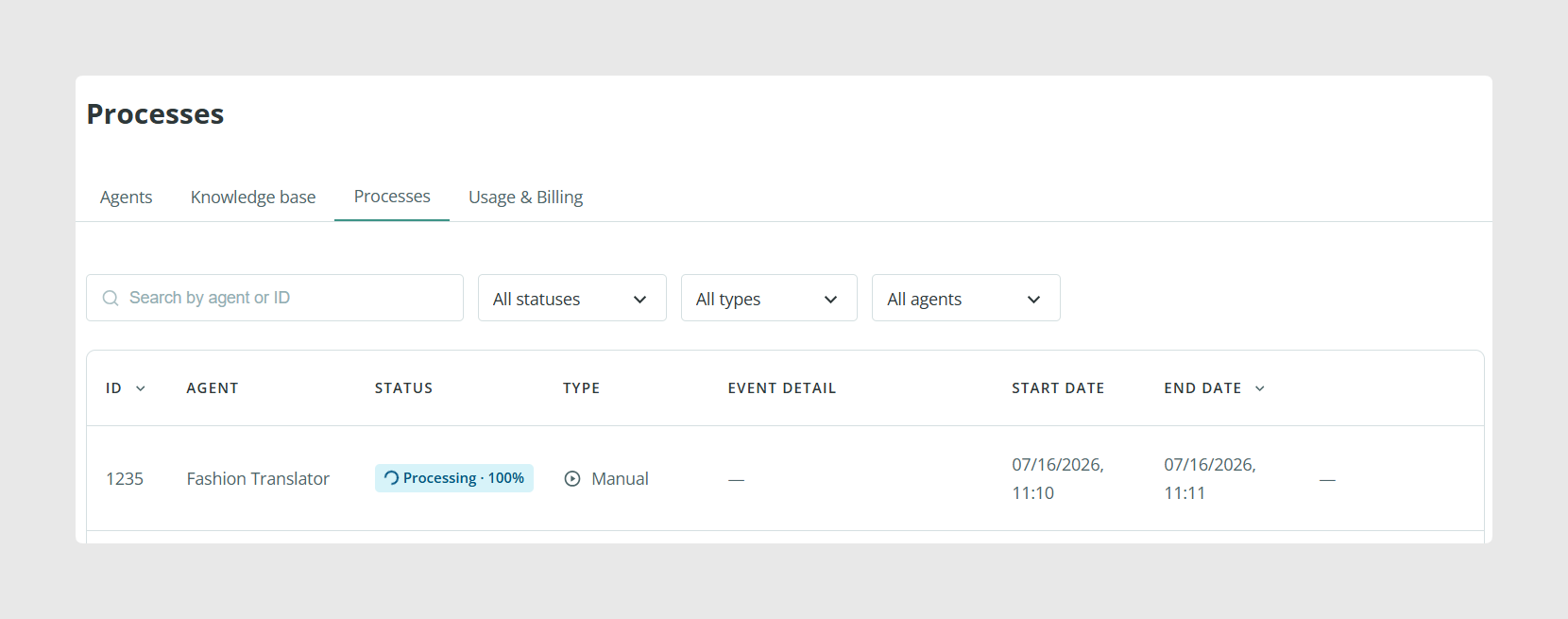
There are three possible statuses:
- Processing: the process is currently in progress.
- To review: the review option was enabled, so changes must be checked before they are applied.
- Completed: the process has finished.
If a process is marked as Processing, no action is needed while the agent continues processing the selected items.
If a process is marked as To review, you need to check the changes before applying them.
If a process is marked as Completed, the process has finished. If the review option was enabled, the status changes to Completed after the reviewed changes have been applied.
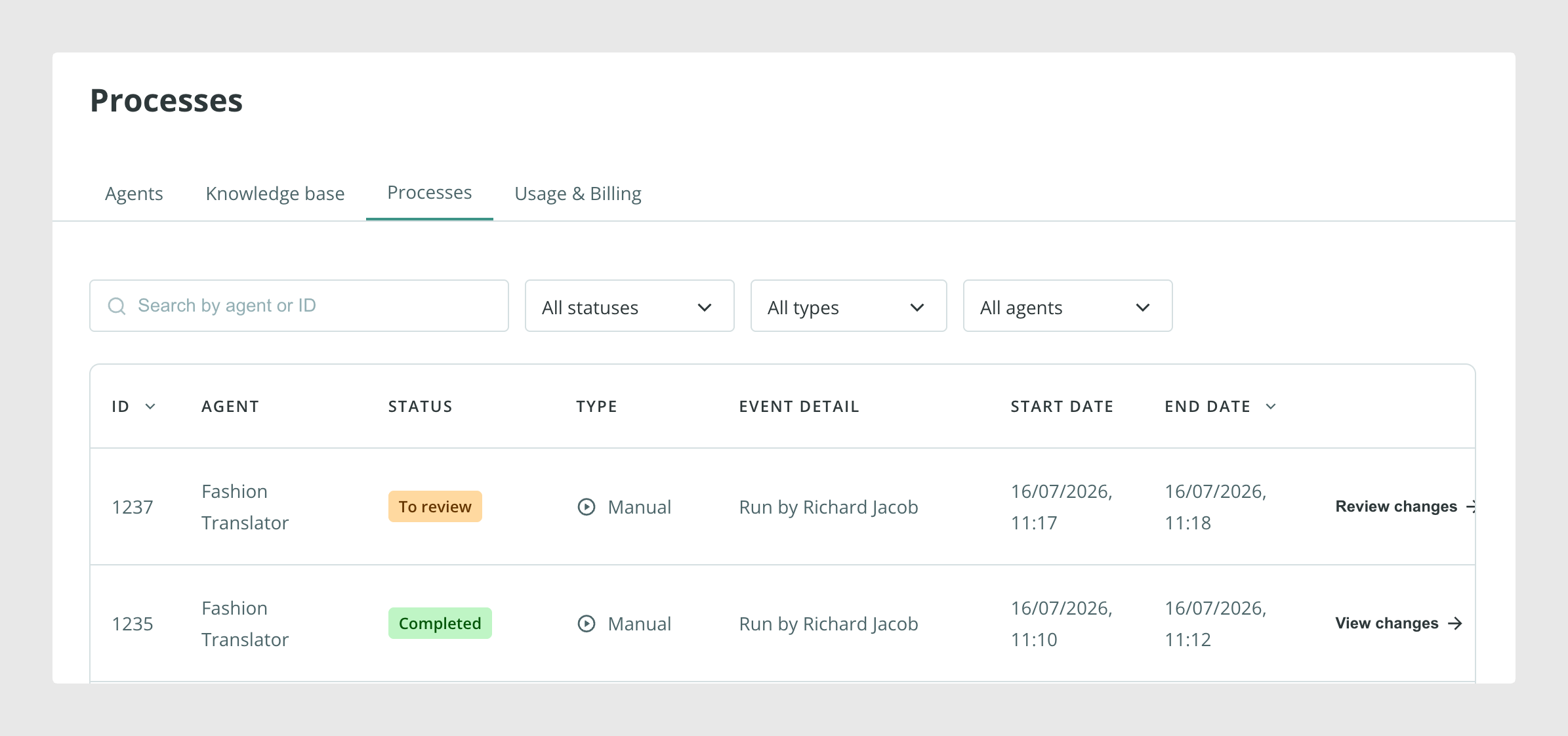
Review agent changes
If the agent was configured to require review, you can check its results before applying them.
To review changes:
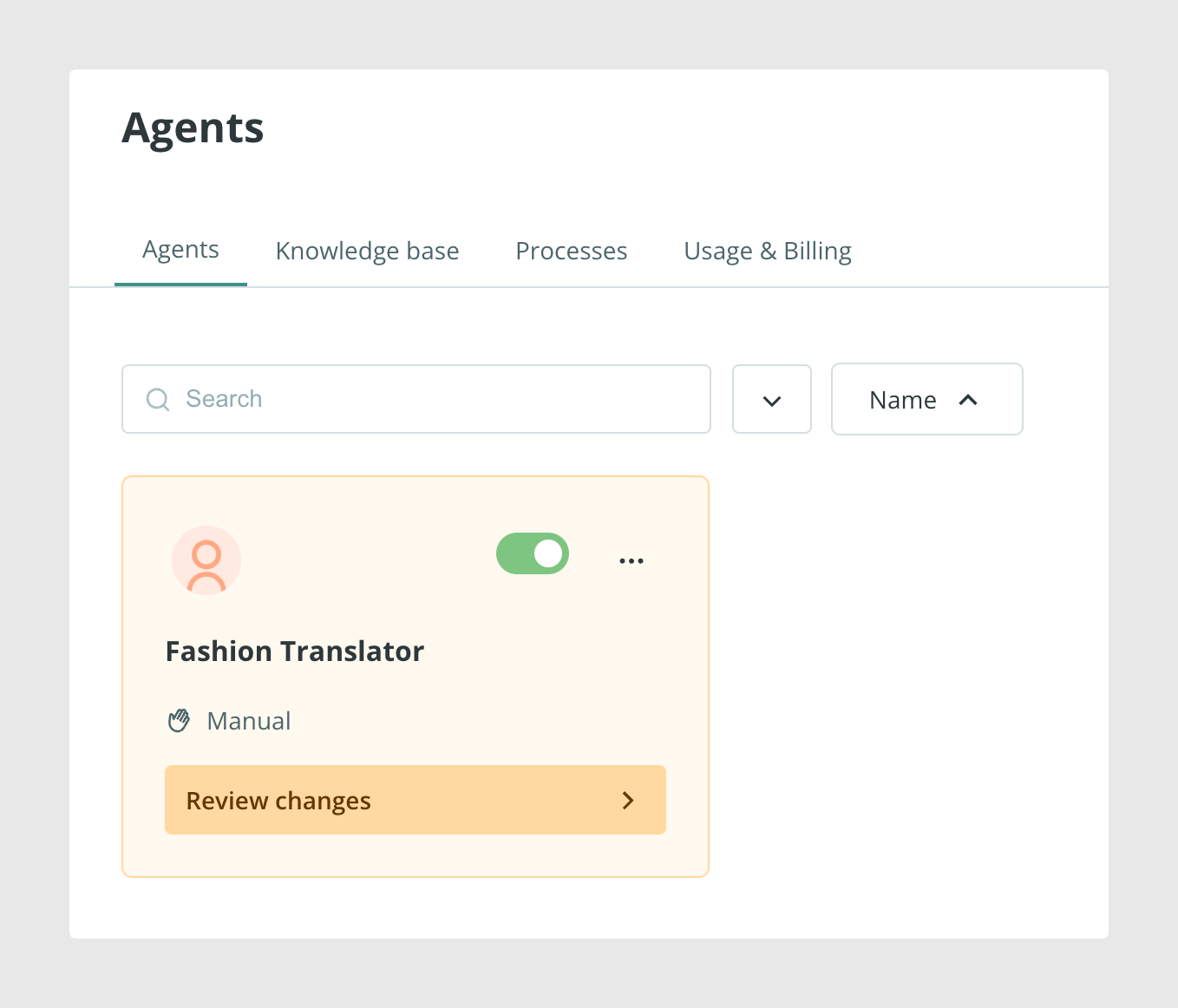
- Go back to the control panel.
- Click Review changes on the agent.
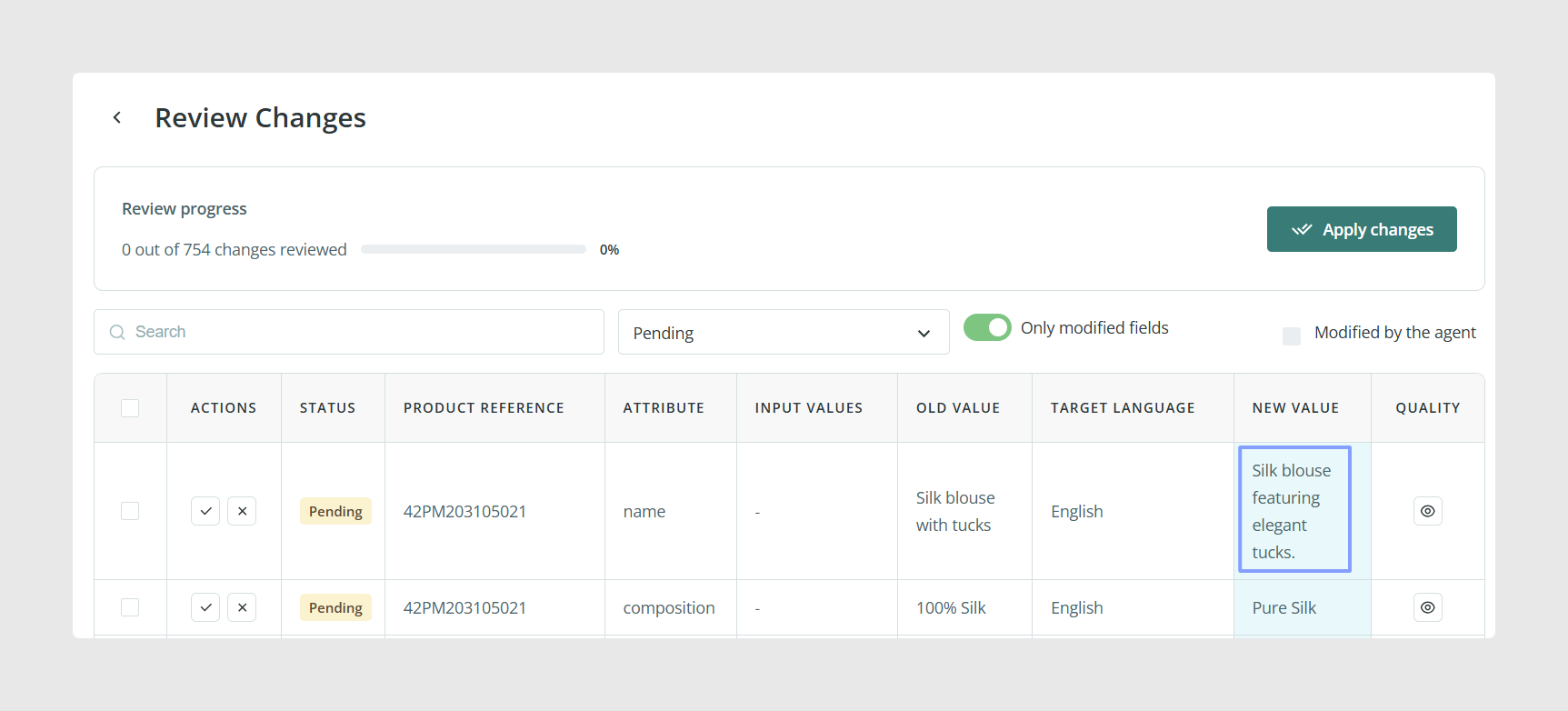
In this section, you can see the changes made by the agent according to the selected configuration.
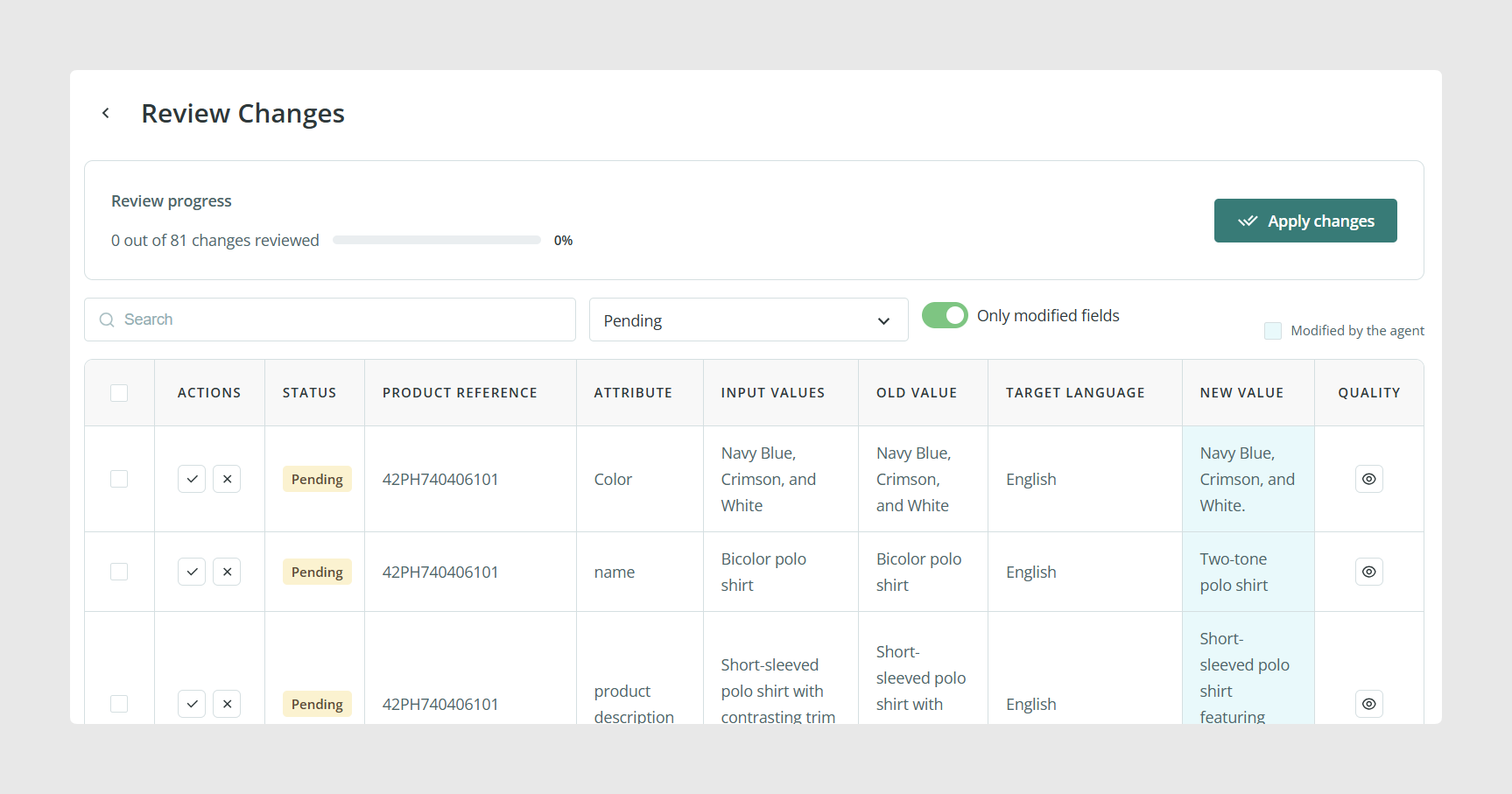
You can:
- Approve changes one by one.

- Discard changes one by one.
- Select multiple items and approve or discard them in bulk.
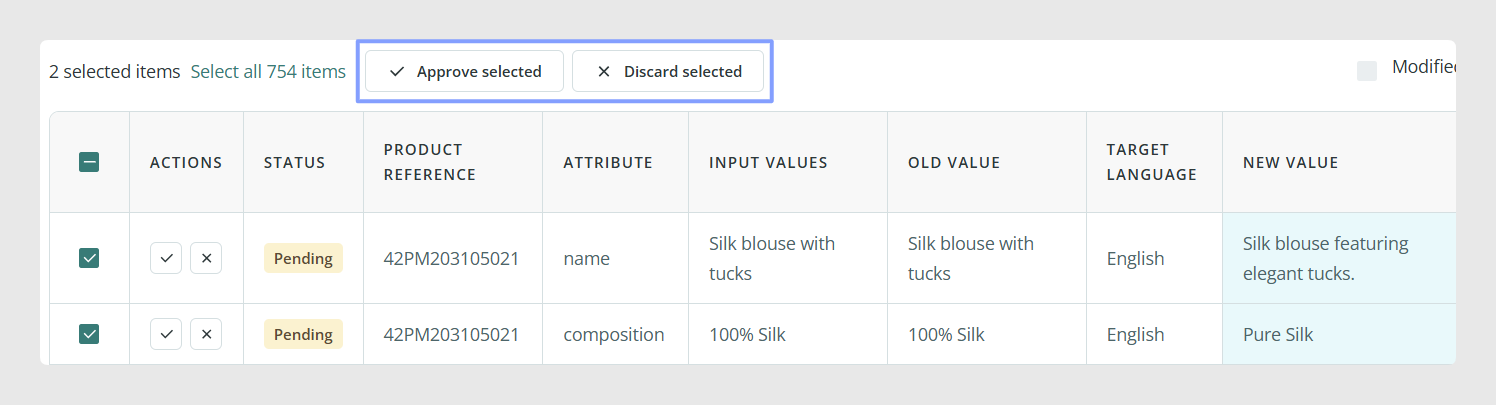
To process several items at once, tick their checkboxes and choose the action from the top menu.
Check action details
You can open the details on the right side to verify the prompt and glossary used during the process.

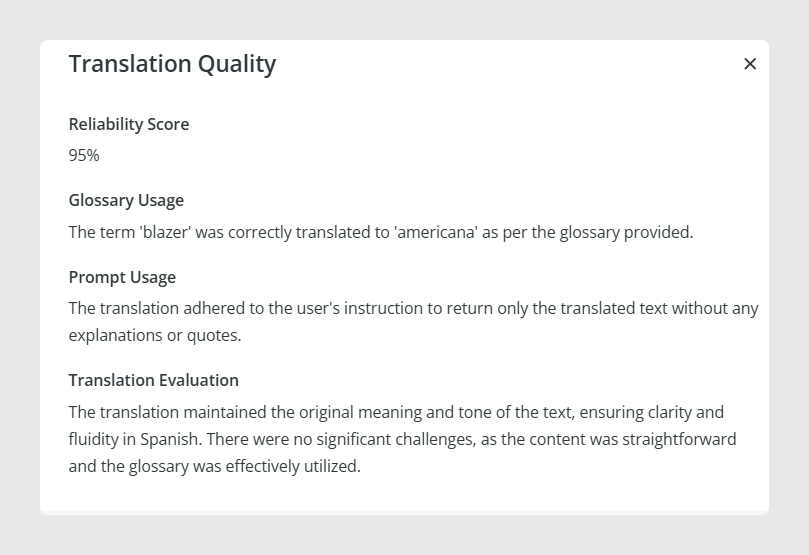
This is useful when you want to understand why the agent generated a specific result or confirm which instructions were used.
Edit the result manually
You can also edit the result manually before applying it.
To do this:
- Click directly on the highlighted result in the New Value column.
- Edit the text in the pop-up window.
- Save the edited result.
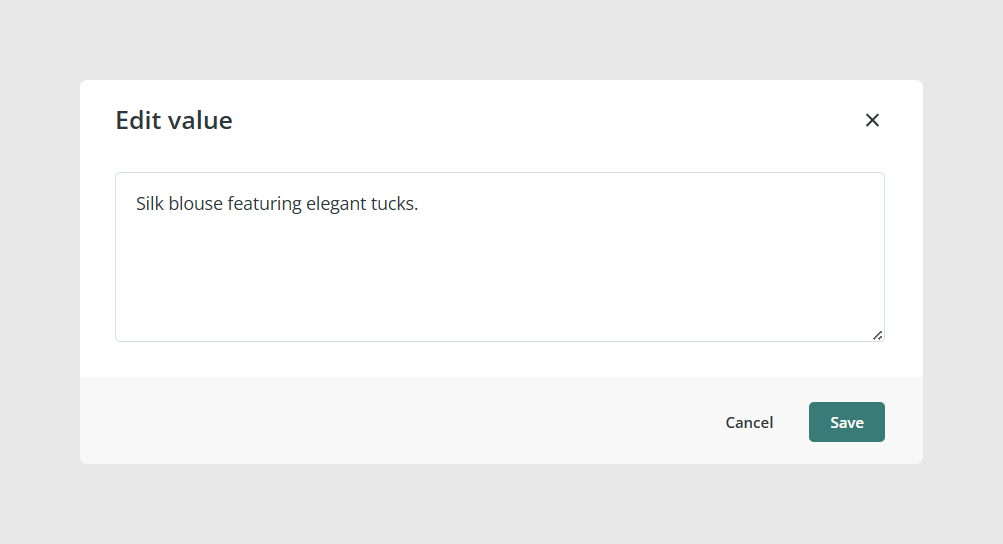
This allows you to adjust the result before confirming the change.
Apply reviewed changes
Once the result is correct, you can accept individual changes from the row actions or apply the reviewed changes by clicking Apply changes.

Before confirming, the system will show a message indicating:
- How many items will be modified.
- How many items will remain unchanged if some changes were discarded.
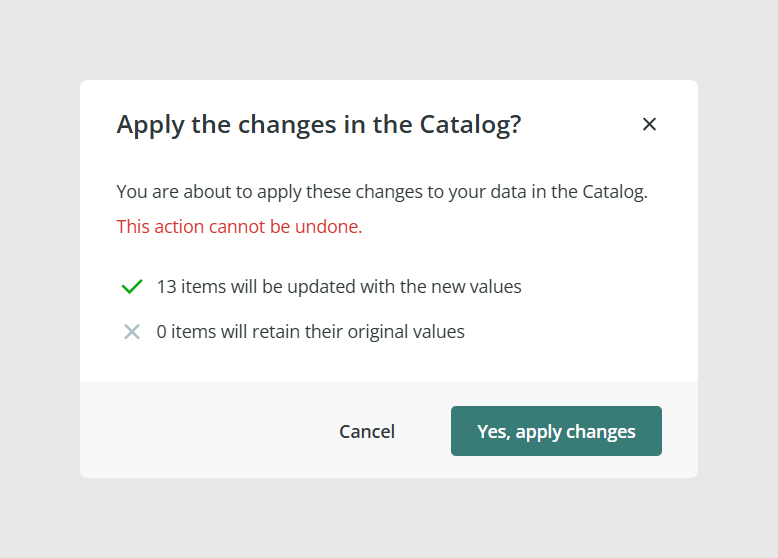
After applying the changes, the status in Agent processes will change to Completed.
Check the editing history
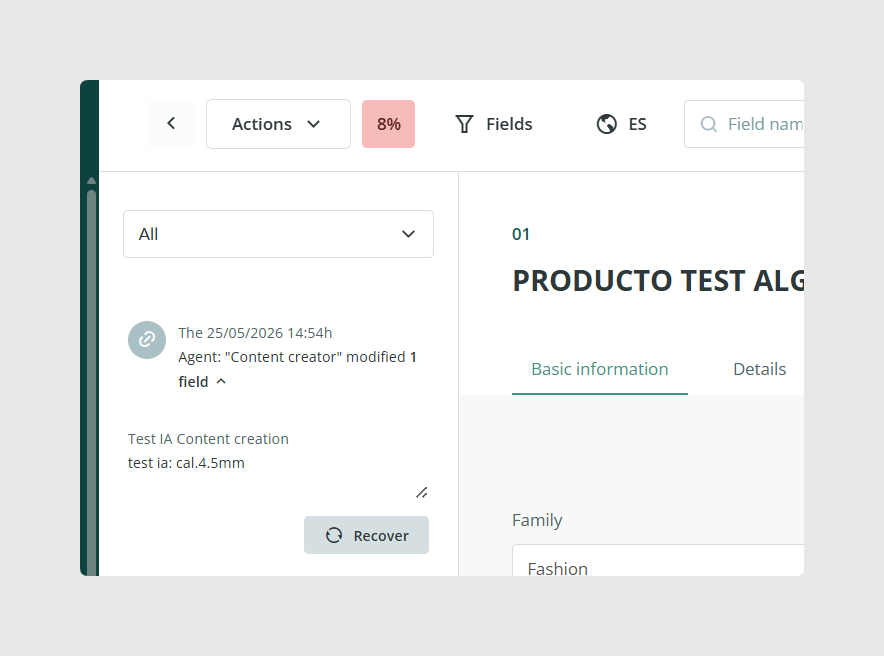
After the changes are applied, you can also track which agent performed the action from the product item.
To do this:
- Open the product.
- Use the Show editors option.
- Check the editing history.
If the change was made by an AI Agent, the agent will appear in the editing history as the source of the action.
Note: Credits are calculated based on the number of processed attributes. This means processed changes count toward credit consumption even if you later discard them during review.
Best practices
When running an agent for the first time, use a small group of items and enable the review option. This helps you check the quality of the results before applying changes in bulk. For important catalog content, review the suggested changes carefully before clicking Apply changes.
Was this article helpful?
That’s Great!
Thank you for your feedback
Sorry! We couldn't be helpful
Thank you for your feedback
Feedback sent
We appreciate your effort and will try to fix the article