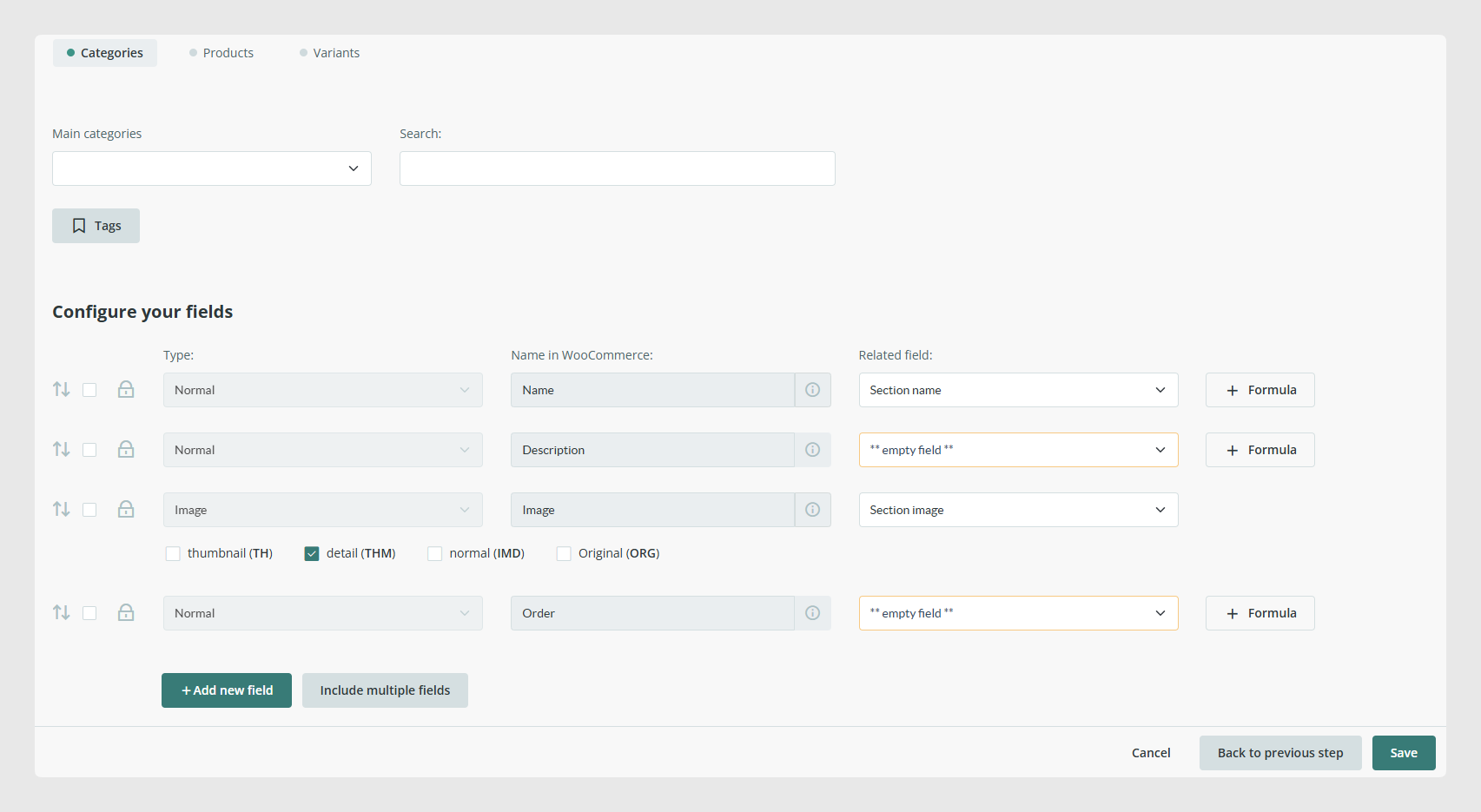
In this tab, you have three sections: Categories, Products, and Variants.
Each of these three tabs includes the list of default fields defined by WooCommerce.
In each tab, field mapping should be done for each item type by selecting the “Related field” from Sales Layer that fits the “Name in WooCommerce” column.
General recommendations to do the field mapping
- Only one image size can be exported for WooCommerce, among all the ones available in your account.
- Most WooCommerce fields are defined in each section. Extra fields for products will be informative. If they are not created in WooCommerce, these attributes will only be for these products. However, if they have been created, the attribute values will be added to the WooCommerce database, so they can be used by other products. For variants, these attributes will be used as configurable, and they must be created in WooCommerce before synchronizing to make the update possible.
Attribute creation
The Sales Layer channel allows you to configure additional fields in the Products and Variants tabs:

The product fields are generated as additional product fields and the value will be stored in the database.
If there are existing attributes in WooCommerce:
The value will be added as a new option in the attribute and it will be assigned to the product.
Best practices
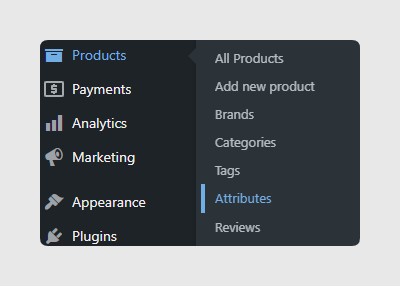
- The variant attributes must be created already before the first synchronization. This allows you to create the values automatically and assign the attribute to other variants. If the attributes are not created when the synchronization is done, the variants will not be associated with their parent product.
Was this article helpful?
That’s Great!
Thank you for your feedback
Sorry! We couldn't be helpful
Thank you for your feedback
Feedback sent
We appreciate your effort and will try to fix the article