If your account includes the extended DAM, you can create Distribution Lists from any library to share files with third parties without giving them access to the PIM.
Each Distribution List generates a unique URL that lets recipients download a file with the images and related information you want to share. The list is dynamic, so when new files match the filters you defined, they are added automatically and the shared file stays up to date.
Feature Activation
This functionality is available for Enterprise Accounts, but it can be contracted separately. If you are interested or for further information, contact us through the usual support ways.
How to create a Distribution List
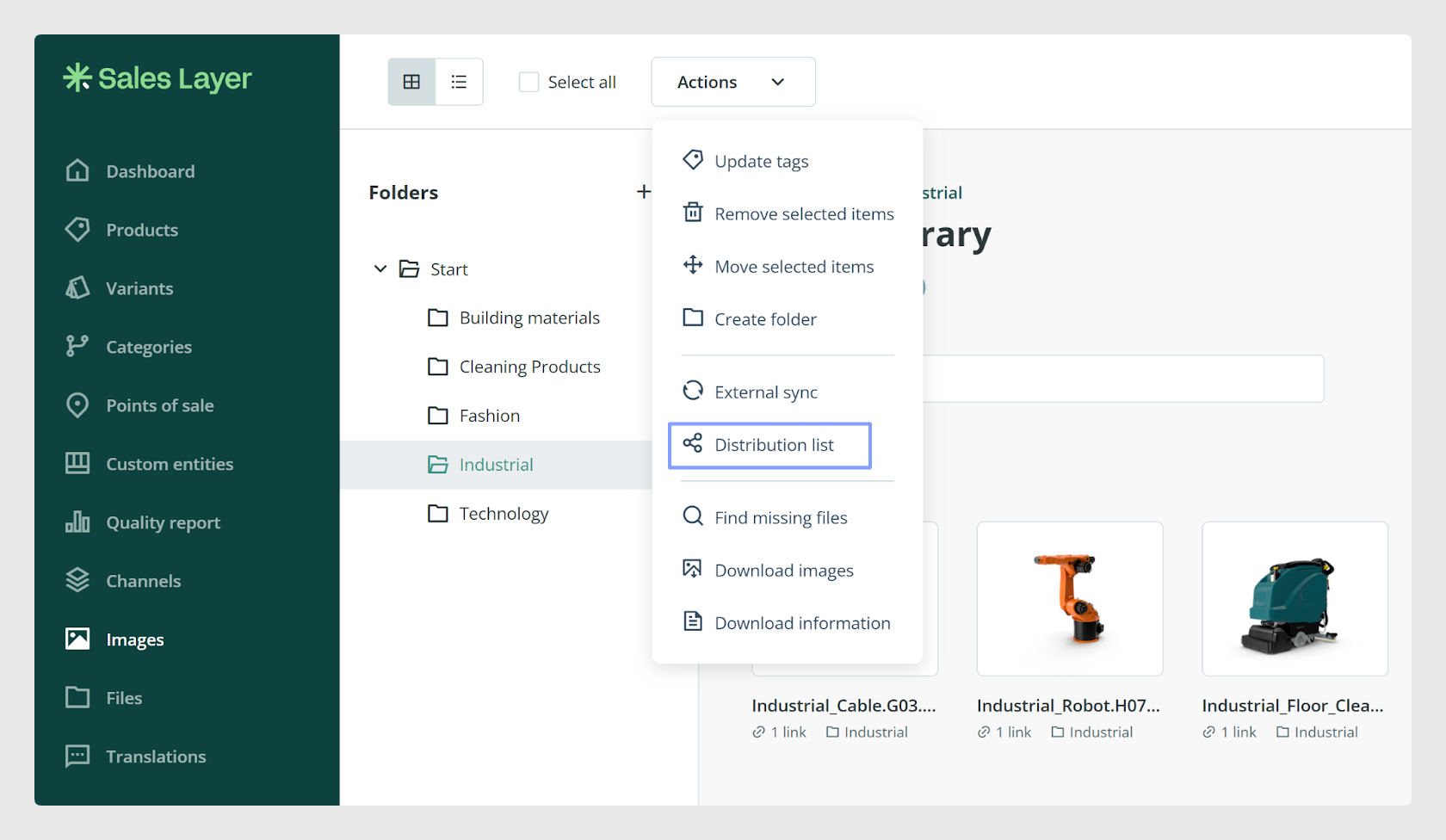
Open the library you want to use.
Go to Actions and select Distribution List.
Create a new list.
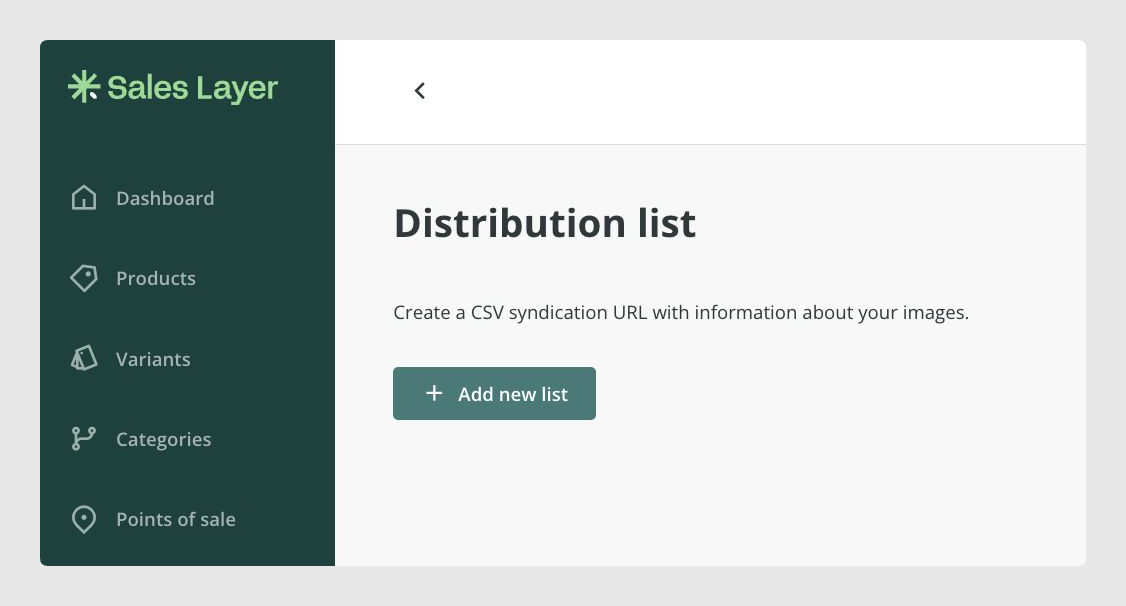
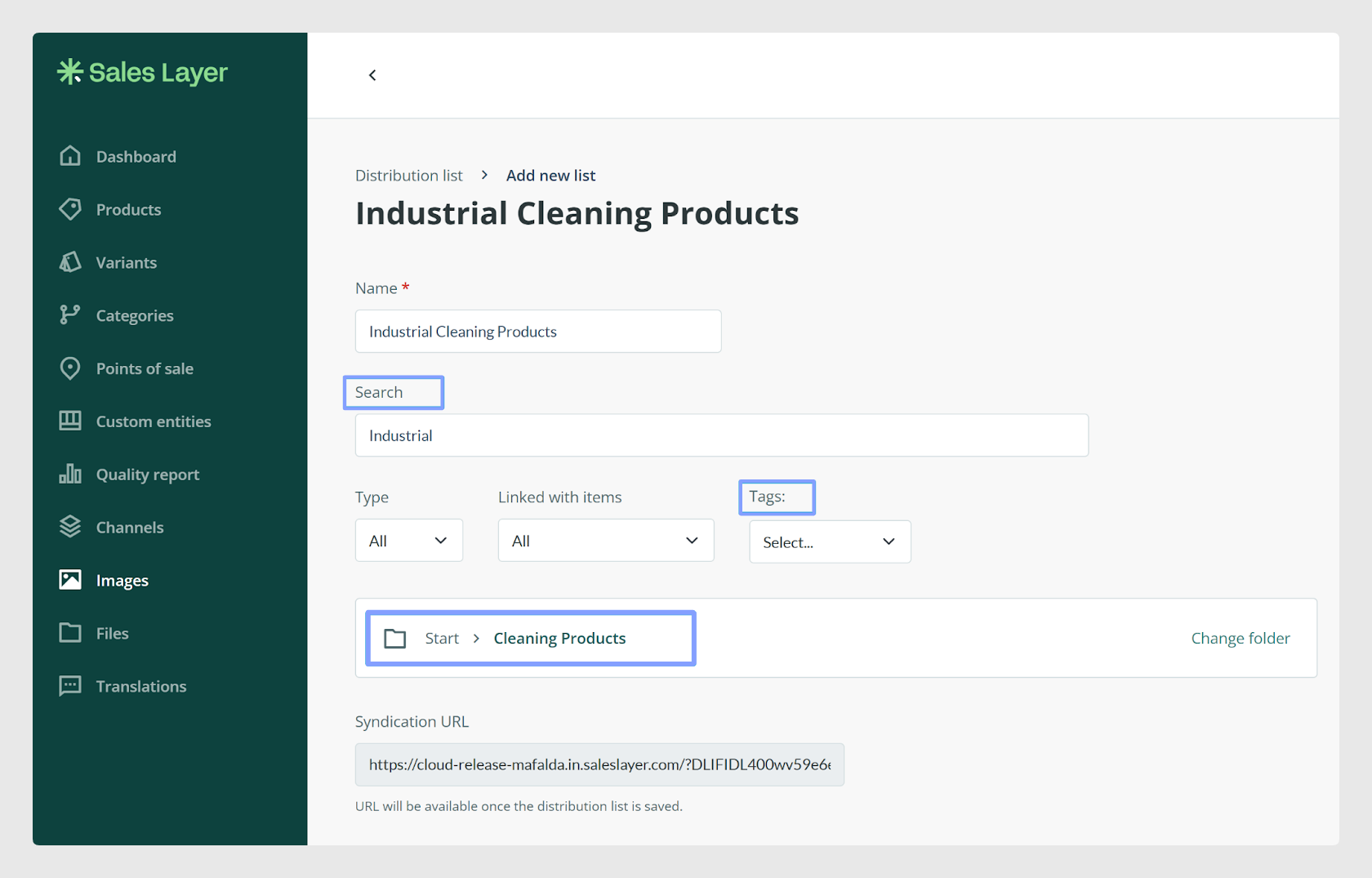
To create the list, add a name and define the filter that matches the files you want to include.
Available filters
You can build the list using these filter options:
Search Filter: enter a keyword that returns the files you want to group.
Tag Filter: select a tag already created in the library to group files with that tag.
Folder Filter: select a full folder if you want to include everything inside it.
You can also specify the file type and whether the files are linked to any item. Once all required fields are completed, click Save List.
How to copy the link
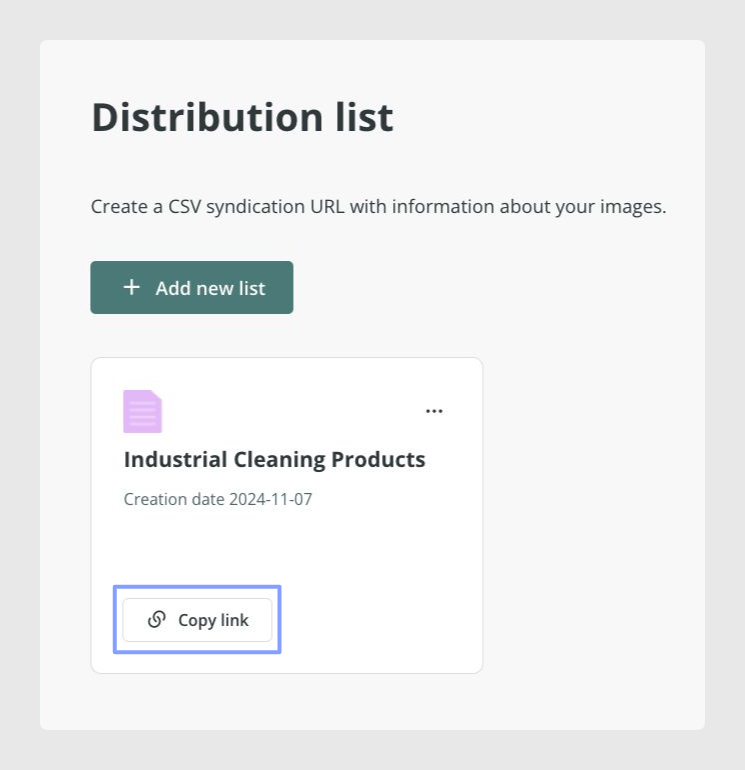
After the list is saved, its main view shows the generated link. Click Copy Link to copy the URL and share it with other people.
How to edit or delete a list
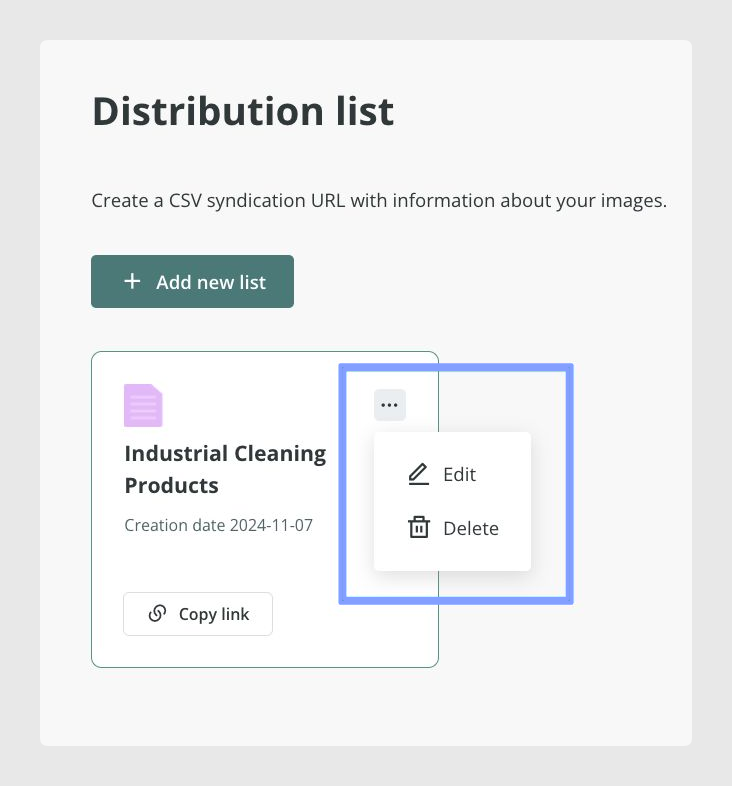
If you need to change or remove a list, open the three-dot menu and choose the corresponding option.
What recipients can download
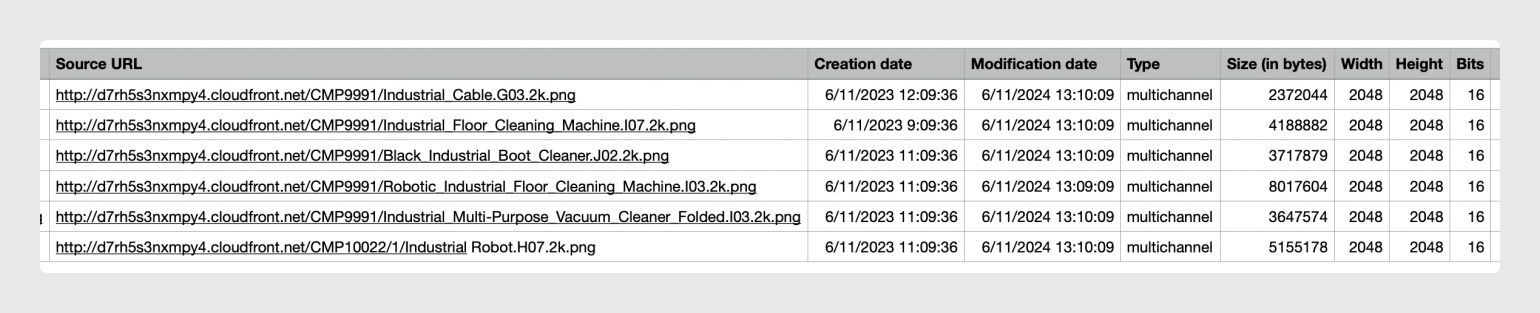
Anyone with the link can download current data for the selected files. The exported file includes:
Reference: file name
Status: shows whether the file was imported correctly or has an error
Tags: any tags assigned to the file
Linked Tables: the tables in your account where each file is linked
Current URL: the current download URL
Source URL: the original URL used for import, if the file was imported this way
Creation Date: the date the file was created. Files uploaded before this feature existed may show null values here
File Size (bytes)
Width
Height
Bits

How Distribution Lists can be used
Distribution Lists currently generate a CSV file, which makes them useful for sharing image and file URLs with external systems. You can also import that CSV into a Custom Entity table through an import connector.
This can help you:
add extra information to the shared CSV data
download the information again from the Custom Entity table, including the files if needed, using standard PIM methods
Best practices
Use clear list names so other users can understand the purpose of each shared export. Before sending the link, review the filters carefully to confirm the right files are included. If the list will be shared outside your organization, check that the linked data and URLs are the ones you actually want external users to receive.
Was this article helpful?
That’s Great!
Thank you for your feedback
Sorry! We couldn't be helpful
Thank you for your feedback
Feedback sent
We appreciate your effort and will try to fix the article