In Sales Layer, linking patterns let you create bulk association rules for image and file fields. When a file name follows the pattern you define, Sales Layer can automatically link that image or file to items in Products, Variants, Categories, or Custom Entity tables.
Feature Activation
This functionality is available for Enterprise Accounts, but it can be contracted separately. If you are interested or for further information, contact us through the usual support ways.
Configuration
Open the table and form where the image or file field is used.
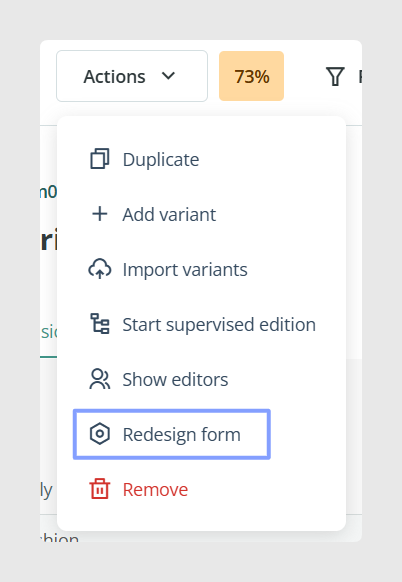
Go to Actions > Redesign Form.
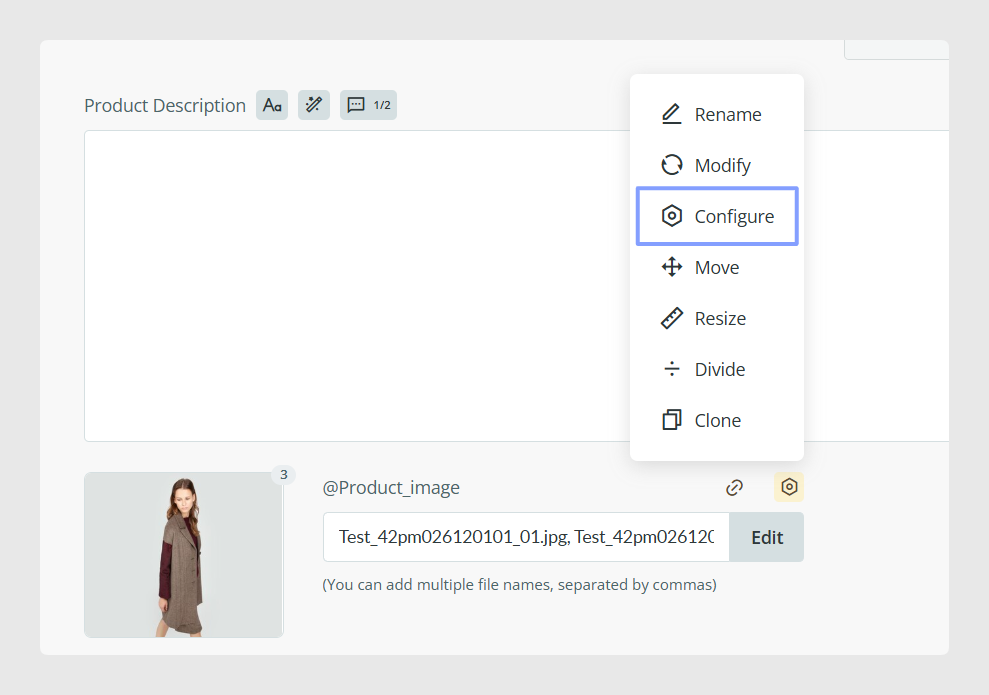
Open the image or file field settings by clicking Configure.
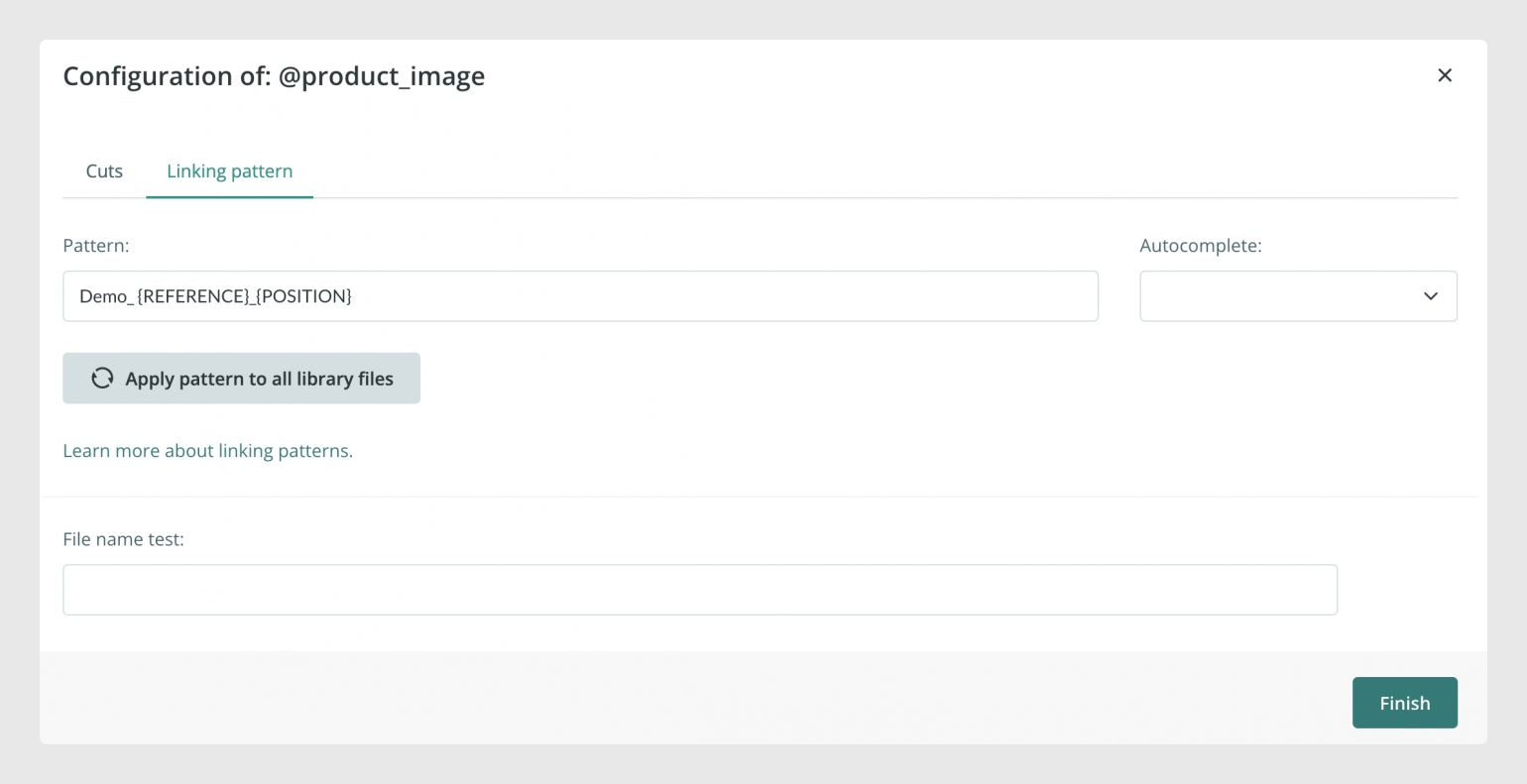
Open the Linking pattern tab.
Inside this tab, the Pattern field is where you define the rule. Before writing the pattern, review the Autocomplete options carefully, because this is where you choose the field values, conditions, and special variables you want to use.
Fields you can use in a pattern
Only fields of type reference, short text, number, boolean, and checklist can be used to create a linking pattern.
Example pattern
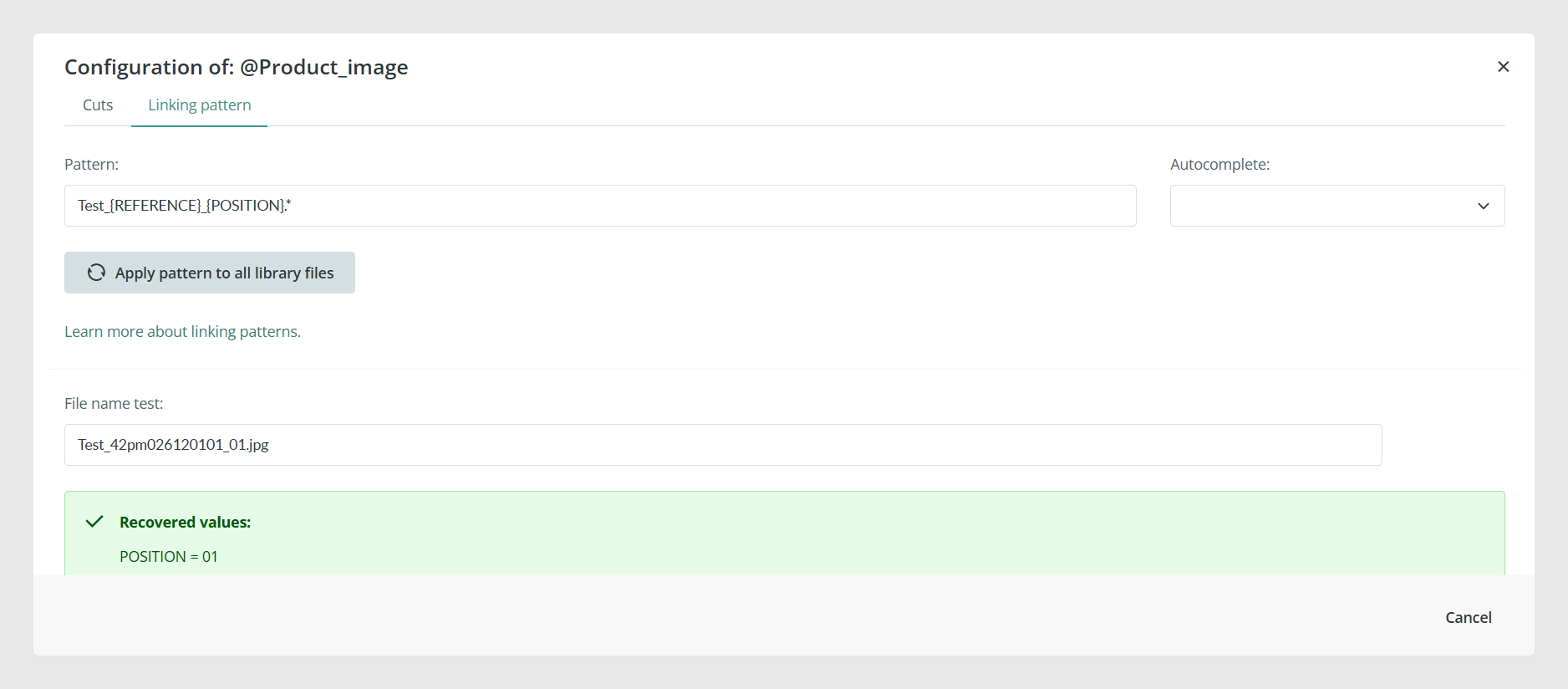
A sample pattern could look like this:
Test_{REFERENCE}_{POSITION}.*This means that Sales Layer will look for files whose names include the text Test, the item REFERENCE, and a numeric POSITION. If the file name matches that structure, the system can link it automatically to the corresponding item.
How the pattern parts work
Test is fixed text that must appear in the file name. For example, a file might be named Test_AAPA10K703006_1.jpg or Test_42PM026120101_2.jpg.
REFERENCE refers to the field value that Sales Layer should use to identify the item. This is often the product reference or category reference, but it could also be another supported field, such as a product name, if that is the value used in the file naming rule.
POSITION is the numeric order of the image or file inside the field. For example, 1 means first position, 2 means second position, and so on.
Note: At the moment, position can be handled numerically, not alphabetically. Because of this, when you use the POSITION variable, the file name must contain a number, not a letter.
If the pattern does not include POSITION, the linked image or file will be placed in the last position.
Separators and file extensions
All parts of the pattern should be separated with a standard character such as an underscore, a hyphen, or another consistent separator.
If you add an asterisk at the end, like this:
Test_{REFERENCE}_{POSITION}.*you are telling Sales Layer to accept any ending after that point. This helps the same rule work with different file extensions such as jpg, png, JPG, PNG, pdf, or PDF, as long as the rest of the pattern matches.
How to test the pattern
Once the pattern is written, use the test option to check the expected file name structure.
Warning:
The test button does not check a real file from your library. It only gives you a general idea of how the imported image or file names should be written to match the pattern.
Pattern values are case-sensitive, so they must be written exactly as expected.
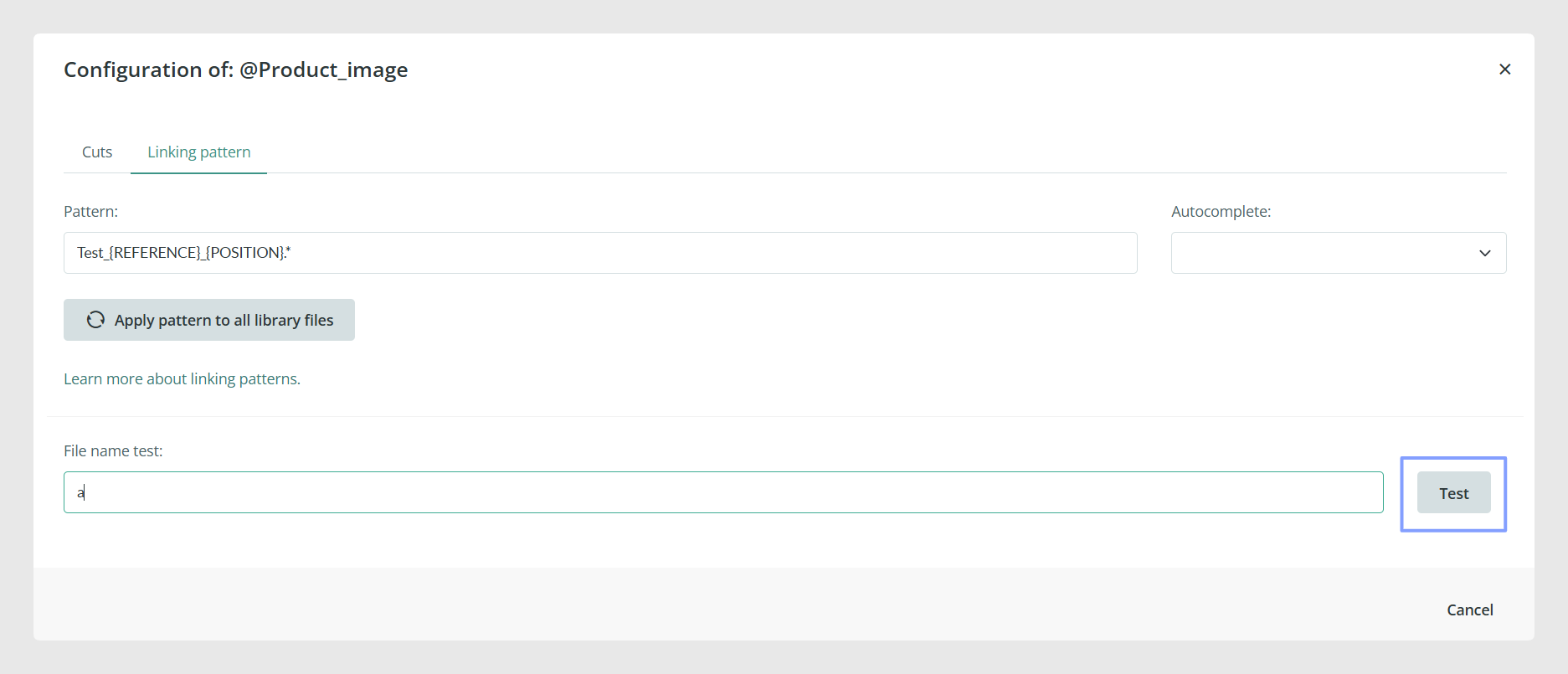
After testing the pattern, click Finish. From the next import onward, any new images or files that match the rule will be linked automatically.
If you want to apply the rule to files that were already imported before the pattern was created, use Apply pattern to all library files.
Important considerations
A pattern created in an image or file field affects all items that use that field in the form.
Before using the pattern in production, it is a good idea to create a backup or test the rule in a safe environment.
A practical way to test is to create a new image or file field and try the pattern with one or two files first.
If the rule was wrong, you can use the option to remove linked references.
You can create a different pattern for each image or file field.
Common Use Cases
Linking patterns are useful when your image or file names already follow a consistent naming rule based on item data, such as product reference plus image position. This helps reduce manual linking work and makes large imports easier to manage.
Best practices
Keep the file naming structure simple and consistent across all assets before you create the pattern. Use a small test first, confirm that the matches are linking to the correct items and positions, and only then apply the pattern to the full library. This helps avoid incorrect bulk associations that may take time to clean up later.
Was this article helpful?
That’s Great!
Thank you for your feedback
Sorry! We couldn't be helpful
Thank you for your feedback
Feedback sent
We appreciate your effort and will try to fix the article