When managing images and files in Sales Layer, you may encounter two different situations:
- A product or variant contains the name of an image, but the asset is not available in the library.
- An image is available in the library but is not linked to any product or variant.
Although both situations are related to asset linking, they have different causes and solutions.
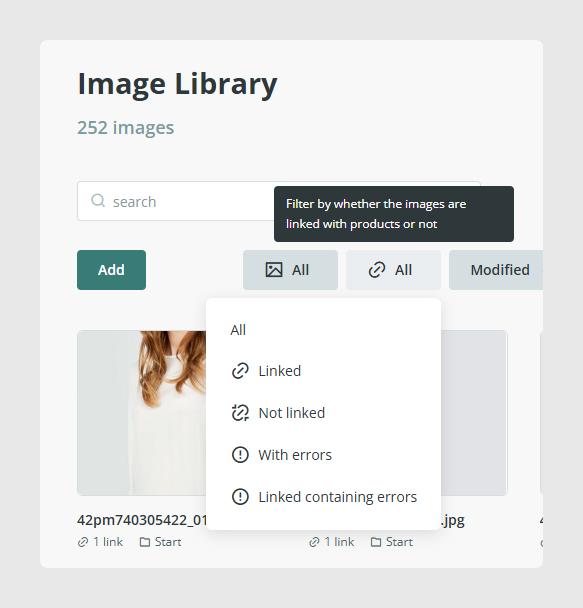
Difference between missing images and unlinked assets
Missing image | The image name is stored in a product or variant field, but the image has not been uploaded to the library. |
Unlinked asset | The image exists in the library but is not associated with any product or variant. |
A missing image cannot be displayed because Sales Layer finds its name in the product information but cannot find the corresponding file.
An unlinked asset, on the other hand, is correctly stored in the library but is not yet being used in product information.
How to locate missing images
To view images that have not yet been uploaded:
- Open Images from the Sales Layer main menu.
- Open Actions dropdown.
- Select Find missing files.
- Review the names shown in the results.
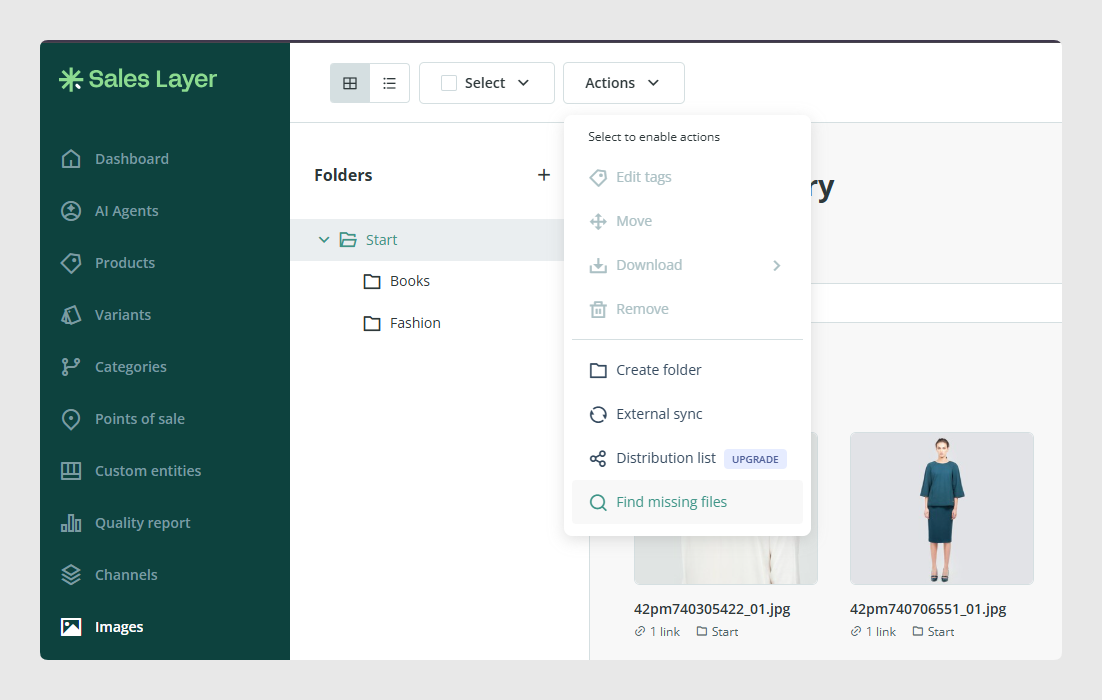
This view shows names that are stored in products or variants but do not correspond to an image currently available in the library.
How to correct a missing image
First, check whether the image should exist and review the name stored in the product or variant field.
Image and file names are case-sensitive. The name and extension must exactly match the asset uploaded to the library.
For example, the following file names are considered different:
product-100.jpgProduct-100.jpgproduct-100.JPG
Depending on the situation, you can correct a missing image in two ways.
Upload the corresponding asset
Use this option when the name stored in the product is correct but the image has not yet been uploaded.
- Locate the file on your computer or source system.
- Check that the file name and extension match the value stored in Sales Layer.
- Open the Images library.
- Import the image or drag it directly into the library.
- Check that the image is displayed in the corresponding product or variant.
You can import an image individually, upload a ZIP file, or drag files directly into the library. Drag-and-drop upload allows you to import up to 20 files at a time. For further information, check the article How to upload images and files to the library.
Correct the product or variant value
Use this option when the stored name is incorrect or refers to an image that should no longer be used.
- Open the affected product or variant.
- Locate the image field.
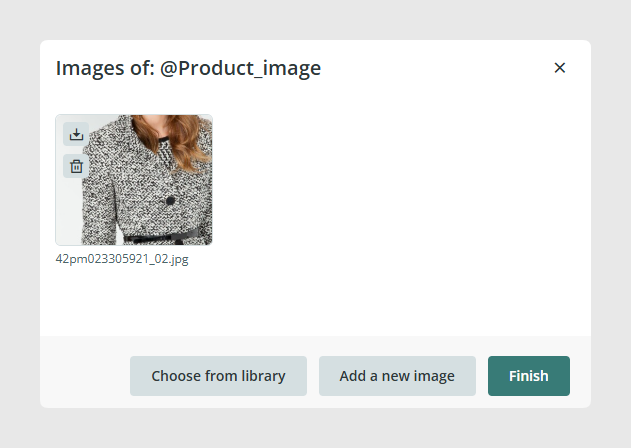
- Select the correct image from the library or add a new one.
- Save the changes.
You can also correct the value through an import if you need to update multiple products or variants.
How to locate unlinked assets
An unlinked image is available in the library but is not associated with any product or variant.
This can happen, for example, when:
- An image has been uploaded for future use.
- A bulk asset import was performed before the products were imported.
- The image was removed from a product field but kept in the library.
- The image was uploaded through an external synchronization, such as Dropbox.
- A collection of images was replaced and the previous versions are no longer used.
To locate these images:
- Open Images from the main menu.
- Open the filtering options.
- Select Not linked.
- Review the displayed assets.
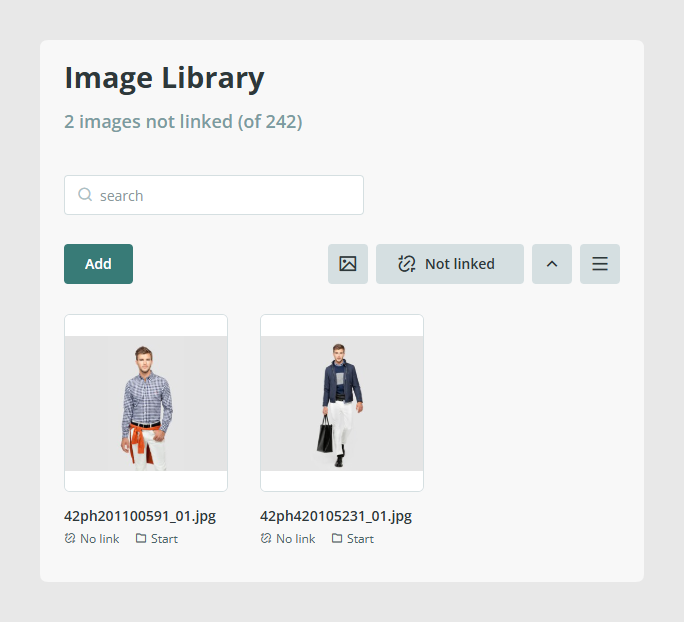
Sales Layer allows you to use this filter to identify images stored in the library that are not linked to products or variants.
What to do with an unlinked asset
Finding an unlinked image does not necessarily mean there is an error. It may be an asset that has been prepared for future use.
Review each asset and decide which action is appropriate.
Link it to a product or variant
If the image should be used, open the corresponding product or variant and select it from its image field.
You can also link it through an import using the exact file name.
Uploading an image to the library does not automatically make it appear in products. The asset must be linked from the item form or through an import.
Keep it in the library
You can keep the asset if it is pending approval, will be used soon, or is part of an upload that has not yet been linked to the catalog.
In this case, use a clear file name so that other users can identify its purpose.
Delete it from the library
If you confirm that the asset is obsolete, duplicated, or will no longer be used, you can delete it.
Before doing so, check that it was not uploaded for a future process and that no other user needs to keep it.
Download a library list
To review a large number of images or files, you can download a CSV containing the library information.
- Open the Images or Files library.
- Select Actions.
- Select Download information.
- Open the downloaded file to review the assets.
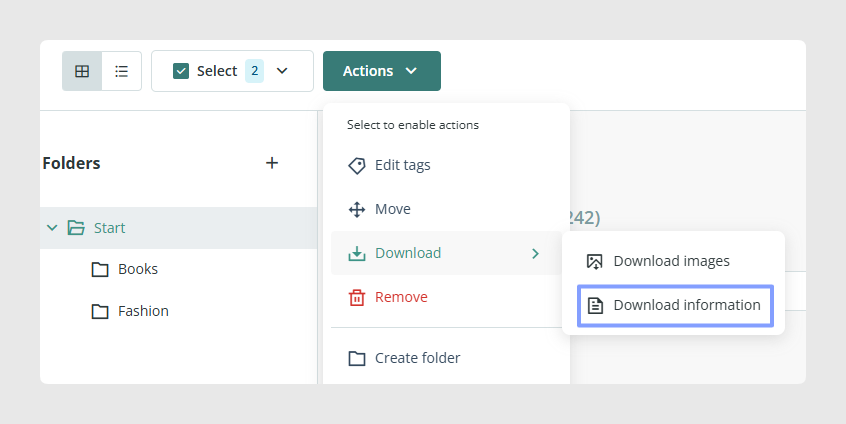
The Download information option allows you to obtain the information from the Images or Files library in CSV format.
You can use this list to:
- Review asset names.
- Detect possible duplicates.
- Compare uploaded files with the values in your catalog.
- Prepare an import to link assets.
- Identify images or documents that need to be reviewed.
Common issues
The image still appears as missing after uploading it
Check that the file name and extension are exactly the same.
For example, if the product contains product-200.png, uploading product-200.jpg will not resolve the missing image.
Also check uppercase and lowercase characters, spaces, and special characters.
The image is in the library but does not appear in the product
The image is probably not linked to the product or variant field.
Open the corresponding form and select it from the library, or import its file name into the image field.
A URL does not download the image
The URL must allow Sales Layer to identify the file name and extension. URLs without a recognizable extension or with certain parameters may not be processed correctly.
The source website must also allow external access. If it uses hotlinking protection, you will need to allow access from Sales Layer.
Was this article helpful?
That’s Great!
Thank you for your feedback
Sorry! We couldn't be helpful
Thank you for your feedback
Feedback sent
We appreciate your effort and will try to fix the article