The notification bell helps you keep track of actions, updates, and issues that may require your attention in Sales Layer.
Notifications are generated by different areas of the PIM. The notifications available to you depend on the features used in your account and your user permissions.
How to open your notifications
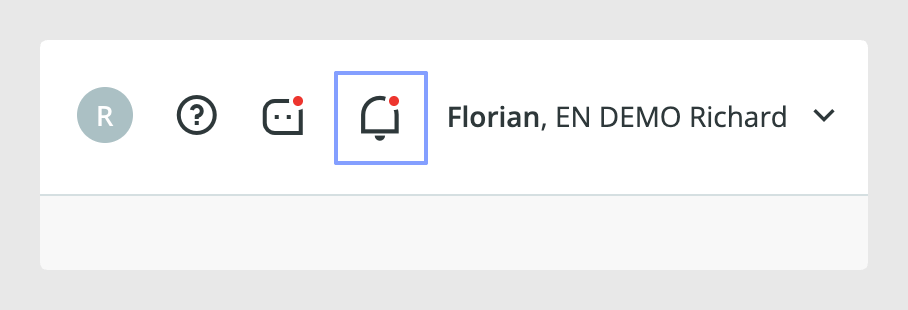
You can find the notification bell in the upper-right corner of Sales Layer.
Click the bell to open the notification panel and review the messages generated for your user. When a notification includes a link, click it to open and go directly to the item, connector, file, or other areas of the PIM.
Types of notifications
The notification panel can include messages from different Sales Layer features.
Files and exports
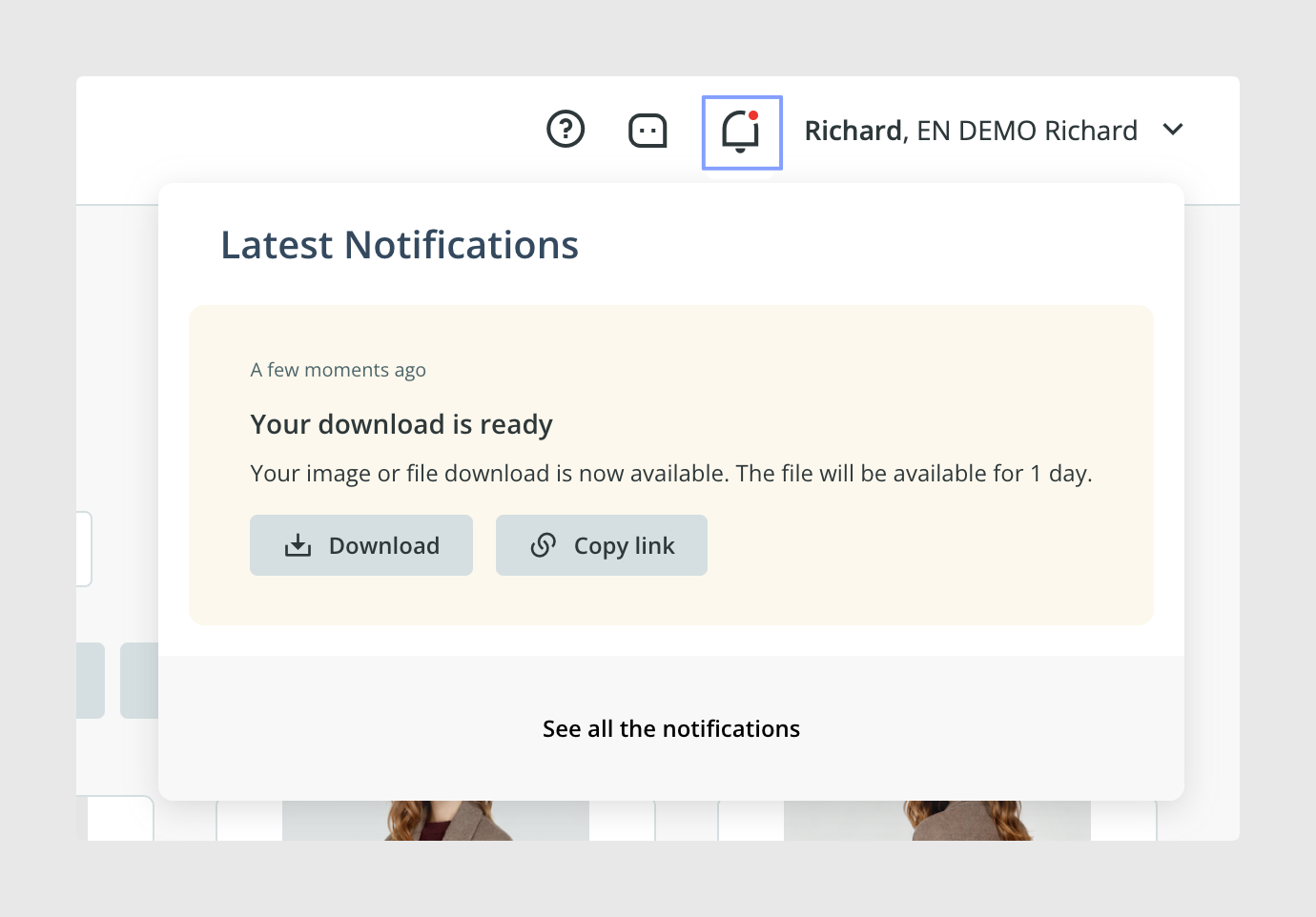
Sales Layer may notify you when a file or export is ready to download.
Open the notification to access the available download. This allows you to continue working without remaining on the page where the file was generated.
Workflow reviews
Workflow notifications inform editors and supervisors about actions that require review or approval.
For example, when an editor modifies an item included in a supervised workflow, the relevant supervisor may receive a notification indicating that changes are ready to be reviewed.
Notifications may also be generated when a workflow review is completed or when further corrections are required. Only users involved in the relevant workflow receive these notifications.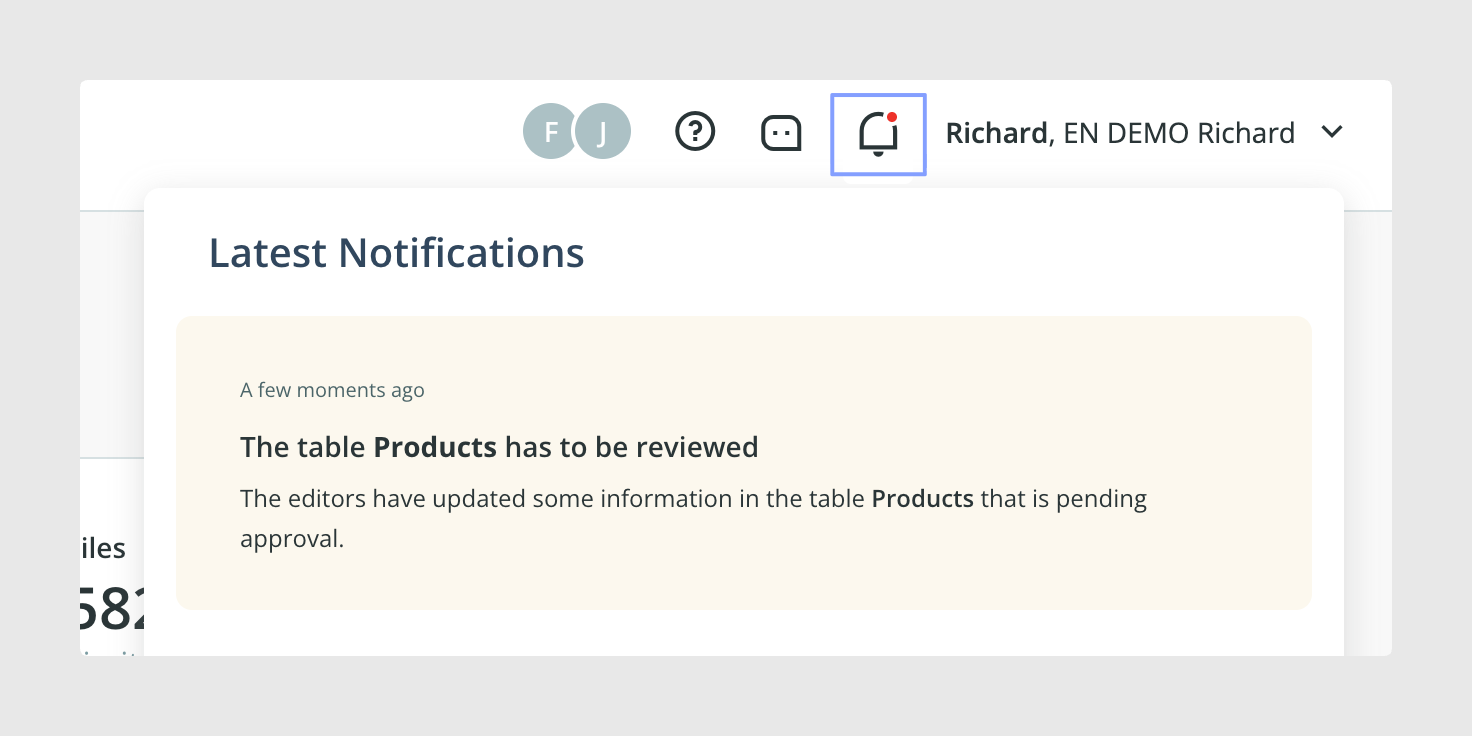
Connector warnings and errors
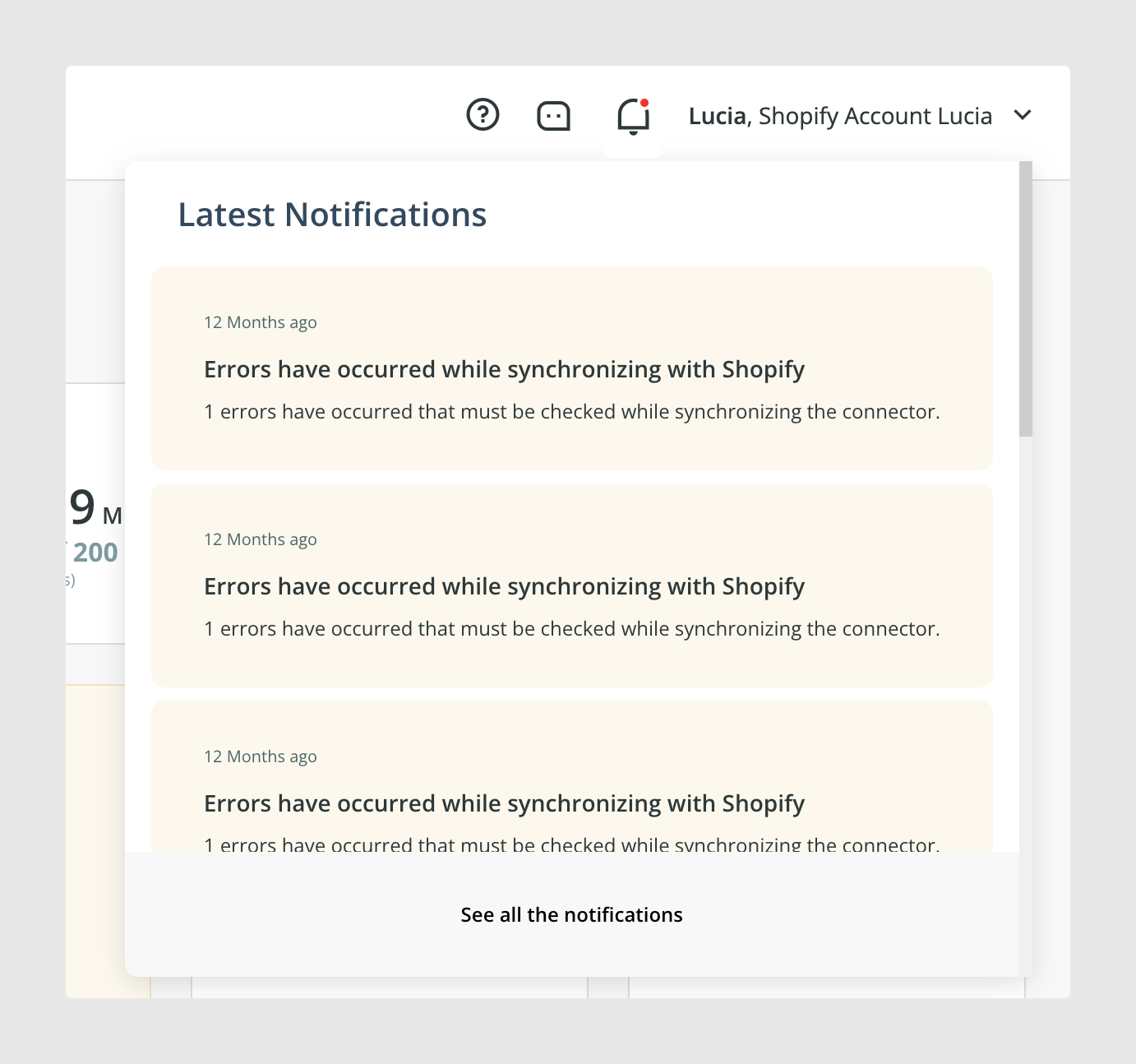
Connectors may generate notifications when a warning or error requires attention.
These notifications can help users identify synchronization problems or other situations that should be reviewed in the connector.
Some connector notifications are only available to users with the necessary permissions. For example, a user may need the appropriate Channel Management permission to receive or access certain connector-related notifications.
Why notifications can differ between users
Two users working in the same Sales Layer account may not receive the same notifications.
Notification availability can depend on:
- The user’s permissions.
- The tables or modules the user can access.
- The workflows in which the user participates.
- Whether the user is an editor or supervisor.
- Access to connectors and Channel Management features.
- The feature that generated the notification.
If another user receives a notification that you cannot see, check whether your role includes access to the related feature.
Email notifications
Email delivery is configured separately for each user from their personal information settings.
Each user can choose whether notification emails are sent and how often they are received.
To configure email notifications:
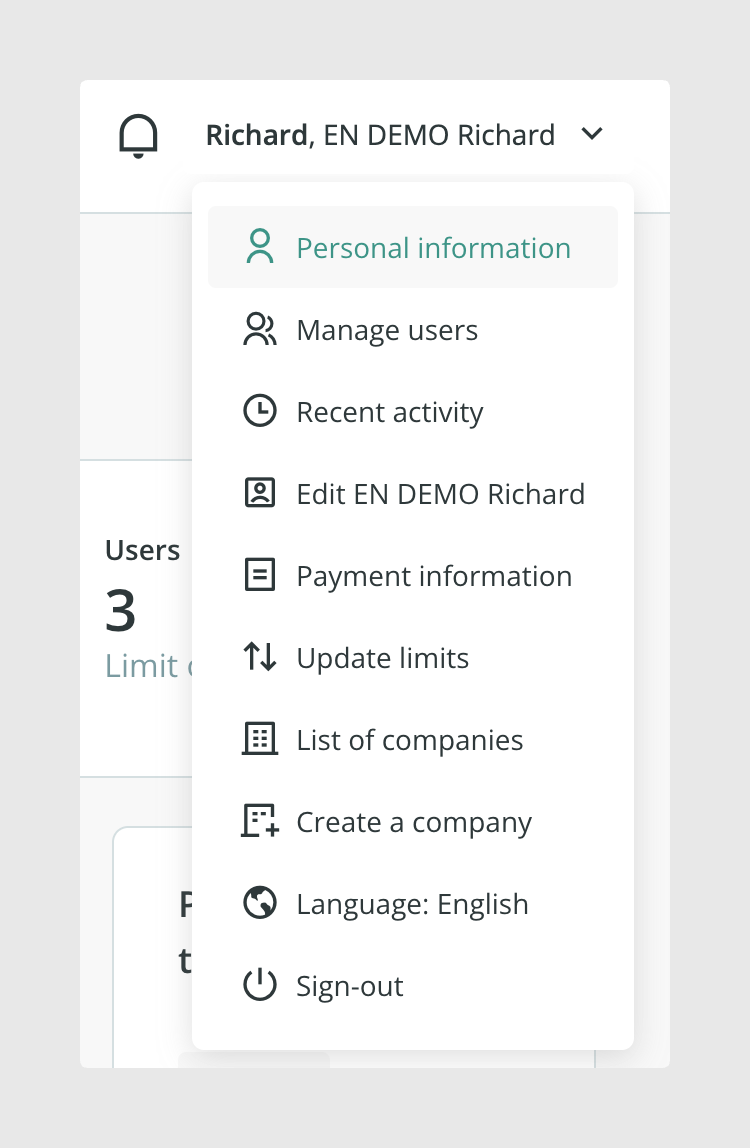
- Click your username in the upper-right corner of Sales Layer.
- Select Personal information.
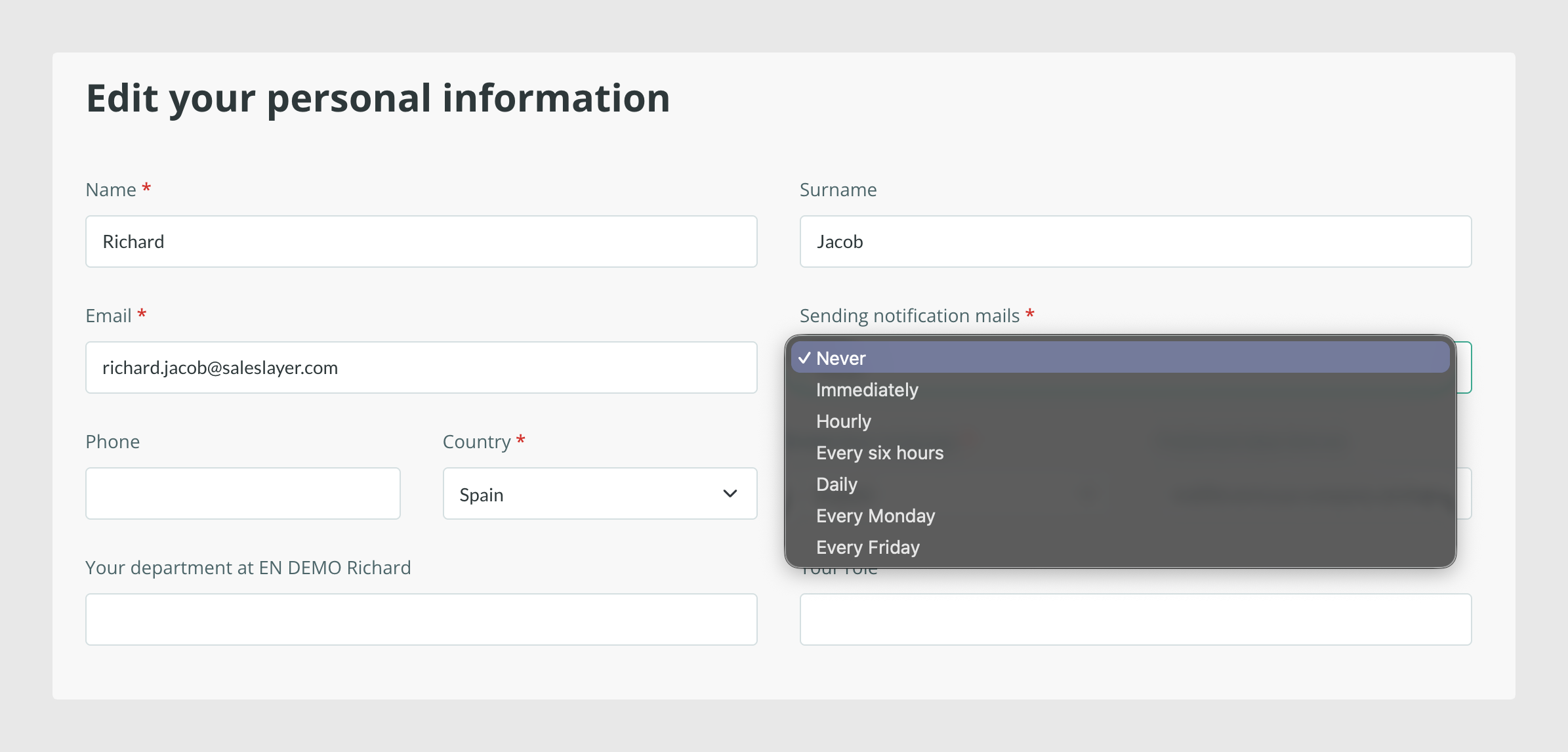
- Find the Sending notification mails setting.
- Select the preferred delivery frequency.
- Save the changes to your personal information.
The available email frequency options are:
- Never
- Immediately
- Hourly
- Every six hours
- Daily
- Every Monday
- Every Friday
Select Never to prevent notification emails from being sent. Notifications generated for your user may still appear under the bell icon inside Sales Layer.
Common Use Cases
The notification bell is useful for:
- Downloading completed exports.
- Reviewing changes submitted through workflows.
- Responding when another user mentions you in a comment.
- Identifying connector warnings or synchronization errors.
- Opening the relevant area of the PIM directly from a notification.
Best practices
Review the notification bell regularly, especially when working with exports, supervised workflows, comments, or connectors. Prioritize Alert and Error notifications and open the related item or module to review the available details. If expected notifications are not displayed, check that your user has the permissions required for the feature that generated them.
Was this article helpful?
That’s Great!
Thank you for your feedback
Sorry! We couldn't be helpful
Thank you for your feedback
Feedback sent
We appreciate your effort and will try to fix the article