Customization fields
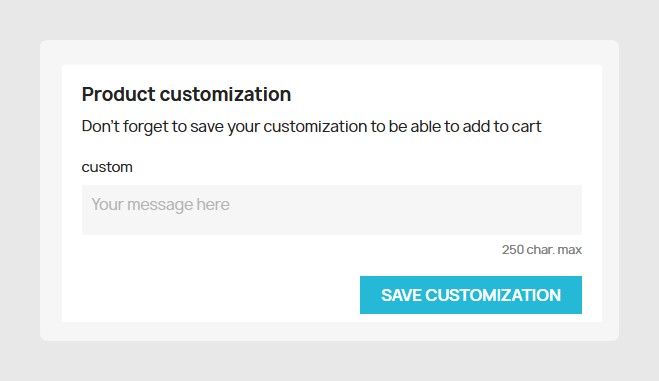
To create custom fields, use the Customizable field in the Sales Layer channel. The plugin allows internal field commands that you can add after the field name, such as Field_name:file or Field_name:archivo.
If you want a field to be required, use the command Field_name:required.
The fields can be created as comma-separated text, attribute lists, or by using a formula to generate comma-separated text. If you want to send the field in different languages, choose the text field.
Examples:
- When sending the field Name_field:file from Sales Layer to PrestaShop, it becomes a field to upload images.
- When sending the field Name_field:required from Sales Layer to PrestaShop, it becomes a required field for the customer.
- When sending the field Name_field:file:required from Sales Layer to PrestaShop, it becomes a required image upload field.
Custom colors
Since version 1.4.3, the plugin includes a folder named colors. This folder includes a small color database that recognizes different languages. It is used to recognize color attributes that do not exist in PrestaShop for variants.
For example, if Sales Layer has a variant with the Spanish color verde claro, the plugin tries to find the file es.txt, removes accents and spaces, and searches for verde claro to assign the color #90ee90, which is defined in that file.
These files can be customized according to your needs. Every company may use different color names and color maps in multiple languages.
The option allows you to keep the file. With each update, it simply copies and pastes the color files from the plugin. Having a file in the language you use is enough to recognize colors and assign them the first time the attribute is created.
Another way to send colors is to send them as text:
verde claro:#90ee90
The plugin accepts everything before :# as the name and everything after it as the color, for example #90ee90.
Version 1.4.16
Since version 1.4.16, the system allows many color codes for the same name. For example, there could be 20 colors named white, each with a different hex code. In that case, the hex codes are part of the synchronization search to identify the searched value. If the name and code match does not exist, it is added to PrestaShop.
Tags and attached files
Since plugin version 1.4.7, it is possible to manage product tags. If you do not want the channel to manage, edit, or delete existing tags, disable the Tags field in the channel configuration.
The attached files function has been available since version 1.4.7 through the field named File Attachment in the Sales Layer channel.
This field does not allow multiple languages. Only attached files are assigned to the product.
Stock
Sales Layer was not designed to work with stock. However, through the PrestaShop connector, it is possible to send the number of stored items.
To do this, in the Output Data section of the Products tab, map the Quantity field with the corresponding one, in the same way as in the Variants table.
To send it correctly, the Overwrite Stock Status checkbox within the connector configuration in the Sales Layer plugin in PrestaShop must be active:
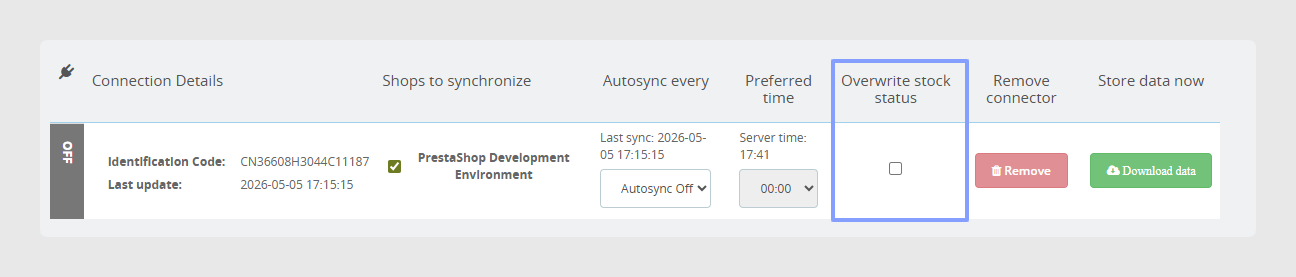
If you do not want to manage stock from Sales Layer, disable the Quantity field within the Sales Layer connector. Select the field and go to Actions > Disable field. This way, you do not have to select the Overwrite Stock Status checkbox.
Carrier
To choose a carrier for the product, the carrier must first be created in PrestaShop.
From Sales Layer, send the name or id_reference in the Carrier field in the Products tab.
Suppliers
Supplier management is available with the fields created or filled in the Products tab of the channel configuration.
Following the naming criteria described in the connector, you can generate suppliers with the prefix product_supplier_x for the name and product_supplier_reference_x for the provider reference.
During synchronization, it is possible to send the id_supplier or the supplier name in the product_supplier_x field to link it with the product. If the reference does not exist, it is automatically added to the PrestaShop supplier.
In the same way, it is possible to add suppliers in the Variants tab by using the prefix format_supplier_x.
Since version 1.4.16 of the plugin, it is possible to add the default supplier. To do so, in the product_supplier field, add the suffix :default to the name or ID sent in the field. If no default supplier is chosen, the first provider will be chosen.
Manufacturers
Through the connector, it is possible to manage the different manufacturers of products.
To do this, insert the name of the manufacturer of a specific item in the Manufacturer field in the connector.
If you want to add the value through the manufacturer ID already created in PrestaShop, add the suffix :ID to the same text that you send.
Product type and visibility
Through the connector, it is possible to map the product type and its visibility in the online store.
To map the product type field, select the appropriate field in Type in the connector. The field must contain one of the following words:
- virtual, for a virtual product.
- simple, for simple products.
- pack, for pack-type products.

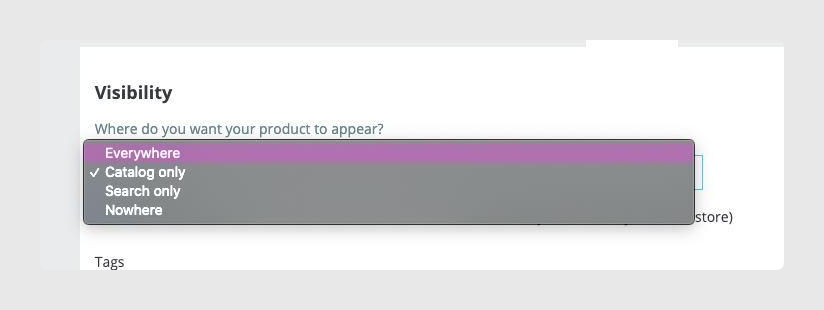
To map the Product Visibility field in the store, fill in the Visibility field with one of the following words:
- both, for the whole store.
- search, for search results only.
- catalog, for catalog only.
- none, for hidden.
Product redirection
It is possible to redirect items when they are deactivated in the store by creating the following fields in the connector:

The redirect_type field maps to the redirection when the product is disabled, and the id_type_redirect field maps to the destination ID field.
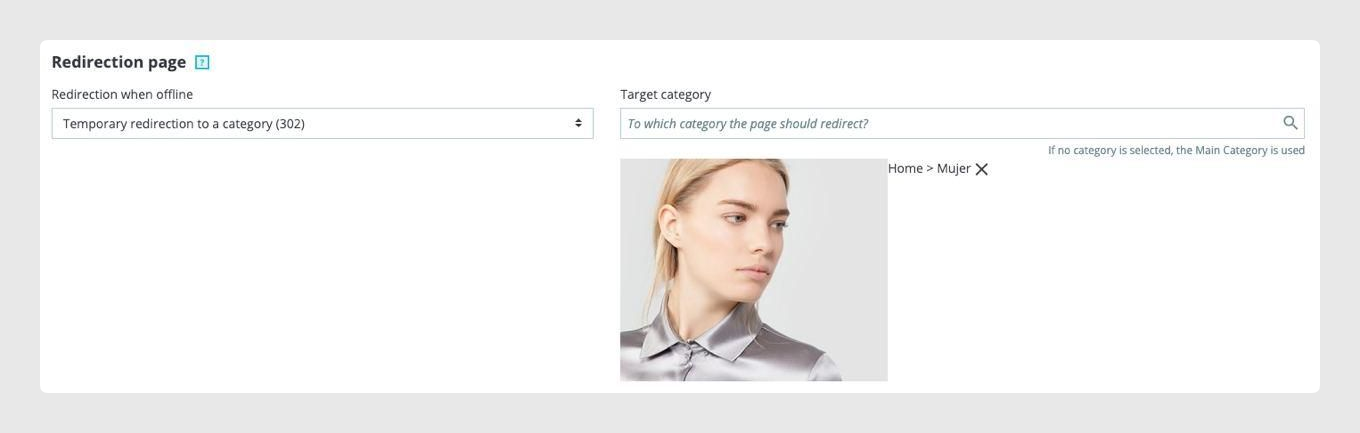
To map the redirect_type field, fill in a field that contains one of the following words:
- 301-product, for permanent redirection to a product.
- 302-product, for temporary redirection to a product.
- 301-category, for permanent redirection to a category.
- 302-category, for temporary redirection to a category.
To map the id_type_redirect field, send the internal ID of the item in PrestaShop.
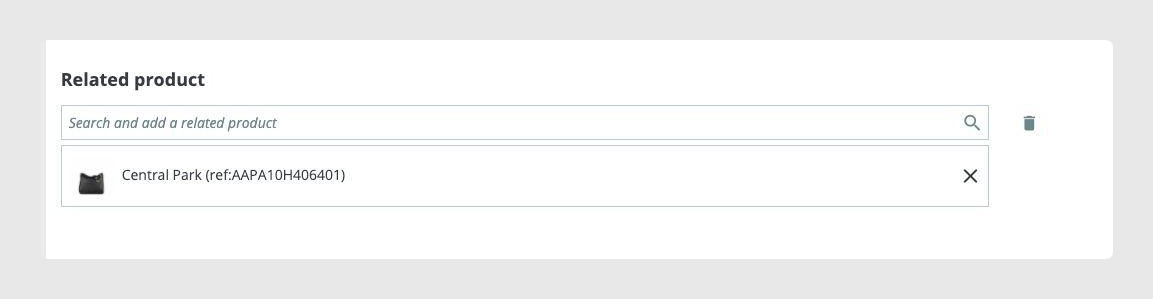
Related products
To send the PrestaShop related product field, fill in the Accessories field in the Products table with a Related Item field.

Other available product fields
product_show_price: Show price. Allowed values: true, 1, yes, si, false, 0, no.
product_available_for_order: Product available for sale. Allowed values: true, 1, yes, si, false, 0, no.
product_available_online_only: Product available only online. Allowed values: true, 1, yes, si, false, 0, no.
low_stock_threshold: Low stock. Allowed values: integer from 0 to 10 or more.
product_available_date: Date availability. This is a date field.
product_condition: Product condition. Allowed values: new, refurbished, used.
Other available variant fields
available_date: Date availability for the variant. This is a date field.
default_on: When there are different variants, this option lets you choose the default one. Allowed values: true, 1, yes, si, false, 0, no.
low_stock_threshold: Low stock. Allowed values: integer from 0 to 10 or more.
ecotax: Float. Default value: 0.000000.
Best practices
- If you do not want the channel to manage, edit, or delete existing tags, disable the Tags field in the channel configuration.
- If you do not want the channel to edit or delete files that currently exist in PrestaShop and are linked to the product, disable the File Attachment field. If the channel detects that the file is not being sent from Sales Layer, the file is deleted from PrestaShop.
- If the Overwrite Stock Status checkbox is not selected, Sales Layer only updates stock information when the item is created. The value is not updated by the plugin in future updates, even if it changes.
- If you do not want to manage stock from Sales Layer, disable the Quantity field in the Sales Layer connector instead of using the overwrite stock option.
- To avoid existing carriers being erased, disable the Carrier field in Sales Layer if you do not want the connector to manage carriers. Otherwise, if a product has not been assigned a carrier, the product carrier is automatically deleted during the next synchronization.
- If the product type is sent as pack without the pack_product_x, pack_format_x, and/or pack_quantity_x fields filled in, it is created as a simple product.
Was this article helpful?
That’s Great!
Thank you for your feedback
Sorry! We couldn't be helpful
Thank you for your feedback
Feedback sent
We appreciate your effort and will try to fix the article