1. When synchronizing an e-commerce, is the existing data overwritten or duplicated? Do I need to delete it?
The existing data is not deleted, and it is not required to delete it.
To synchronize, the plugin looks for a relationship through the ID between the existing data in PrestaShop and the data coming from Sales Layer, normally using an intermediate table or attributes generated in the e-commerce.
If that relationship exists, the plugin updates the product information. Otherwise, the plugin looks for existing products with the same reference or name that are not assigned to other Sales Layer IDs. If the plugin finds one, it establishes the relationship and updates the data. If not, it creates the record.
2. If I delete a product directly in Sales Layer, is it deleted in the e-commerce too?
Categories and products change their status to deactivated, and variants are deleted in the e-commerce. However, if the channel in Sales Layer is refreshed or modified before it is synchronized after deleting products in Sales Layer, products will not be deleted and will remain in an inconsistent status. They exist in the e-commerce, but not in Sales Layer. In that case, the only solution is to delete them directly from the e-commerce.
3. How long does it take to synchronize an e-commerce?
This depends on resources, number of attributes, and similar factors. It can take between 0.5 and 1.5 seconds per category and variant, and 1 to 3 seconds per product, at least during creation. Updates are faster. If there are no new images being processed, it is faster.
4. The console shows an Ajax error 404
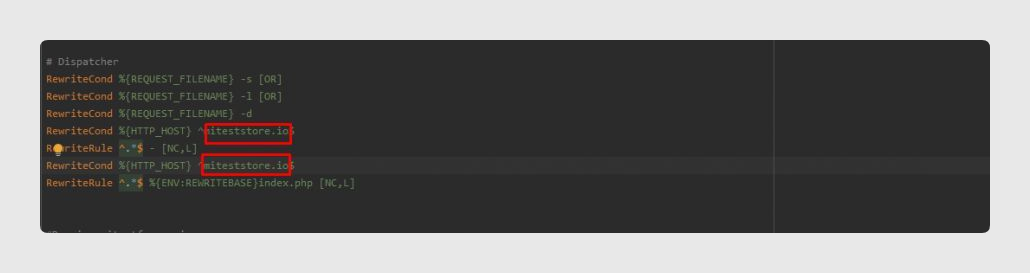
This can happen for different reasons. Typically, it comes from changes in PrestaShop domains. If the PrestaShop installation had a domain that no longer exists, outdated redirection rules are likely to remain in the .htaccess file.
To solve it, verify that the configuration in the #Dispatcher section of the file is correct.
This error does not cancel synchronization. The plugin uses Ajax so the customer can easily manage the synchronization status. It has a security layer so that, if there is an error, the form is sent anyway to complete the action.
5. If I update a product field that is not mapped and linked in the PrestaShop connector, will the system send the product to the e-commerce?
Yes. Every time you modify a field in a product, whether it is a field in the PrestaShop connector or not, the item is updated and sent to the e-commerce.
6. What is the meaning of the colors of the PHP modules in the Diagnostics tab?
In this tab, you can see modules in different colors: green, gray, and blue.
- Green means that Sales Layer and the PrestaShop installation use and share the same module.
- Gray means that Sales Layer uses that module, but the PrestaShop installation does not use it.
- Blue means that Sales Layer does not use that module, while the PrestaShop installation does.

7. How do we change the version of the plugin?
If you want to change the plugin version, we recommend updating the module in PrestaShop instead of uninstalling it. If you uninstall the plugin, you will lose all item links between Sales Layer and PrestaShop. When installing the new plugin, some modifications will not be reflected in PrestaShop, such as changing product status to draft or invisible.
8. How to export product images from PrestaShop
You may need to upload data from PrestaShop to Sales Layer. This can create a common problem because of the way PrestaShop manages image names. Once an image is uploaded to PrestaShop, it is stored with a folder identification system and a unique name per image.
For example:
- For products: http://domain/img/p/1/2/3/4/1234.jpg and http://domain/img/p/1/2/3/5/1235.jpg.
- For categories: http://domain/img/c/1/2/3/4/1234.jpg and http://domain/img/c/1/2/3/5/1235.jpg.
When you access the same images in the shop, PrestaShop replaces the image identifier with the product or category one:
- http://domain/1234-prod_default/product.jpg
- http://domain/1235-prod_default/product.jpg
This is why the URL is exported this way when it comes directly from a PrestaShop export: different folders, same image name. When Sales Layer imports it, because the name cannot be duplicated, only one with the same name will be uploaded.
To avoid this situation, modify the configuration from PrestaShop. Go to Configure > Advanced Parameters > Database > Add new SQL query:
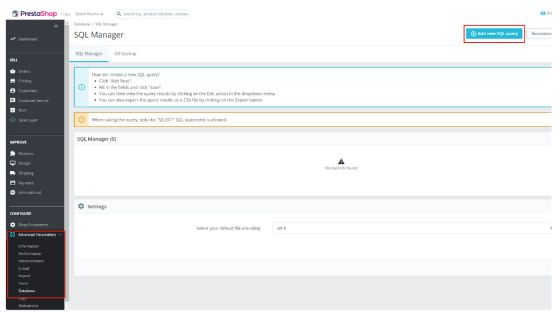
Then add the query to get the content to export from PrestaShop in a CSV file. With this CSV content, you can import it into Sales Layer. The example uses a fake domain name.
SELECT aux.reference,
       Group_concat(aux.img SEPARATOR ' ,') AS imagenes
FROM   (SELECT p.id_product,
               p.reference,
               CASE
                   WHEN Length(im.`id_image`) = 6 THEN
                       Concat('https://yourdomain.com ', '/img/p/', INSERT(INSERT(INSERT(INSERT(INSERT(im.`id_image`, 2, 0, '/'), 4, 0, '/'), 6, 0, '/'), 8, 0, '/'), 10, 0, '/'), '/', im.`id_image`, '.jpg')
                   WHEN Length(im.`id_image`) = 5 THEN
                       Concat('https://yourdomain.com ', '/img/p/', INSERT(INSERT(INSERT(INSERT(im.`id_image`, 2, 0, '/'), 4, 0, '/'), 6, 0, '/'), 8, 0, '/'), '/', im.`id_image`, '.jpg')
                   WHEN Length(im.`id_image`) = 4 THEN
                       Concat('https://yourdomain.com ', '/img/p/', INSERT(INSERT(INSERT(im.`id_image`, 2, 0, '/'), 4, 0, '/'), 6, 0, '/'), '/', im.`id_image`, '.jpg')
                   WHEN Length(im.`id_image`) = 3 THEN
                       Concat('https://yourdomain.com ', '/img/p/', INSERT(INSERT(im.`id_image`, 2, 0, '/'), 4, 0, '/'), '/', im.`id_image`, '.jpg')
                   WHEN Length(im.`id_image`) = 2 THEN
                       Concat('https://yourdomain.com ', '/img/p/', INSERT(im.`id_image`, 2, 0, '/'), '/', im.`id_image`, '.jpg')
                   WHEN Length(im.`id_image`) = 1 THEN
                       Concat('https://yourdomain.com ', '/img/p/', INSERT(im.`id_image`, 2, 0, '/'), im.`id_image`, '.jpg')
                   ELSE ''
                   end AS "img",
               im.cover
        FROM   ps_product p
                   LEFT JOIN ps_image im
                             ON ( im.id_product = p.id_product )
        ORDER  BY cover DESC) AS aux
GROUP  BY id_product;
There are two things to consider about this query:
- Adapt the domain name in all concat values with the URL.
- Include the order of the images so the cover image follows the image order.
From here, you only need to adapt the query for categories and any other image field to import into Sales Layer.
9. What do I do when there is a synchronization error with Related Products and Pack Products?
The first time a pack product or related product is synchronized, the reference link to the pack product may not be found. This happens because the related product is not in the database yet.
syncOneProduct() > product reference : "myProduct" product type pack. ## Error. Product reference to link does not yet exist ->Array
To solve this problem, re-synchronize and download the data again using the plugin connector.
10. Synchronization errors with catalog ID do not exist in the table
When you see this message:
syncOneProduct() > ## Error. product reference : "myProduct" The catalog with ID :X for the company with ID: XXXX does not exist in the table. It is possible that it has been deactivated or deleted.Change the state of the category and of the product to invisible,and then back to visible again so that the issue can be resolved.
Ignore it. It is not an error.
11. What happens when there is a pagination error because there are too many items on a page?
When this happens:
storeSyncData() > ##Error.:xxx Msg: Error connection: Empty reply from server
The plugin has high pagination set in the connector for the items it is synchronizing.
To solve this issue, wait for the synchronization processes to finish and then synchronize again. This time, select a lower number of pages in the connector.
12. Debugging an item at a low level
Starting from version 2.1.1 of the plugin, it is possible to debug specific items with complete detail. This works even with debug logs deactivated in the Diagnostics section.
The functionality applies to categories, products, and variants.
To activate it, follow these steps:
- Create a record in the slyr_additional_config table, which is created with the table prefix chosen by the client in their PrestaShop installation.
- Create a row for each type of item you want to debug. For example, create a record with configname = {CATEGORY_LOG, PRODUCT_LOG, VARIANT_LOG}, and with save_value = ID:38034|ref:WOOD-TABLE-1000.
In these records, you can add:
- Internal IDs of the Sales Layer item using ID.
- Client item references using ref.
- The | operator allows adding multiple items. The length of this field is 500 characters by default.
As a result, the details of these items are displayed in the debug logs.
Was this article helpful?
That’s Great!
Thank you for your feedback
Sorry! We couldn't be helpful
Thank you for your feedback
Feedback sent
We appreciate your effort and will try to fix the article