To continue with the configuration, return to the connector you created in your Sales Layer account.
In the Parameters tab, select the appropriate option for the following fields:
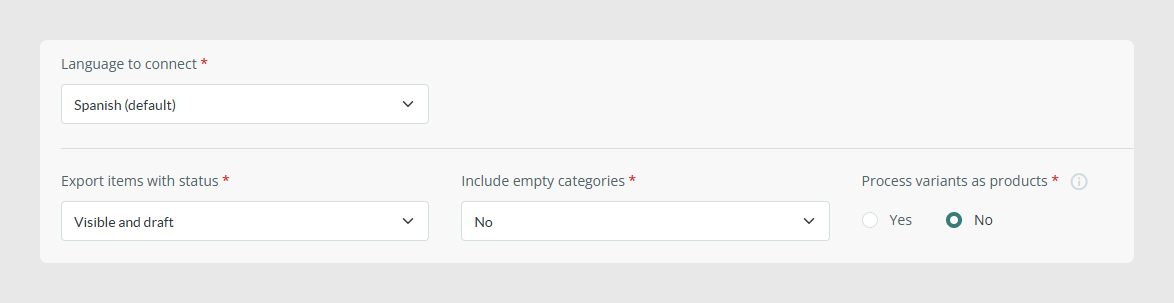
Language to connect
Select the language you would like to connect. If you choose a secondary language, not the default language, an additional option will appear. By enabling it, Sales Layer automatically adds texts from the original language into the empty fields of other languages.
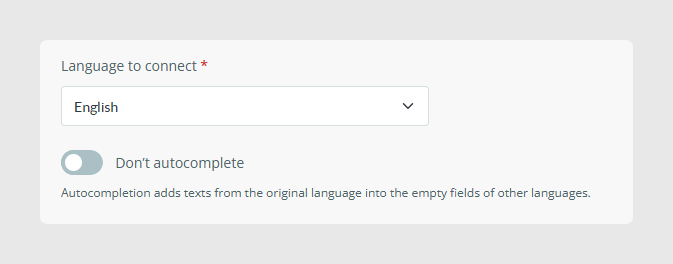
Export items with status
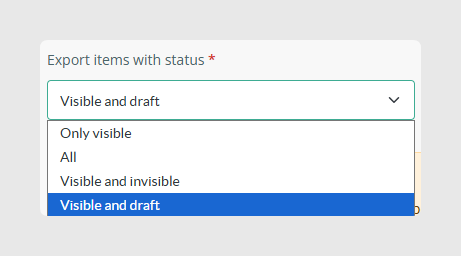
- Only visible: creates or modifies only items in this status. If you change a group of items from visible to another status, the connector disables these items in Magento.
- All: creates or modifies all items. Draft and invisible products will also be created and modified.
- Visible and invisible: creates or modifies only items in these statuses. If you change a group of items from visible or invisible to draft, the connector disables these items in Magento.
- Visible and draft: creates or modifies only items in these statuses. If you change a group of items from visible or draft to invisible, the connector disables these items in Magento.
Other parameters
- Include empty categories: when selecting “Yes”, the connector includes categories with no products. A category is considered empty if it does not have products or if all its products are outside the status filtered in the connector.
- Process variants as products: when selecting “Yes”, synchronization sends variants as products to Magento. This hides the Products tab in Output Data automatically, and existing product fields are added to the Variants tab.
- Remove this channel: use this option only if you want to delete the channel.
- Force refresh: use this to run a full synchronization of all products, previous and new, and all their fields, whether they have been modified or not.
Aspects to consider
Once the Magento connector configuration has been saved and the cron jobs are operational, the next synchronization will occur according to the previous configuration set in Magento, regardless of the Sales Layer configuration. It will also follow these rules:
- In addition to taking into account the status of the selected items in the connector, it will synchronize any items that may have changed in Sales Layer. This includes categories, products, variants, and images.
- When updating the connector, all items matching the connector filters will be sent.
- It will not synchronize previous items that have already been synchronized and have not changed or are not relevant to the modification of a connector.
- When synchronizing items with fields that have multiple options, for example a color field with the values blue and red, the field values are added to the Magento store views on the first synchronization. After that, selecting items to be synchronized in a new store view will not update these attribute values unless a new list value is sent.
If you need to launch a complete synchronization including all products and fields, whether modified or not, you can use the Force refresh button located at the top of the Parameters tab. This sends all catalog data, images, formulas, and other content. It will increase the duration of the synchronization.
Forcing the connector does not ensure immediate synchronization, because it depends on the existing process queue.
Examples of this behavior:
- By modifying one variant, all variants of that product will be sent. If a product in Sales Layer has 50 variants and only one is changed, all 50 will be synchronized.
- When modifying a variant, its product will be sent, but not its category.
Finally, click the green Continue button at the bottom right corner.
Was this article helpful?
That’s Great!
Thank you for your feedback
Sorry! We couldn't be helpful
Thank you for your feedback
Feedback sent
We appreciate your effort and will try to fix the article