Data entry and structure
In the Sales Layer API documentation, GET requests are used to retrieve information and POST requests are used to import information.
The previous examples show how to work with the API through the SDK. This article explains how to test the same API in Postman.
To test GET requests, create an export connector. To test POST requests, create an import connector. Both can be edited in the Channel Marketplace.
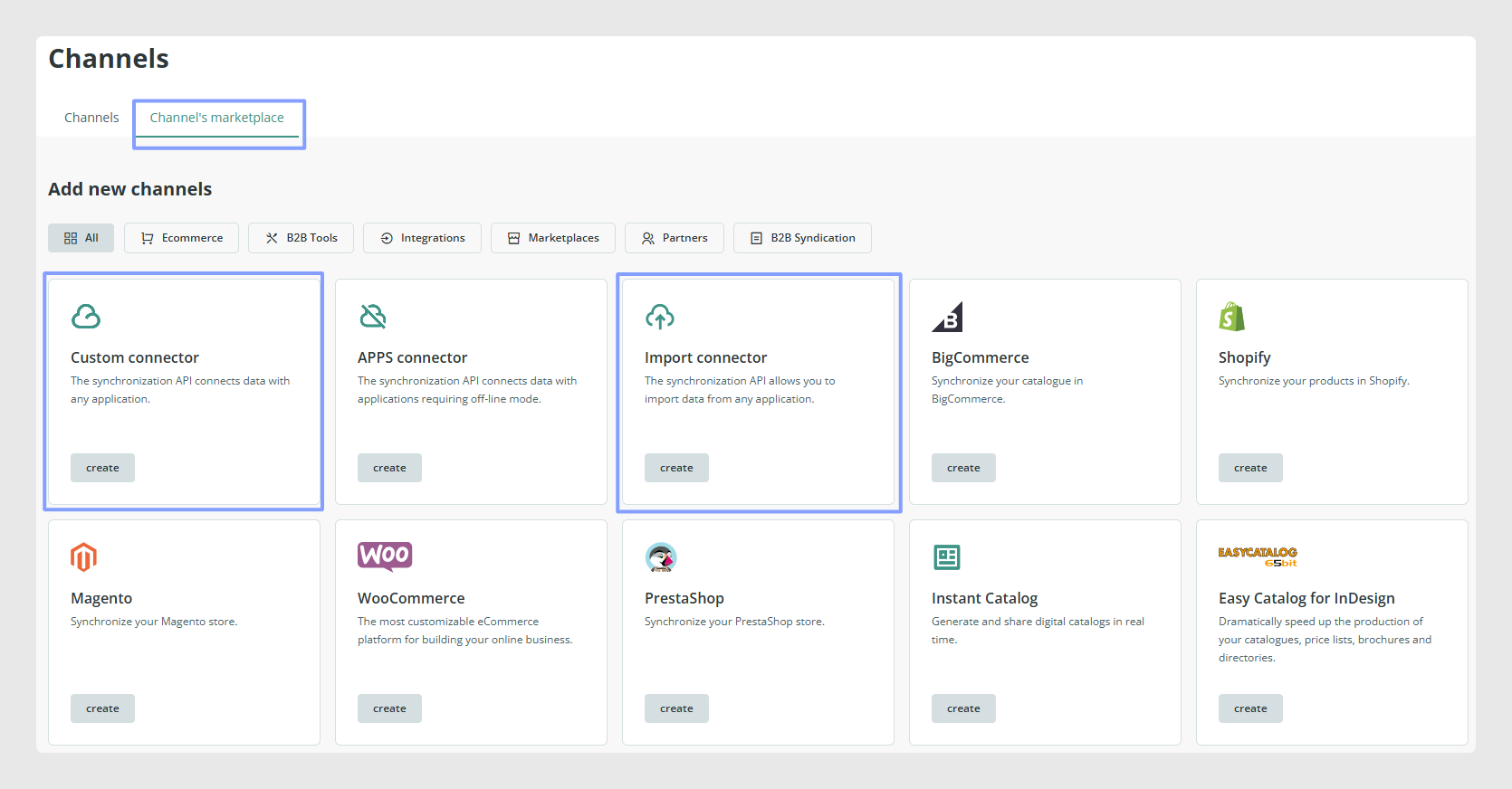
In the export connector, configure the languages, item status, and the tables and fields to export.
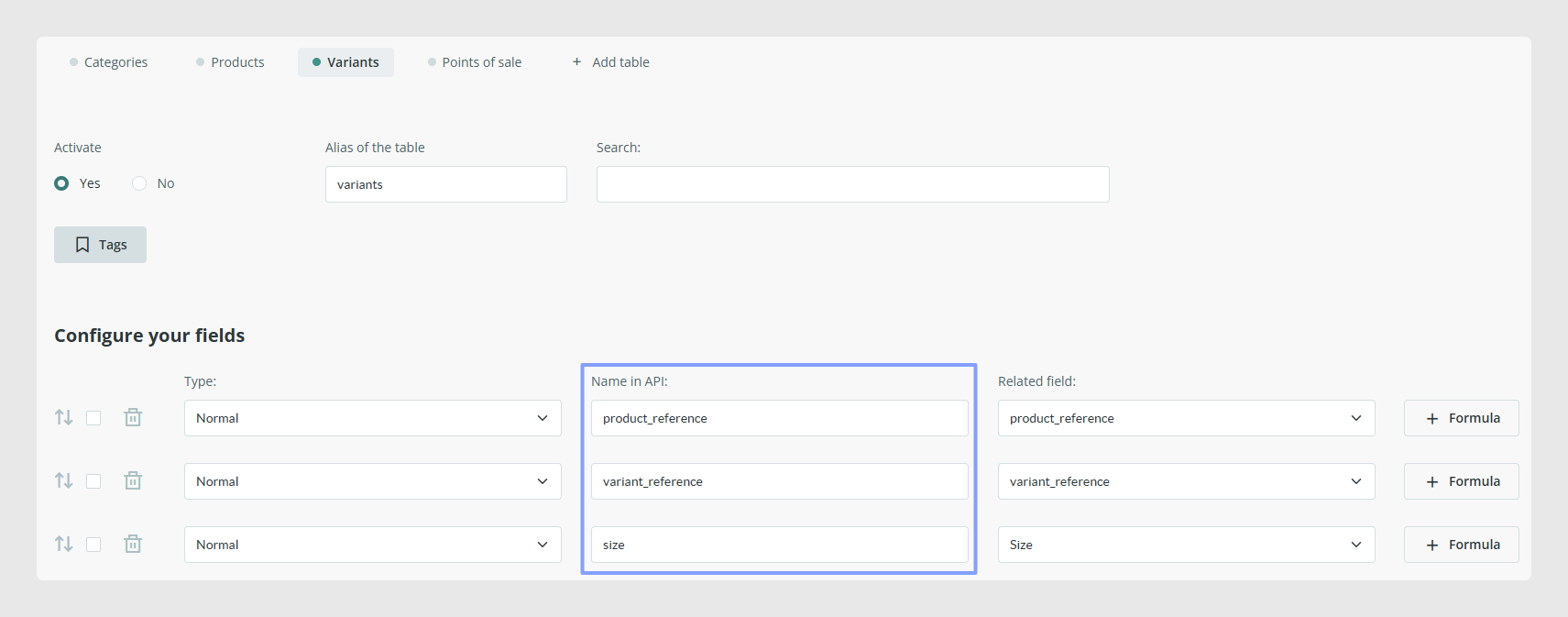
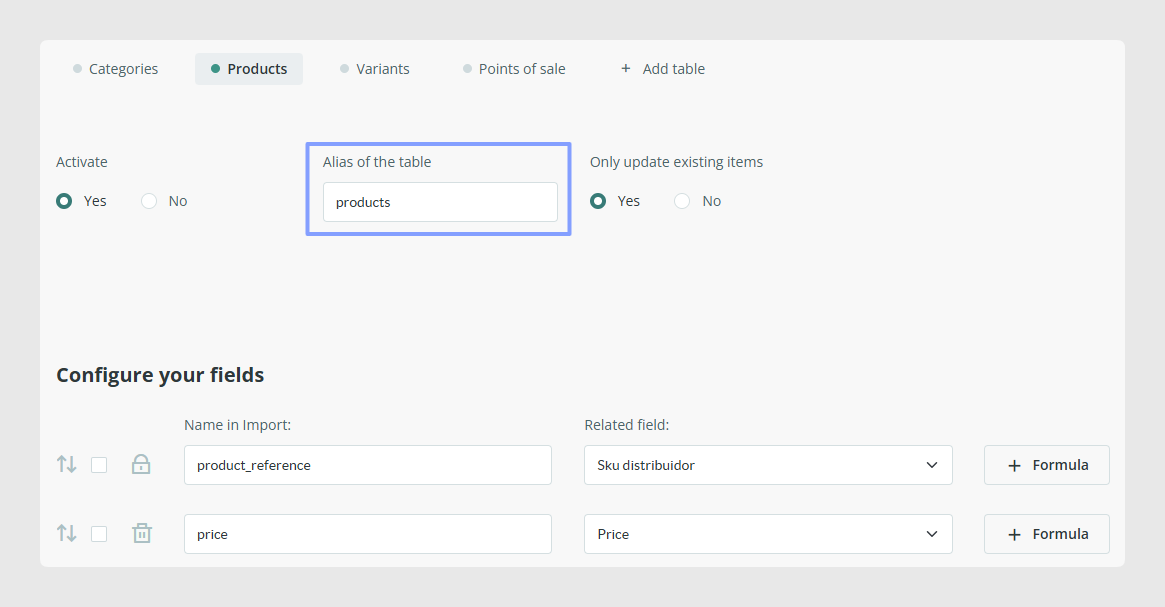
In the import connector, configure the languages to import and the fields you want to receive. The field names in the import connector must match the input_data structure exactly.
Another important setting in import connectors is the option that decides whether the connector should import only existing items.
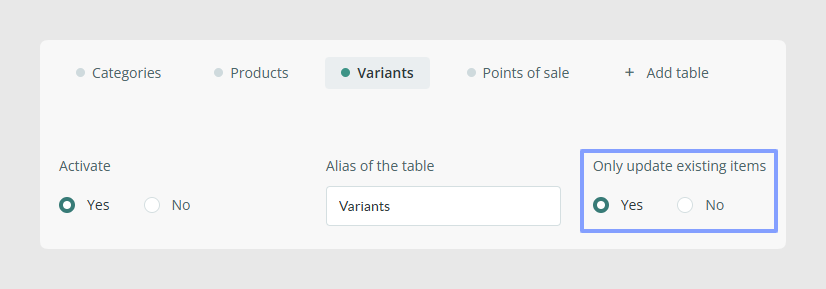
If you want to create new items, select No in that first option.
In Postman
To get started, install the Postman application or use its cloud version. Before testing, make sure you understand the required and optional API parameters.
The request URL is: https://api.saleslayer.com.
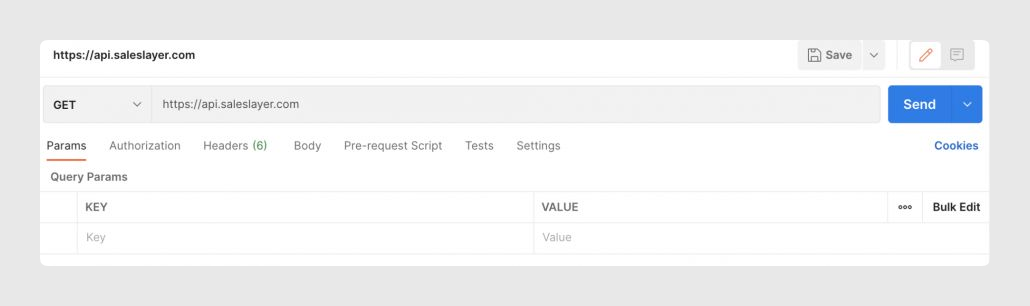
Both GET and POST requests use the same required parameters:
code: connector identifiertime: current UNIX timestampunique: random security numberkey: combination of the three previous parameters plus the private keykey256: SHA256 version of that signature
Define those parameters in the Params tab in Postman.
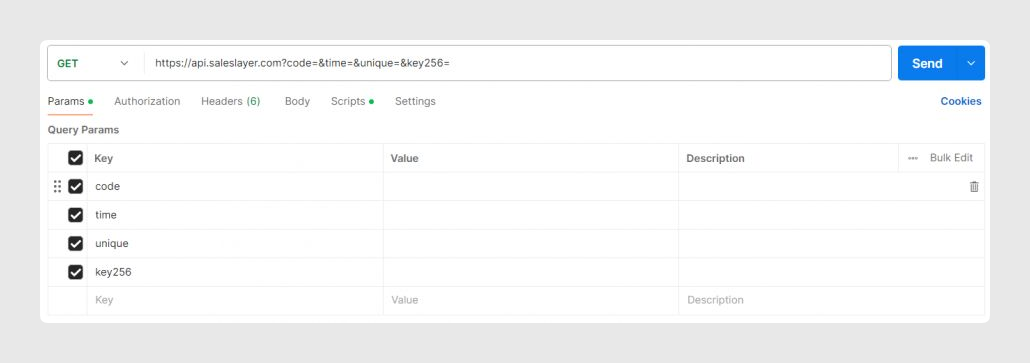
If you use SHA256, send the parameter as key256 instead of key.
To generate the values automatically, define variables in Postman and add a pre-request script.
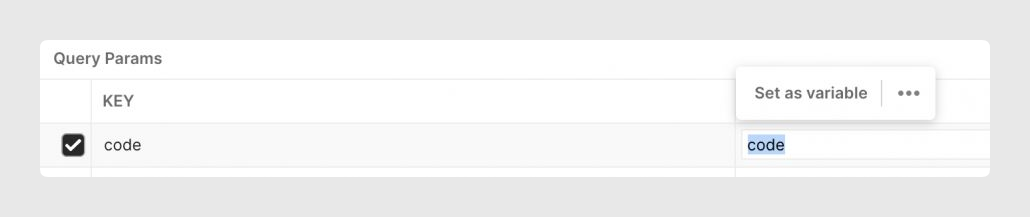
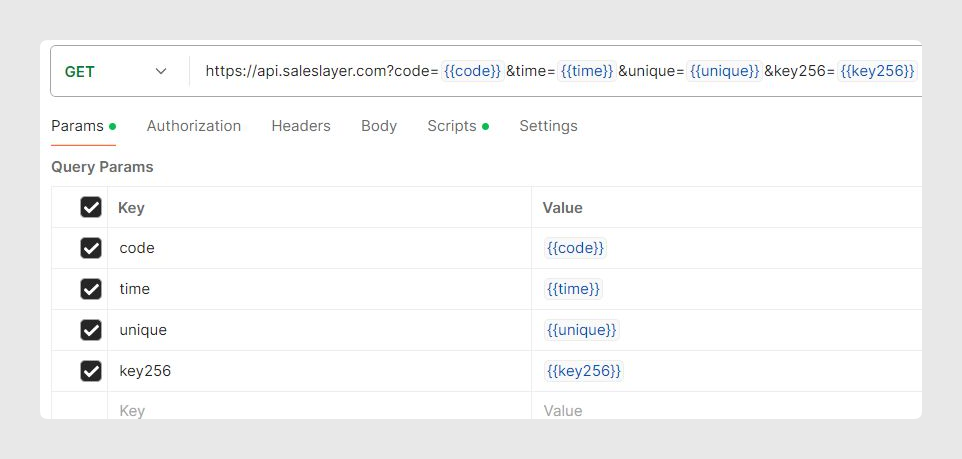
The example script sets the connector code, private key, random value, current UNIX time, and the final SHA256 signature. The same logic can be implemented in other ways too.
pm.globals.set("code", "ID_connector");
var secret_key = "secret_key";
var unique = Math.round(Math.random() * 100000);
pm.globals.set("unique", unique);
var timeInSeconds = parseInt((new Date()).getTime() / 1000);
pm.globals.set("time", timeInSeconds);
var sigString = pm.globals.get("code") + secret_key + timeInSeconds + unique;
var CryptoJS = require("crypto-js");
var key = CryptoJS.SHA256(sigString);
pm.globals.set("key256", key.toString());
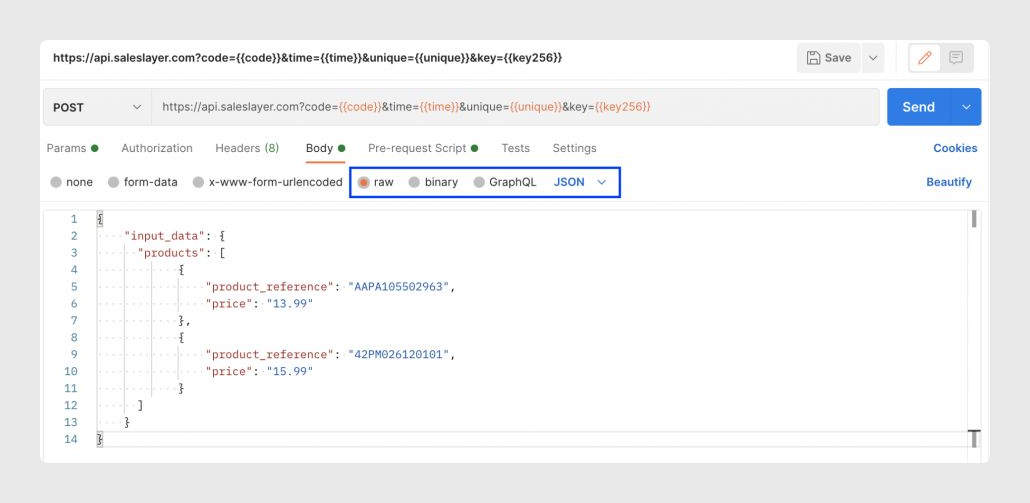
For POST requests, switch the request type, go to Body, select Raw and JSON, and send the input_data structure that matches your import connector.
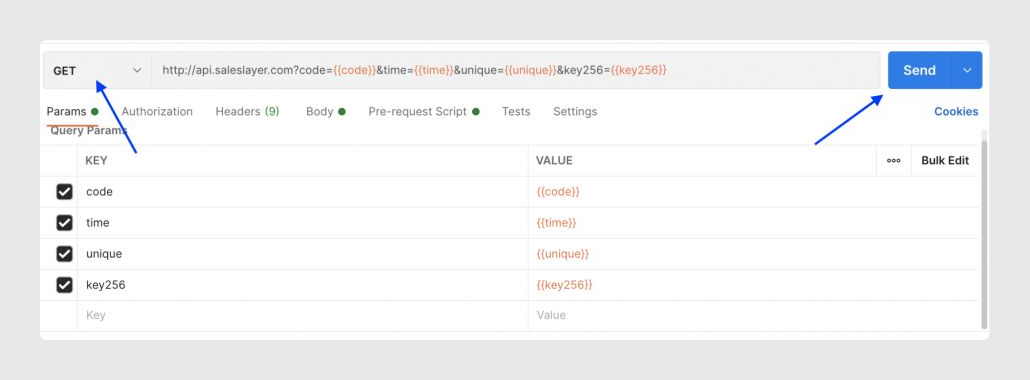
Once everything is ready, click Send.
Interpreting the results
GET request
After a GET request, the API returns a JSON response that includes the known structures in data_schema and the modified information in data.
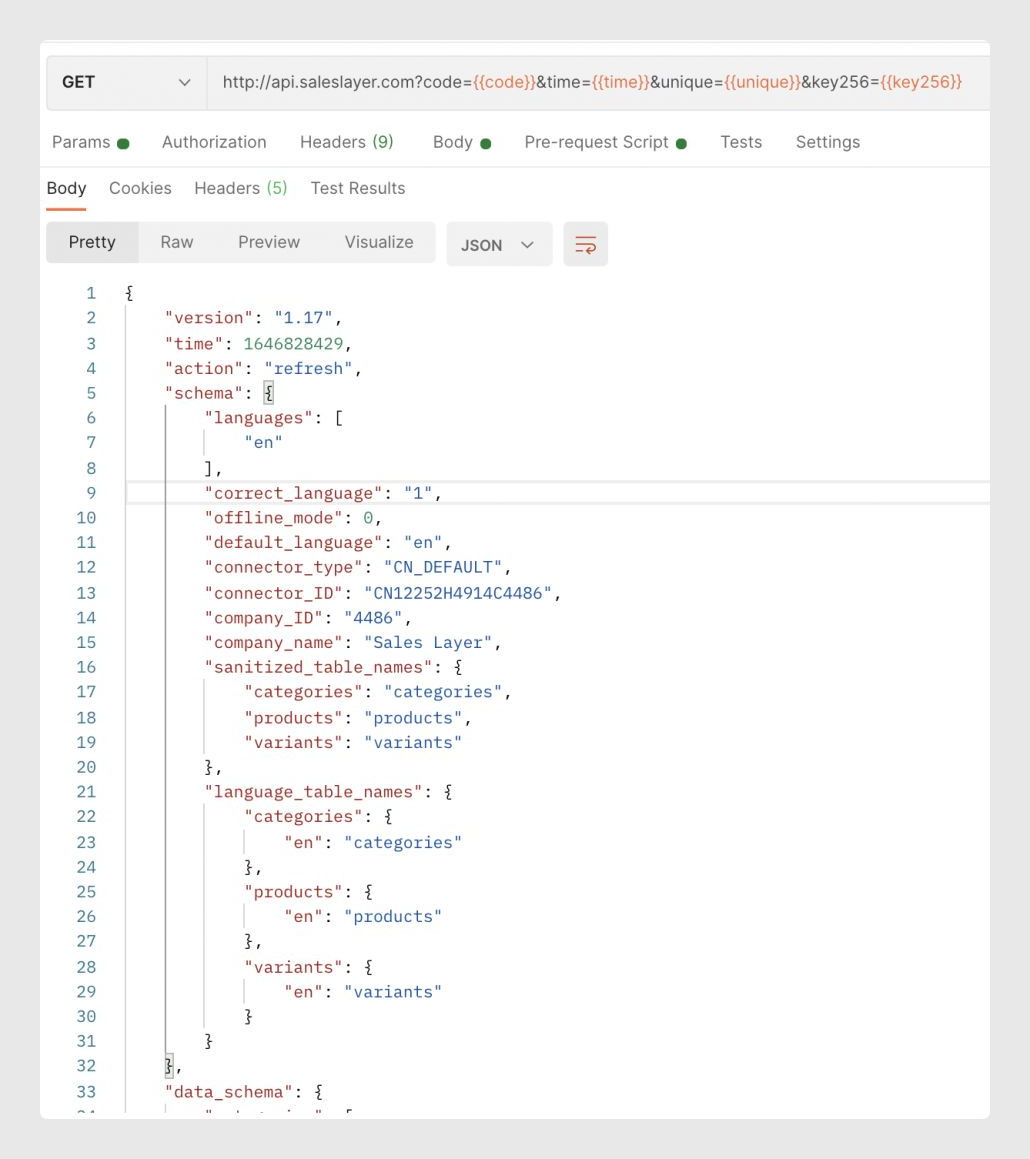
If you work with last_update, it is useful to keep an eye on the response time of the previous call. When there is information to delete, the API exports those items with status D.
POST request
After a POST request, the API returns the import result. Keep in mind that the exact response can vary depending on the API version used.
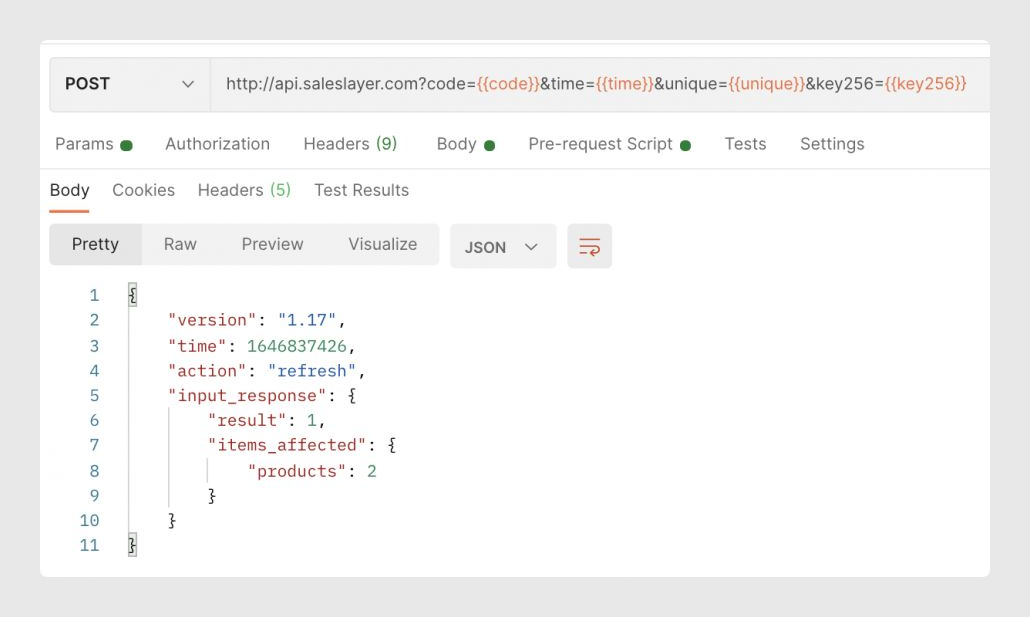
In the original example, the import response is shown with API version 1.17, which was the default at that time.
Extra: working with optional parameters
Optional export parameters can also be tested in Postman by sending them as separate request parameters.
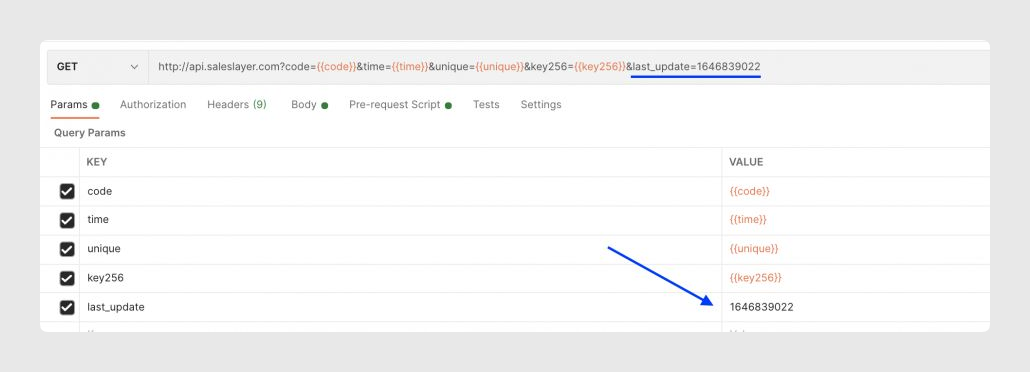
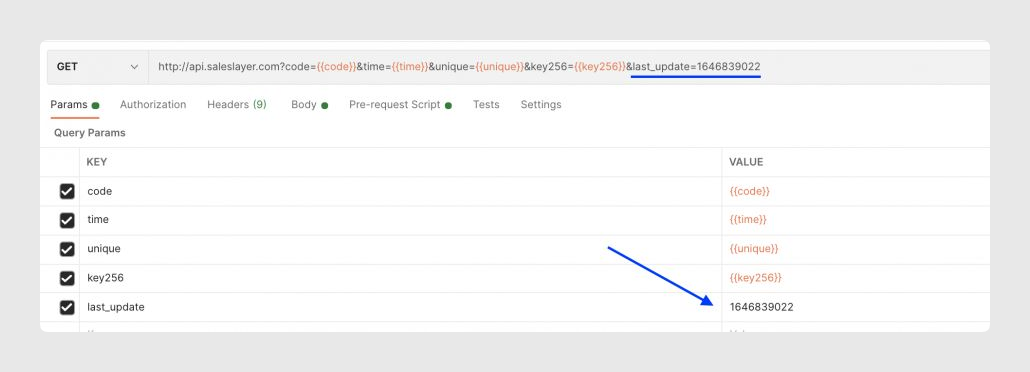
A common example is last_update. You can take the response_time value from the previous request and use it as the last_update value in the next one to retrieve only the changes made between both synchronizations.
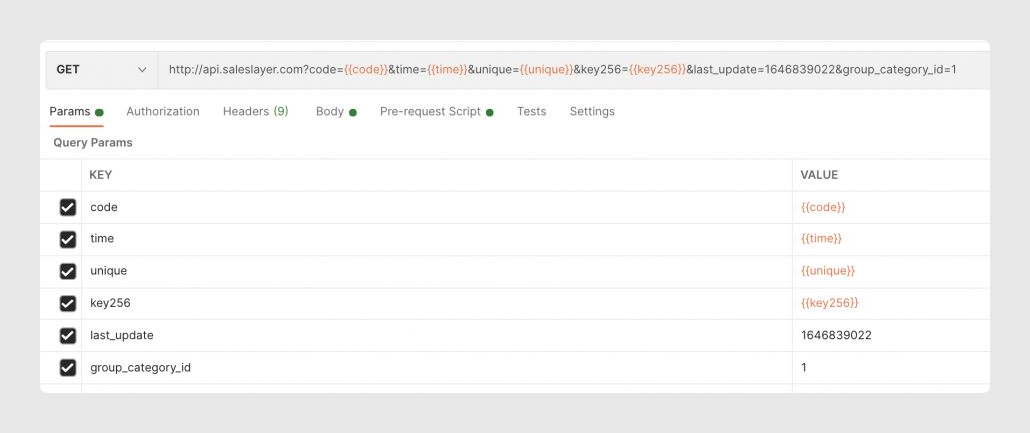
Another example is group_category_id, which accepts the values 0 and 1. Depending on the value sent, the API will export multi-category products either grouped into a single record or repeated by category.
Was this article helpful?
That’s Great!
Thank you for your feedback
Sorry! We couldn't be helpful
Thank you for your feedback
Feedback sent
We appreciate your effort and will try to fix the article