Sales Layer provides three ways to view content:
List view
Gallery view (with thumbnails)
Excel mode (also called Edit mode)
You can switch between modes depending on the table you are working in and your preferences.
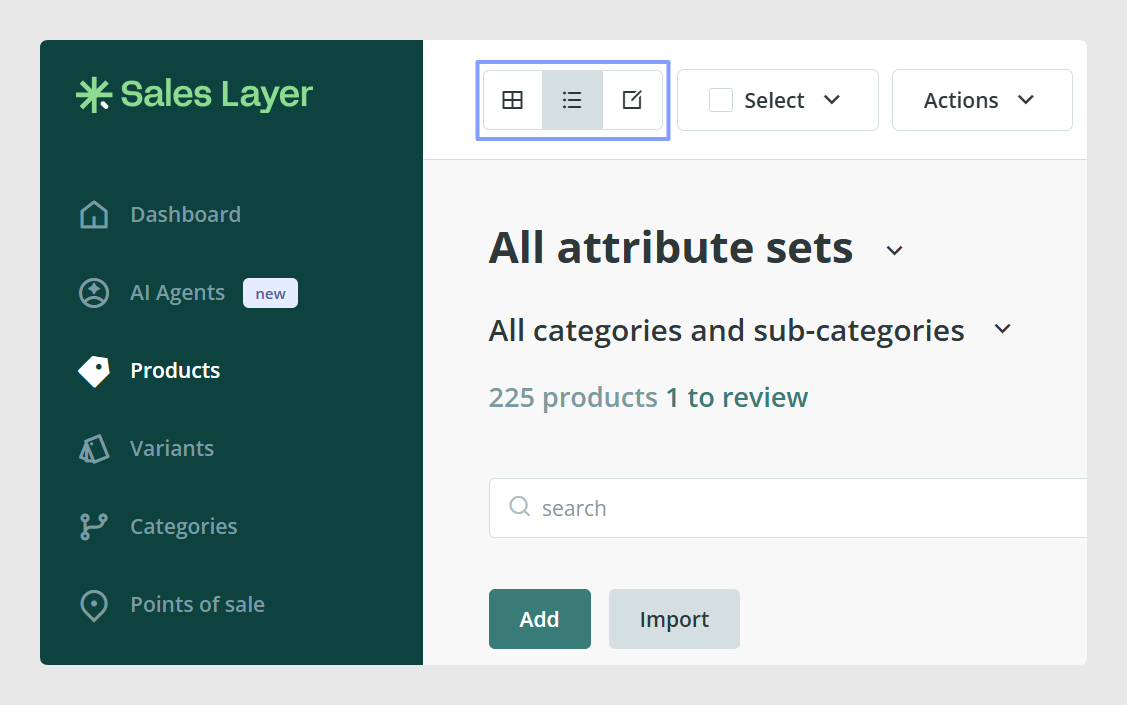
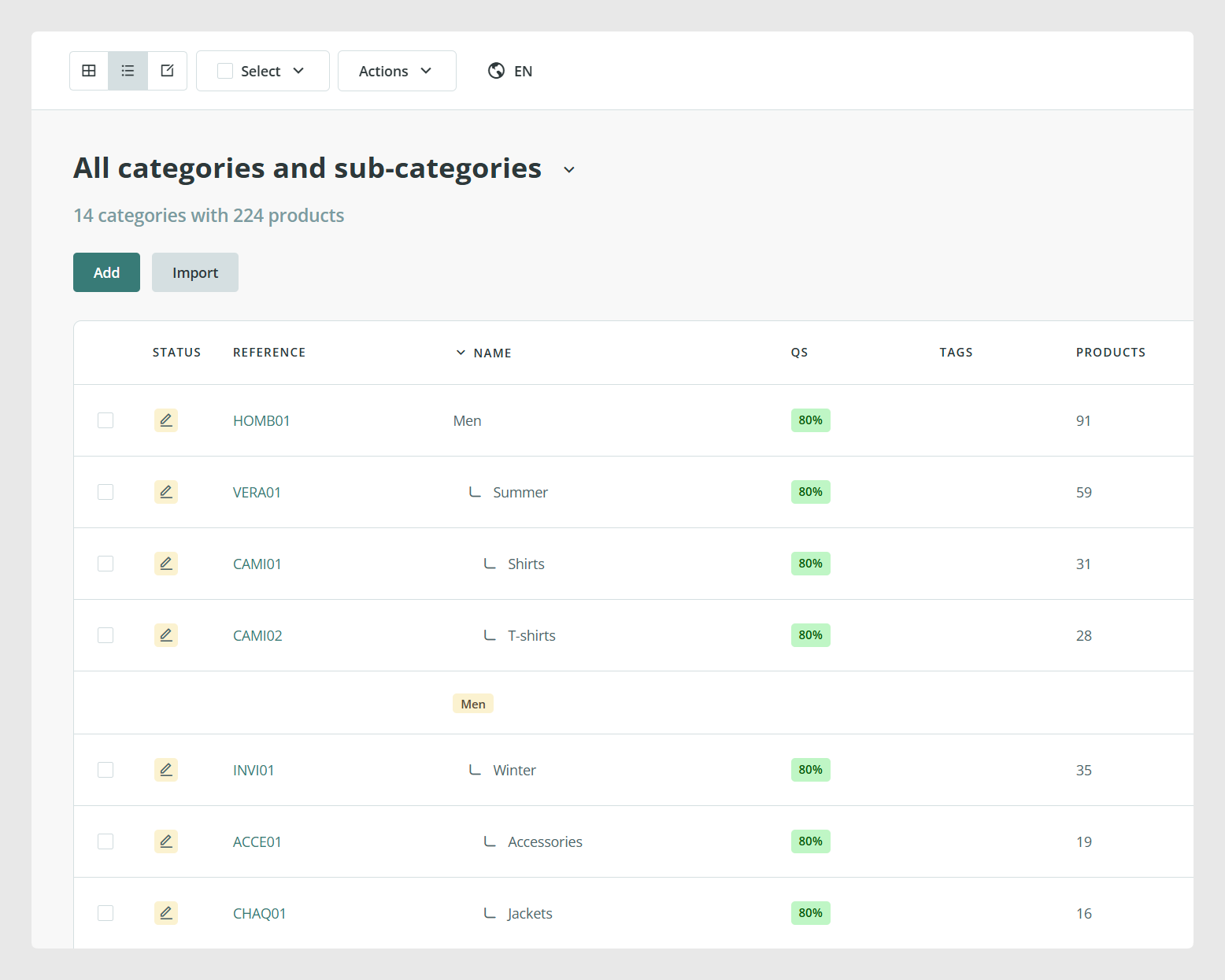
1) List view
List view shows items in a simple list format, typically without image thumbnails.
Use list view when you want:
A clean, compact view of many items
A fast way to browse references and key fields
A simple overview without focusing on images
In list view, you can usually see:
Categories commonly appear in a list-style view by default.
Variants may show only minimal fields by default, such as the variant reference and the parent product reference.
The visibility of other fields can depend on how fields are positioned in your forms and how your account is configured.
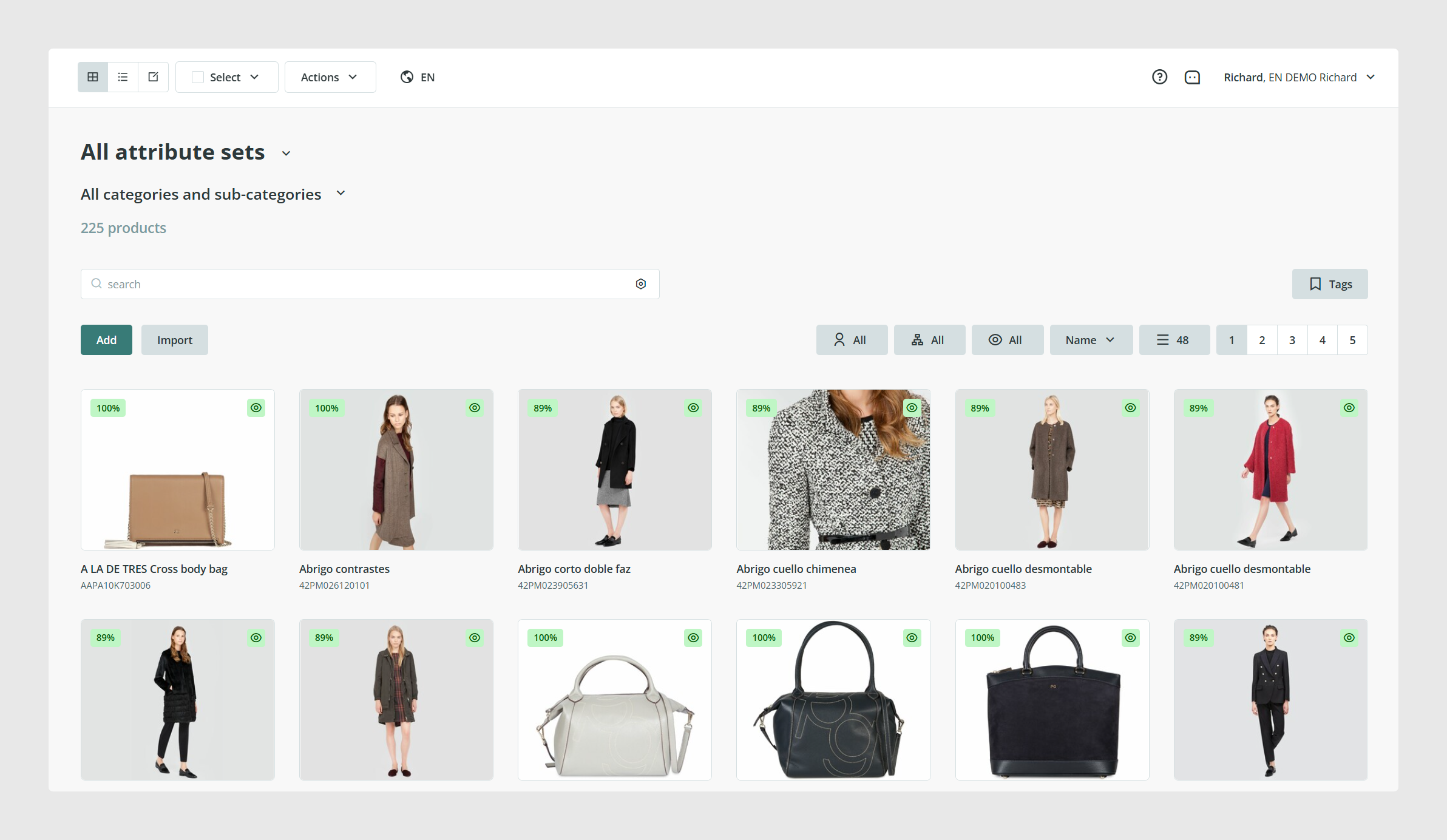
2) Gallery view (with thumbnails)
Gallery view displays items with image thumbnails, making it easier to visually scan products.
Use gallery view when you want to:
Quickly review product imagery
Spot missing images
Compare products visually
Check status and completeness at a glance
In gallery view, you can usually see:
Quality score or completeness percentage for each product
Status (Draft, Visible, Invisible)
Whether a product has variants, with access to them
Quick selection of multiple products to run actions together
Note: If you select items and run actions without applying any filter, you might act on a very large set of items. It is best to filter first if you are doing bulk operations. To know more about using filters in Sales Layer, follow this link.
3) Excel mode (Edit mode)
Excel mode is a spreadsheet-like view that lets you see and edit many items at once, similar to working in Excel.
Excel mode is ideal for:
Bulk updating product information quickly
Reviewing missing content across many items
Changing item statuses at scale
Working with tags and filters for campaign preparation
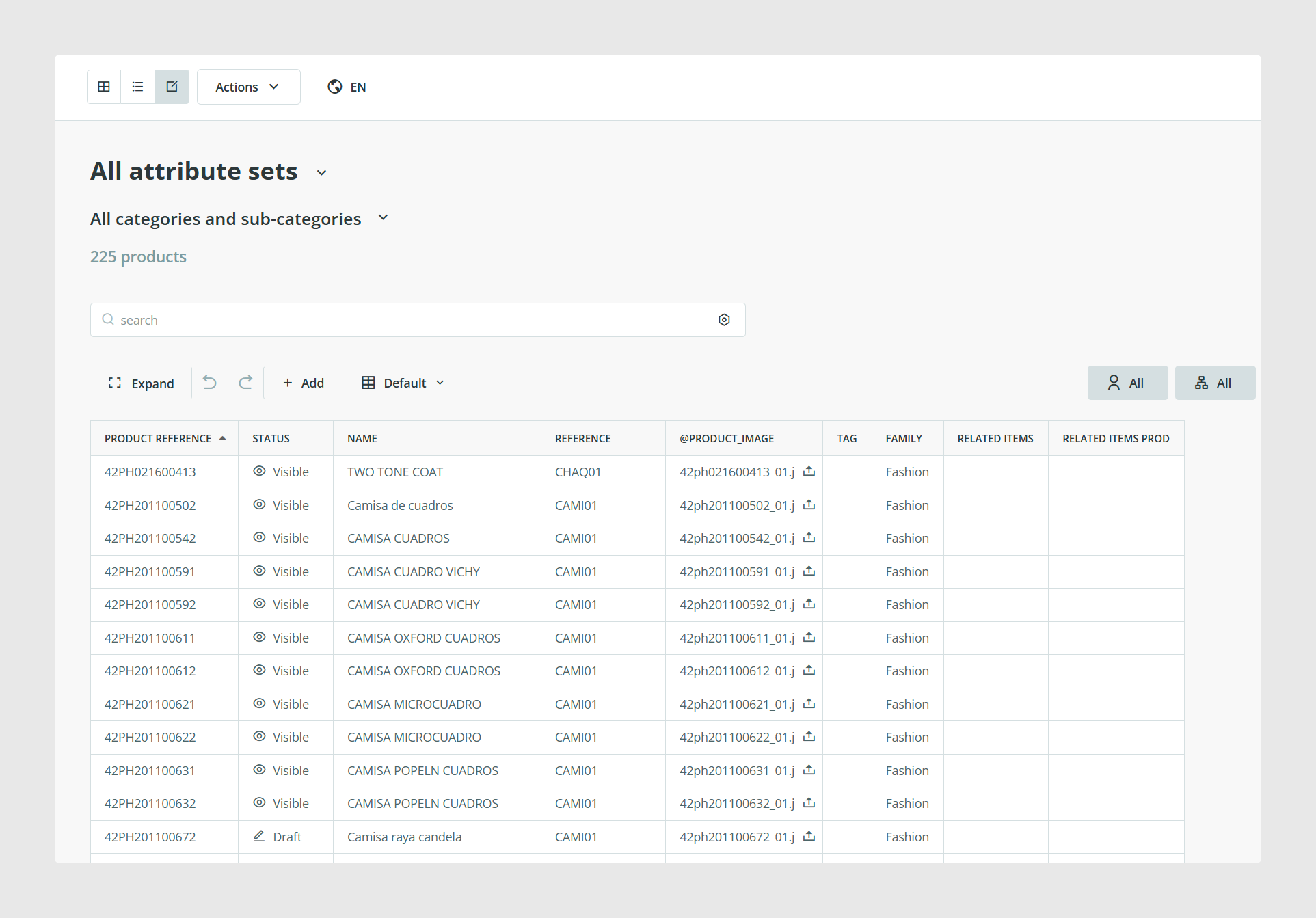
Personalize the view
Excel mode allows a personalized view:
Choose which columns to show or hide
Adjust table size
Choose a fixed column for alphabetical ordering
Filter by status, users, workflows, tags, and number of items per page, depending on your setup
Save views for reuse
You can save predefined views so you do not need to reconfigure columns every time.
Typical use cases for saved views:
“Marketing essentials” columns only
“Missing images” view
“Translation pending” view
“SEO fields” view
Notes:
Views are personal per user.
There is typically a limit of saved views per table per user.
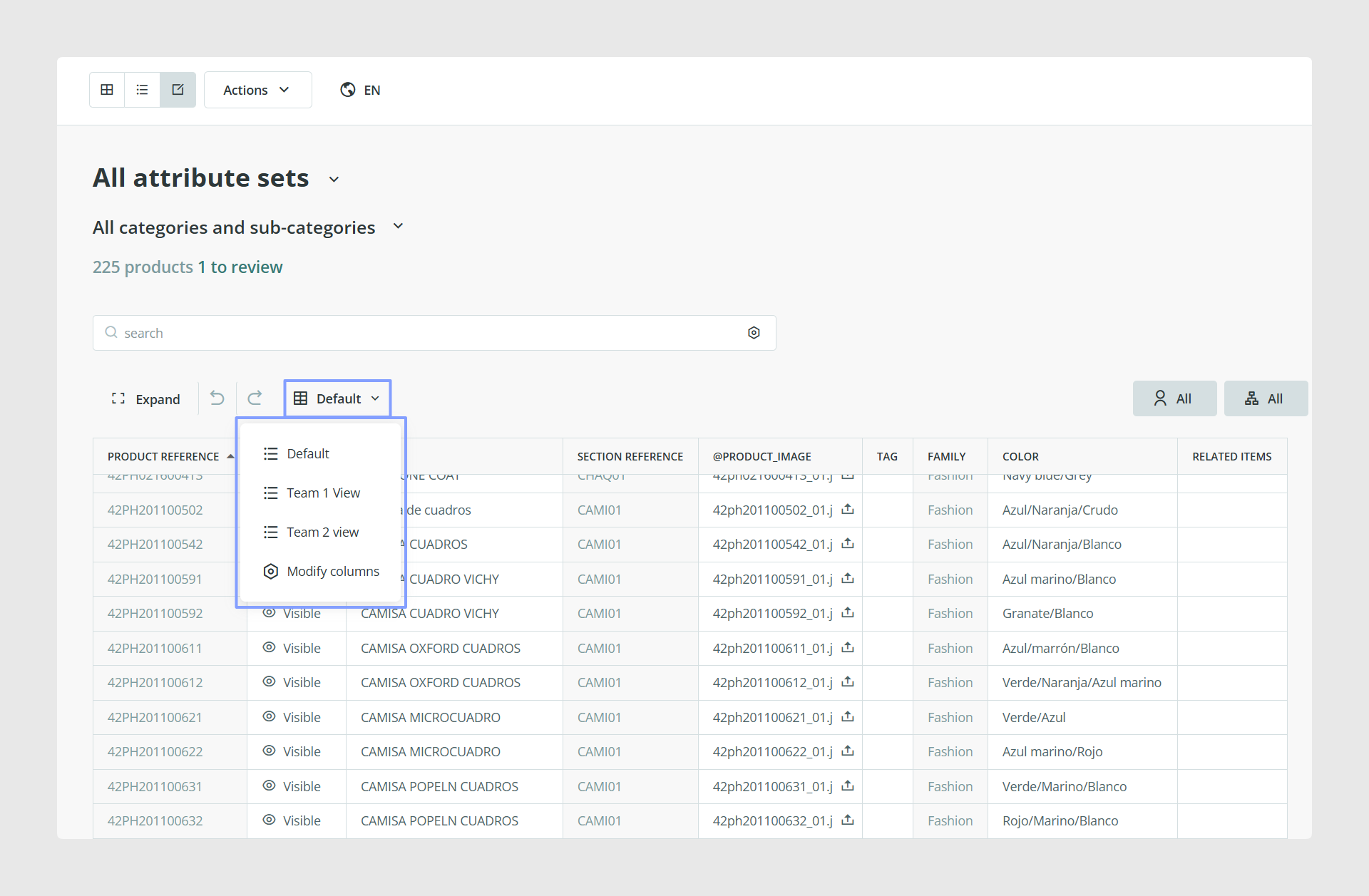
Edit values directly in cells
Edit cell values directly
Create new items, depending on permissions
Clear a field value without deleting the item
Change item status (Draft, Visible, Invisible)
Important workflow note
If your account uses supervised editing or workflows, Excel mode may not show the review version in the same way as the standard item editing process. In that case, supervisors may not be able to review editor changes from Excel mode.
In some cases, Excel mode uses cell colors to indicate issues:
Yellow: a value was not accepted and the system corrected or cleared it, often seen with categories or image or file values
Red: an error, commonly related to the reference field, for example using an existing reference when creating a new item
Performance tip for Excel mode
The more columns you select, the heavier the view can become. Keep columns to the minimum you need for the task to improve responsiveness.
Best Practices
Use List view to browse and check references fast.
Use Gallery view to review imagery, status, and completeness quickly.
Use Excel mode to edit many items efficiently and run structured bulk work.
Was this article helpful?
That’s Great!
Thank you for your feedback
Sorry! We couldn't be helpful
Thank you for your feedback
Feedback sent
We appreciate your effort and will try to fix the article