Sales Layer offers three ways to view your catalog content: the List mode, Image mode and Edit/Excel mode. By default, Categories open in List Mode and Products open in Image Mode. You can switch between the available views using the buttons in the top right corner.
Each view is useful for a different type of task. Some views are better for visual review, while others are better for comparing fields or editing several items at once.
List Mode
List Mode is useful when you want to review your records in a more structured and compact way. It helps you move quickly through products or categories and check information in a straightforward list format.
This view is especially practical when you want to focus on recently updated records, because you can sort or filter by modified date. That makes it easier to review recent activity, check what changed, or continue working on products that were updated in the latest session.
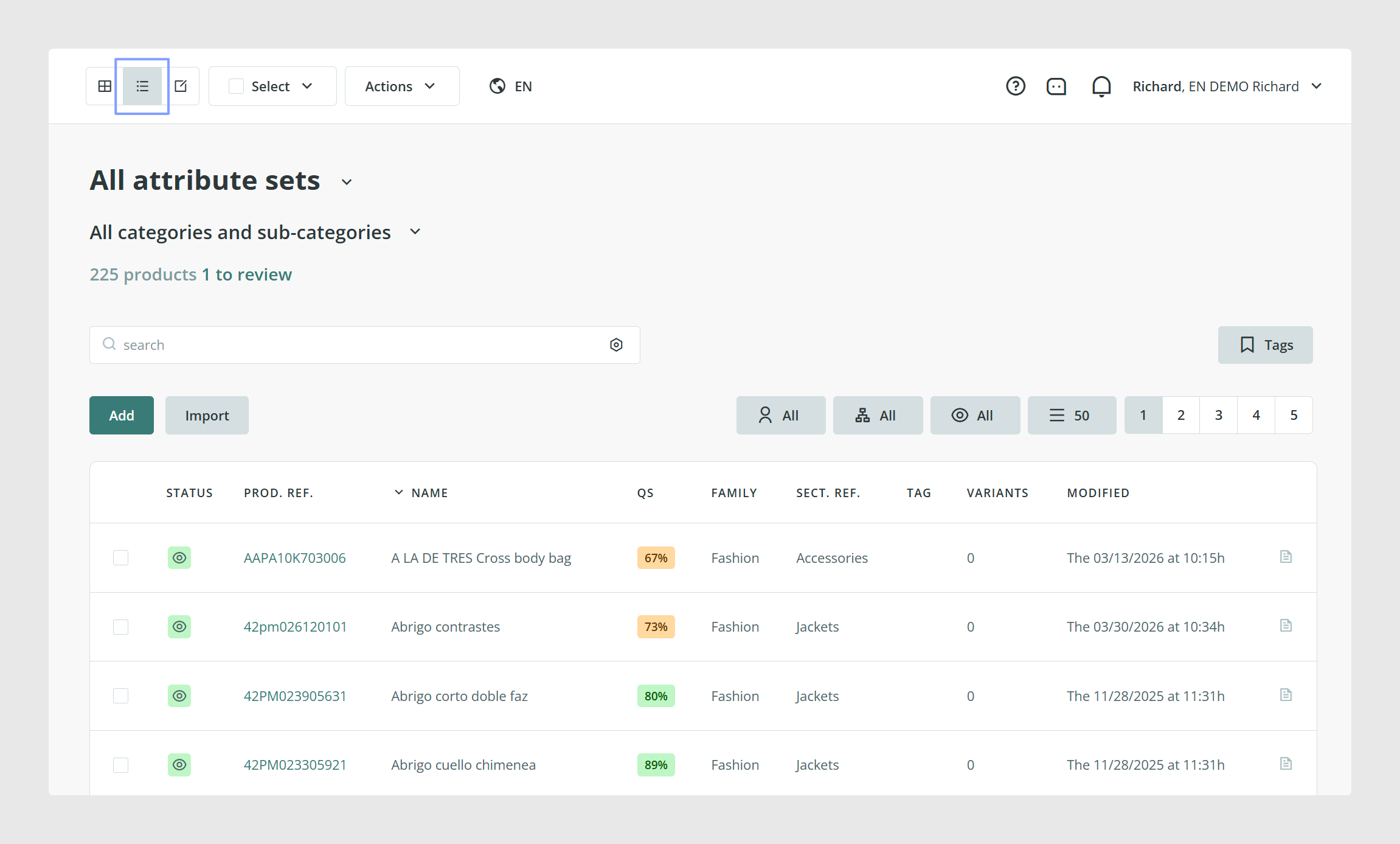
Image Mode
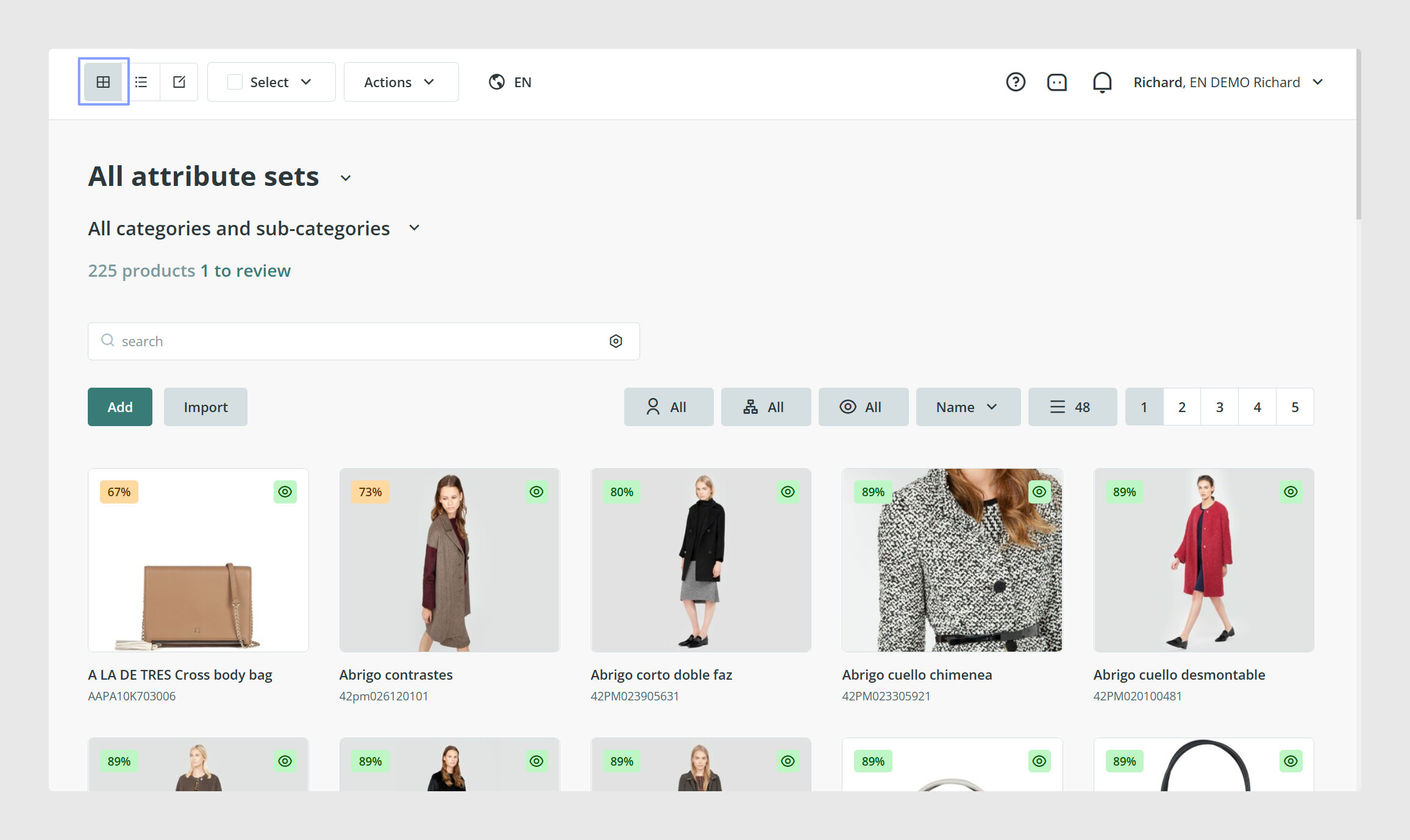
In Image Mode, you can quickly review each product’s Quality Score, which shows how complete its information is.
You can also see and change the product status to visible, invisible, or draft. This is important because connectors can use product status when deciding which items to export. For example, if a connector is set to export only visible products, only items with visible status will be included.
Image Mode also lets you see whether a product has variants and access them directly from the product card.
You can select several products at once with the green checkbox in the corner of each card and run actions on them together. If you do not apply filters or make a selection first, the action will affect every item in the table.
You can also sort the content in different ways, including alphabetical order, Quality Score, and the user who imported the products.
Edit or Excel Mode
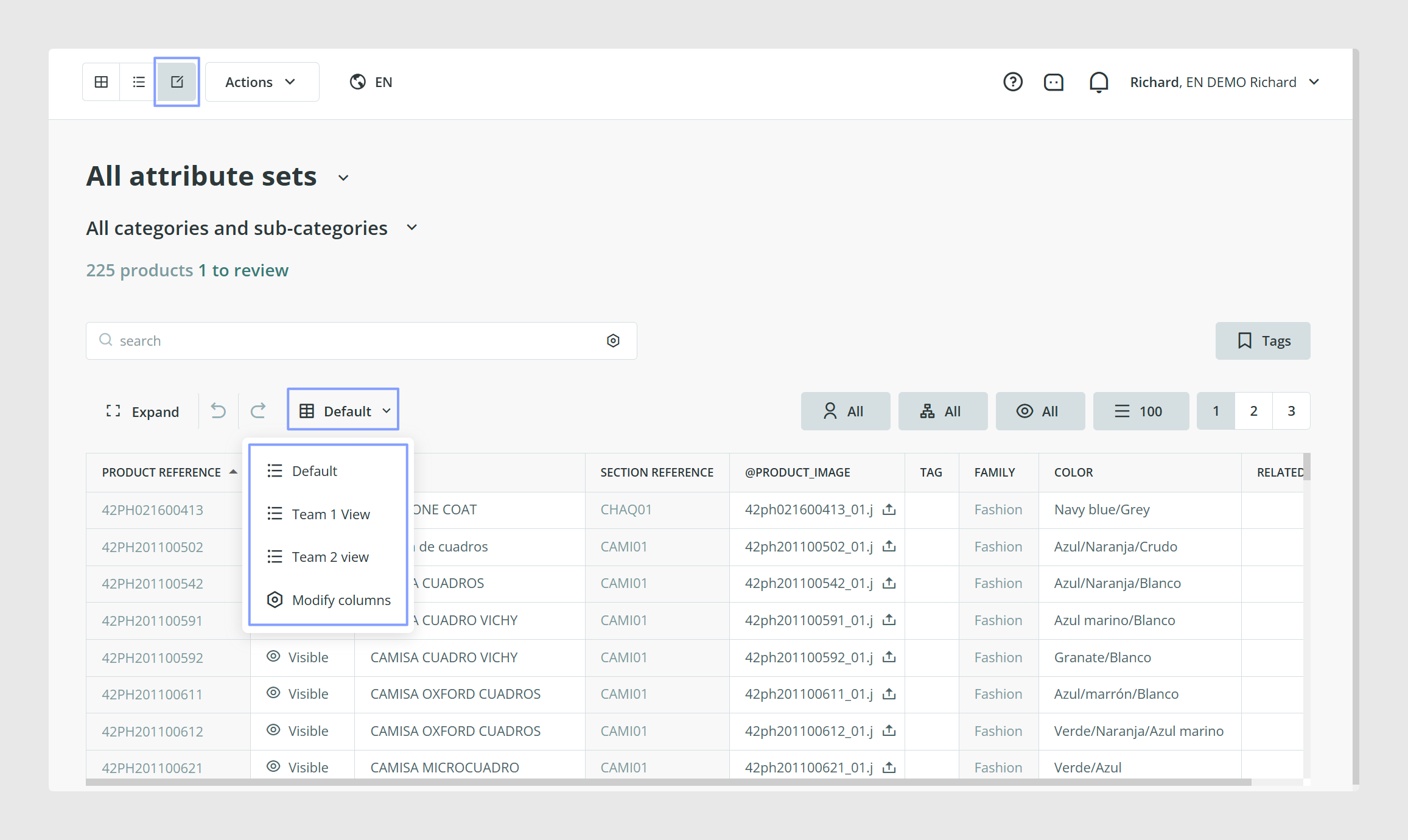
Excel Mode, also called Edit Mode, is useful when you need a more practical workspace for reviewing and editing data in bulk.
It helps in two ways. First, it lets you choose which columns are visible. Second, it makes it easier to edit several products at once.
To customize the view, click Default and then Modify Columns. From there, you can choose which columns to display and simplify the table so it only shows the fields you need.
You can also select a fixed column for alphabetical filtering and adjust the table size with the Expand/Reduce option.
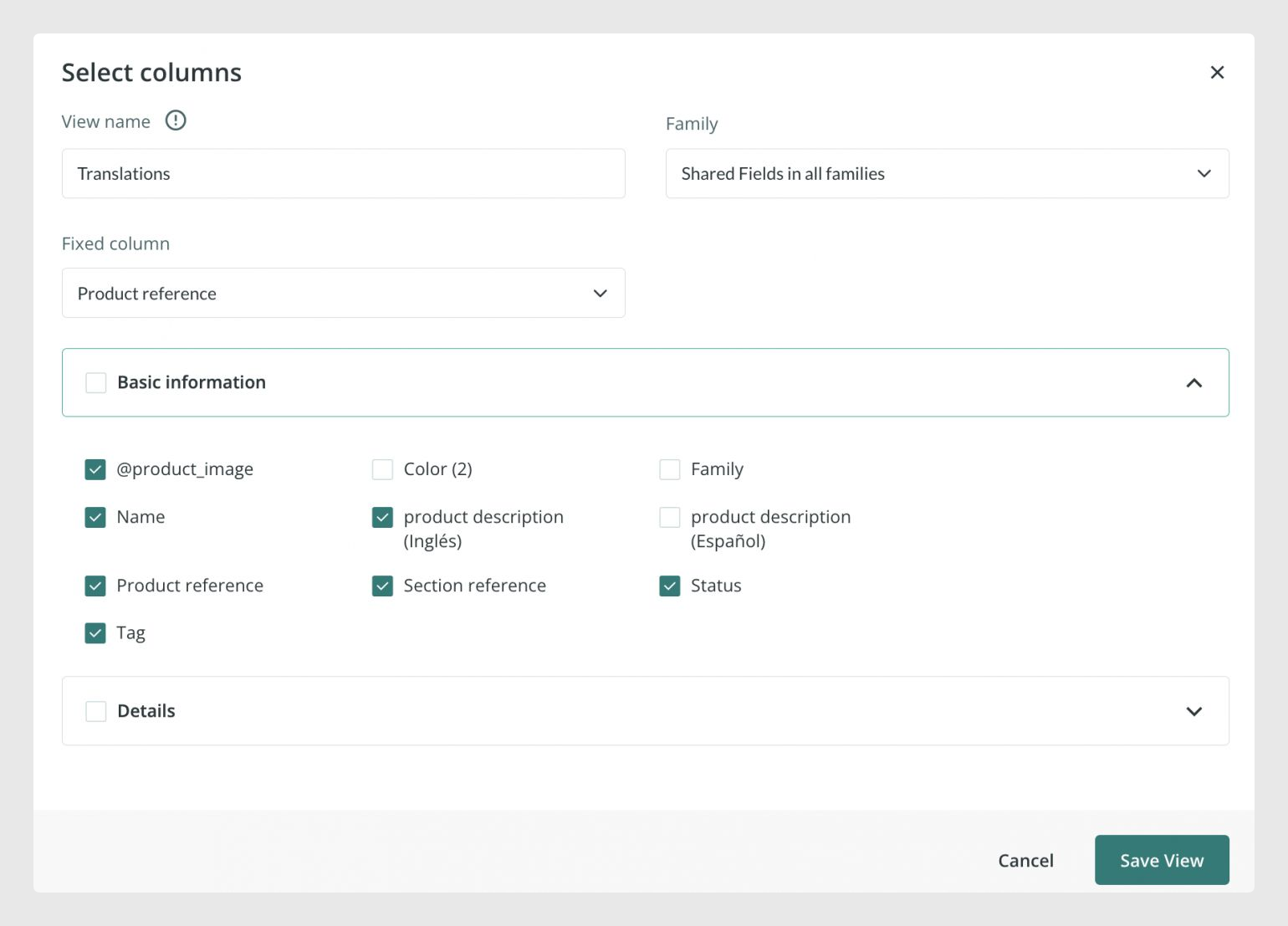
Save custom views for repeated work
Sales Layer lets each user create and save personal Excel views. This means you can build a view once and reuse it later without selecting the same columns again.
Saved views are user-specific, so each user only sees their own saved configurations. Sales Layer allows up to 10 views per table and per user.
This is especially useful when different teams need different working views for the same catalog.
Filter content while you work
In Excel Mode, you can filter the visible data not only by column setup, but also with the Search Bar and Tags.
Keep in mind that the Search Bar only returns results from the table you are currently in. For example, if you are in the Variants table, you cannot search for data from the Products table.
Understand cell colors in Excel Mode
When editing in Excel Mode, some cells may change color to highlight problems:
Yellow: It means a category, image, or file value was invalid, and the system corrected or removed it. This can also happen with list-type fields when "Strict with elimination is enabled" if you enter a value that is not included among the configured options.
Red: It usually points to an error in the reference field, such as using a code that already exists.
Common Use Cases
Review product completeness and publishing status quickly.
Sort and scan large product lists visually.
Edit several items at the same time in Excel Mode.
Build personal work views for different teams or workflows.
Best practices
Use Image Mode when you want a faster visual review of product readiness, status, and variants. Use Excel Mode when you need to compare fields side by side or update several items more efficiently.
To keep performance smoother, show only the columns you really need in Excel Mode.
Was this article helpful?
That’s Great!
Thank you for your feedback
Sorry! We couldn't be helpful
Thank you for your feedback
Feedback sent
We appreciate your effort and will try to fix the article