Statuses help you control whether an item is ready to be published or should be kept out of outputs.
Sales Layer uses three statuses:
Draft
Visible
Invisible
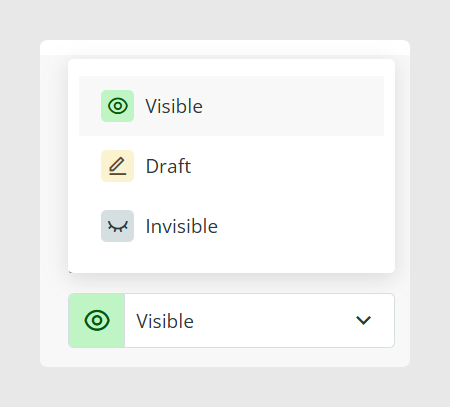
What each status means
Draft
Use Draft when the product does not have the information ready.
Typical uses:
New products being prepared
Products missing content like images, descriptions, or key fields
Items that should not be published yet
Visible
Use Visible when the product is ready for publication.
Typical uses:
Items that can be exported to your channels
Products that are complete and approved
Invisible
Use Invisible when the product should be removed from publication without deleting it. It can be used for products set aside for different reasons, such as temporarily discontinued items.
Typical uses:
Temporarily discontinued products
Items you want to keep in the PIM but not show on channels
Items that should not be sold, but still need to be kept for reference
Why status matters for exports and publication
The status can have consequences depending on how your outbound connectors are configured. For example, if a connector exports only Visible items, the product will only reach the website once it is set to Visible.
Some connectors can also interpret status changes as removals. For example, if a connector exports only Visible products and you change a product to Invisible, the API can send it as “deactivated”.
Changing status during imports
When you reimport or update products, the import screen can show options that affect status.
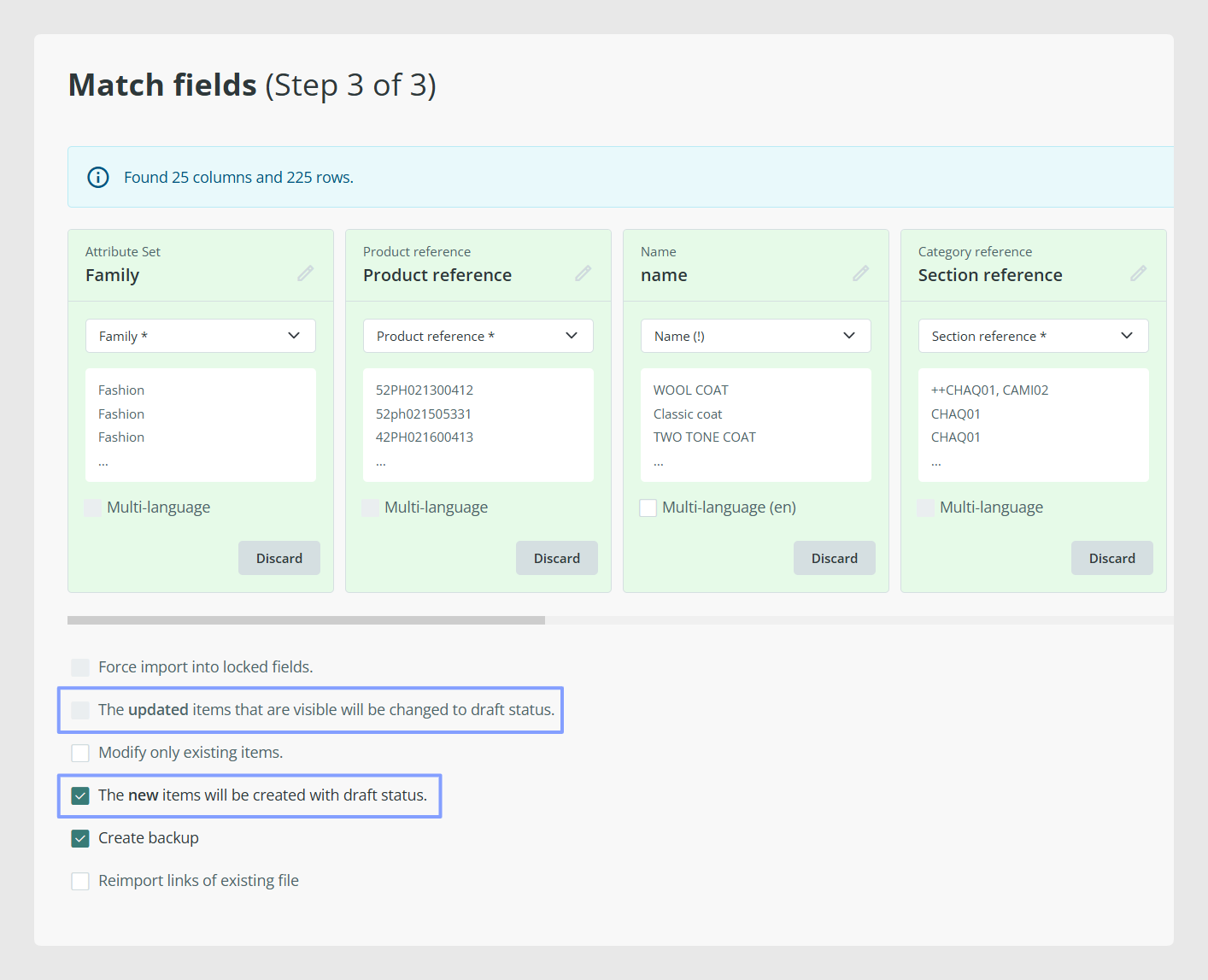
Option: Visible items modified become Draft
There is an import option that moves modified Visible items to Draft after reimport. If you choose it, items that were Visible and were updated will be updated but remain in Draft, and you will need to change their status afterwards if you want them Visible again.
Option: New items saved as Draft
There is also an import option that saves new items as Draft. If you choose it, items added after the first import remain in Draft, and you will need to change status later if you want them Visible.
Status and daily editing
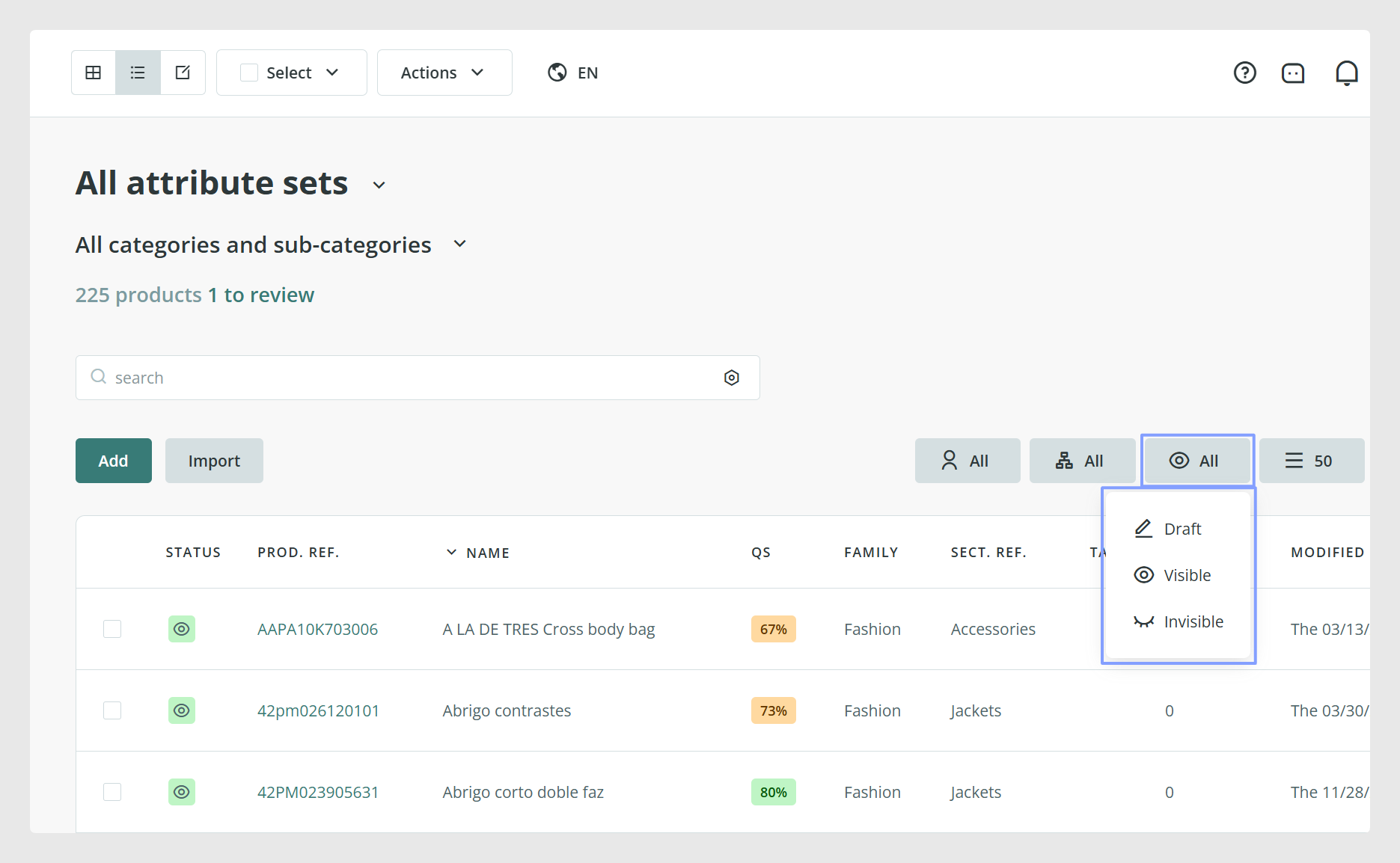
In the Products tab, you can see the product status and filter between the three statuses.
If you use workflows or edition teams, permissions can limit who can change status in some contexts. For example, the manual notes that in one editing setup, editors cannot modify the item status.
Best practices
Keep items in Draft while content is still being prepared.
Use Visible only when the item is ready to publish and export.
Use Invisible to remove items from publication without deleting them.
Before switching large sets of items, check how your connectors filter by status so you do not unintentionally remove items from a channel.
Was this article helpful?
That’s Great!
Thank you for your feedback
Sorry! We couldn't be helpful
Thank you for your feedback
Feedback sent
We appreciate your effort and will try to fix the article