Smart Business Rules agent
The Smart Business Rules action lets you automatically generate content in one field based on information stored in other fields.
This is useful when you want Sales Layer to calculate or complete values automatically using simple logic rules, similar to the formulas already available in connectors.
This feature is available for Categories, Products, Variants and Custom Entities.
Attention: Currently,
1. Only Number, Short Text, Long Text and Date fields are supported.
2. When using multilanguage fields, it uses the default language.
3. Fields from related entities can be introduced in formulas but only from Products, Variants or Categories (Custom Entities fields cannot be referenced)
. Smart Business Rules (BR with AI) are not available yet.
Current available functions – first iteration
In the current iteration, the Smart Business Rules action only supports the below operations:
Category | Operator / Function | Description | Example |
|---|---|---|---|
Arithmetic | + | Addition | Price + Shipping |
Arithmetic | - | Subtraction | Price - Discount |
Arithmetic | * | Multiplication | Price * 1.21 |
Arithmetic | / | Division | Price / 100 |
Grouping | ( ) | Parentheses to control precedence | (Price + Shipping) * 1.21 |
Operands | Numeric literal | Integer or decimal number | 100, 1.21 |
Operands | Product field | Field reference ([a-zA-Z_][a-zA-Z0-9_]*) | Price, VAT, Stock_2 |
Operands | String literal | Text enclosed in single quotes | 'expensive', 'active' |
Comparison | = | Equal | Price = 100 |
Comparison | <> | Not equal | Status <> 'X' |
Comparison | > | Greater than | Price > 100 |
Comparison | >= | Greater than or equal | Price >= 100 |
Comparison | < | Less than | Stock < 10 |
Comparison | <= | Less than or equal | Stock <= 10 |
Conditional | if(cond, yes, no) | Ternary conditional | if(Price > 100, 'expensive', 'cheap') |
| Conditional | and | Logic AND | Price > 100 and Price < 200 |
| Conditional | or | Logic OR | Price > 100 or Price < 50 |
| Conditional | not(cond) | Logic Negation | not(Price > 100) |
| String | Left(field, n) | First N characters | Left(description, 10) |
| String | Right(field, n) | Last N characters | Right(sku, 3) |
| String | Mid(field, start, len) | Substring from position | Mid(name, 2, 5) |
String | Len(field) | Length of the string | Len(description) |
String | Upper(field) | Converts to uppercase | Upper(name) |
String | Lower(field) | Converts to lowercase | Lower(name) |
String | Trim(field) | Removes leading and trailing spaces | Trim(name) |
String | Concat(a, b, ...) | Concatenates values | Concat(brand, ' - ', name) |
String | Contains(field, 'val') | Checks if substring exists | Contains(name, 'pro') |
| Date | Date fields | Support for date attributes | Product Creation |
| Date | Today() | Current date without time | Today() |
| Date | Now() | Current date and time | Now() |
| Date | Date(y, m, d, hh, mm, ss) | Creates an specific datetime (hh, mm and ss are optional) | Date(2026, 3, 30) Date (2026, 3, 30, 12, 11, 35) |
| Date | AddDays(date, n) | Add or subtract (negative n) days to a Date | AddDays(Product Creation, 5) |
| Date | AddMonths(date, n) | Add or subtract (negative n) months to a Date | AddMonths(Today(), -6) |
| Date | AddYears(date, n) | Add or subtract (negative n) years to a Date | AddYears(Date(2026, 3, 30), 4) |
| Date | Year(date) | Get only the year of a Date | Year(Product Creation) |
| Date | Month(date) | Get only the month of a Date | Month(Product Creation) |
| Date | Day(date) | Get only the day of a Date | Day(Product Creation) |
| Date | DateDiff(date1, date2, 'unit') | Difference between dates in the unit ('days', ‘months’, ‘years’ ) | DateDiff(Product Creation, Date(2026, 3, 30), ‘days’) |
| String | Localize(field, 'lang_code') | Returns the value of a multilingual field in the specified language. | Localize(Price, 'en') |
| String | Replace(field, searched, replaced) | Replaces all occurrences of a string within the field | Replace(Description, 'centimeters', 'cm') |
| Navigation | Entity.First().property | Property of a related entity | Categories.First().Discount |
| Collections* | Entity.Any() | If there are any related entity | Variants.Any() |
| Collections* | Entity.Sum(field) | Sum of a collection | Variants.Sum(Variant Price) |
| Collections* | Entity.Average(field) | Average of a collection | Variants.Average(Stock) |
| Collections* | Entity.Count() | Count of a collection | Variants.Count() |
| Collections* | Entity.Min(field) | Minimum of a collection | Categories.Min(Price) |
| Collections* | Entity.Max(field) | Maximum of a collection | Products.Max(Price) |
These operations allow you to create basic numeric rules for product data.
* Collections are used when the related entity is 1:n. For example: If in a Products field you introduce a Variants reference (for 1 product I can have many variants), you use a collection to indicate what you want to do with that information: Any, Sum, Average, Count, Min or Max.
Functions that will be available in future iterations
Category | Operator / Function | Description | Example |
|---|---|---|---|
Math | Round(expr, dec) | Rounding | Round(Price * VAT, 2) |
Math | Abs(expr) | Absolute value | Abs(Price - Cost) |
Math | Floor(expr) | Round down | Floor(Price / 10) |
Math | Ceiling(expr) | Round up | Ceiling(Stock / PackSize) |
Custom / AI | ai*(...) | AI evaluation (in memory, may include prompts) | ai_score(Name, Category.Name) |
Custom / AI | custom*(...) | Arbitrary external logic | custom_validation(SKU) |
What the Smart Business Rules action does
When you add this action to an agent, the agent will calculate a value and write the result into a destination field.
You can configure it to:
- fill only empty fields
- overwrite existing values
- calculate results using a formula built from fields and operations
This helps reduce manual editing and keeps repetitive calculations consistent across your product catalog.
Where to find it
To add this action:
- Open your agent configuration.
- Go to the Action step.
- Click Add action.
- Select Smart Business Rules.
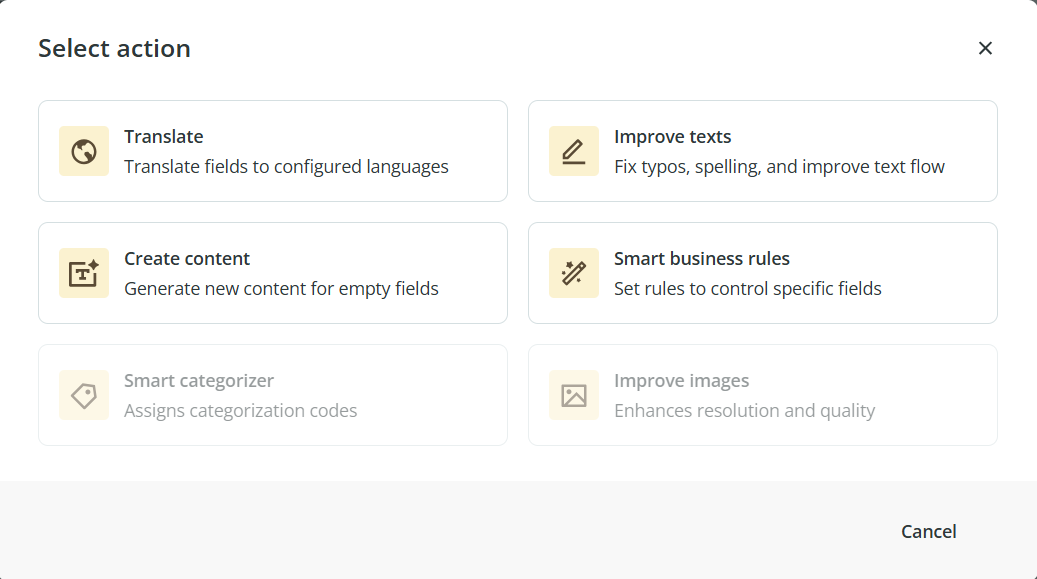
Once selected, a configuration window will open so you can define how the action should work.
How to configure the Smart Business Rules action
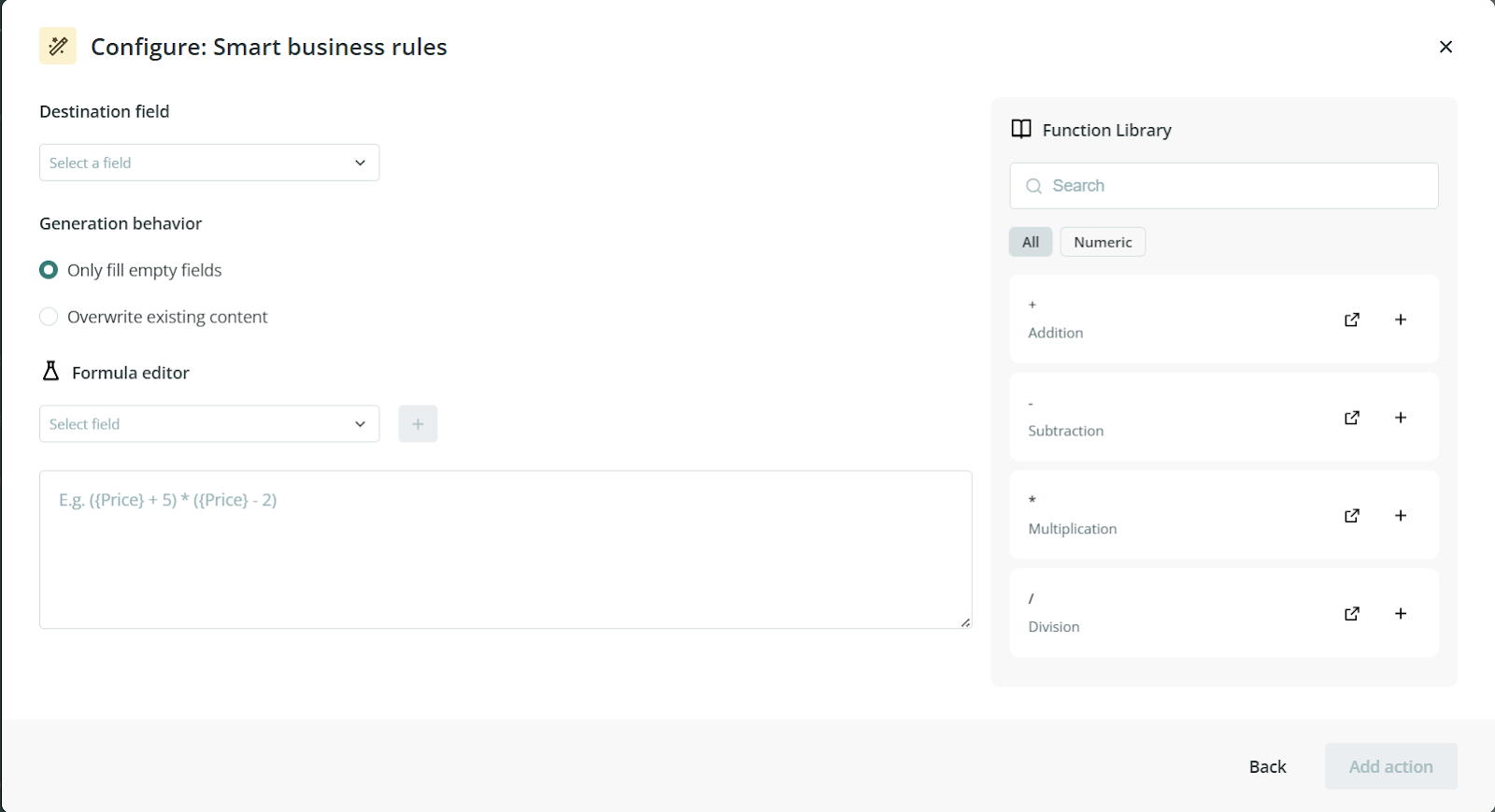
When the configuration modal opens, you will need to define the following:
1. Destination field
Choose the field where the calculated result will be saved.
This is the field the agent will update after applying the rule.
2. Generation behavior
Choose how the agent should write the result:
- Fill empty fields only: the action only writes a value if the destination field is empty.
- Overwrite existing content: the action always writes the result, even if the field already contains a value.
This gives you flexibility depending on whether you want to preserve existing data or recalculate values every time the agent runs.
3. Formula editor
Use the Formula editor to create the rule.
In this area, you can build the calculation by combining:
- Existing fields supported operations.
- The result of that formula will be written into the destination field you selected earlier.
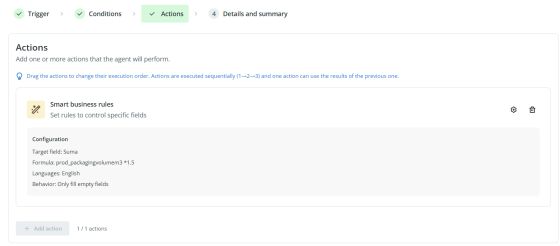
Finish adding the action
Once the action is configured:
- Click Add action to save it.
- Click Next to continue creating your agent.
Your Smart Business Rules action will then be included as part of the agent workflow.
Common Use Cases
The Smart Business Rules action can be useful when you need to:
- calculate a final price from existing numeric fields
- generate values based on product dimensions or quantities
- complete numeric fields automatically without editing each product manually
- standardize repetitive calculations across many products
Best practices
Before using this action on a large number of products, make sure the source fields used in the formula already contain consistent numeric values. It is also a good idea to test the rule first with a small group of products so you can confirm the result is being written to the correct destination field
