Order templates
This functionality allows users to save orders as templates and assign them a name so they can be identified and reused later.
Order templates are useful when users frequently place similar orders. They can also be modified later, helping users keep the information up to date before generating a new purchase order.
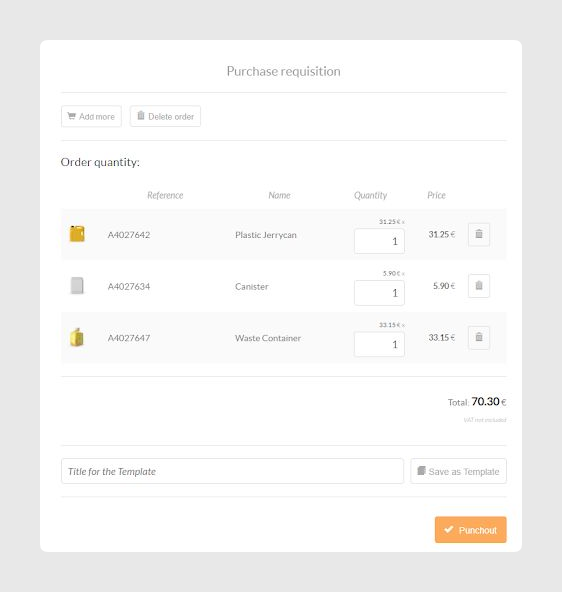
Edit and save a template
Users can edit the name of the template by clicking on the template name field.
Once the name has been added or modified, the template can be saved by clicking Save template.
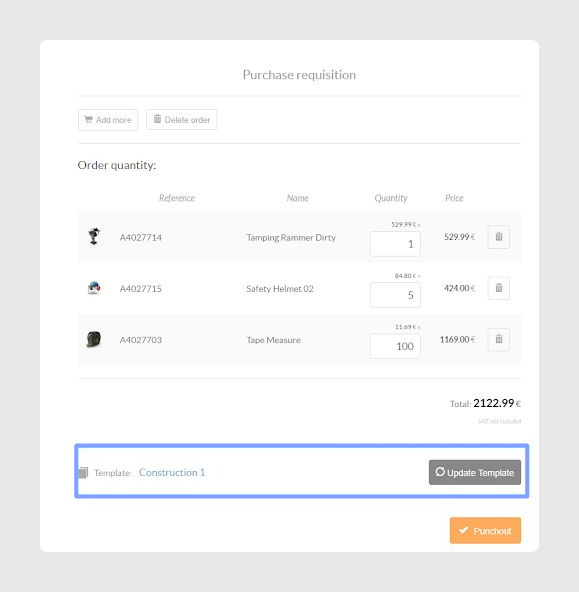
Update a template
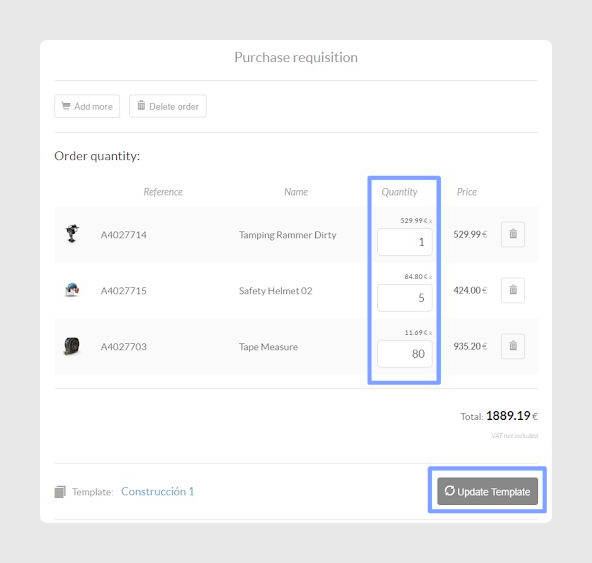
If users make changes to an existing template, such as modifying quantities or adding new products, the Update template button will appear.
Clicking this button updates the saved template with the latest changes.
Access saved templates
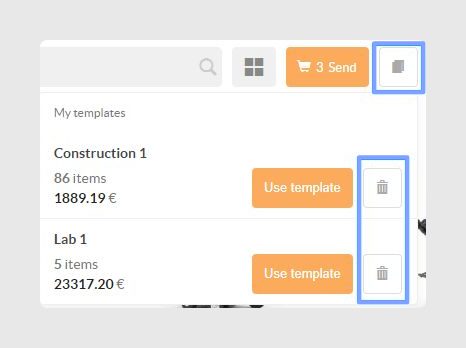
Users can access the templates they have already created from the Templates button in the top action bar.
From this section, users can view the orders they have saved as templates and reuse them when needed.
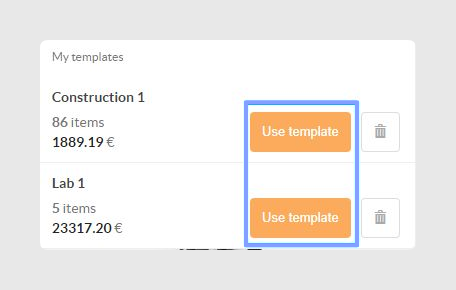
Each saved template includes the following information and options:
- Template name.
- Total number of items.
- Total price.
- Use template button, which allows users to repeat an order.
- Delete button, which allows users to remove a saved template.
Delete a template
Users can delete a saved template from the My templates drop-down menu.
To remove a template, click the trash icon next to the template you want to delete.
Was this article helpful?
That’s Great!
Thank you for your feedback
Sorry! We couldn't be helpful
Thank you for your feedback
Feedback sent
We appreciate your effort and will try to fix the article