A Related items field lets you link one item to other items in Sales Layer. You can relate items from the same table, for example Product to Product, or from a different table, for example Product to Category, Variant, Point of Sale, or a Custom Entity.
This is useful when you want to connect information without repeating it across many items.
Related items fields help you:
Create cross-sell or bundle relationships such as similar products, frequently bought together items, or accessories.
Reuse shared information that lives in another table, for example:
Quality certificates
Instruction manuals
Shipping conditions
Compatible spare parts lists
Build more flexible catalog structures, because you can relate Products with Variants, Categories, Points of Sale, or Custom Entities.
Create and configure the Related items field
Open a product, or the item you want to work on, so you are in its form.
Go to Actions > Redesign form.
Scroll down to the end of the form and click Add new field.
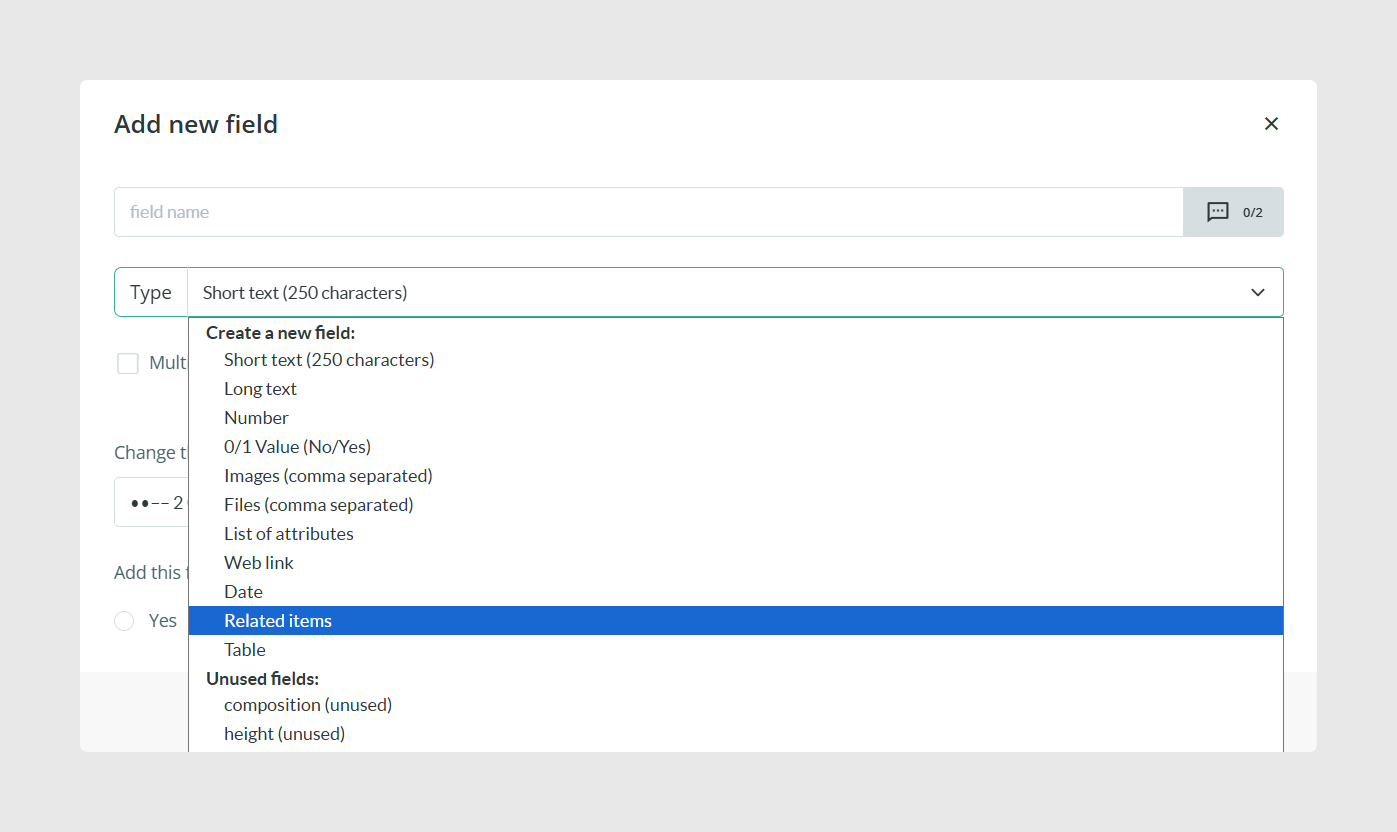
Choose Related items from the field type dropdown.
Add the field to your form and give it a clear name, for example “Compatible accessories” or “Related products”.
Select which table it relates to
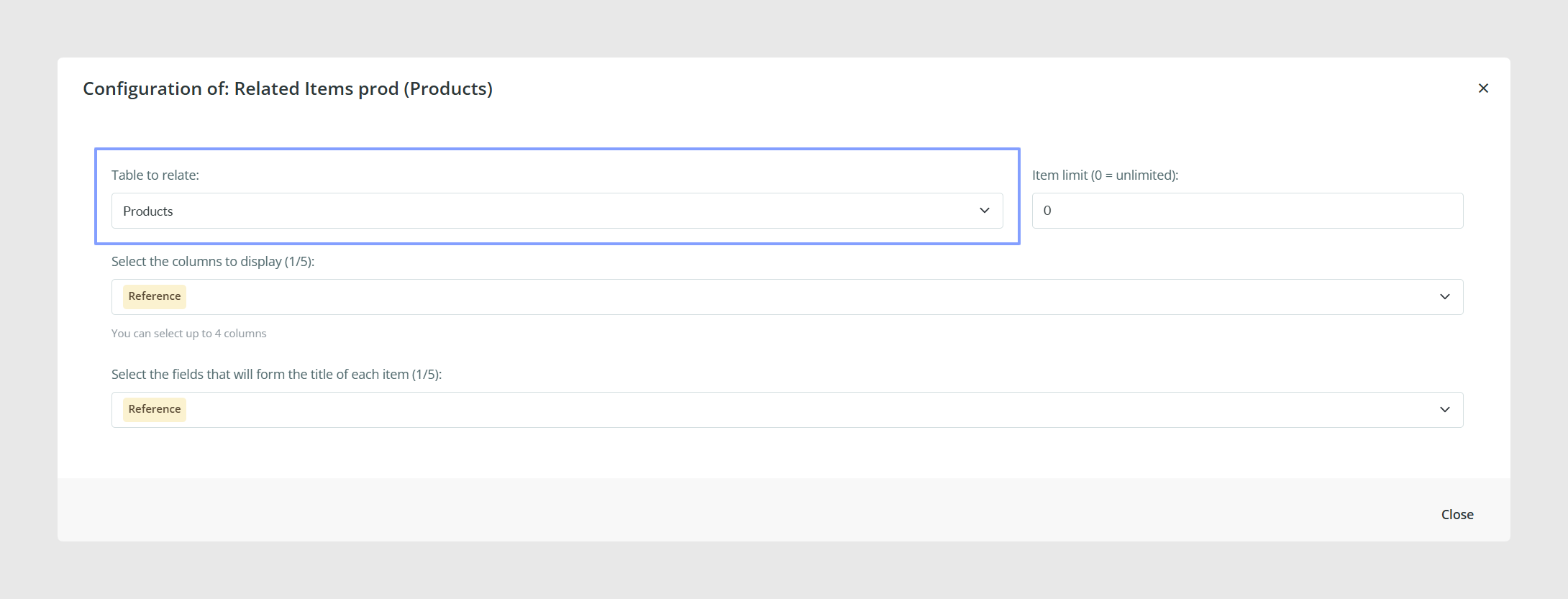
Click Configure on the Related items field.
Choose the table you want to relate to, for example Products.
Choose what you see in the list
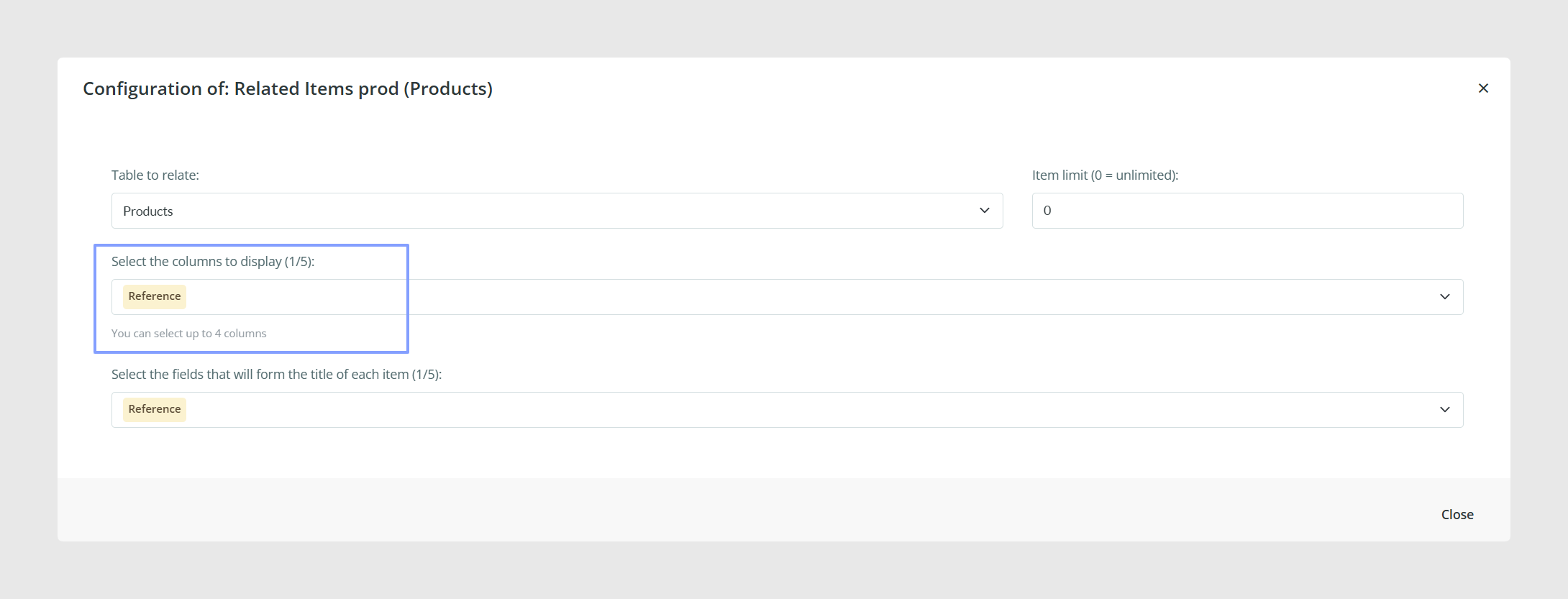
When you select the related table, you can choose up to 4 fields to display for each linked item in the selection view.
Note: Only Short text and Number fields can be added to this view. Other field types will not appear as options.
Customize the item title in the selector
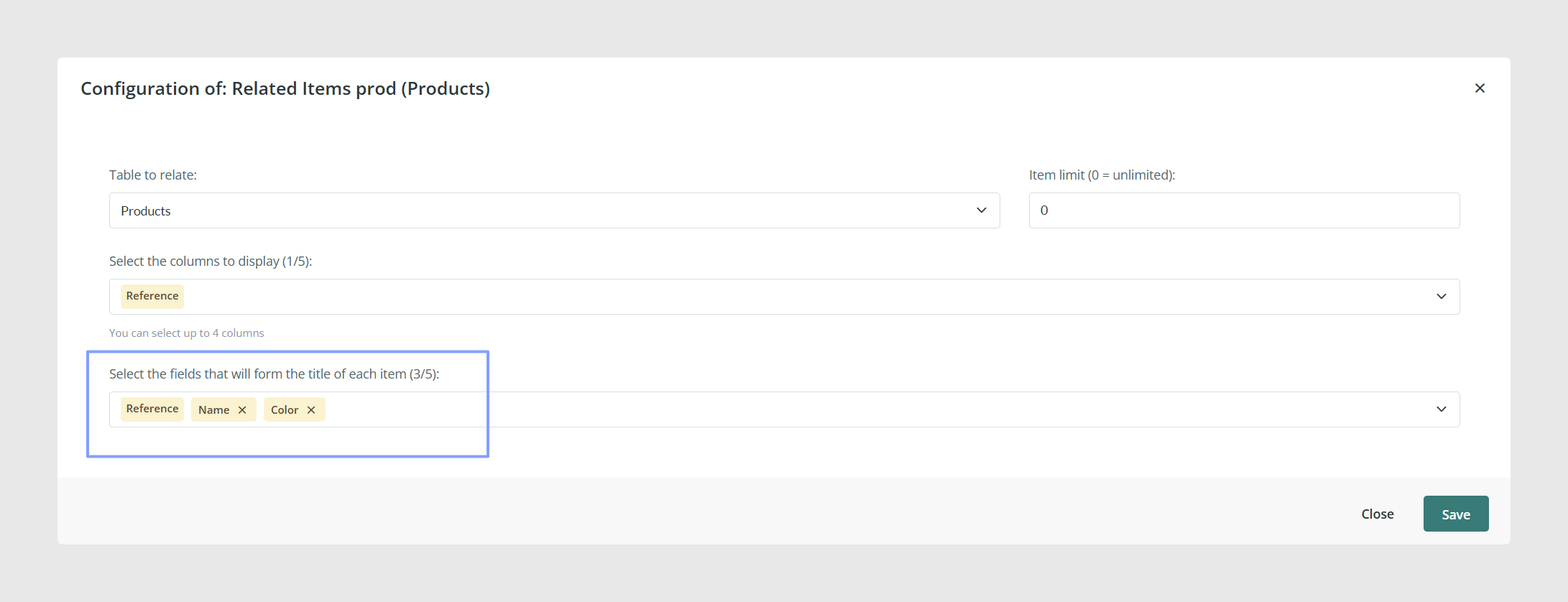
You can also choose up to 5 fields to build the title shown in the dropdown selector, so users can identify items quickly. For example, you might combine:
Reference + Name + Brand
Click Save when you are done.
Add related items
Once the field is configured, you can link items in two ways:
Option 1: Use the dropdown
Open the field’s dropdown and select items one by one.
Use the search bar, which appears when the related table already has at least one item.
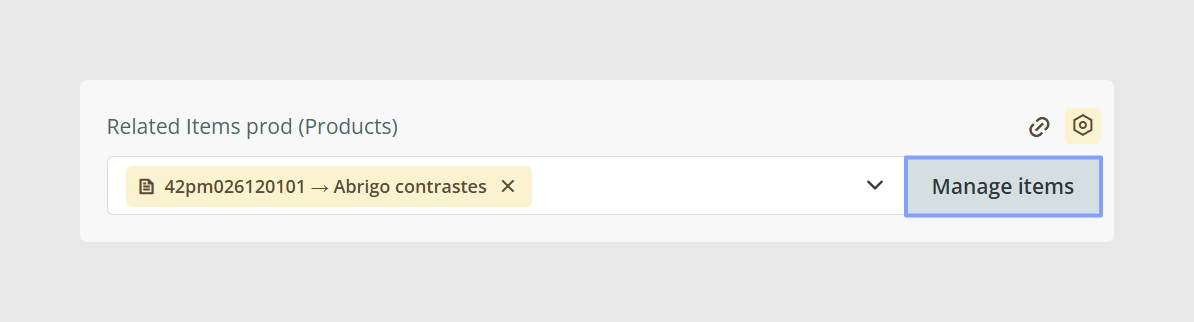
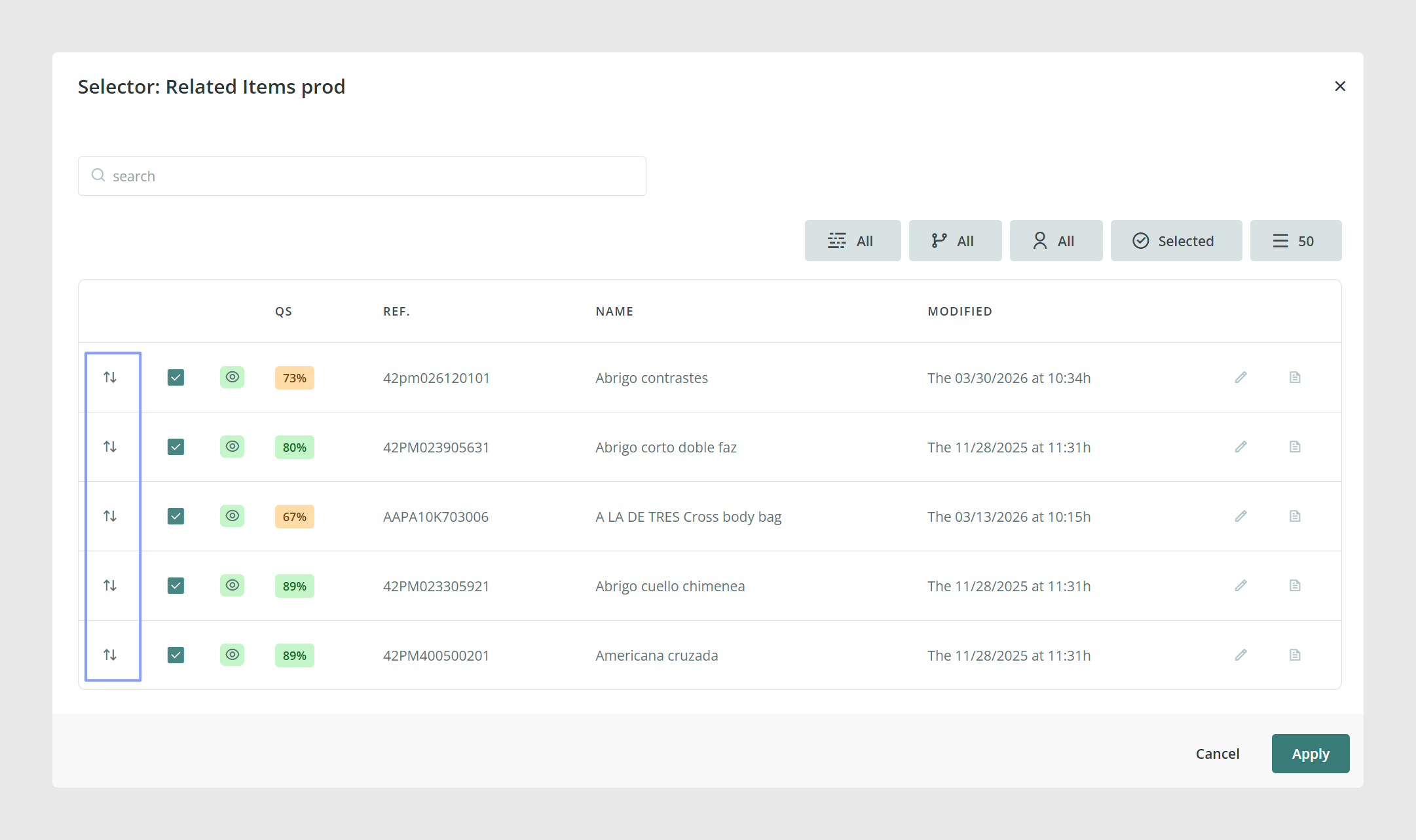
Option 2: Use Manage items
Click Manage items.
Search by reference, or use filters such as:
Attribute Set
Category
Status
Tags
Select the items you want and click Apply to save.
Tip: If filtering shows no results, check that the filter is set to All where available, then apply your search again.
Preview and edit linked items
After items are linked, you can quickly review them:
If you click the pencil icon on the right of each item, you will open its form directly in another tab.
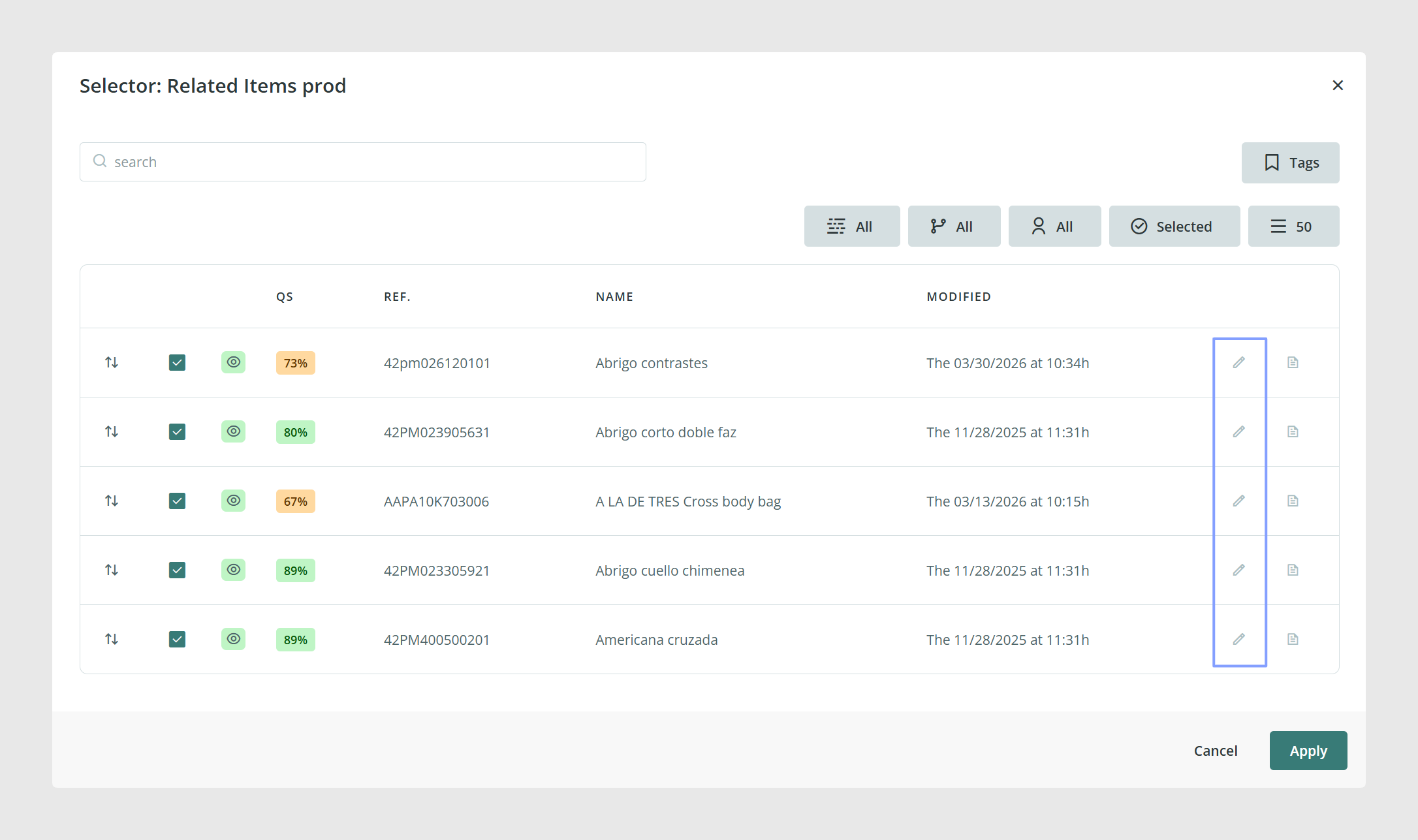
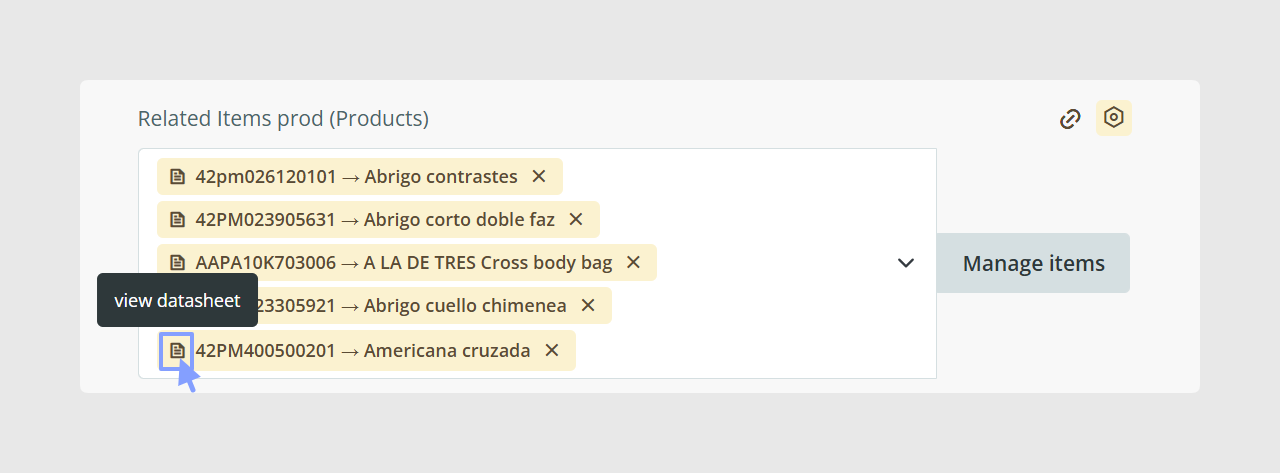
By clicking the icon next to the pencil, or on the item reference, you can see the complete product sheet.
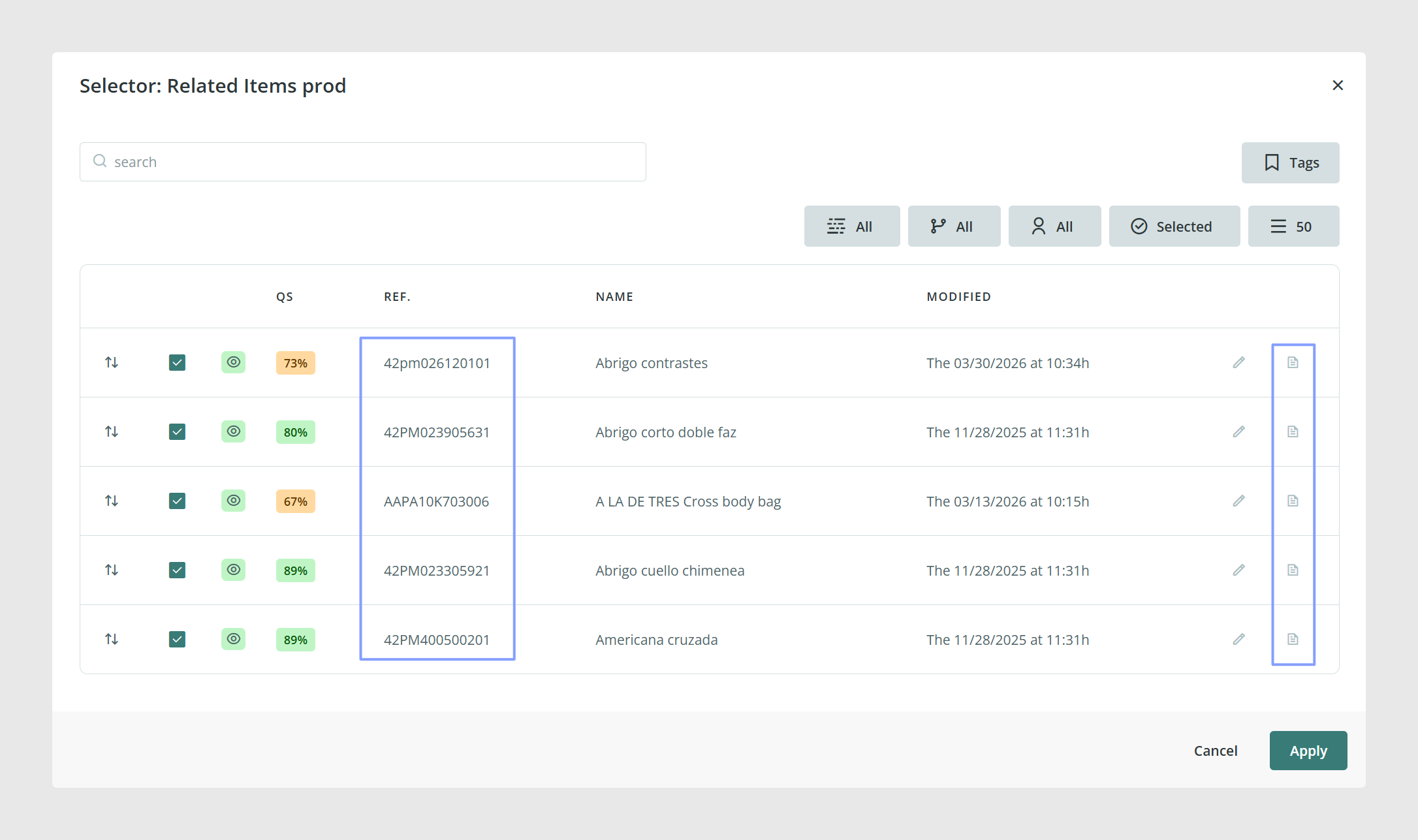
In Manage items, you can also open an item’s form directly. Some views include:
Quick access icons to open the form in a new tab
A full item preview from the list
In the Manage items window, you can reorder the linked items using the arrows on the left.
The chosen order is kept when exporting data through connectors.
If the selection spans multiple pages, sorting is done page by page.
Best practices
Name Related items fields based on the relationship, for example “Accessories”, “Spare parts”, “Similar products”, or “Documents”.
Choose a clear title format for the selector, for example Reference + Name, so users can pick the right items quickly.
Keep the selection focused. Too many linked items can make the field harder to use and maintain.
If the order matters in your channel, such as accessory order on a webshop, set and maintain the order using Manage items so exports stay consistent.
Related links
Was this article helpful?
That’s Great!
Thank you for your feedback
Sorry! We couldn't be helpful
Thank you for your feedback
Feedback sent
We appreciate your effort and will try to fix the article