The Parameters tab defines the global export behavior of the connector.
All options affect the structure, language, merging logic, encoding, and format of the final output.
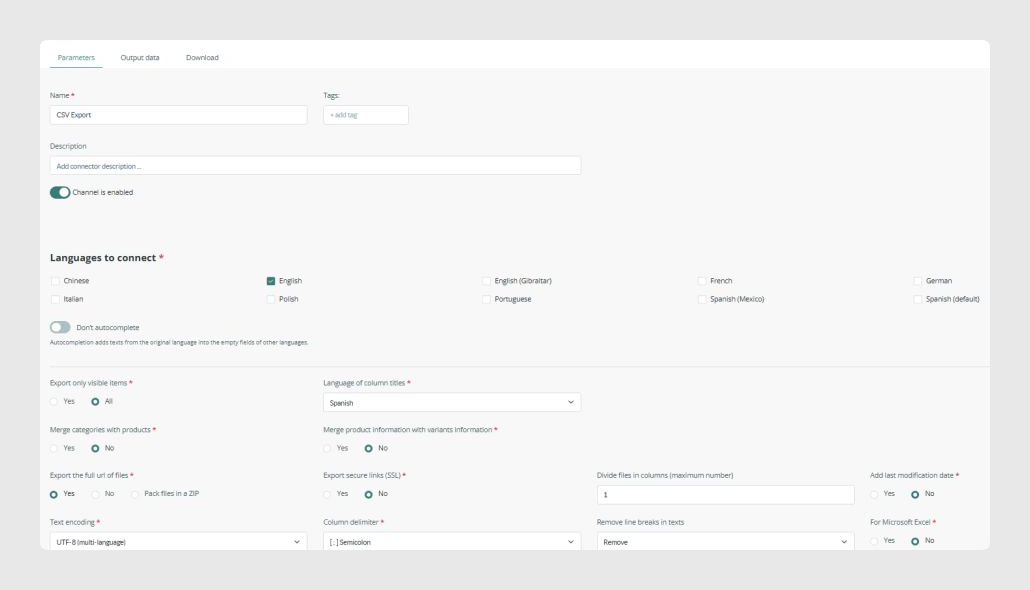
Below is a detailed explanation of each parameter.
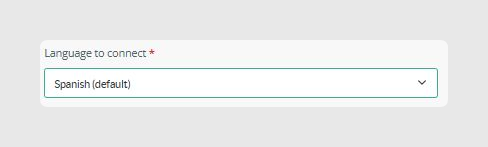
Language to connect (multi-language export)
This connector allows exporting multiple languages at the same time.
- You can select one or several languages
- Each language generates its own set of columns in the CSV, for example Name_en, Name_es, or Description_fr
- All text, names, descriptions, and translatable fields are exported in each selected language
Duplicate Channel
This option is available inside the Actions dropdown menu.
It allows you to clone the connector while preserving the existing settings. This is useful when you need similar exports for different users, workflows, or test configurations.
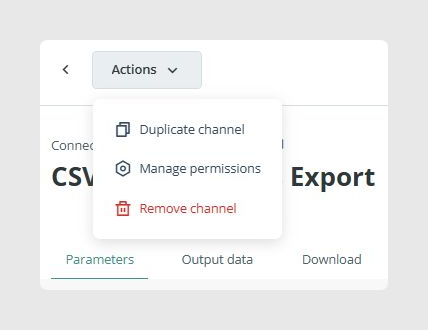
The duplicated connector is created disabled by default. Review its configuration and activate it when it is ready to use.

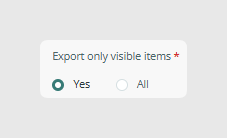
Export only visible items
Defines whether the connector should export only visible items or all items, regardless of visibility status.
This is useful when visibility is used as a control for what should appear in the export.
Important: If this option is enabled, the full hierarchy must be visible.
- Category: must be visible
- Product: must be visible
- Variant: must be visible
If any element in the chain is invisible or in draft, the item will not be exported.
- A visible product inside a non-visible category: not exported
- A visible category and visible product, but a non-visible variant: variant not exported
- A non-visible product with visible variants: nothing exported
Language of column titles
Determines the language used for column names in the final CSV header.
- This affects only the column names
- It does not change the exported item data

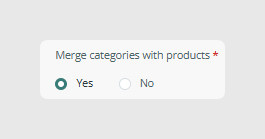
Merge categories with products
When enabled, the connector includes category-level fields in the same rows as product data.
This allows you to generate a single table containing category information and product information.
Use this option when you want consolidated product and category data.
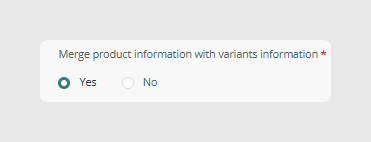
Merge product information with variants information
When enabled, the connector includes product-level fields in the same rows as variant data.
This allows you to generate a single table containing product information and variant information.
Use this option when you want consolidated variant and product data.
Combining merge options
When both merge options are enabled, the connector includes category, product, and variant information in a single row.
This is useful when you want a consolidated file with all catalog information in one table.
Export full URLs of files / Pack files in ZIP
This determines how image and file URLs are exported.
- Yes: export full URLs
- No: export partial paths
- Pack files in ZIP: package all files inside a downloadable ZIP archive
ZIP export is useful when you must deliver all files together or when the target system requires manual uploads of documents or images.

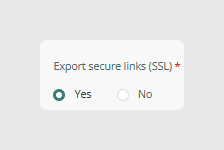
Export secure URLs (SSL)
Outputs HTTPS URLs for images and files. This is recommended for most platforms.
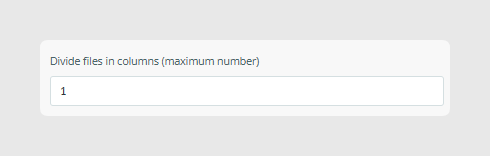
Divide files in columns
Allows splitting image or file values into multiple columns.
- Use this when you want one image or file per column
- Use this when you want to avoid long comma-separated lists inside one cell
Setting this value to 1 keeps all values in a single column.
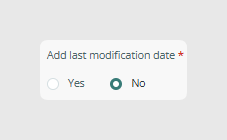
Add last modification date
Adds a column containing the last modification timestamp of each item. This is useful for sync checks and external automation.
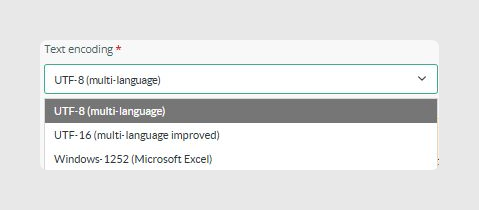
Text encoding
Determines the encoding of the exported CSV.
Typical choices include:
- UTF-8 (multi-language), recommended default
- UTF-16 (multi-language improved)
- Windows 1252 (Microsoft Excel)
Choose the encoding required by your target system.
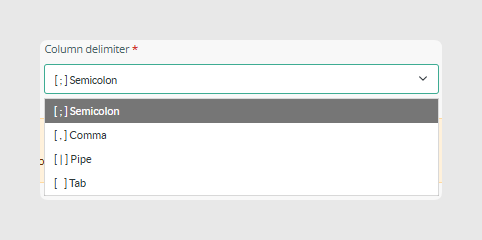
Column delimiter
Selects the character that separates columns in the CSV.
- Semicolon
- Comma
- Pipe
- Tab
Selecting the correct delimiter is important to ensure the file opens correctly in tools such as Excel.
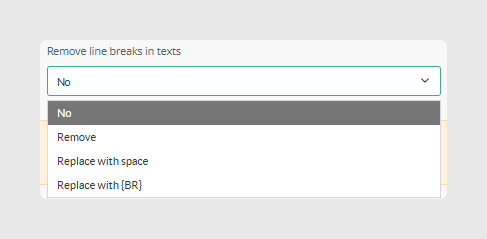
Remove line breaks in texts
Controls whether line breaks should be removed from text fields.
- No: keep original formatting
- Remove: remove line breaks completely
- Replace with space
- Replace with {BR}
This is recommended when exporting to systems that break rows when line breaks are present.
For Microsoft Excel
When enabled, this option formats the CSV to prevent common Excel import issues.
- Quotation character escaping
- Comma handling
- Large number formatting
Enable this option when the target user will open the file directly in Excel.

Was this article helpful?
That’s Great!
Thank you for your feedback
Sorry! We couldn't be helpful
Thank you for your feedback
Feedback sent
We appreciate your effort and will try to fix the article