The Smart Business Rules action lets you automatically generate or calculate a value in one field using information stored in other fields.
This is useful when you want Sales Layer to complete data automatically by applying logic rules, similar to the formulas used in connectors.
This feature is available for Categories, Products, Variants, and Custom Entities.
What the Smart Business Rules action does
When you add this action to an agent, the agent calculates a value and writes the result into a destination field.
You can configure it to:
- Fill only empty fields
- Overwrite existing values
- Calculate results using a formula built from fields, values, operators, and functions
This helps reduce manual editing and keeps repetitive calculations consistent across your catalog.
Where to find it
To add this action:
- Open your agent configuration.
- Go to the Action step.
- Click Add action.
- Select Smart Business Rules.
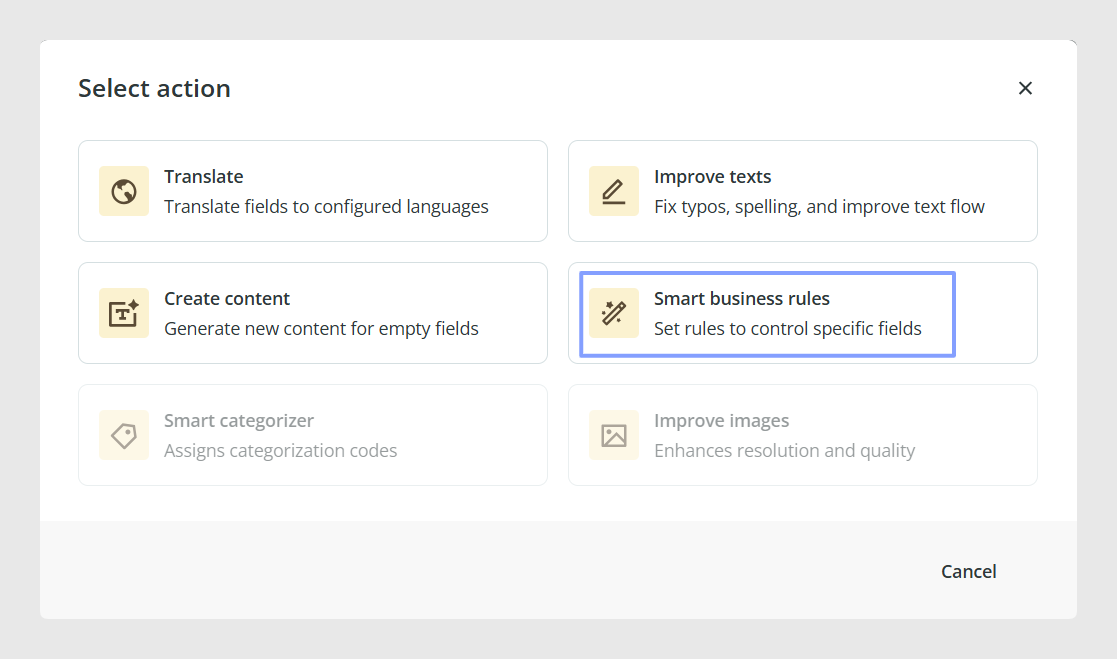
Once selected, the configuration window opens so you can define how the action should work.
How to configure the action
The configuration window contains the destination field, behavior options, the formula editor, the Browse fields from selector, and the Function Library.
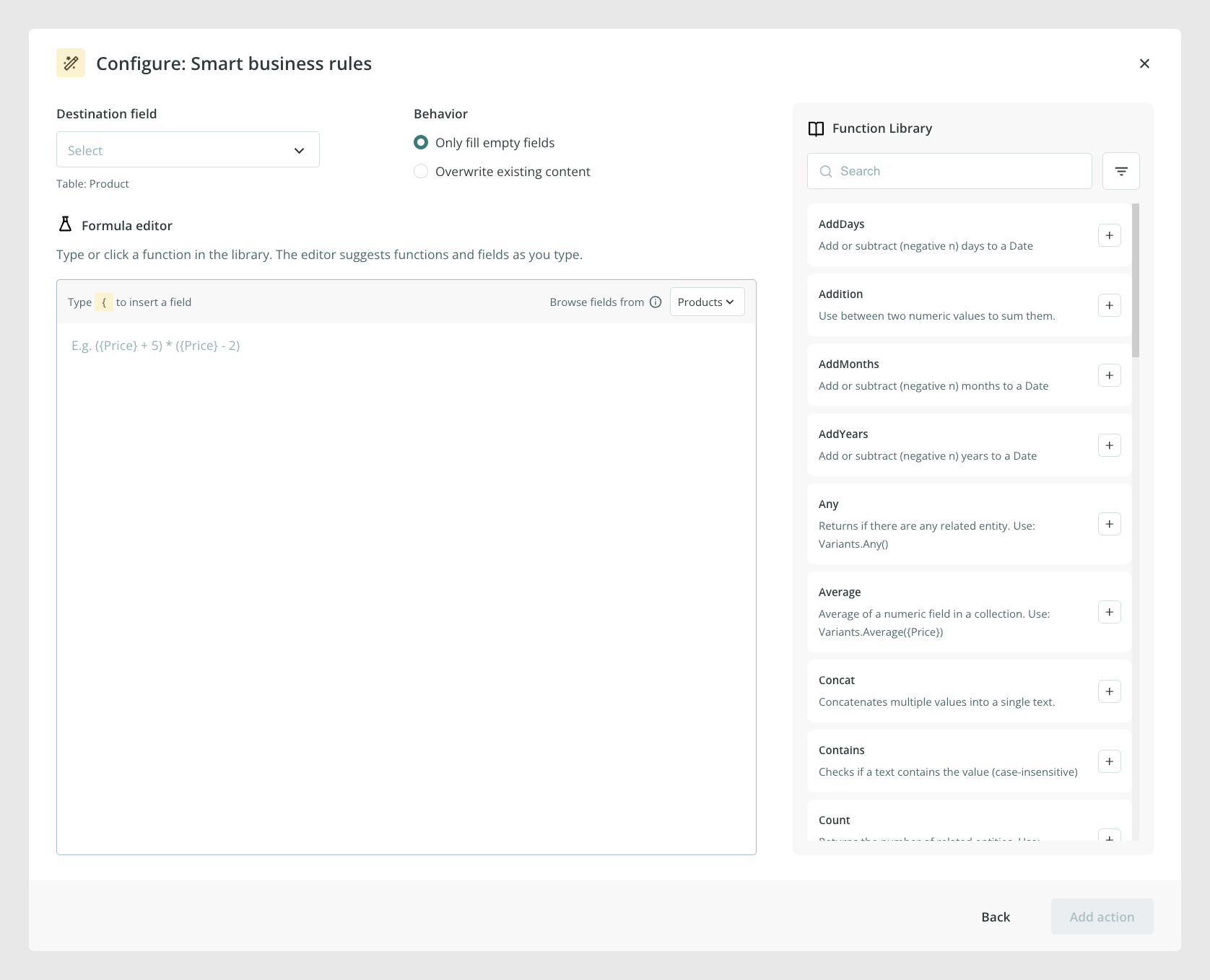
Destination field
Choose the field where the calculated result will be saved. This is the field the agent updates after applying the rule.
Under the selector, Sales Layer shows the table where the destination field belongs, for example Product.
Behavior
Choose how the agent should write the result:
- Only fill empty fields: the action writes a value only if the destination field is empty.
- Overwrite existing content: the action writes the result even if the destination field already contains a value.
Formula editor
Use the Formula editor to build the rule by combining fields, fixed values, operators, and supported functions. The result of the formula is written into the destination field.
Insert fields
Type { inside the editor to open the field suggestions for the selected table. Choose a field from the list to insert it into the formula.
Inserted fields are displayed as highlighted tokens, such as {price}, so they are easier to distinguish from functions, operators, and fixed text.
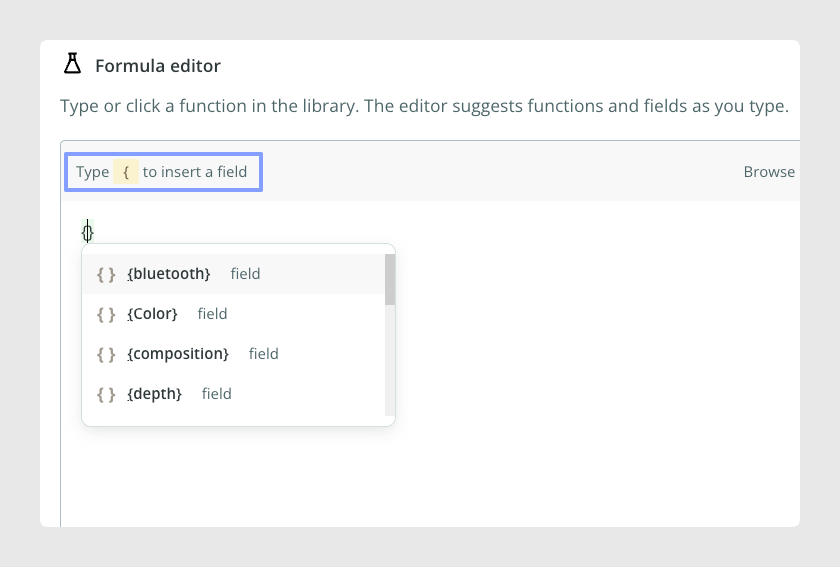
Browse fields from another table
The destination table is selected by default in Browse fields from. Change this selector when you need to insert a field from a related supported entity.
The selected table controls which fields appear when you type { in the editor.
You can reference fields from related Products, Variants, Categories, and Custom Entities, provided that a relationship exists between the items.
For Custom Entities, this relationship must be established through a Related Item field.
For example, if a product is linked to a Custom Entity containing additional product information, you can use fields from that Custom Entity in a formula to calculate or populate a destination field in the product.
This allows you to reuse information stored in related entities without having to copy it manually into each product.
Autocomplete and validation
The editor suggests supported functions and catalog fields as you type. This helps you build formulas more quickly and reduces typing errors.
Sales Layer also validates the formula. If the syntax is not valid, an error such as Invalid formula syntax appears below the editor so you can correct it before saving the action.
Create with AI
The Formula editor includes a Create with AI option that allows you to generate formulas using natural language.
Instead of writing the formula manually, click Create with AI and describe what you want the Business Rule to calculate or do.
For example, you could ask AI to create a formula that calculates a final price based on the original price and a discount percentage.
AI generates a formula based on your instructions, which you can then use in the Smart Business Rules action.
This is particularly useful if you know the result you want to achieve but are not familiar with the available functions or formula syntax.
Review the generated formula before saving the action to make sure it uses the correct fields and produces the expected result.
Function Library
The Function Library appears on the right side of the configuration window. It includes a search box, category filters, and the available functions with descriptions.
Use the filter button to narrow the library by:
- All
- Text
- Numeric
- Conditional
- Date
- Collections
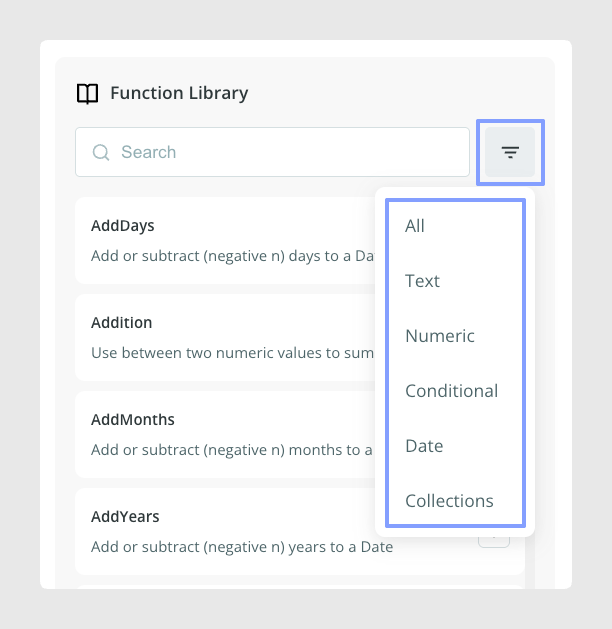
Each function card provides integrated guidance, including its description, parameters, and usage examples. Use the + button to insert a function into the formula editor.
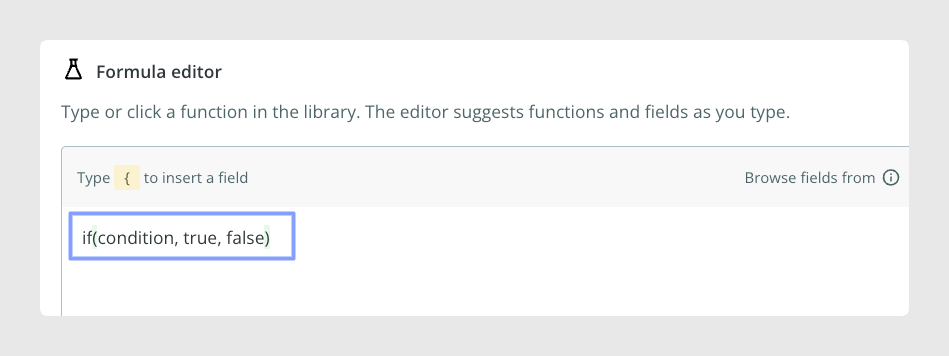
When inserted, the function appears with the structure it expects you to complete. For example, the conditional function is inserted as if(condition, true, false).
Finish adding the action
Once the action is configured:
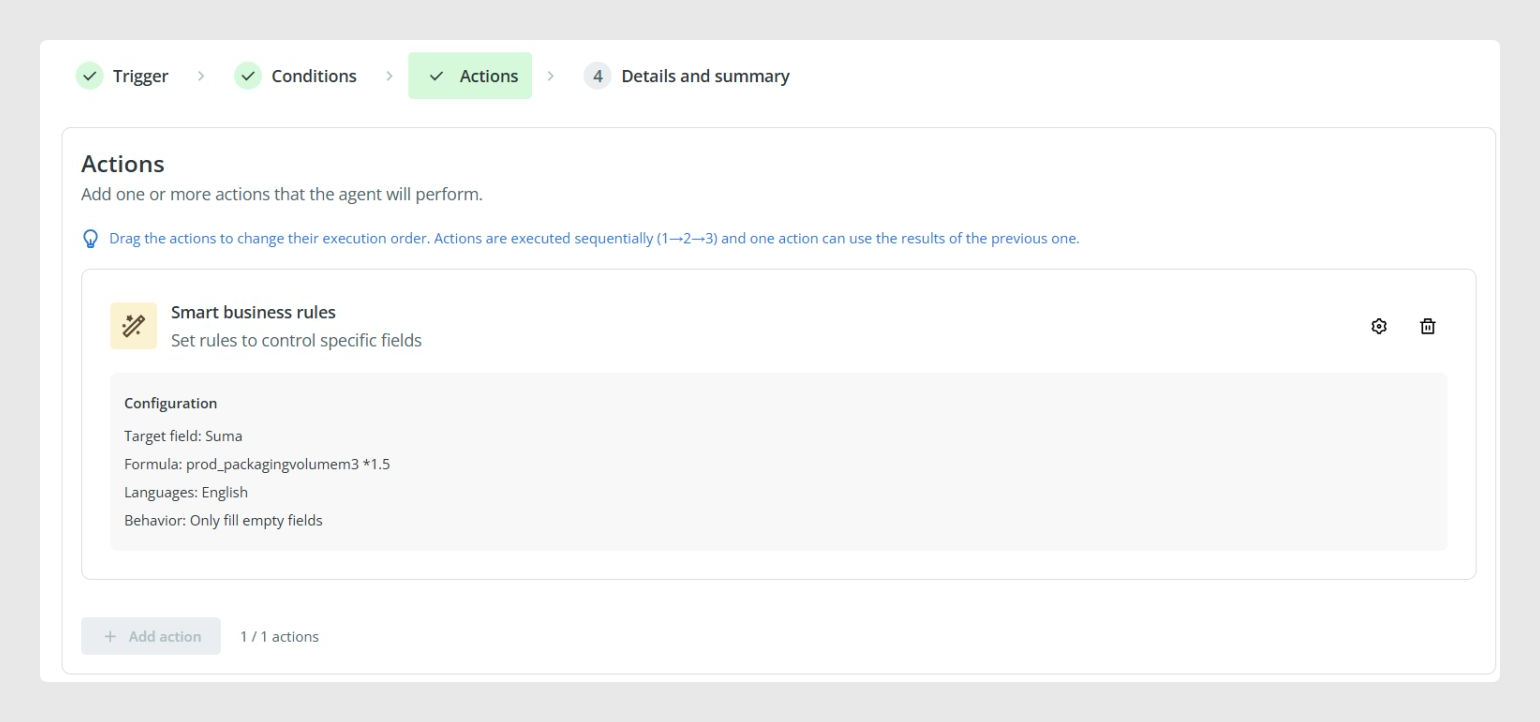
- Click Add action to save a new action, or Update action when editing an existing one.
- Click Next to continue creating your agent.
Current available functions
The Smart Business Rules action currently supports the following operations and functions.
| Category | Operator / Function | Description | Example |
|---|---|---|---|
| Arithmetic | + | Addition | Price + Shipping |
| Arithmetic | - | Subtraction | Price - Discount |
| Arithmetic | * | Multiplication | Price * 1.21 |
| Arithmetic | / | Division | Price / 100 |
| Grouping | ( ) | Parentheses to control precedence | (Price + Shipping) * 1.21 |
| Operands | Numeric literal | Integer or decimal number | 100, 1.21 |
| Operands | Field reference | Catalog field inserted from the editor | {Price} |
| Operands | String literal | Text enclosed in single quotes | 'expensive', 'active' |
| Comparison | = | Equal | Price = 100 |
| Comparison | <> | Not equal | Status <> 'X' |
| Comparison | > | Greater than | Price > 100 |
| Comparison | >= | Greater than or equal | Price >= 100 |
| Comparison | < | Less than | Stock < 10 |
| Comparison | <= | Less than or equal | Stock <= 10 |
| Conditional | if(cond, yes, no) | Ternary conditional | if(Price > 100, 'expensive', 'cheap') |
| Conditional | and | Logical AND | Price > 100 and Price < 200 |
| Conditional | or | Logical OR | Price > 100 or Price < 50 |
| Conditional | not(cond) | Logical negation | not(Price > 100) |
| String | Left(field, n) | First N characters | Left(description, 10) |
| String | Right(field, n) | Last N characters | Right(sku, 3) |
| String | Mid(field, start, len) | Substring from a position | Mid(name, 2, 5) |
| String | Len(field) | Length of the string | Len(description) |
| String | Upper(field) | Converts text to uppercase | Upper(name) |
| String | Lower(field) | Converts text to lowercase | Lower(name) |
| String | Trim(field) | Removes leading and trailing spaces | Trim(name) |
| String | Concat(a, b, ...) | Concatenates values | Concat(brand, ' - ', name) |
| String | Contains(field, 'val') | Checks whether a substring exists | Contains(name, 'pro') |
| String | Localize(field, 'lang_code') | Returns the value of a multilingual field in the specified language | Localize(Price, 'en') |
| String | Replace(field, searched, replaced) | Replaces all occurrences of a string | Replace(Description, 'centimeters', 'cm') |
| Date | Date fields | Support for date attributes | Product Creation |
| Date | Today() | Current date without time | Today() |
| Date | Now() | Current date and time | Now() |
| Date | Date(y, m, d, hh, mm, ss) | Creates a specific date or datetime. hh, mm, and ss are optional. | Date(2026, 3, 30) |
| Date | AddDays(date, n) | Adds or subtracts days | AddDays(Product Creation, 5) |
| Date | AddMonths(date, n) | Adds or subtracts months | AddMonths(Today(), -6) |
| Date | AddYears(date, n) | Adds or subtracts years | AddYears(Date(2026, 3, 30), 4) |
| Date | Year(date) | Returns the year of a date | Year(Product Creation) |
| Date | Month(date) | Returns the month of a date | Month(Product Creation) |
| Date | Day(date) | Returns the day of a date | Day(Product Creation) |
| Date | DateDiff(date1, date2, 'unit') | Difference between dates in days, months, or years | DateDiff(Product Creation, Date(2026, 3, 30), 'days') |
| Navigation | Entity.First().property | Returns a property from a related entity | Categories.First().Discount |
| Collections | Entity.Any() | Checks whether there is any related entity | Variants.Any() |
| Collections | Entity.Sum(field) | Sum of a collection | Variants.Sum(Variant Price) |
| Collections | Entity.Average(field) | Average of a collection | Variants.Average(Stock) |
| Collections | Entity.Count() | Count of related items | Variants.Count() |
| Collections | Entity.Min(field) | Minimum value of a collection | Categories.Min(Price) |
| Collections | Entity.Max(field) | Maximum value of a collection | Products.Max(Price) |
| Math | FormatNumber(number, decimals) | Formats a number as text, rounded to the specified number of decimal places | FormatNumber(Price, 2) |
| Math | Round(expr, dec) | Rounding | Round(Price * VAT, 2) |
Collections are used when the related entity is one-to-many. For example, one product can have several variants. In this case, use functions such as Any, Sum, Average, Count, Min, or Max to define how the related values should be handled.
Functions planned for future iterations
| Category | Operator / Function | Description | Example |
|---|---|---|---|
| Math | Abs(expr) | Absolute value | Abs(Price - Cost) |
| Math | Floor(expr) | Round down | Floor(Price / 10) |
| Math | Ceiling(expr) | Round up | Ceiling(Stock / PackSize) |
| Custom / AI | ai*(...) | AI evaluation that may include prompts | ai_score(Name, Category.Name) |
| Custom / AI | custom*(...) | Arbitrary external logic | custom_validation(SKU) |
Current limitations
Keep the following limitations in mind:
- Only Number, Status, Short Text, Long Text, and Date destination fields are supported.
- When you reference a multilingual field directly, the formula uses its default-language value.
- Use Localize(field, 'lang_code') when you need the value from a specific language.
- Fields from related entities can be referenced from Products, Variants, Categories, and Custom Entities, provided that the required relationships exist.
- Referencing fields from a Custom Entity requires a relationship established through a Related Item field.
Common Use Cases
The Smart Business Rules action can be useful when you need to:
- Calculate a final price from existing numeric fields
- Create a text value by combining several fields
- Complete a field automatically when specific conditions are met
- Build date-based rules using date fields and functions
- Use information from related Products, Variants, Categories, or Custom Entities
- Populate product fields using data stored in related Custom Entities
- Update an item's Status automatically based on a formula
- Generate formulas from natural-language instructions using Create with AI
- Standardize repetitive calculations across many items
Best practices
Before running the action on a large set of items, check that the source fields used in the formula contain consistent values. Test the rule with a small group first to confirm that the formula returns the expected result and writes it to the correct destination field.
When referencing related entities, verify that the relationships between items are correctly configured so the formula can access the intended data.
When working with multilingual fields, remember that the default language is used unless you apply the Localize function.
If you use Create with AI, review the generated formula and test it before applying it to your catalog.
Was this article helpful?
That’s Great!
Thank you for your feedback
Sorry! We couldn't be helpful
Thank you for your feedback
Feedback sent
We appreciate your effort and will try to fix the article