The way multimedia files such as images, videos, 3D models, PDFs, and similar assets are managed, uploaded, and reused is designed to optimize several areas in Shopify.
- File reuse and duplicate removal by reading multimedia elements from Shopify and caching them in the client database
- SEO capabilities through alternative text, or ALT text
- Optimized use of Shopify’s media library
- Support for different file types in metafields
If the media_order field is not mapped, the connector sorts media entities in this default order:
- Elements inside the media_video field in the connector
- Elements inside the images field in the connector
- Elements inside the media_external field in the connector
Media management rules
The connector follows these rules when working with multimedia files.
Rule 1: Shared files in metafields
If multiple metafields in different products reference the same image, only one image is uploaded to Shopify’s file library. That same file is then linked to all the related metafields.
Items are linked to multimedia files using a hash calculated from the file content.
- The system checks the actual file content, not the file name
- If the ALT text changes, the file remains the same and only the text is updated
- If the file content changes, a new file with a new hash is generated
- Once uploaded, a multimedia file remains in the Shopify library and is not deleted by the connector
Rule 2: Direct upload of images from metafields
When a metafield is configured in the connector and outputs an image, that image is uploaded to the Shopify media library.
- If a file has already been uploaded, it can be reused
- This reduces data transfer
- This helps keep the library organized
- This reduces storage costs
Rule 3: PDF support in metafields
PDF files can also be sent through metafields.
Common use cases include:
- Instructions
- Manuals
- Any other documents required by the customer
- Multilingual documents
Rule 4: Optimized image reference for SEO in products
- Even if two different products use the same image, they do not share the same multimedia file reference
- This allows each product to have a different ALT value
- File references are only shared inside the same product, not between different products
- If a product and one of its variants use the same image, the file is uploaded only once and the variant reuses the product’s main multimedia reference
Images are imported with ALT attributes to improve SEO. The ALT value is filled with the product title or the variant SKU, together with the corresponding order number.
If there are multiple images, they will follow the order configured in Sales Layer.
Rule 5: File formats supported by Shopify
- Images: PNG, JPEG, PSD, TIFF, BMP, GIF, SVG, HEIC, WebP
- Videos: .mp4, .mov, .webm
- 3D Models: .glb, .usdz
- Documents through metafields: .pdf, .csv, .json, .js, .css
Rule 6: File name changes in Shopify
Changes made directly to file names in Shopify are permanent because Shopify links multimedia files using a unique internal ID, not the file name.
- The connector does not overwrite manual file name changes made in Shopify
- If you rename an image in the PIM, the new name does not synchronize to Shopify
- Manual edits are preserved while Shopify continues using the same internal file ID
- For example, a client can rename a file for SEO purposes, such as changing IMG_1234.jpg to red-leather-woman-bag.jpg
External videos
It is possible to send the URL of an external video through the connector, such as a YouTube-hosted video linked to a product.
To do this, create a field called media_external in the connector and map it to the catalog field that stores the video URLs. This catalog field can be a short text field or a URL field.
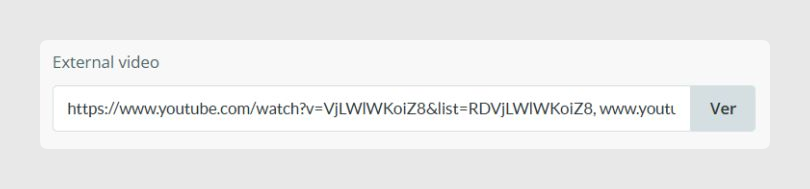

Multiple videos can be sent in the same field, separated by commas.
Internal videos and 3D images
In addition to external videos, the connector can send videos and 3D images stored in the Sales Layer file library.
To do this, create a field called media_video in the connector and map it to a file-type field in Sales Layer.
This field can include all videos or 3D images that should be assigned to a product.
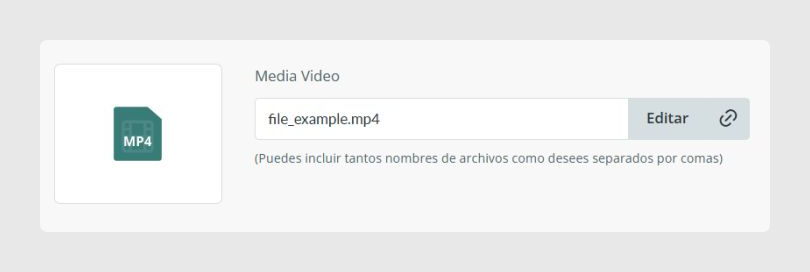

Supported extensions are:
- 3D Images: .glb, .gltf, .usdz
- Videos: .mp4, .mov
ALT attribute customization
It is possible to customize the ALT value for all images through the connector.
To do this, create and map these fields in the catalog:
- collect_alt
- product_alt
- variant_alt
- media_video_alt for internal videos and 3D images
- media_external_alt for external videos
ALT attributes can be configured in two ways:
- Using a text field with descriptions separated by commas, in the same order as the files
- Using a table-type field, where the first row links to the first file, the second row to the second file, and so on
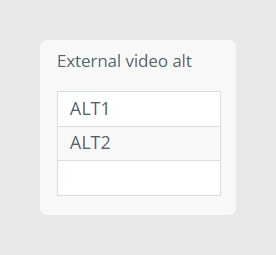
If no value is provided, the connector automatically generates the ALT text using the article title.
Multimedia file order
If you want to control the order of multimedia files, create the media_order field in the connector and add this formula:
PRINT("model3d|mediaimage|video|externalvideo")The values in the formula mean:
- mediaimage: the item images
- model3d: 3D images
- video: videos hosted in the Sales Layer library
- externalvideo: external videos
The elements must be placed in the formula in the order in which they should appear in Shopify.
If the media_order field is not mapped, the connector uses the default order media_video, images, and media_external.
Media synchronization and external systems
Scenario | Necessary action | Expected behavior |
|---|---|---|
Your image source is an ERP, DAM, or Shopify apps | Disable these media fields in Sales Layer:
|
|
Only media_external is enabled | Disable or remove these fields:
|
|
Considerations
- Inside a specific media field, the order of elements can be controlled by placing one element before another in Sales Layer.
- The connector links files by content hash, not by file name. If the file name changes but the content stays the same, the system still recognizes it as the same file.
- Image metafields are separate from Shopify’s regular product images.
- Each product keeps its own image reference so it can have unique ALT text for SEO.
- Shopify only allows one image per variant.
- If you map the default image field to a multi-language field, Shopify uses the default language value only.
- If you want external systems such as an ERP, DAM, or Shopify apps to remain the source of truth for media, disable the corresponding media fields in the connector.
Was this article helpful?
That’s Great!
Thank you for your feedback
Sorry! We couldn't be helpful
Thank you for your feedback
Feedback sent
We appreciate your effort and will try to fix the article