If several users work in the same Sales Layer account, the connector permissions functionality help you control who can view or edit each connector. This helps prevent accidental changes to connector settings or data flows.
Feature Activation
This functionality is available for Enterprise or Enterprise+ Accounts, but it can be contracted separately. If you are interested or for further information, contact us through the usual support ways.
Set access from user permissions
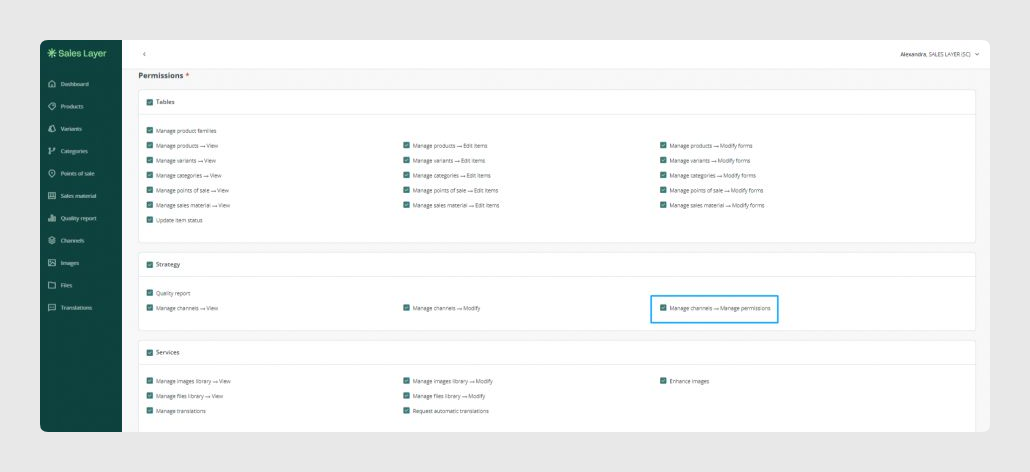
First, go to Manage users. From there, you can decide whether a user can access the Channels section, modify it, or manage connector permissions.
To let a user control permissions for connectors, enable the option Manage channels > Manage permissions.
Set permissions inside a connector
Once a connector has been created and saved, open that connector and go to Actions. Then click Manage permissions.
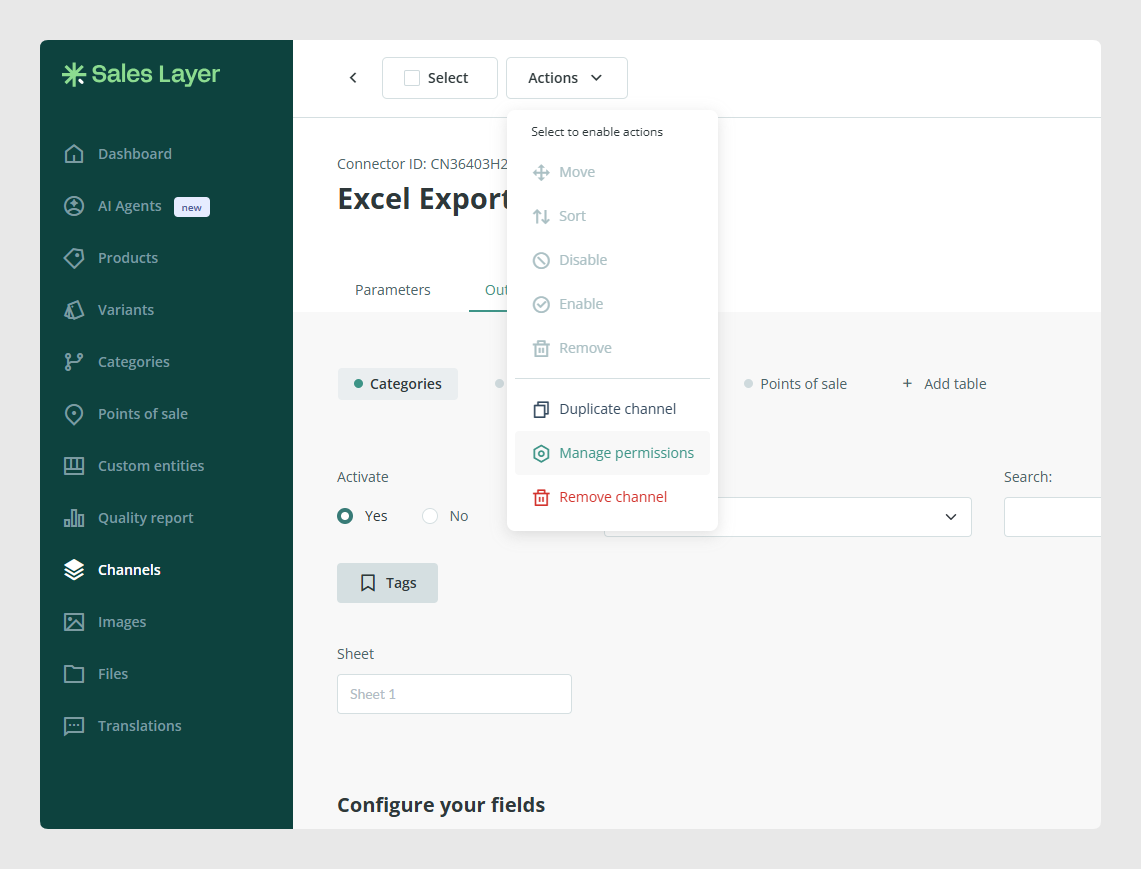
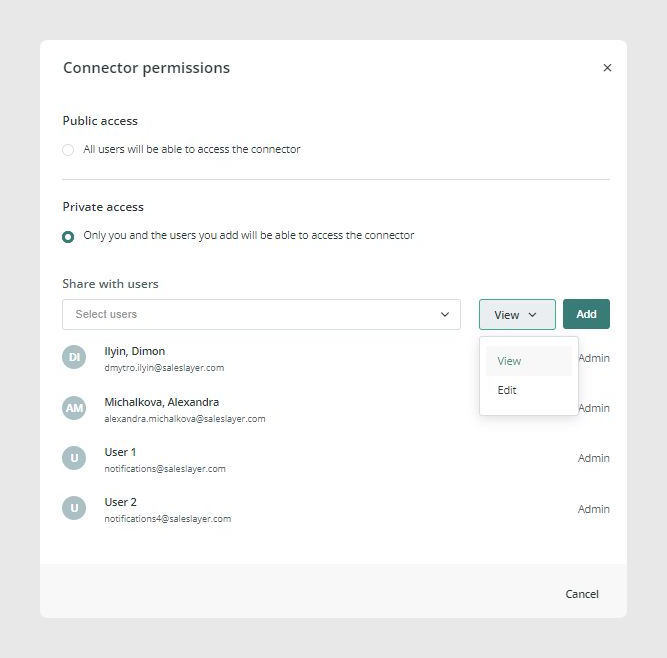
From this option, you can choose whether the connector is open to everyone or private.
Available access options
- Public access: all users can access the connector.
- Private access: only you and the users you add can access the connector.
When the connector is private, you can select which users can access it and choose whether they will have View or Edit permission.
Request access to a connector
If a user does not have permission to view or edit a connector, they can request access directly from the connector card by clicking Request access.
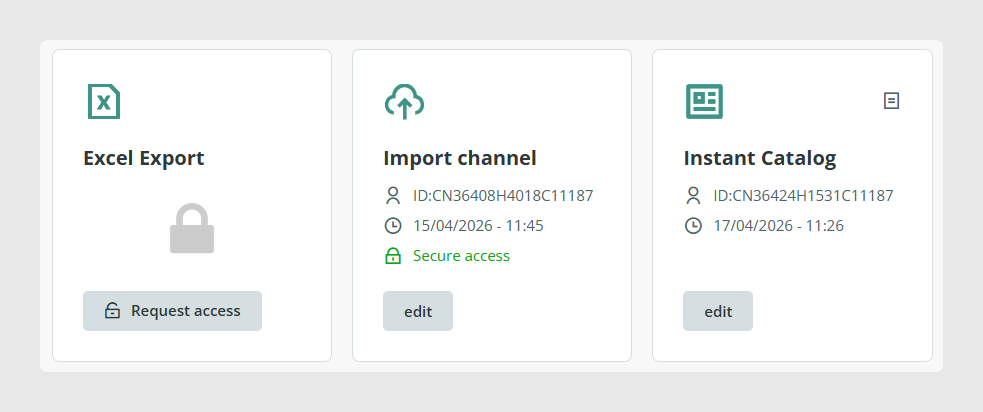
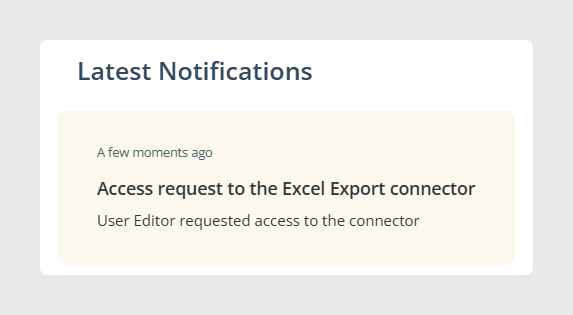
Users who have the Manage permissions privilege receive a notification about the request. They can then grant or deny view or edit access for that connector.
Best practices
Use private access for connectors that control important imports, exports, or marketplace feeds. Limit edit rights to the users who really need them, and give view access to users who only need to review connector settings. This reduces the risk of accidental changes and makes connector management easier across the team.
Was this article helpful?
That’s Great!
Thank you for your feedback
Sorry! We couldn't be helpful
Thank you for your feedback
Feedback sent
We appreciate your effort and will try to fix the article