ChatGPT can connect to the Sales Layer MCP Server through a custom plugin when your ChatGPT account or workspace supports custom MCP connections and Developer mode.
This connection allows ChatGPT to use Sales Layer MCP tools to query and analyze your catalog and, when authorized, perform operations that modify catalog data.
You do not need to install the Sales Layer MCP Server on your computer.
Note: ChatGPT settings may vary depending on your account, workspace configuration, and organization permissions. If you do not see the options described in this article, ask your ChatGPT workspace administrator to check whether Developer mode and custom plugins are enabled.
Before you start
Before connecting the Sales Layer MCP Server to ChatGPT, make sure you have:
- Access to ChatGPT with permission to create custom plugins.
- Developer mode enabled in ChatGPT.
- Access to the Sales Layer catalog you want to use.
- A valid Sales Layer Catalog Token.
If you do not have a Catalog Token, see Getting access to Sales Layer MCP Server.
At the moment, the Catalog Token is not obtained from an API/Tokens section inside the Sales Layer PIM. Contact Sales Layer Support or your Sales Layer account representative if you need one.
We recommend starting with Read only access. Use Full access only when your organization has approved the use case and ChatGPT needs to modify Sales Layer data.
Warning: Do not paste your Catalog Token into a ChatGPT conversation or configure it as an API key or bearer token. The Catalog Token is entered only on the Sales Layer authorization screen during the connection process.
Enable Developer mode in ChatGPT
Developer mode must be enabled before you can create the Sales Layer plugin.
- Open ChatGPT.
- Open Settings.
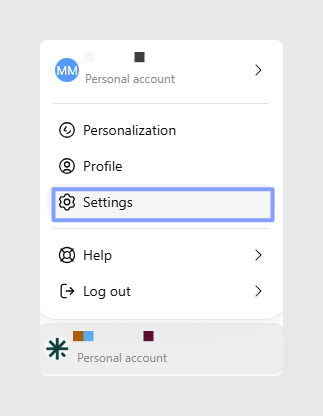
- Go to Plugins.
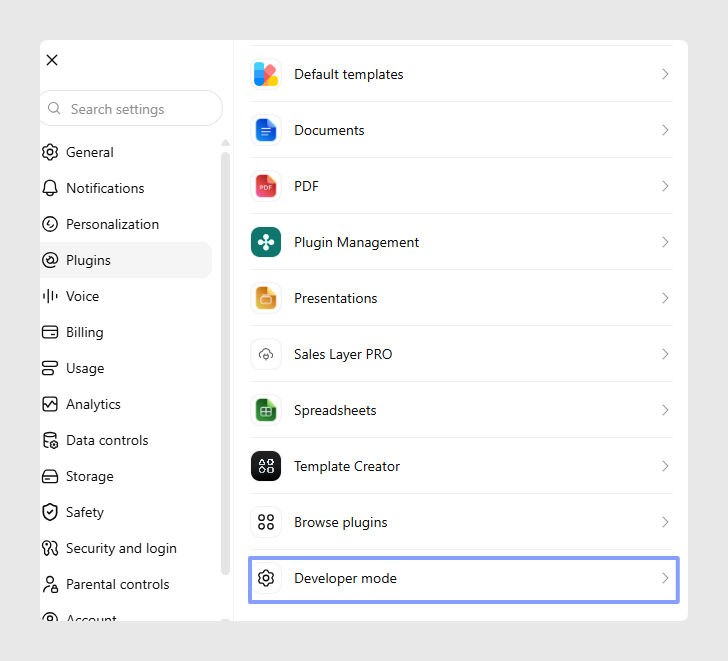
- Enable Developer mode.
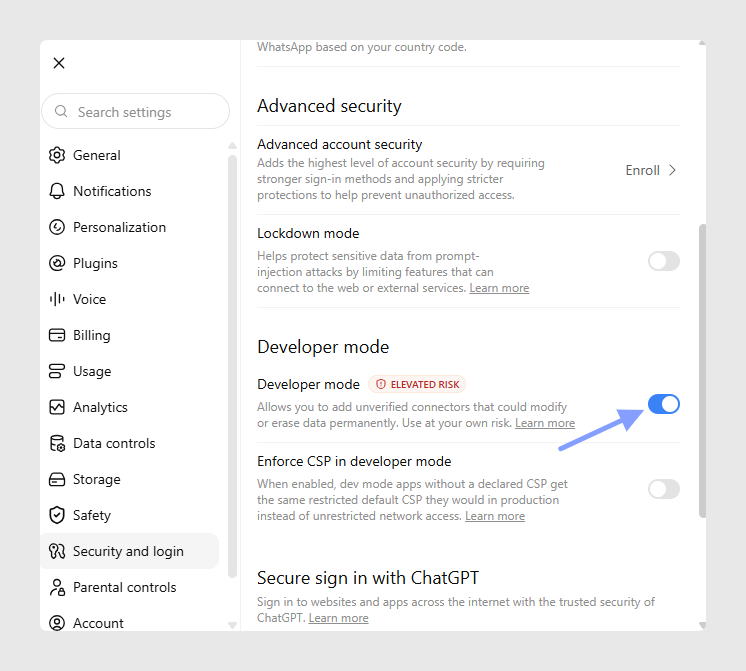
If Developer mode is not available, your organization may not allow custom plugins. Ask your ChatGPT workspace administrator to check the corresponding permissions.
Create the Sales Layer plugin
Install from the ChatGPT in a web browser
Once Developer mode is enabled, create a custom plugin for the Sales Layer MCP Server.
- Open the Plugins menu in ChatGPT.
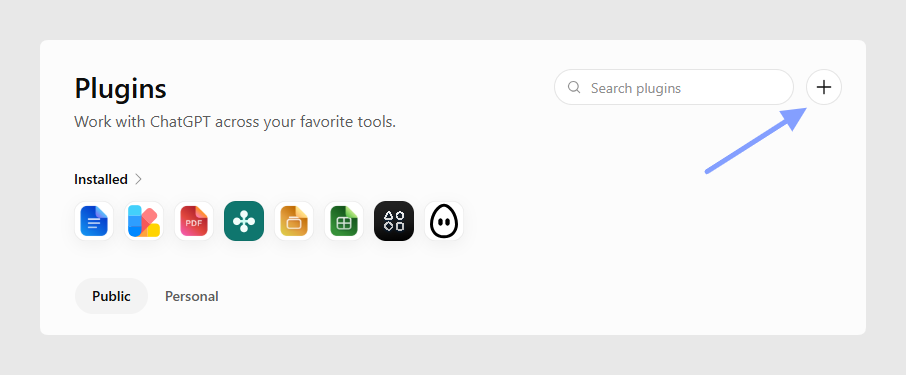
- Click the + icon to create a new plugin.
- Enter the following information:
Field Value Connector name Sales Layer MCP Description Use Sales Layer MCP tools to query and analyze product catalog data from Sales Layer PIM. Connector URL https://mcp.saleslayer.com/mcp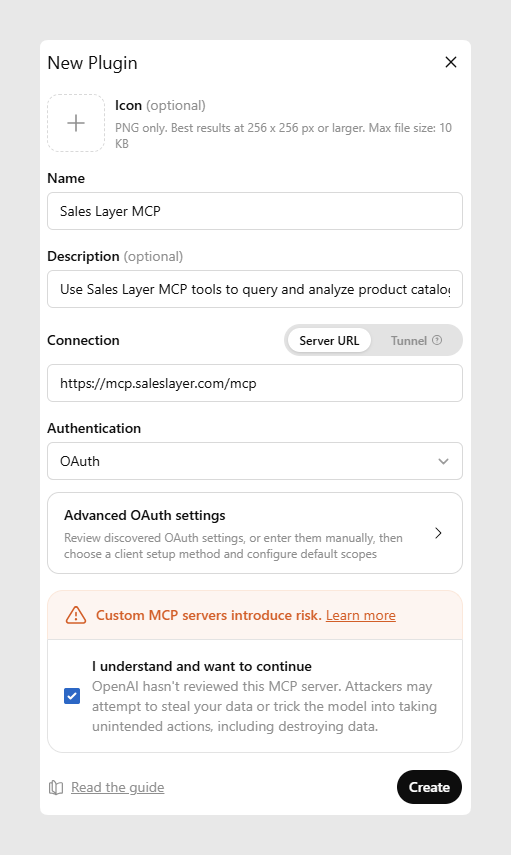
- Click Create.
After you create the plugin, ChatGPT checks whether the Sales Layer MCP Server is available and loads the tools exposed by the server.
You do not need to manually configure OAuth endpoints, API keys, or bearer tokens in ChatGPT.
Install from the ChatGPT app for Windows
These steps apply to the official ChatGPT app installed from Microsoft Store.
- Create the Sales Layer plugin in the web browser.
- Open the Plugins menu in ChatGPT.
- Click the + icon to install Sales Layer plugin.
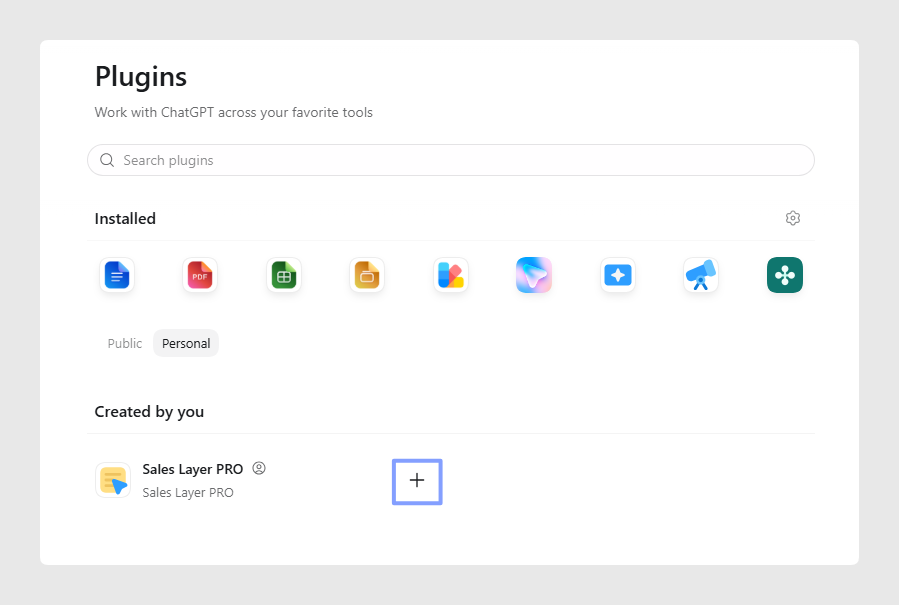
- Complete the Sales Layer authorization process when prompted.
Authorization may open in your default web browser. Complete every step there and return to the ChatGPT app after the authorization process finishes.
Authorize access to Sales Layer
When ChatGPT connects to the Sales Layer MCP Server, the Sales Layer authorization process may open automatically.
This is where you provide your Catalog Token and select the permissions that ChatGPT will have.
- Sales Layer authorization will open, from web browser:
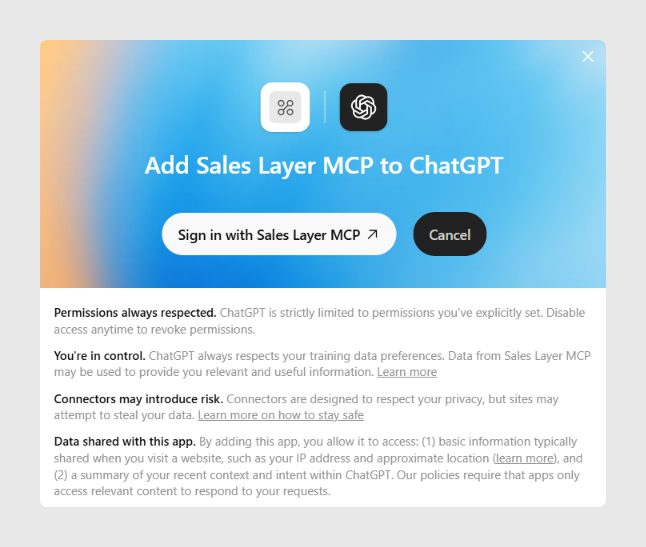 Or by desktop app: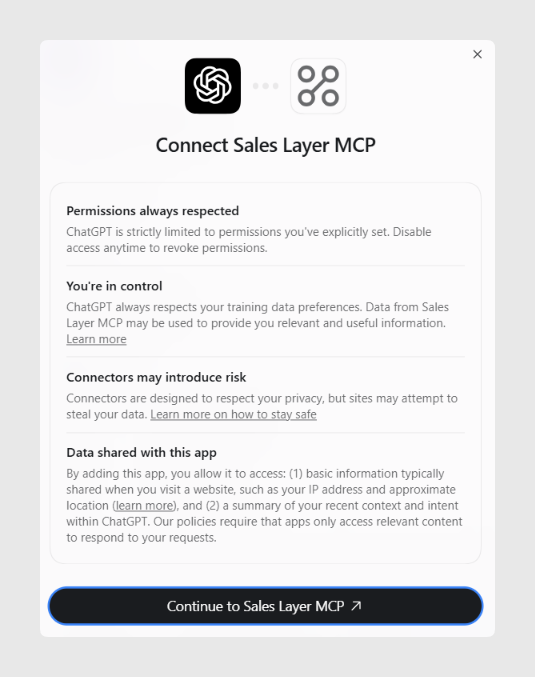
- Select an access profile:
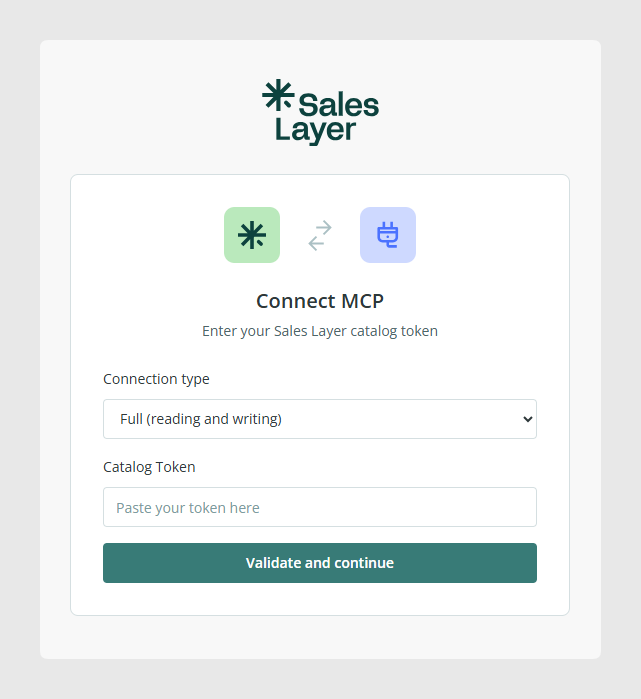
- Select Read only unless ChatGPT needs to create or modify catalog information.
- Enter your Sales Layer Catalog Token:
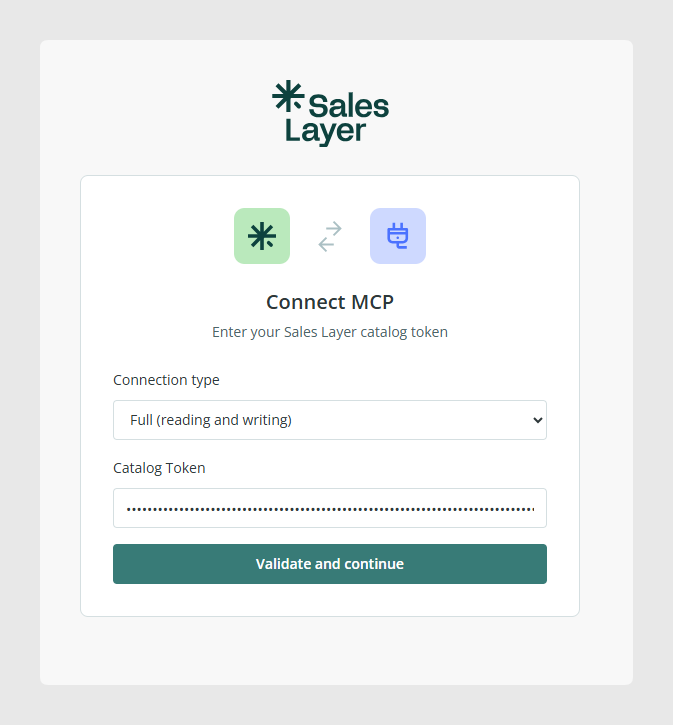
- Validate the token and continue.
- Complete the authorization process.
- Return to ChatGPT once authorization has finished.
Important: Enter the Catalog Token only on the Sales Layer authorization screen. Do not enter it in a ChatGPT prompt, API key field, or bearer-token configuration.
Use Sales Layer in a ChatGPT conversation
To verify the connection and use the plugin:
- Open a new conversation in ChatGPT.
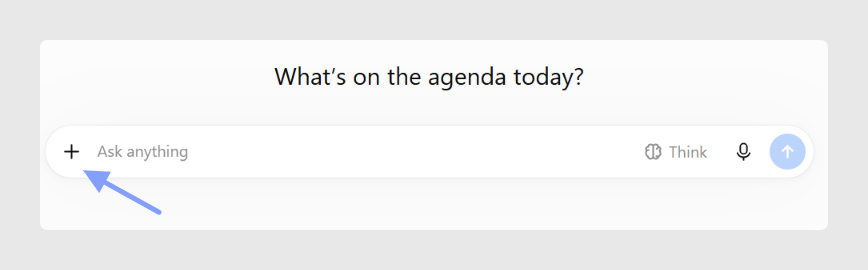
- Click the + button next to the message composer.
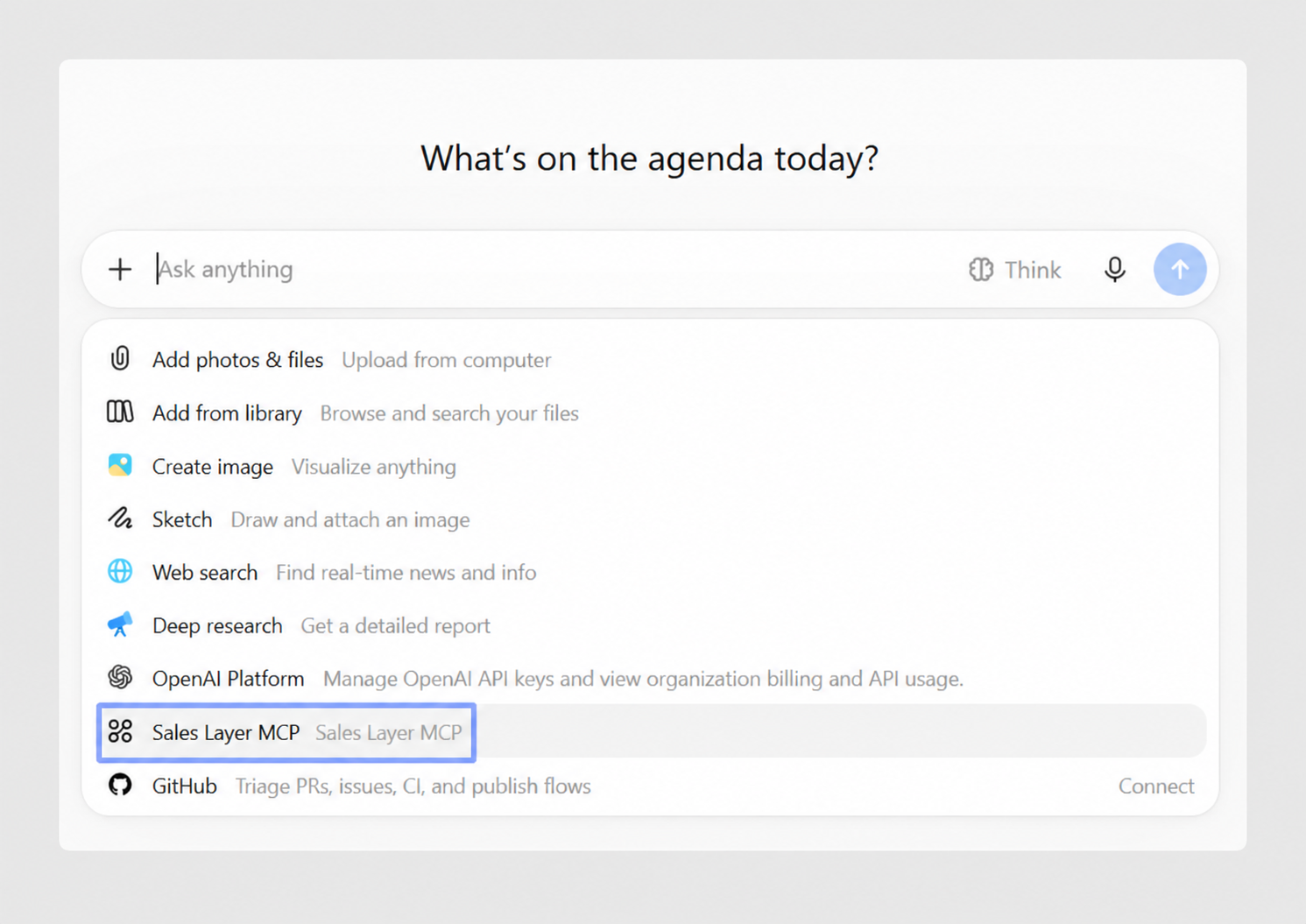
- Select the Sales Layer MCP plugin from the available tools.
- Ask ChatGPT a question about your Sales Layer catalog.
For example:
Which products have incomplete information?
Or:
Show me a summary of my product catalog.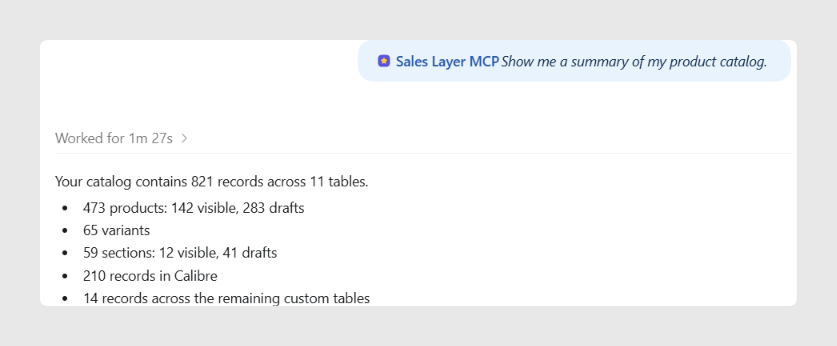
Depending on your permissions and the available Sales Layer MCP tools, you can use ChatGPT for catalog searches, analysis, data-quality reviews, and other Sales Layer operations.
Access profiles
The Sales Layer authorization process can provide different levels of access to the catalog.
Read only
Read-only access allows ChatGPT to query and analyze Sales Layer information without modifying the catalog.
It is recommended for tasks such as:
- Searching for catalog information.
- Analyzing products and other catalog data.
- Reviewing data quality.
- Auditing catalog information.
- Creating summaries and reports.
Start with Read only if you do not need ChatGPT to modify information.
Full access
Full access enables operations that can create, update, or delete information in Sales Layer.
Use Full access only for users and workflows that require write operations.
When ChatGPT uses a tool that can modify Sales Layer data, it may display information about the tool call and may ask you to confirm the operation before it runs.
Always review write operations carefully before approving them.
Refresh the plugin
The Sales Layer MCP Server can evolve as new tools or capabilities become available.
If the tools or their descriptions change, refresh the plugin metadata in ChatGPT:
- Open Settings.
- Go to the Plugins section.
- Open the Sales Layer MCP plugin and click Manage.
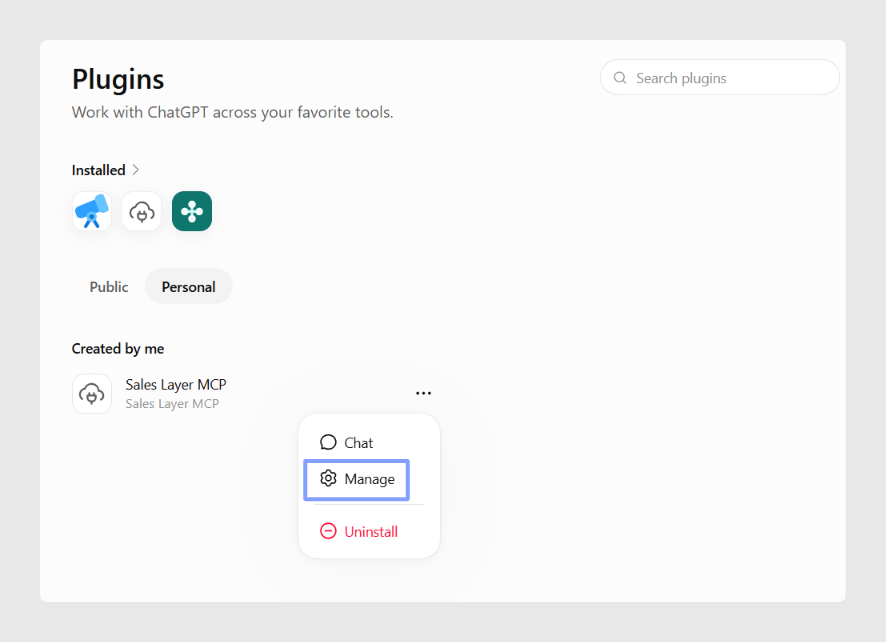
- Click Refresh.
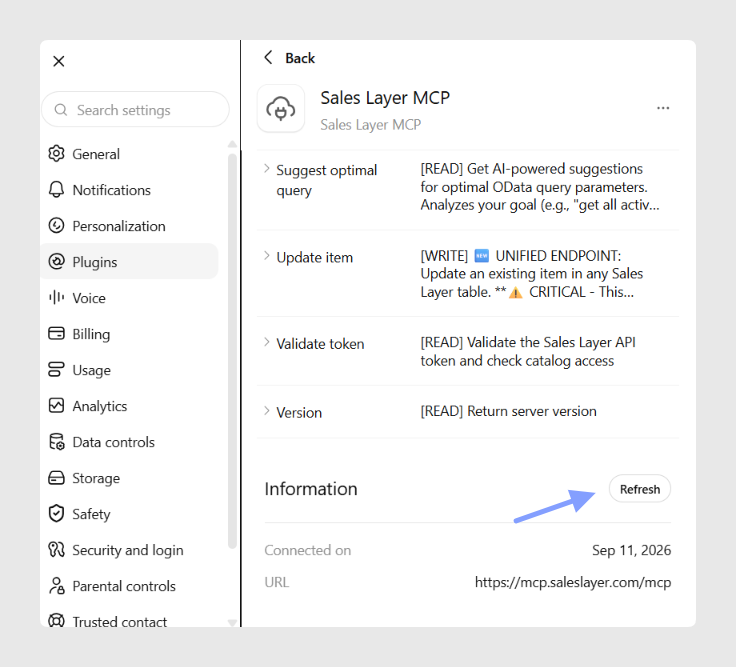
- Check that the list of available tools has been updated.
After refreshing the plugin, we recommend testing it in a new ChatGPT conversation.
Troubleshooting
Developer mode is not available
Your ChatGPT environment or organization may not permit Developer mode or custom plugins.
Ask your ChatGPT workspace administrator to check the relevant Plugins permissions.
The + button to create a plugin is not available
Confirm that Developer mode is enabled.
If it is already enabled but you cannot create a plugin, check whether your workspace permissions allow custom MCP connections.
ChatGPT cannot create the Sales Layer plugin
Check that the MCP Server URL has been entered exactly as: https://mcp.saleslayer.com/mcp
If the URL is correct, try creating the plugin again.
Authorization does not open
Your browser may be blocking the authorization popup or redirect.
Allow pop-ups and redirects and retry the connection.
Authorization does not complete
Make sure you complete the entire Sales Layer authorization process.
Check that the Catalog Token is valid and keep the authorization window open until the process has finished.
An invalid_token error appears
Do not use your Catalog Token as an API key or bearer token in ChatGPT.
The Catalog Token must be entered on the Sales Layer authorization screen.
Repeat the authorization process. If the error continues, contact Sales Layer Support.
A 401 Unauthorized error appears
Reconnect the Sales Layer plugin and complete the authorization process again.
Make sure that you do not close the authorization window before the process finishes.
If the problem continues, see Troubleshooting Sales Layer MCP Server Connections.
No Sales Layer tools appear
The plugin metadata may not have loaded correctly.
Open the Sales Layer plugin settings and use Refresh.
If the tools still do not appear, delete the plugin and create it again using:
https://mcp.saleslayer.com/mcp
Sales Layer does not appear in a conversation
Make sure the Sales Layer MCP plugin has been created successfully.
In a new conversation:
- Click the + button next to the message composer.
- Click More.
- Look for Sales Layer MCP in the available tools.
Write operations are not available
If you need to create or modify information, check that the Sales Layer connection was authorized with the appropriate access profile.
Do not switch to Full access simply to troubleshoot a general connection problem.
Security recommendations
Keep your Catalog Token secure and enter it only on the Sales Layer authorization screen.
Do not paste the Catalog Token into:
- ChatGPT conversations or prompts.
- API key fields.
- Bearer-token fields.
- Screenshots.
- Emails.
- Support tickets.
Start with Read only access whenever possible.
Use Full access only when ChatGPT needs to modify Sales Layer information and the workflow has been approved by your organization.
Before performing important operations, confirm that ChatGPT is connected to the expected Sales Layer catalog.
Review tool calls carefully when working with operations that can modify information.
If you believe your Catalog Token has been exposed, contact Sales Layer Support.
Best practices
Start with a simple read request after creating the connection to verify that ChatGPT can access the expected catalog.
Use clear prompts that explain what information you want ChatGPT to retrieve or analyze.
Use Read only for catalog searches, audits, data-quality checks, analysis, and reporting. Enable Full access only when write operations are required.
Refresh the Sales Layer plugin metadata when new MCP Server tools or capabilities become available, and test the connection in a new conversation after refreshing it.
Related information
Was this article helpful?
That’s Great!
Thank you for your feedback
Sorry! We couldn't be helpful
Thank you for your feedback
Feedback sent
We appreciate your effort and will try to fix the article