Sales Layer provides two options for working with Adobe InDesign: CSV for Adobe InDesign and EasyCatalog for InDesign.
Both connectors let you use product information managed in Sales Layer when creating catalogs and other layouts in InDesign, but they are designed for different levels of automation.
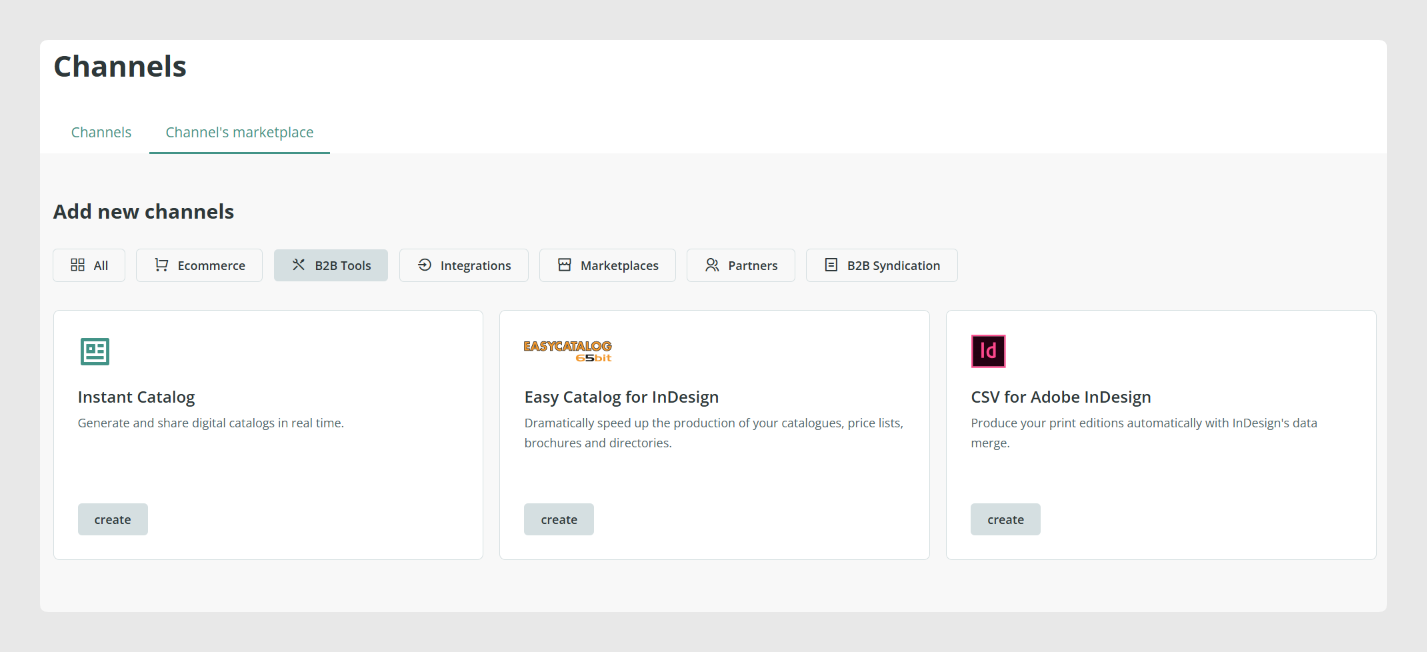
CSV for Adobe InDesign
The CSV connector is the simpler option and is intended for layouts that do not require complex automation.
The connector generates a CSV file containing the Sales Layer data configured for export. When you download the connector content, the CSV is provided together with an instruction file explaining how to load the information into Adobe InDesign.
This makes the CSV connector suitable when you need to create a relatively simple layout and do not require a direct connection between InDesign and Sales Layer.
Note: With this method, you work with a downloaded CSV. If you need more advanced automation or want EasyCatalog to retrieve data directly from Sales Layer, use the EasyCatalog connector instead.
EasyCatalog for InDesign
EasyCatalog is a paid Adobe InDesign plugin designed for more advanced catalog automation.
Unlike the CSV connector, EasyCatalog can establish a direct connection with Sales Layer. This means that you do not need to download a CSV each time you want to work with updated PIM information.
The direct connection requires the EasyCatalog Enterprise module.
Once connected, EasyCatalog can use the data exported by the Sales Layer connector for more advanced layout processes. Depending on your EasyCatalog configuration and licensed modules, this can include:
- Grouping products, including groups that do not have to reproduce the hierarchy used in Sales Layer.
- Creating reusable product template libraries whose content is populated using Sales Layer fields.
- Applying paragraph, character, and other styles according to defined conditions.
- Creating more complex tables of contents.
- Creating additional fields inside EasyCatalog.
- Automating pagination.
- Using scripting for more advanced automation when the required EasyCatalog modules are available.
EasyCatalog modules
EasyCatalog is divided into separately licensed modules. The functionality available in your project depends on the modules included in your EasyCatalog installation.
- EasyCatalog: the base plugin, which provides the core EasyCatalog functionality, including basic pagination.
- Pagination Module: provides more advanced mass pagination capabilities.
- ODBC Module: provides access to data through the ODBC database standard.
- Relational Module: allows relational data sources to be combined.
- Enterprise Module: required for the direct connection with Sales Layer.
- XML Module: supports the use of XML files.
- Scripting Module: provides scripting capabilities for more advanced InDesign automation.
The base EasyCatalog plugin together with the Enterprise module already provides the foundation required to create professional layouts using data maintained in Sales Layer. Additional modules can then be used when the project requires more advanced automation.
Configure the EasyCatalog connector
The EasyCatalog connector follows the general configuration logic used by Sales Layer connectors. Before connecting from EasyCatalog, configure which information Sales Layer should make available.
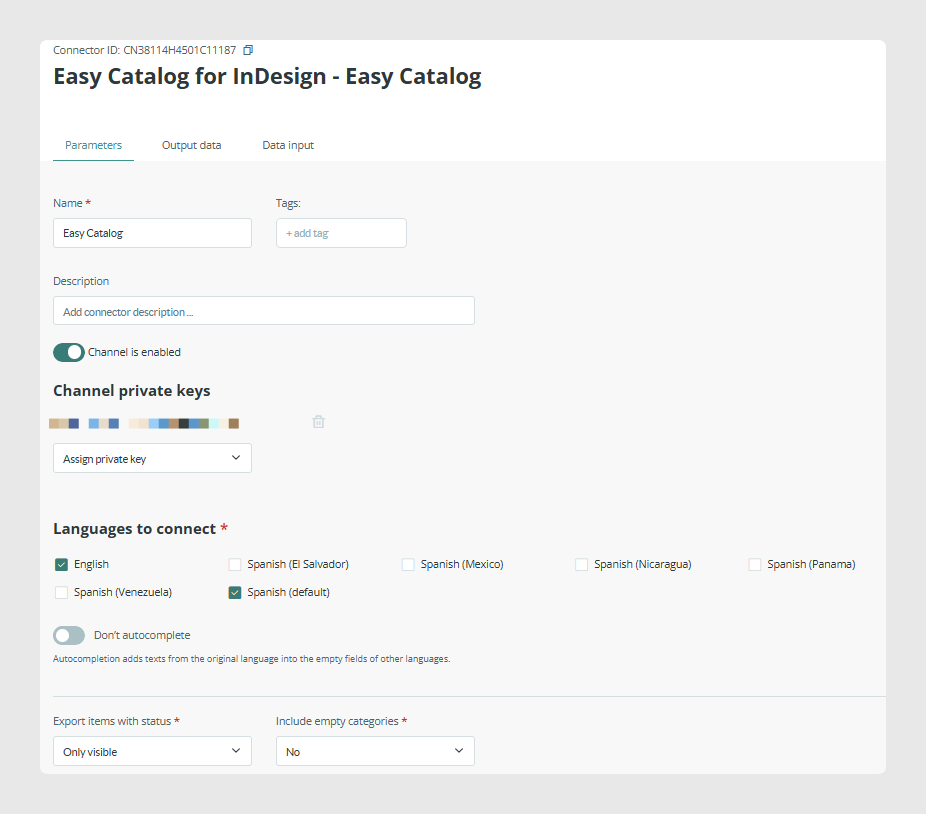
Configure the parameters
Start on the Parameters page of the connector. Here you can define the general criteria for the information you want to send, such as the language and the status of the items.
You can also use the filtering options in the connector to determine which products should be included.
Configure the output data
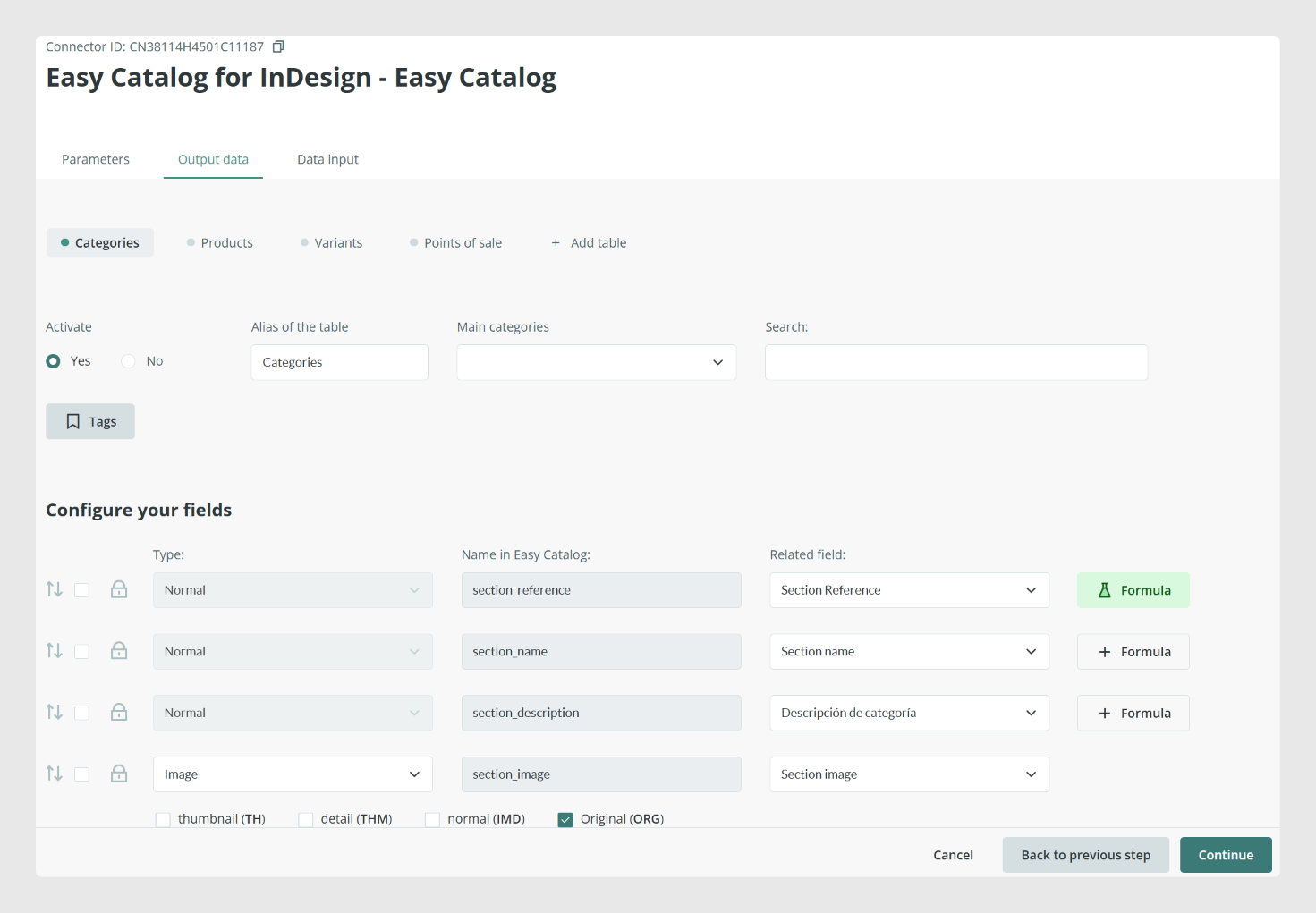
Next, configure the fields that will be available to EasyCatalog.
For each output field, define the name that EasyCatalog will receive and map it to the corresponding Sales Layer field.
You can also use Sales Layer formulas when the exported value needs to be transformed without changing the original information stored in the PIM.
For example, if a specific catalog requires a temporary campaign price, you could apply the required calculation to the exported price field while keeping the original product price unchanged in Sales Layer.
Configure data input when required
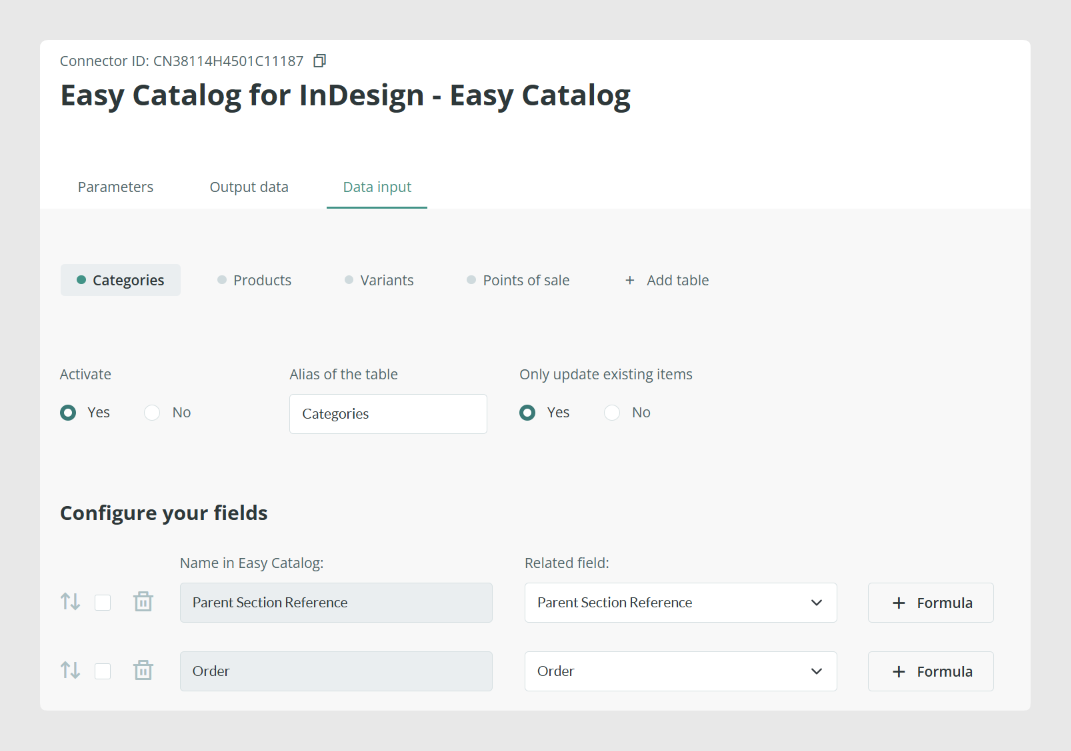
If your configuration needs to send information from EasyCatalog back to Sales Layer, continue to the Data Input page and configure the required input fields.
If you only need Sales Layer to provide information to EasyCatalog for catalog creation, this additional configuration is not required.
Connect EasyCatalog to Sales Layer
Once the Sales Layer connector has been configured, create the corresponding Sales Layer data source in EasyCatalog.
- In Adobe InDesign, open EasyCatalog.
- Go to File > New > EasyCatalog Panel > New Sales Layer Data Source.
- Enter the name for the data source.
- Enter the Sales Layer connector name and the key required for the connection.
- Click Apply.
Once the connection is established, EasyCatalog can access the records and fields provided by the Sales Layer connector.
Review the key field
EasyCatalog assigns a field as the default key field. The key is used to distinguish records and prevent different records from being treated as the same item.
You can change the key field or add additional key fields if your EasyCatalog project requires them. Once the configuration is correct, click OK.
Synchronize your Sales Layer data
After the connection is created, the EasyCatalog panel displays the data made available by the Sales Layer connector.
From the information options in EasyCatalog, you can review the available records and manage the connection. You can also synchronize the data source to retrieve updated information from Sales Layer.
EasyCatalog can identify differences compared with the previous synchronization, including records that have been inserted, updated, or deleted.
Create layouts with Sales Layer data
Once your data is available in the EasyCatalog panel, it can be combined with EasyCatalog libraries and InDesign templates to create layouts dynamically.
Use a dynamic library
A library element can be designed with field specifiers that determine where each piece of Sales Layer information should appear.
To populate a layout, select a product record in the EasyCatalog panel and place the corresponding library element in the document. EasyCatalog uses the fields associated with the selected record to populate the element.
The same library element can therefore be reused for different products. When another product is selected, the corresponding field values are used instead.
Different products can also use different library elements according to the structure and design required by the catalog.
Paginate multiple products
EasyCatalog can also use a prepared layout to paginate multiple records automatically.
A typical setup contains:
- A structured EasyCatalog panel containing the records to paginate.
- An InDesign master page or layout containing the required guides.
- A library element containing the field specifiers that will receive the Sales Layer information.
After selecting the required records, EasyCatalog can place the library elements into the document and populate them using the information from the selected products.
This allows a large number of product pages to be produced from the structured information maintained in Sales Layer, while the layout and pagination rules remain controlled in EasyCatalog and InDesign.
Common Use Cases
The EasyCatalog connection can be useful when you need to transform structured PIM information into recurring InDesign publications without manually copying product information into each layout.
Typical uses include creating product catalogs, product sheets, price lists, grouped product layouts, tables, and other publications where the same design structure needs to be populated with different Sales Layer records.
Support and troubleshooting
Warning: EasyCatalog is a third-party plugin for Adobe InDesign. Sales Layer can verify whether the information configured in the connector is being sent correctly and can provide general guidance about Sales Layer connector configuration.
Configuration inside EasyCatalog, InDesign design work, pagination rules, scripting, and other EasyCatalog-specific functionality require knowledge of those tools and are outside the scope of direct Sales Layer support.
For complex catalog automation projects, you can consider working with a specialized partner. Planning this work early can also help determine how your product information should be structured in Sales Layer before the catalog templates are created.
Connection errors
If EasyCatalog cannot connect correctly to the Sales Layer data source, check the table aliases configured for the connection.
Table aliases are case-sensitive. If you receive a connection error, verify their capitalization and check whether the aliases need to be written in lowercase.
Best practices
Configure the Sales Layer connector and decide which fields, products, languages, and statuses are required before building the final EasyCatalog templates. Make sure the fields used as keys identify records correctly, and synchronize the EasyCatalog data source before generating or updating a catalog. For advanced automation, pagination, or scripting projects, involve an EasyCatalog specialist early so that the Sales Layer data structure and the InDesign design can be prepared together.
Was this article helpful?
That’s Great!
Thank you for your feedback
Sorry! We couldn't be helpful
Thank you for your feedback
Feedback sent
We appreciate your effort and will try to fix the article