One of the most powerful features of the Instant Catalog connector is the ability to generate product sheets in PDF format. This option must be active in your account before you can use it in the connector.
To configure PDF product sheets, go to the connector and open the Parameters tab. Then, find the Automatic PDF Generation section.
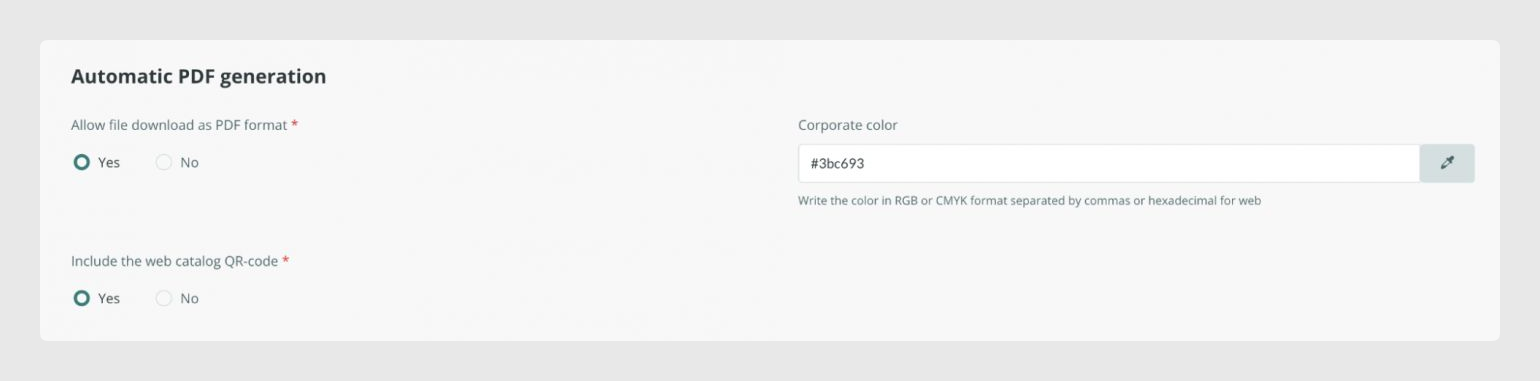
PDF download option
The first parameter allows you to activate the PDF download option. Activate this parameter if you want users to be able to download the product sheets, instead of only viewing them.
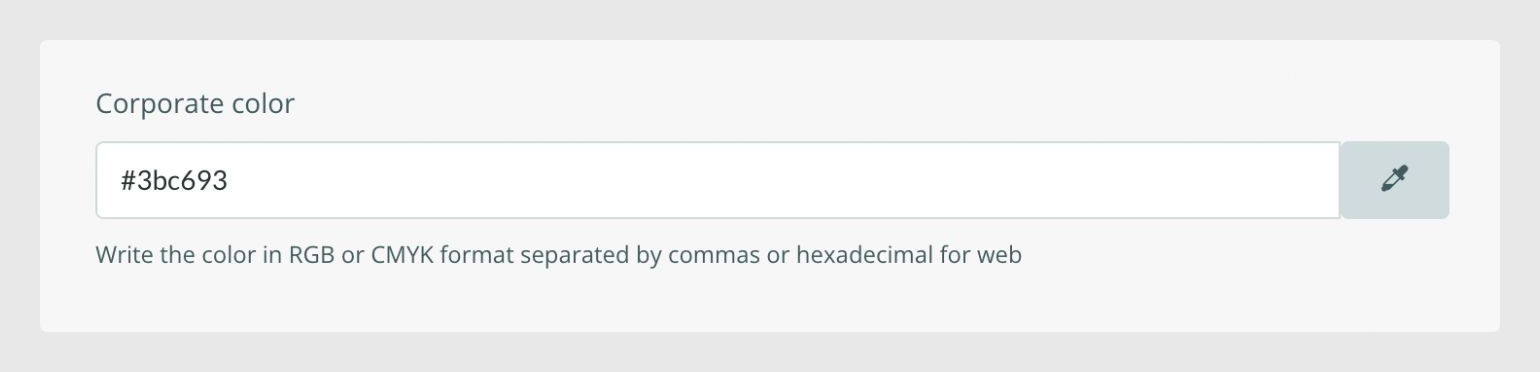
Corporate color
The second parameter allows you to define the corporate color used in the PDF product sheet. You can enter the color in RGB or CMYK format, with the values separated by commas.
For example, if you need to add a specific RGB or CMYK color, enter only the numerical values, separated by commas.
If you want to use a hexadecimal web color, you can enter it in this format:
#3bc693
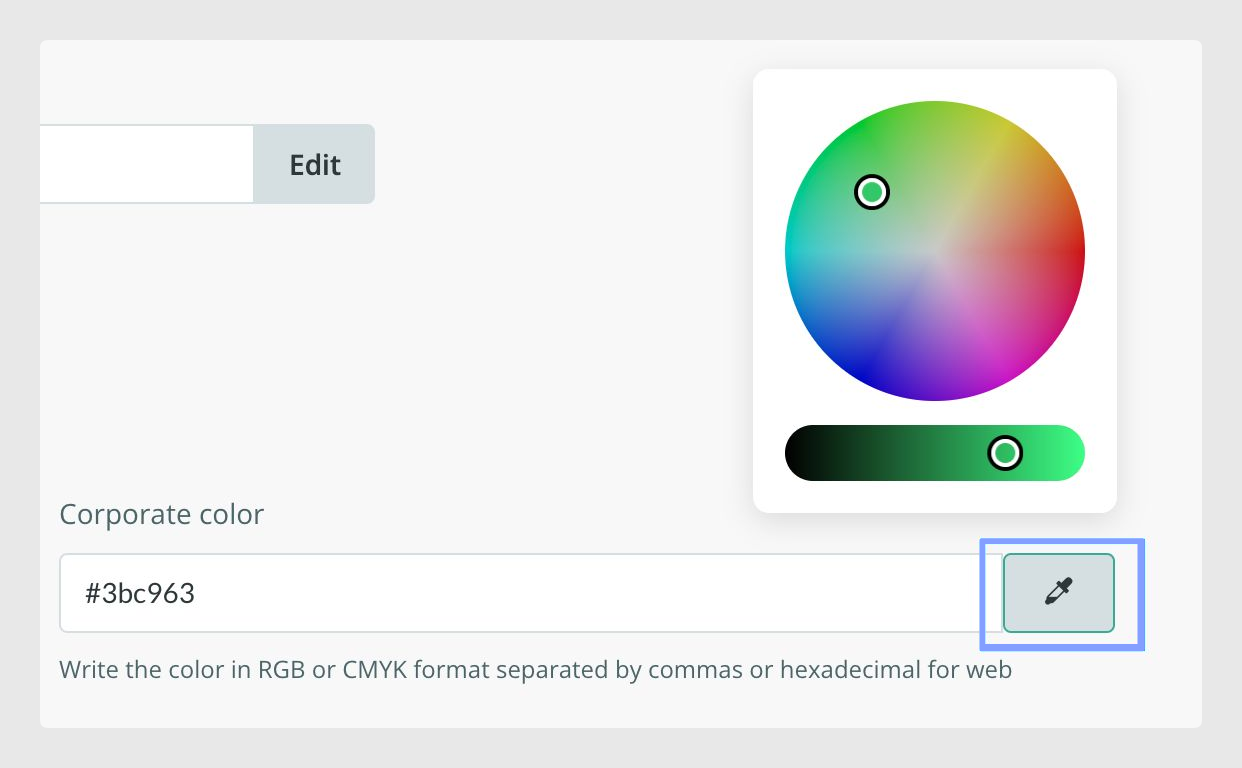
You can also choose the color directly from the Color Picker.
QR code
The third parameter allows you to decide whether to include a QR code in the PDF product sheet. This QR code gives direct access to the specific product in the Instant Catalog, which can make it faster for users to find or purchase the item.

Downloading the PDF product sheet
Once these parameters have been configured and the catalog has been updated, open a specific product in the Instant Catalog. You will see the option to download the PDF version of the product sheet.
When you click this option, the PDF product sheet will be downloaded with the configuration you entered in the connector.
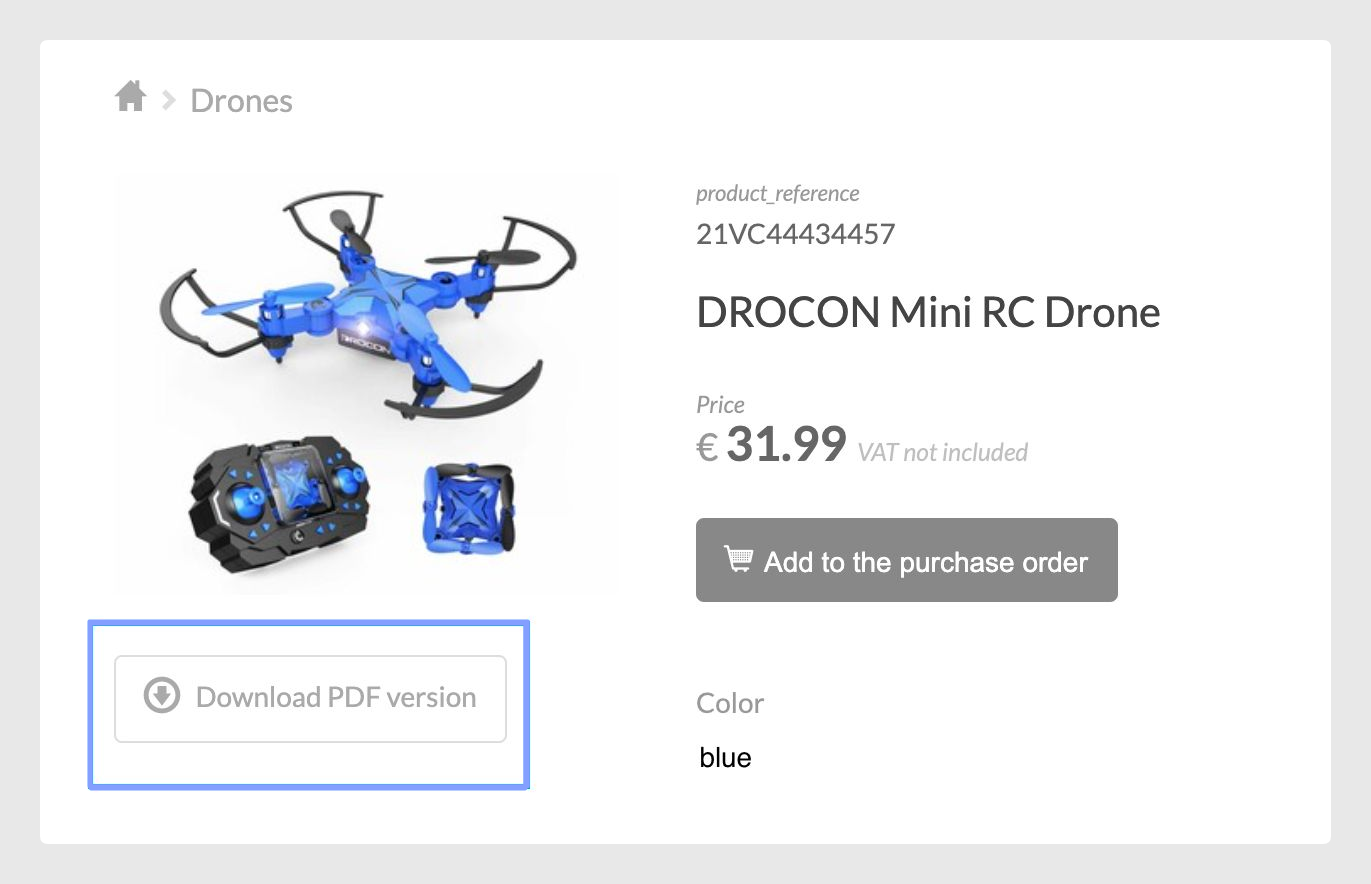
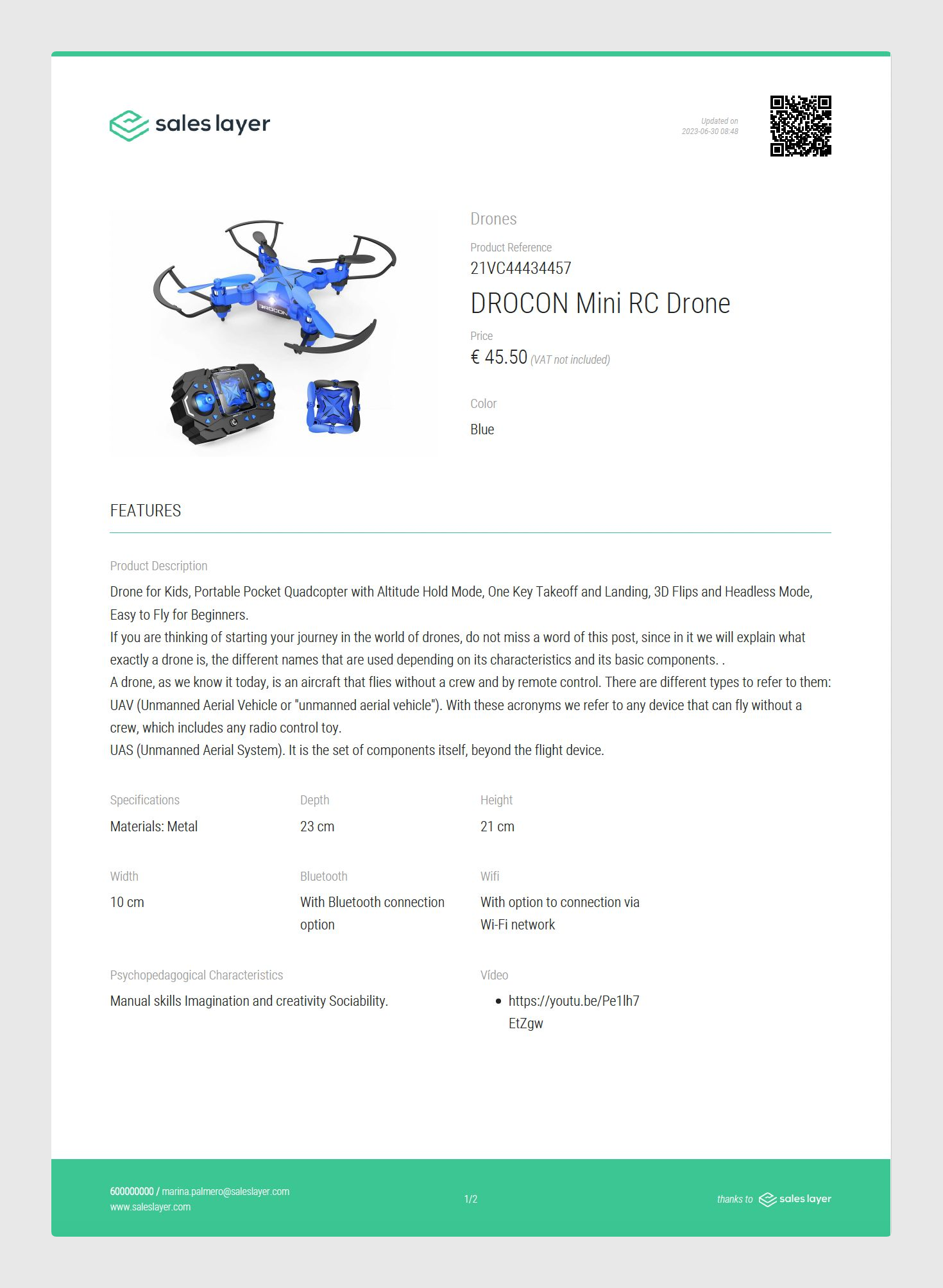
These product sheets are interactive. Users can access the product in the catalog through the QR code, download the PDF, and access related items when available.
Adding headings and page breaks
You can insert headings in the PDF product sheet by creating a new field in the Output Data tab. This field must be a heading-type field, and you can write the title you want to use as a separator.
You can also create page breaks by writing a period in the heading title:
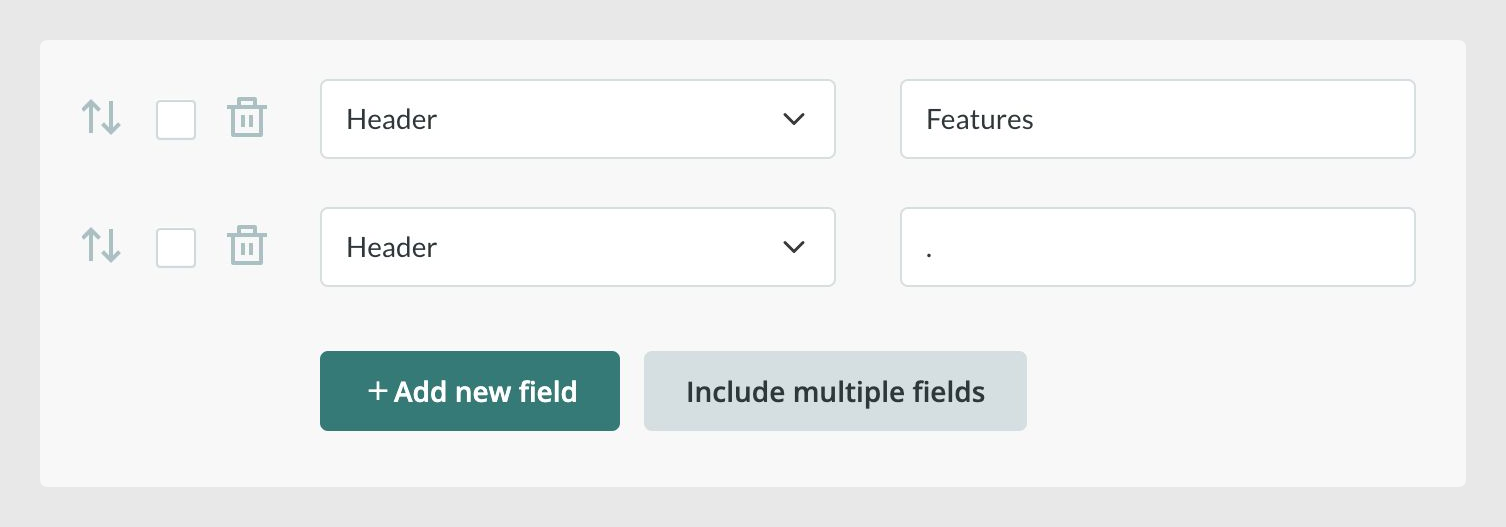
Warning: The final layout after adding page breaks depends on factors such as the field types placed before and after the break. This configuration affects all references, so the final result may vary depending on the content of each product.
Exporting PDF URLs
Another important use of PDF generation is the ability to download catalog URLs or product links. To obtain the PDF URL, enter the following formula:
CONCAT("print.saleslayer.com/CONNECTOR_CODE/Alias of the table/", {product_reference})To obtain the item URL that gives access to the product in the Instant Catalog, use this formula:
CONCAT("sites.saleslayer.com/CONNECTOR_CODE/Alias of the table/", {product_reference})Finding the connector code

Replace CONNECTOR_CODE with the ID of the Instant Catalog connector that previously generated the PDF.
You can find this ID in the Publication tab. Open the catalog Web Link by clicking the glasses icon.
[Screenshot placeholder: Show the Publication tab with the catalog Web Link and the glasses icon used to preview the catalog.]
Finding the table alias
Replace Alias of the table with the alias name shown in the connector tab where the PDF is configured.
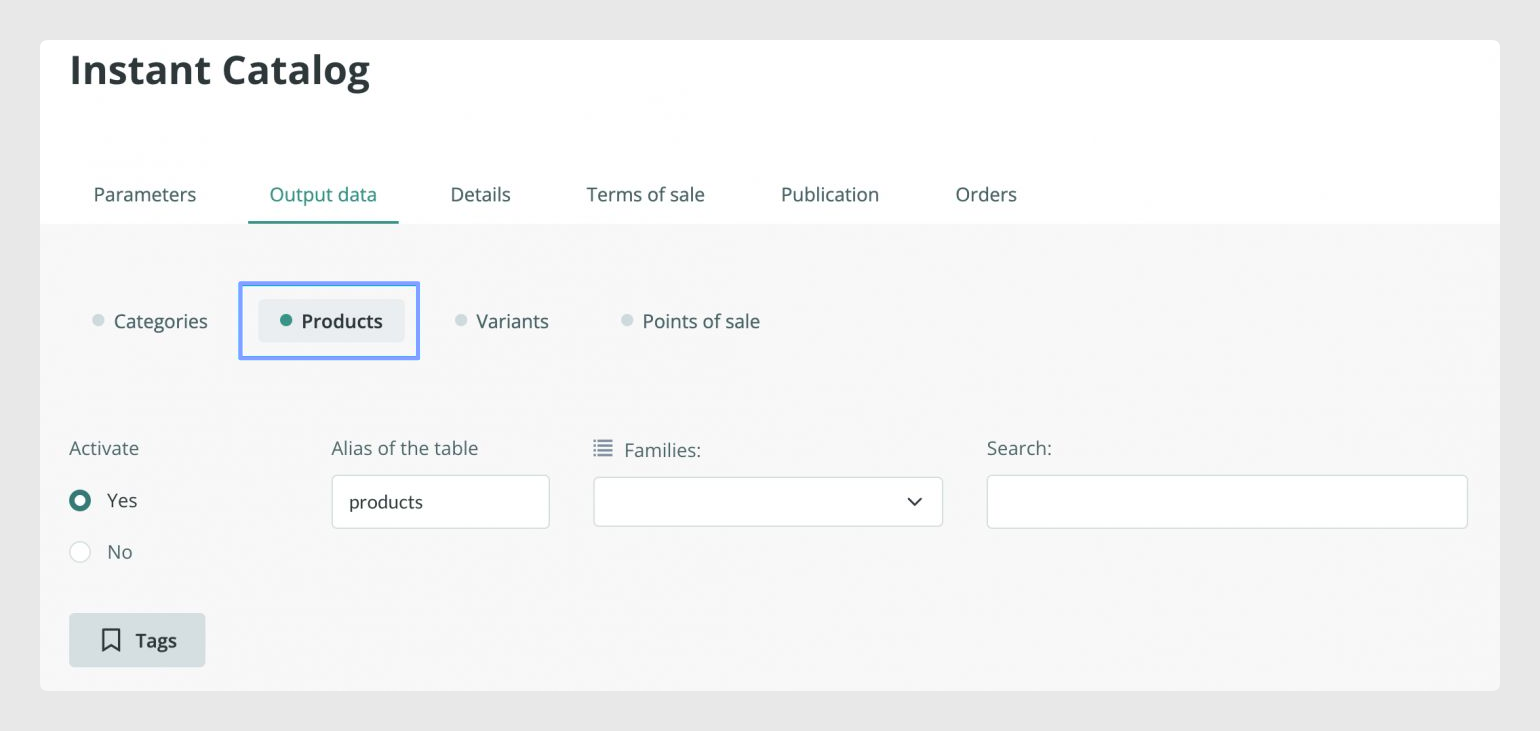
Replace product_reference with the name of the Product Reference field in your account.
Remember that, to extract the PDF of a product in a second connector, the PDF must first be generated by an Instant Catalog connector with the Download PDF option active.
This action will generate the download, allowing you to view the file and download the URLs that correspond to each product in your catalog.
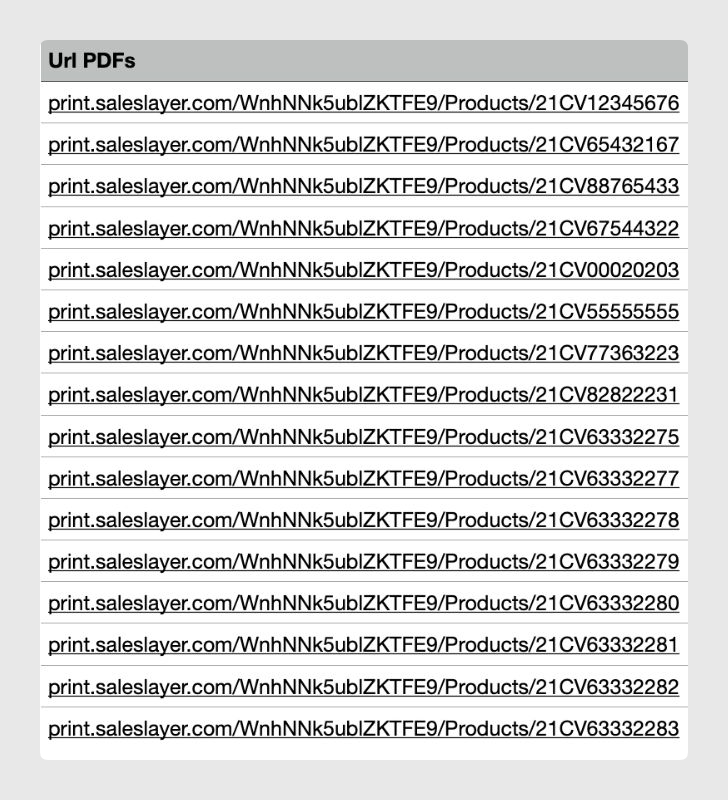
Exporting URLs in another language
If you need to export these URLs in another language, include the language ISO code in the formula. For example, to export the URL in Spanish, use:
CONCAT("print.saleslayer.com/CONNECTOR_CODE/Alias of the table/", {product_reference}, "/es")Feature Activation
If you are interested in this service, contact the Sales Layer support team through the usual support channels.
Best practices
Before sharing or exporting PDF product sheet URLs, check that the Download PDF option is active, the connector code is correct, the table alias matches the table used in the connector, and the Product Reference field name is written exactly as it appears in your account. If you use page breaks, review several product sheets before publishing because the final layout may change depending on the content of each product.
Was this article helpful?
That’s Great!
Thank you for your feedback
Sorry! We couldn't be helpful
Thank you for your feedback
Feedback sent
We appreciate your effort and will try to fix the article