The Sales Layer DAM (Digital Asset Management) is a tool that allows you to browse, organize, filter, and download digital assets from your product catalog in one place.
Through its integration with Sales Layer, you can explore products, categories, variants, and images, review their information, and prepare the files you need for different sales channels, clients, or marketing campaigns.
In addition to making content easier to find, the DAM includes tools for cropping images, adjusting their dimensions, exporting them in different formats, and downloading multiple files in ZIP packages.
It is designed to help product teams, marketing departments, and agencies access the resources they need without having to work directly in the PIM.
You can access the application at DAM Sales Layer.
Connect the DAM to Sales Layer
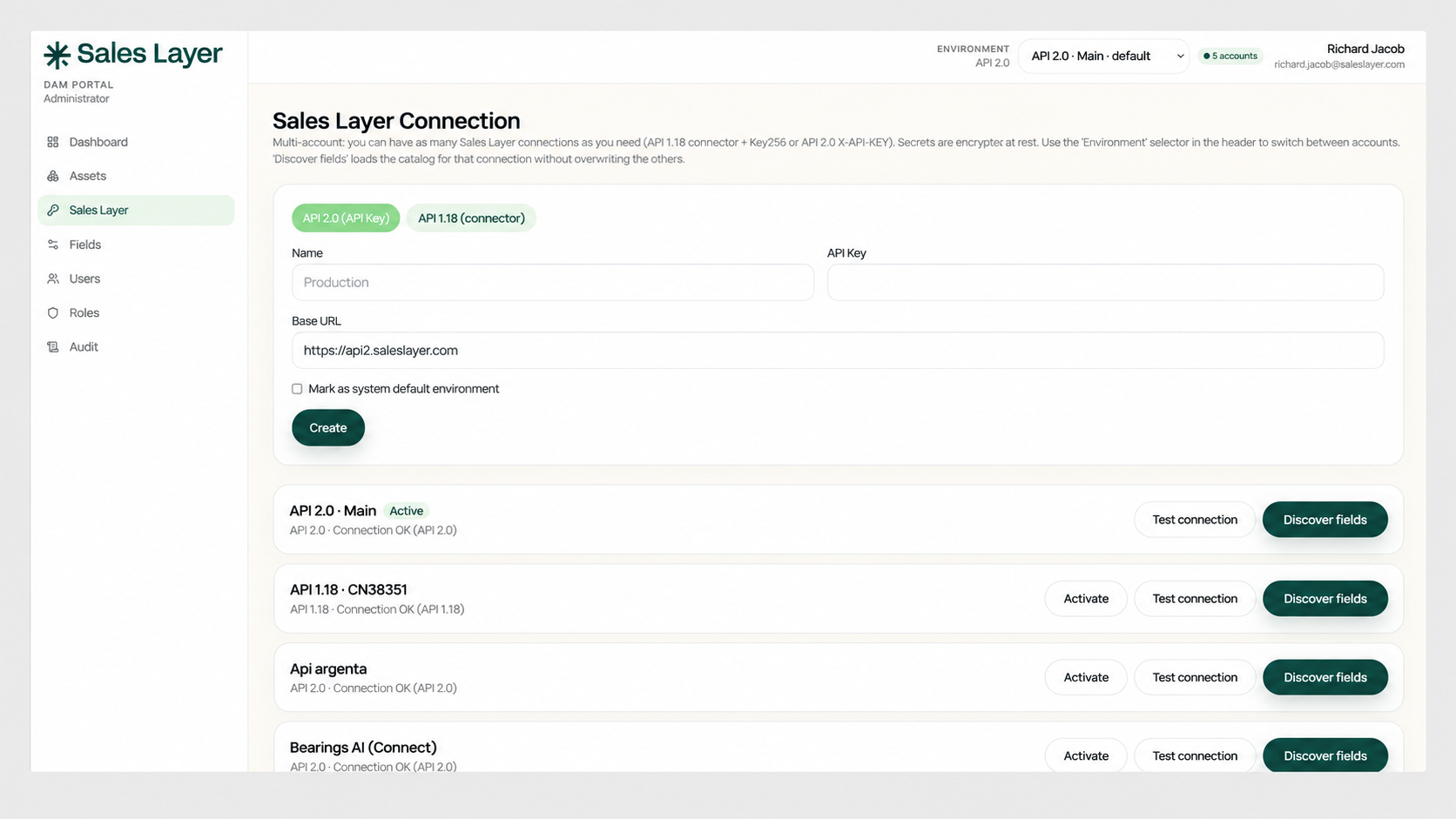
Before you can start working with the DAM, you need to establish a connection to your Sales Layer account.
Available connection methods
The DAM supports two versions of the Sales Layer API:
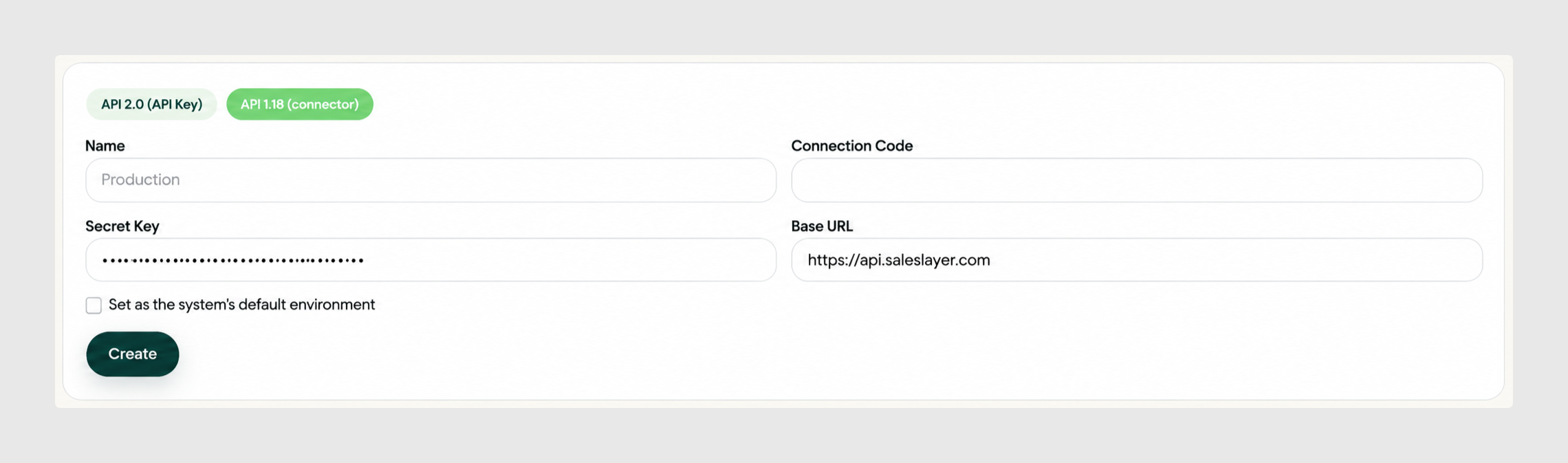
API 1.18
This method uses a Sales Layer connector to access your catalog information.
The connection requires the connector code and its secret key, using Key256 (SHA-256) authentication.
The retrieved data is synchronized with a local SQLite cache. This allows you to browse the catalog quickly after the initial synchronization, without retrieving all the information again each time you navigate.
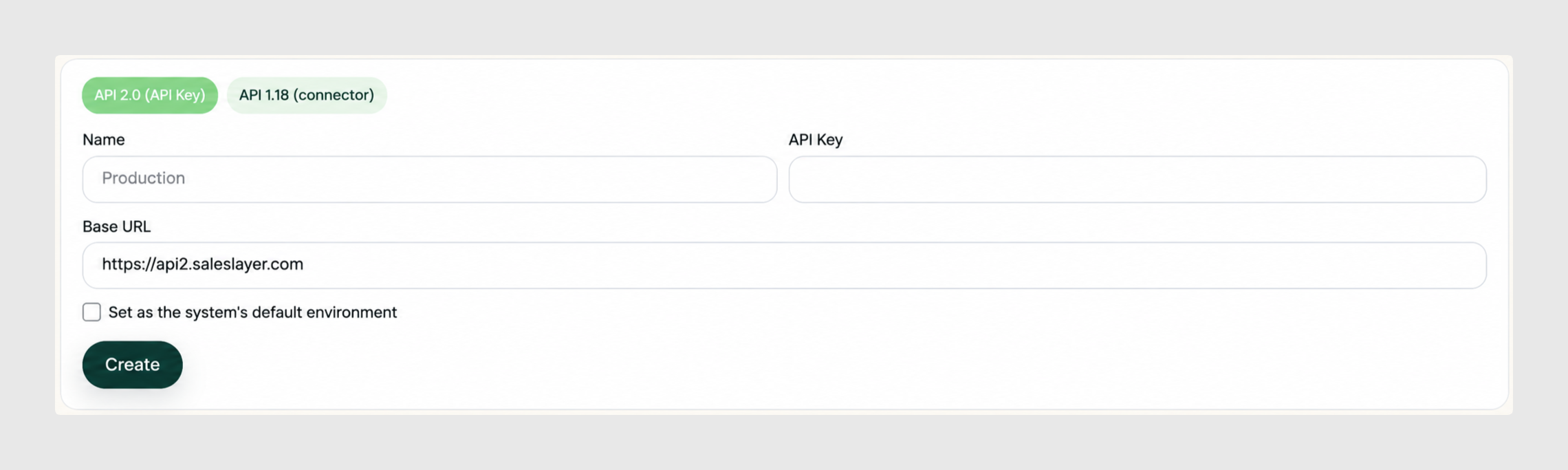
API 2.0
This method connects through the Sales Layer REST API using an X-API-KEY authentication key.
The connection uses OData to query catalog information and supports query parameters such as $filter and $select.
Initial setup
Once you have accessed the DAM, the configuration process includes the following steps:
- Establish a connection to Sales Layer using one of the available APIs.
- Test the connection to make sure it works correctly.
- Run metadata discovery to identify the available catalog fields.
- Configure which fields will be used for segmentation, display, and download.
- Set up the filters you need to start exploring your catalog.
Important: Field configurations are saved separately for each connection. This allows you to work with different accounts or environments without having to manually reconfigure all the fields when switching between them.
Explore your catalog and assets
The DAM provides a visual interface for browsing information from Sales Layer.
You can explore:
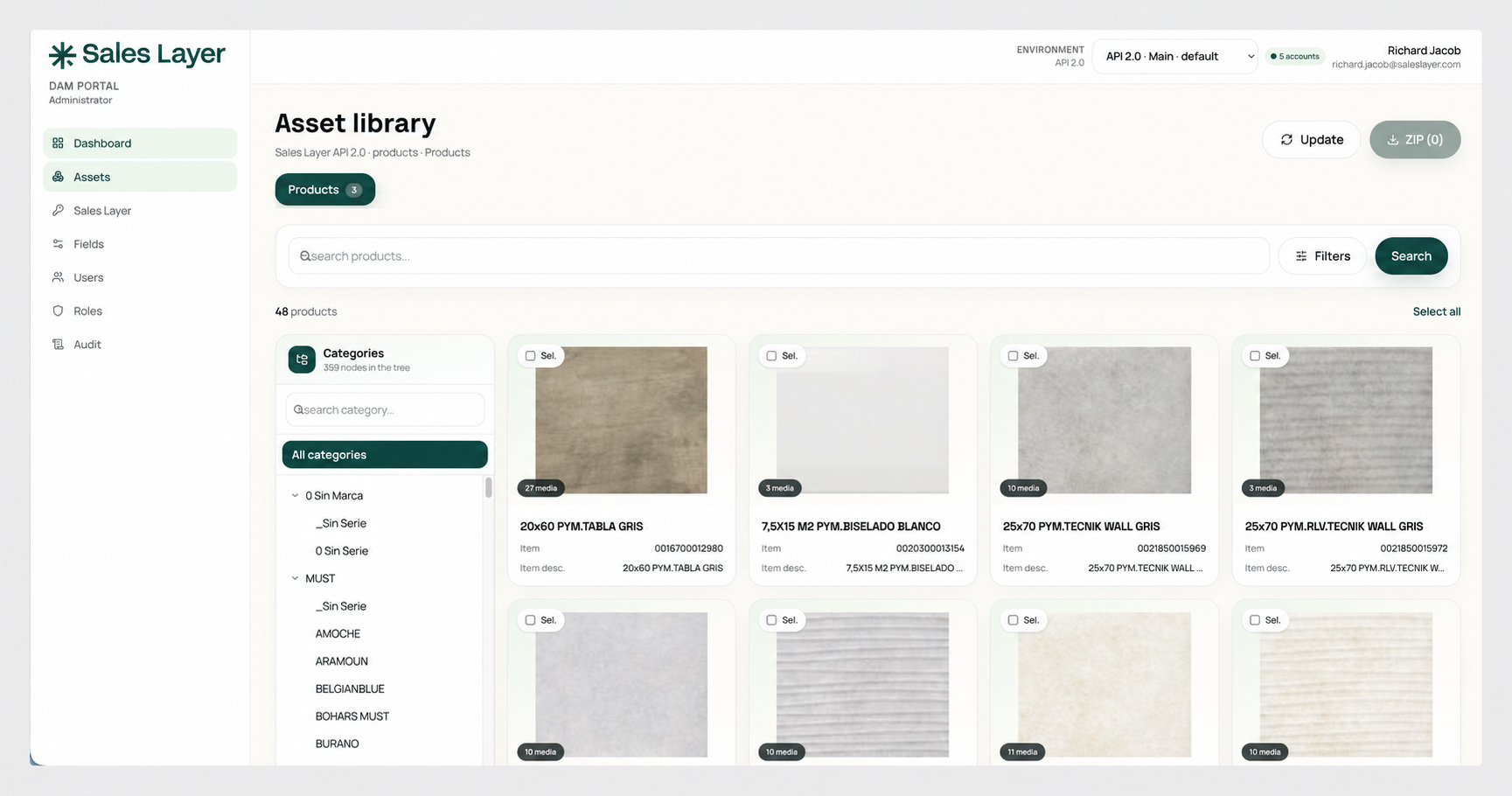
- Products: Browse catalog products with their images and visible fields.
- Categories: Access the catalog's category structure.
- Variants: Explore the different product variants.
- DAM Images: Browse the available digital image assets.
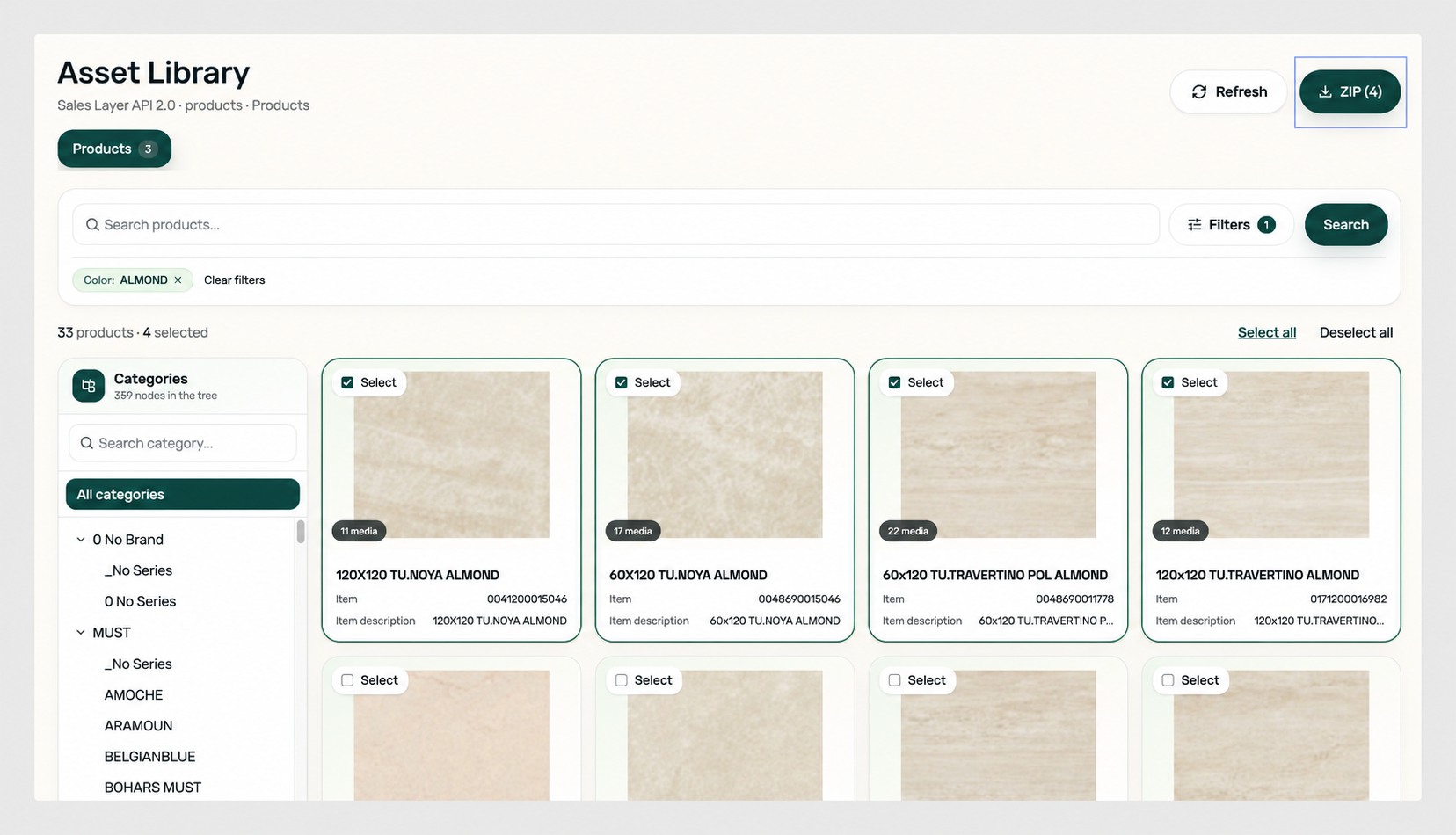
The asset library displays records with image thumbnails and cards containing the fields configured for display.
This makes it easier to identify the content you need without opening each individual record.
View product details
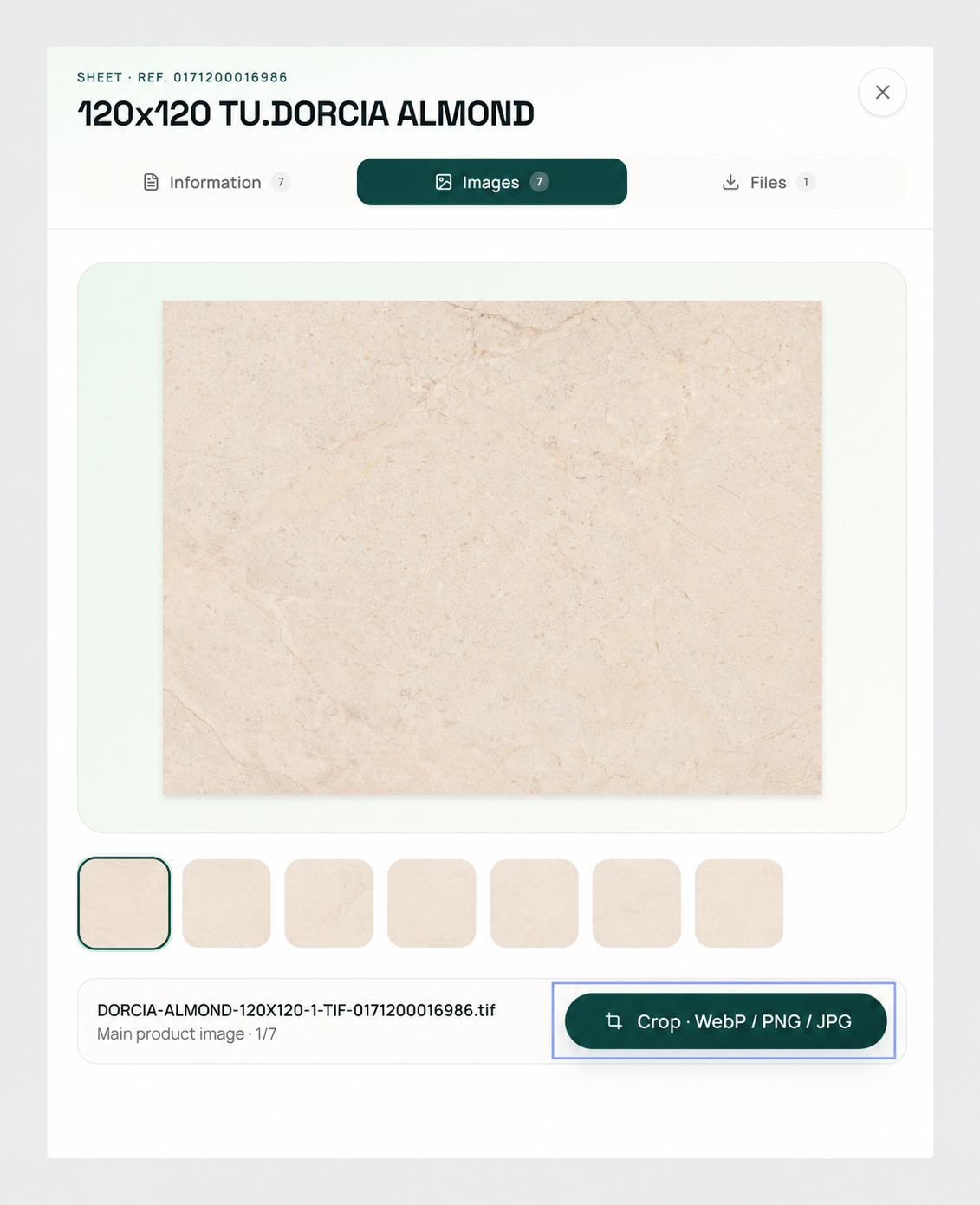
When you select a product, you can open its detailed information.
This view allows you to review the product's complete catalog information and image gallery, making it easier to examine its attributes and select the resources you need.
You can also prepare images for export directly from this view.
Configure catalog fields
One of the DAM's main features is the ability to decide how the fields retrieved from Sales Layer will be used.
When you configure a connection, the platform automatically discovers the available fields for products, categories, variants, and DAM assets.
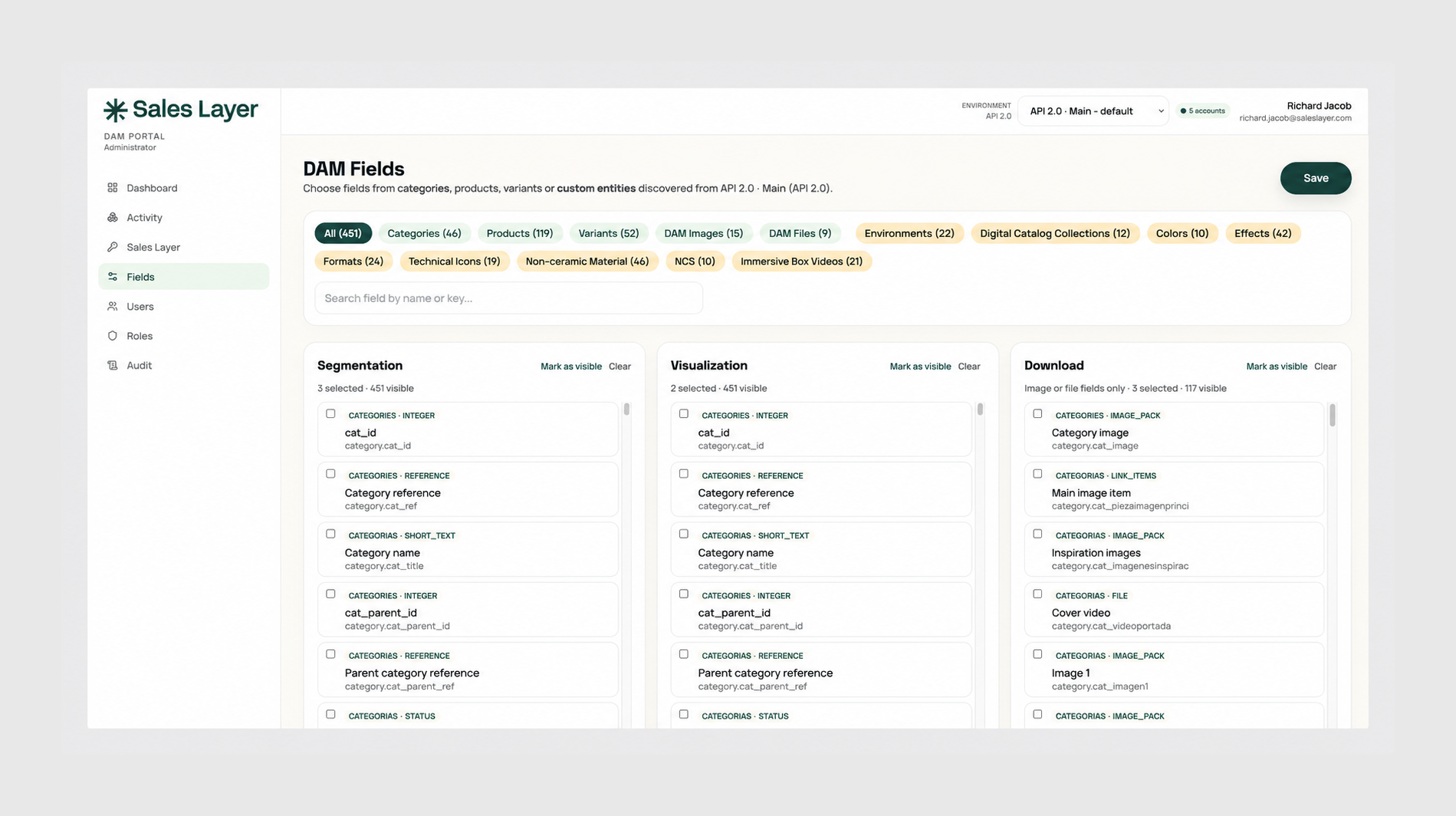
You can then assign fields to three different purposes:
Segmentation
Segmentation fields allow you to create filters for finding specific products or assets.
For example, you can use attributes such as:
- Sales channels.
- Conditions.
- Tags.
- Other attributes available in your catalog.
These fields determine which options will be available when filtering your catalog.
Display
Display settings allow you to choose which catalog fields appear on the cards in the asset library.
This helps each team focus on the information that is relevant to its work.
For example, you can display specific product attributes alongside their image thumbnails, making records easier to identify.
Download
Download settings allow you to define which media fields will be available for downloading.
This configuration is particularly important for bulk downloads because only fields marked as downloadable can be selected.
Each connection maintains its own segmentation, display, and download configuration.
Browse the category tree
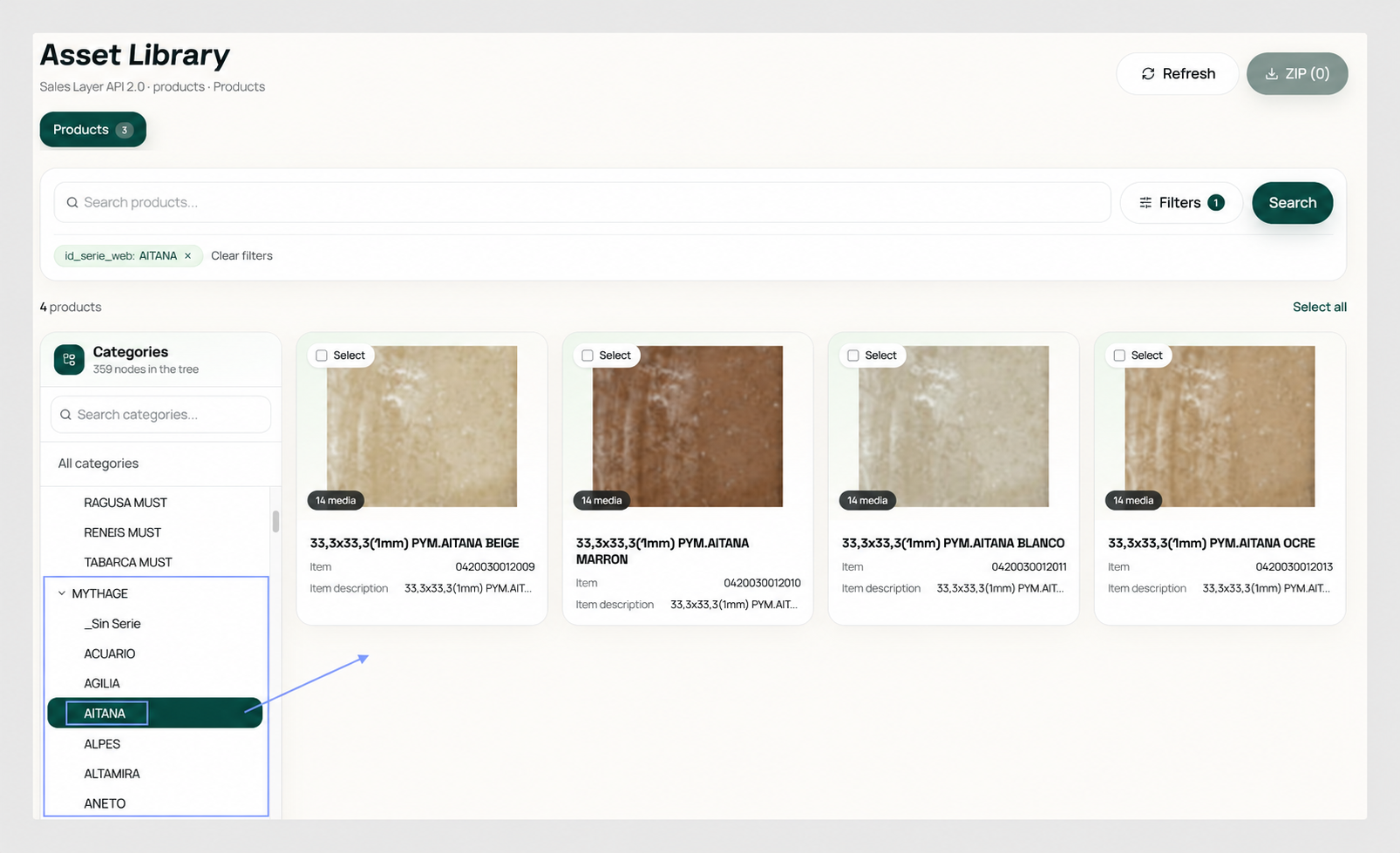
The DAM includes a category tree that allows you to explore your catalog using its hierarchical structure.
In the product view, you will find a sidebar showing the main categories and their subcategories.
When you select a category, the product list is filtered to include products associated with that category and its descendants.
For example, imagine your catalog has the following structure:
- Lighting
- Indoor
- Ceiling Lights
- Table Lamps
- Outdoor
- Wall Lights
- Spotlights
- Indoor
If you select Lighting, you will see products belonging to all its subcategories.
If you select Table Lamps, the list will only show products associated with that category.
The category tree uses Sales Layer category references and works with both API 2.0 connections and catalogs synchronized through API 1.18.
Search and filter content
In addition to browsing categories, the DAM allows you to find products using configurable filters.
These filters are based on the segmentation fields defined during setup.
Filter by attributes
You can open the filter panel and select the values you want to use to narrow down your results.
The system allows you to:
- Apply filters based on different attributes.
- Select multiple values within the same field.
- Combine filters with text searches.
- Use filters together with the category tree.
- View and remove active filters using visible filter chips.
Segmentation values are synchronized from Sales Layer in advance, allowing the filter panel to display readable labels instead of just internal identifiers.
Update filter values
If catalog information changes in Sales Layer, you can manually re-synchronize the segmentation values.
This allows the DAM to incorporate changes made to the attributes used for filtering.
Important: Although filters are applied immediately to the available data, changes made in Sales Layer may require a new synchronization to update the available filter values.
Crop and export images
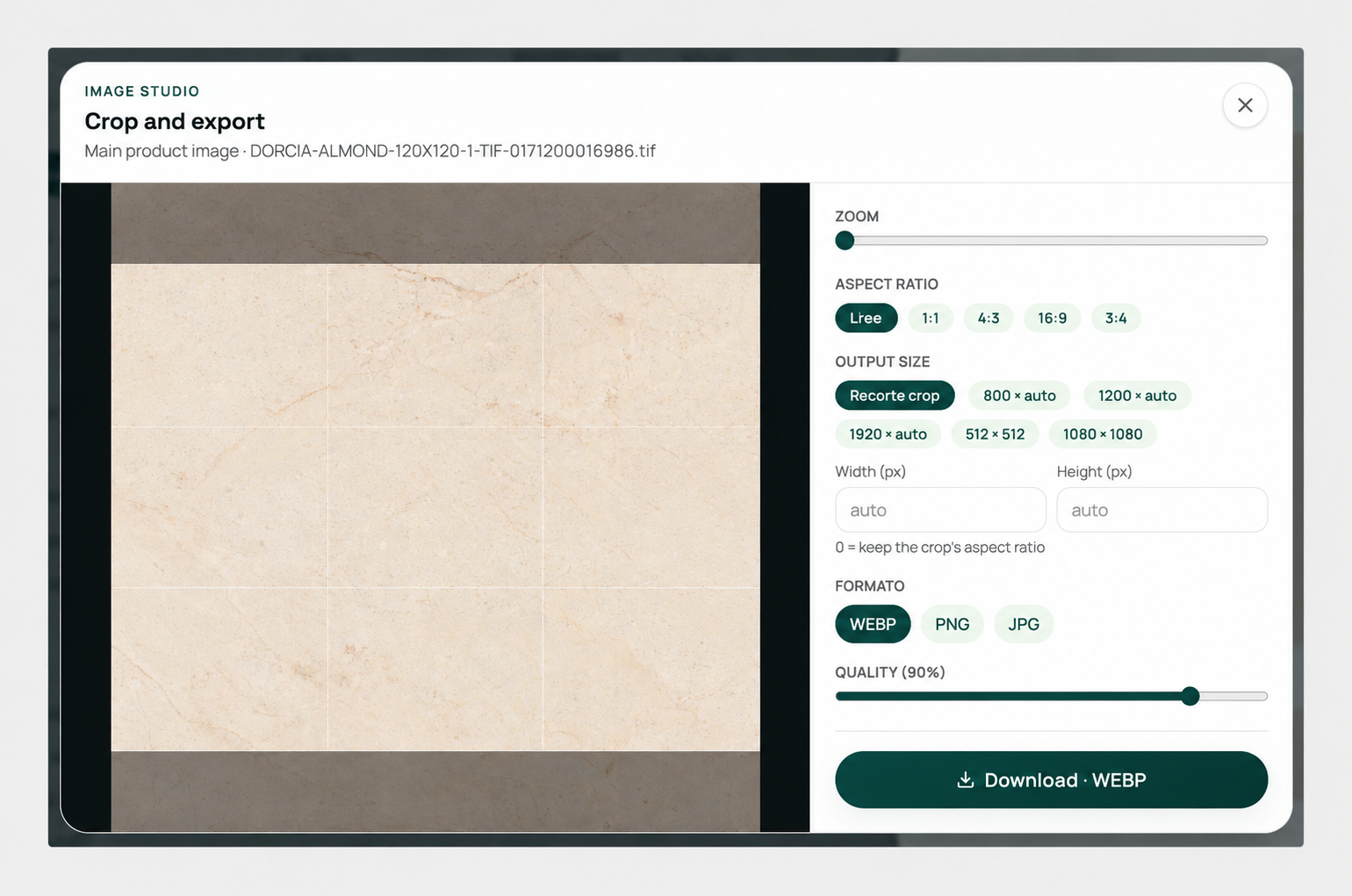
The DAM includes tools for preparing images before downloading them.
This is particularly useful when you need to adapt product photography to different formats or dimensions for online stores, catalogs, or marketing campaigns.
Cropping options
You can select an image and adjust its framing using different aspect ratios.
Available options include:
- Free crop: Select the image area without a fixed aspect ratio.
- 1:1: Square format.
- 4:3: Rectangular format.
- 16:9: Widescreen format.
You can also use the zoom feature to adjust which part of the image is included in the crop.
Output dimensions
After selecting the crop, you can define the dimensions of the image you want to export.
The DAM allows you to choose from predefined sizes or manually enter a custom width and height in pixels.
Export formats
Once the image is ready, you can select its output format:
- WebP
- PNG
- JPG
You can also adjust the export quality according to your needs.
This allows you to prepare different versions of the same image for different destinations without using an external image editing tool.
Download files in bulk
When you need images or files from several products, you do not have to download them individually.
The DAM allows you to select multiple records and generate a ZIP file containing the chosen resources.
How to perform a bulk download
- Find the products or assets you need using filters or the category tree.
- Select the items you want to include in the download.
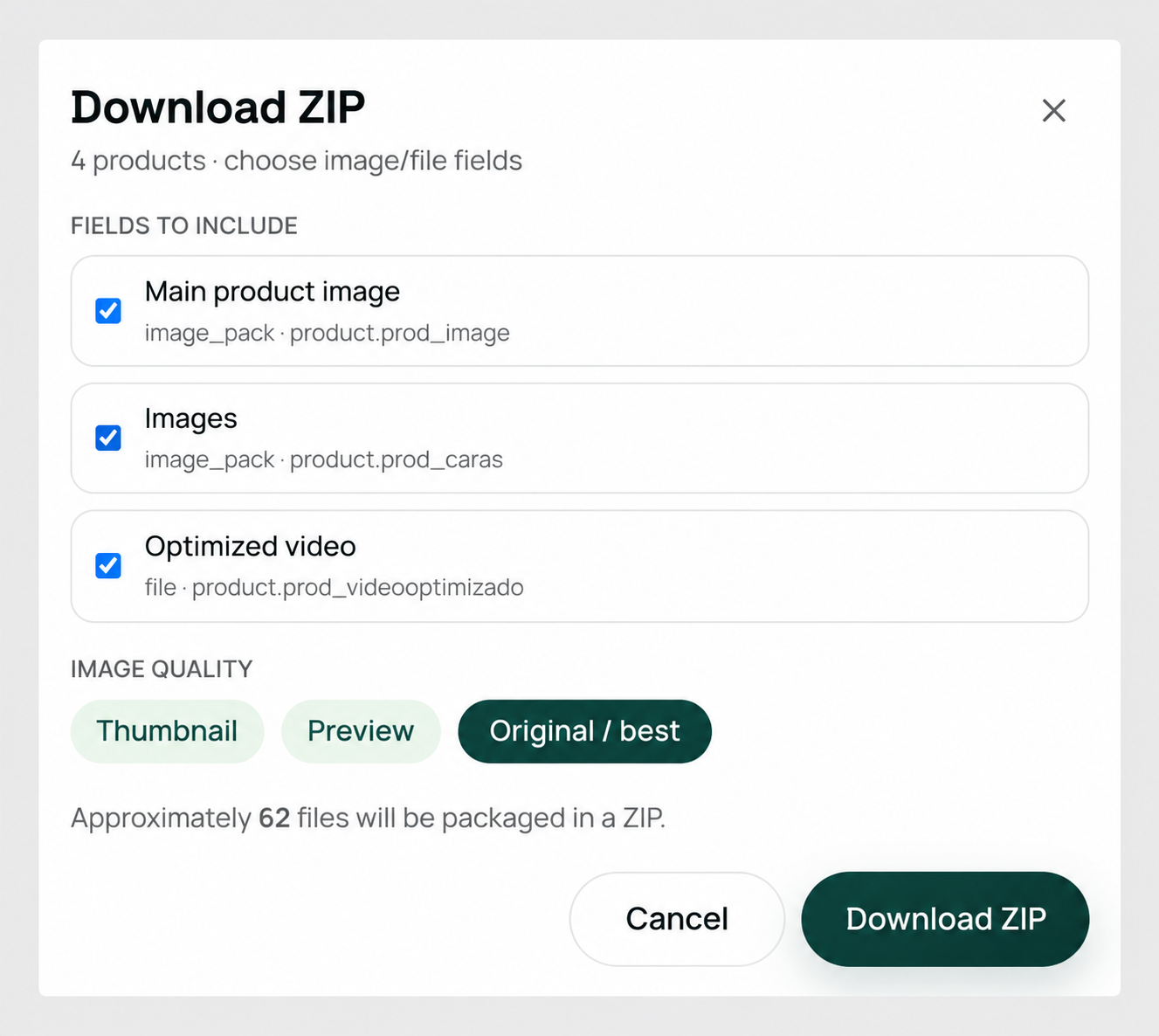
- Choose the media fields you want to download.
- Select the file quality.
- Review the number of files that will be included.
- Generate the ZIP file.
File quality options
During the download process, you can choose between three quality levels:
- Thumb: A reduced version of the asset.
- Display: A version intended for display purposes.
- Original: The original file.
The download will only include media fields that have previously been enabled in the download configuration.
Before generating the ZIP, the DAM displays a preview of the number of files that will be included.
This feature is particularly useful for marketing teams, agencies, and other collaborators who need to obtain asset packages without accessing the PIM directly.
Work with multiple accounts and environments
The DAM allows you to configure several Sales Layer connections within the same platform. This is useful for companies working with multiple accounts or those that need access to different environments.
Each connection maintains its own configuration, including the fields selected for segmentation, display, and download.
The environment switcher allows you to move between available connections without manually remapping fields. Each connection can also use API 1.18 or API 2.0, depending on its requirements.
Users, permissions, and security
The DAM includes administration features that allow you to control who can access the platform and what actions they can perform.
Roles and permissions
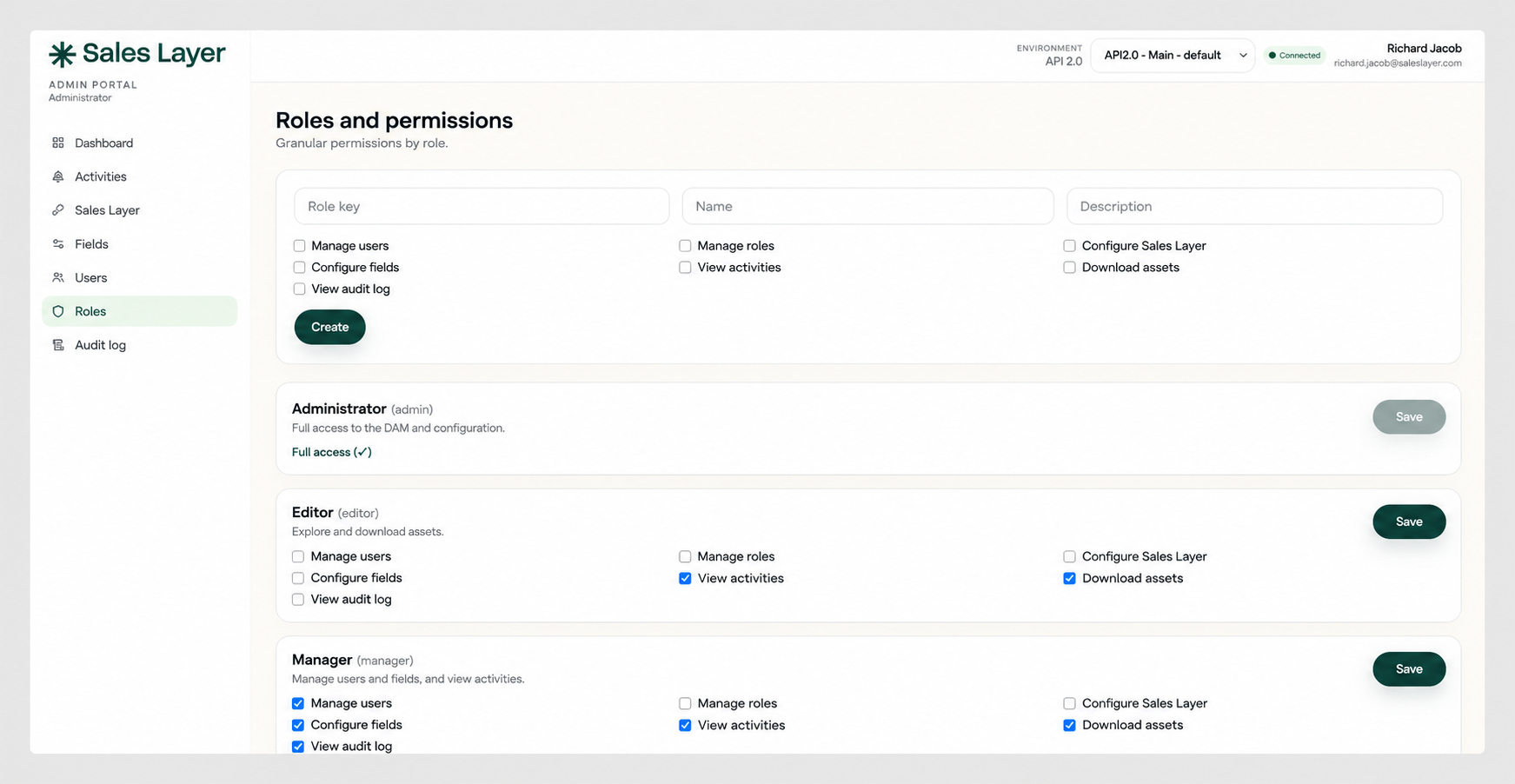
You can manage users and define specific permissions for different functions.
For example, you can control who is allowed to:
- View assets.
- Manage Sales Layer connections.
- Configure the fields used by the DAM.
This allows you to assign access according to each team's responsibilities.
Credential protection
The credentials used to connect to Sales Layer are stored encrypted on the server.
API keys and secret keys are never exposed to the user's browser. The browser only receives the catalog data required to work with the platform.
Audit trail
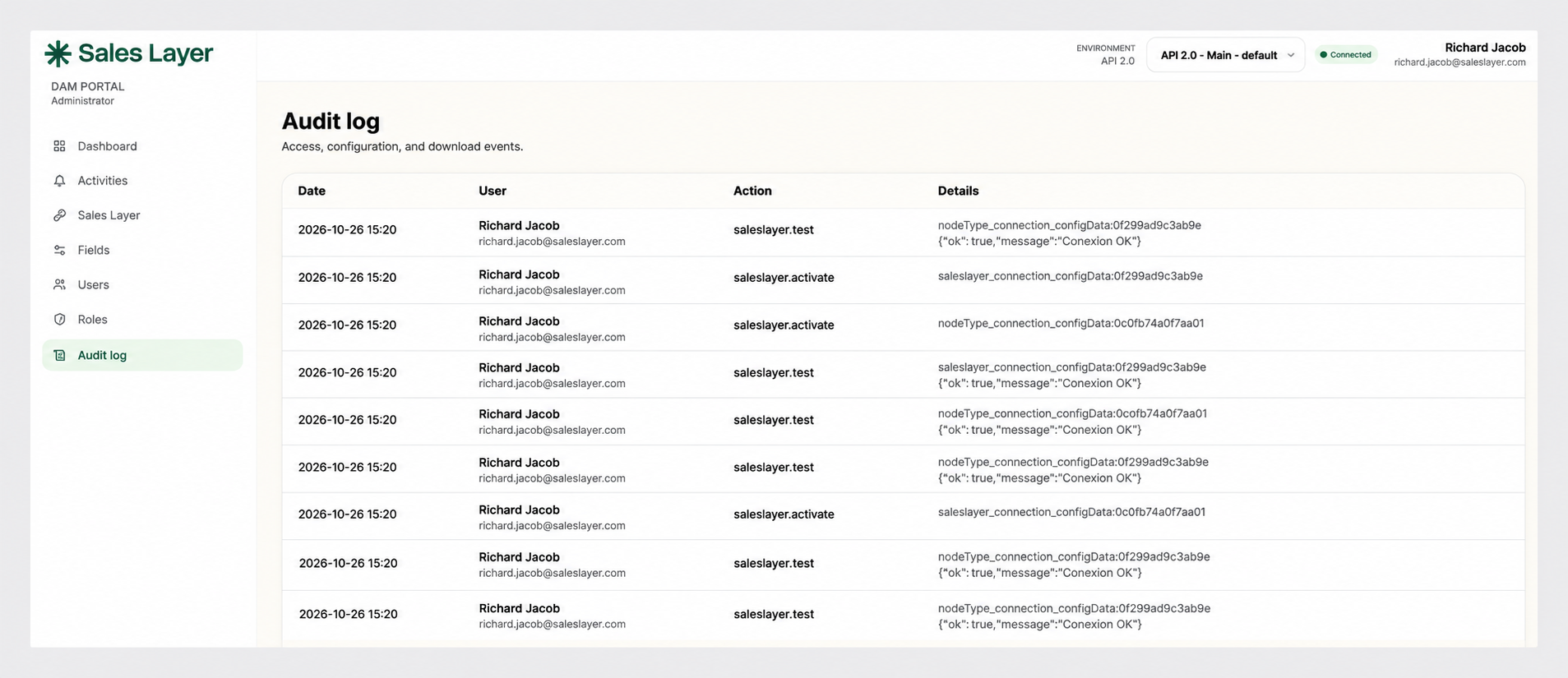
The DAM also maintains a history of relevant actions to provide traceability of operations performed within the platform.
These features help maintain better control over connections, configurations, and access to digital resources.
Common Use Cases
The DAM can be used in different situations involving the preparation and distribution of product content.
Prepare assets for a marketing campaign
A marketing team can filter products by category, channel, or specific attributes, select the images they need, and download them together in a ZIP file.
Share images with an agency
An agency can access the DAM to browse products and download the available resources without needing direct access to the Sales Layer PIM.
Adapt images to different formats
A design team can open a product image, select a crop ratio, adjust its dimensions, and export it in the format required for a campaign.
Work with different catalogs
A company with multiple Sales Layer accounts can configure independent connections and switch between them while preserving the fields and filters established for each environment.
Find products with specific characteristics
A user can combine the category tree, attribute filters, and text search to quickly locate a specific selection of products.
Best practices
Before you start using the DAM, review which Sales Layer fields you need for segmentation, display, and download. A well-organized configuration will make searches easier and prevent unnecessary attributes from appearing in the interface.
If you update the values used by your filters, remember to synchronize them again to keep your search options up to date.
It is also important to configure user permissions according to each person's responsibilities and review which fields are enabled for download before sharing resources with external collaborators.
Was this article helpful?
That’s Great!
Thank you for your feedback
Sorry! We couldn't be helpful
Thank you for your feedback
Feedback sent
We appreciate your effort and will try to fix the article