The Collaborative Tracking feature is designed for accounts in which different users jointly add information about an item. In this way, every user can share information or make indications for other users in an efficient and convenient way.
This option allows users to leave comments on an item in tables of products, categories, or variants.
Every user can comment on both the item itself, leaving a comment on the item header, and the form fields with a more specific comment.
Feature Activation
This functionality is available for Enterprise Accounts, but it can be contracted separately. If you are interested or for further information, contact us through the usual support ways.
Next steps:
As an example, we will explain how to post a comment.
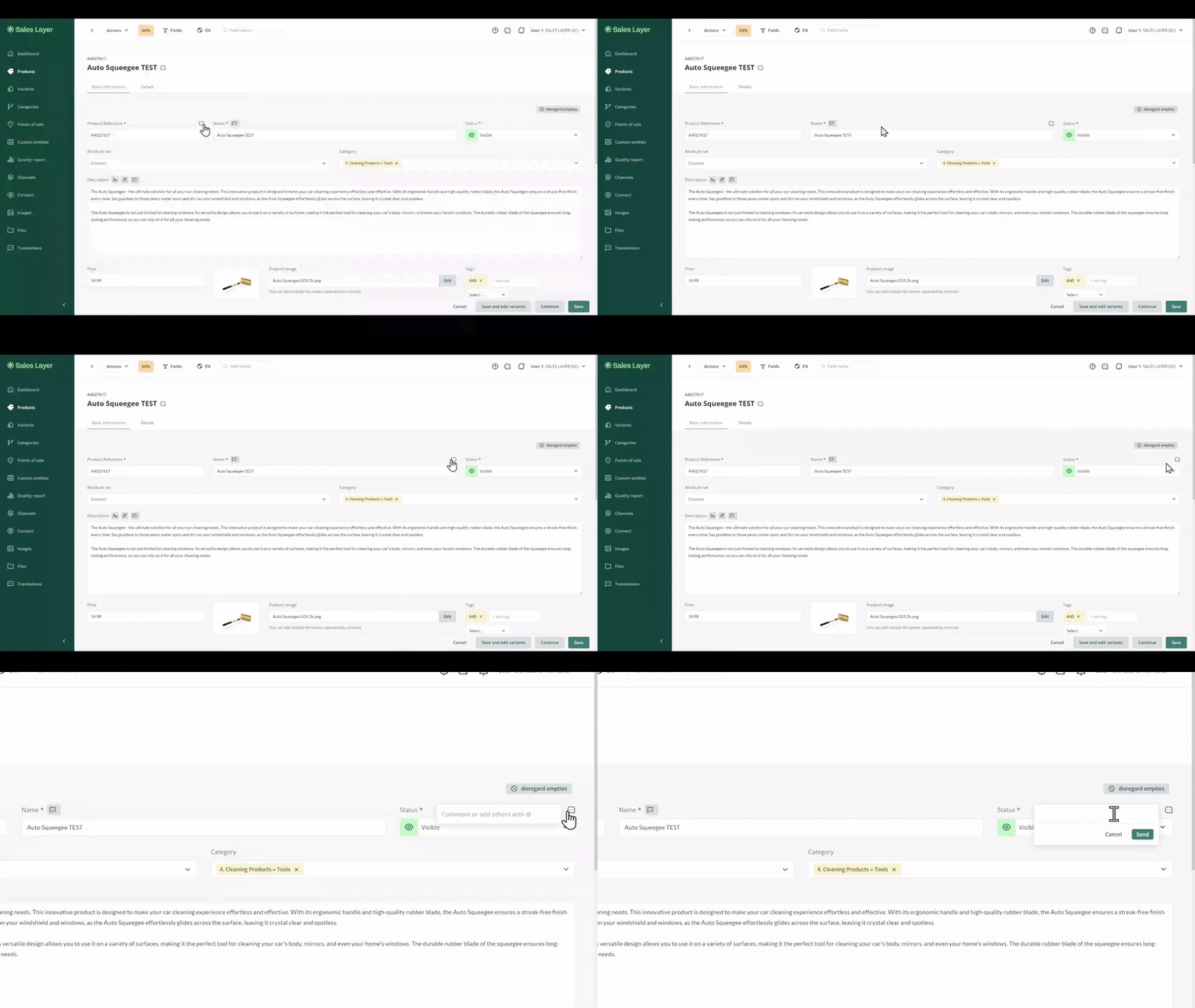
Place a logo of the functionality: find the logo of the functionality by hovering over the header of an item or specific field of the form. This logo corresponds to a small comments icon.
Click on the logo: once the logo is located, click on it to activate the comment function.
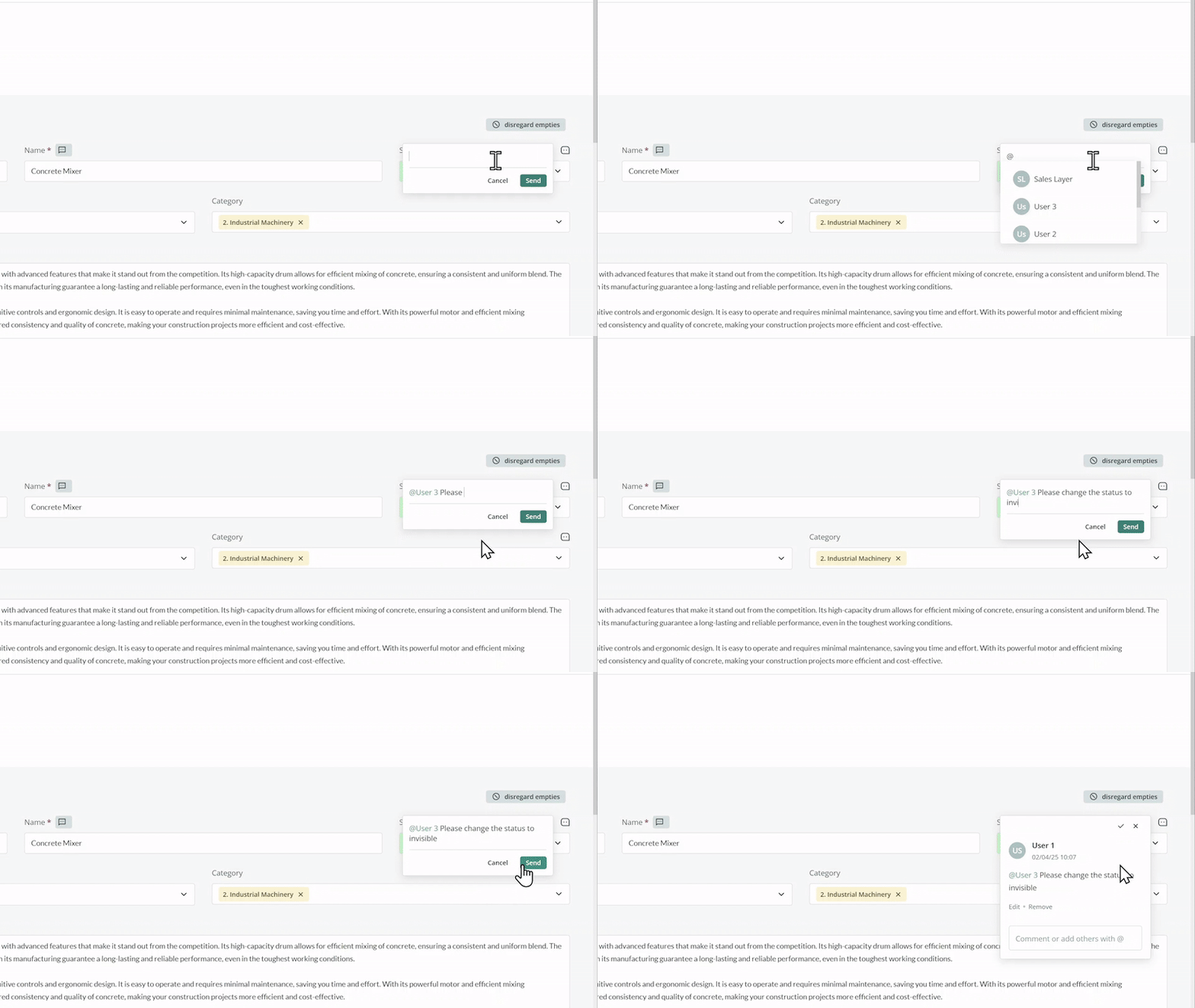
Write a comment: a text area or dialog box will open where you can write the comment directed towards any user. When you type the character “@” all available users will be displayed, from which you can choose the one you need.
Save the comment: first, you will have to click on send in order to save the comment and notify the user.
When User 1 writes a comment, User 2 will receive a notification in the comments icon at the top right. A red dot will also appear on the icon, indicating that there are recent interactions to review. Once you click on the icon and the sidebar opens, the comments will automatically be marked as seen. By clicking on the mention, you will be directed straight to the comment within the mentioned item.
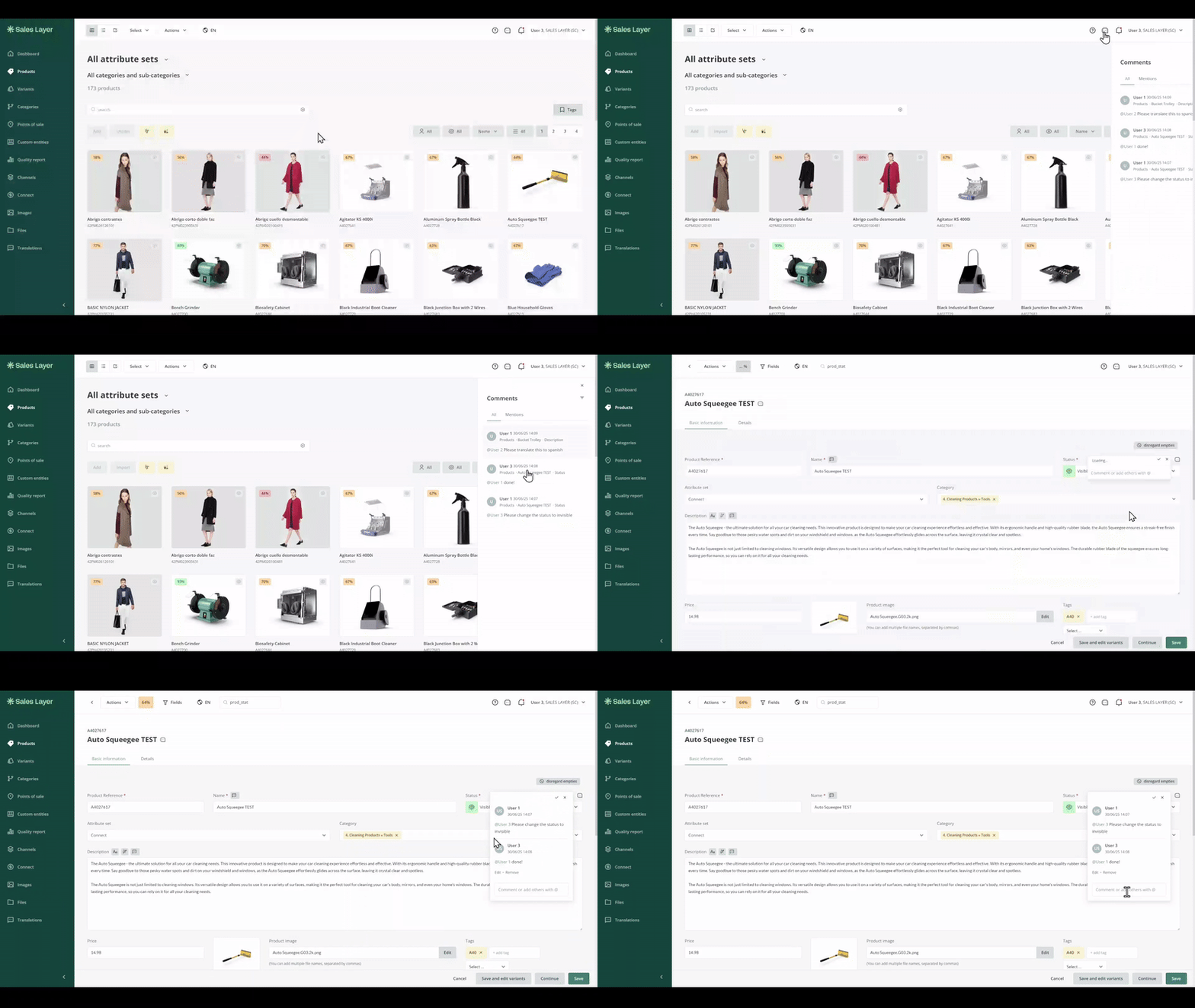
When user 2 responds, user 1 also will receive a notification. By clicking on the mention, they will enter directly in the chat.
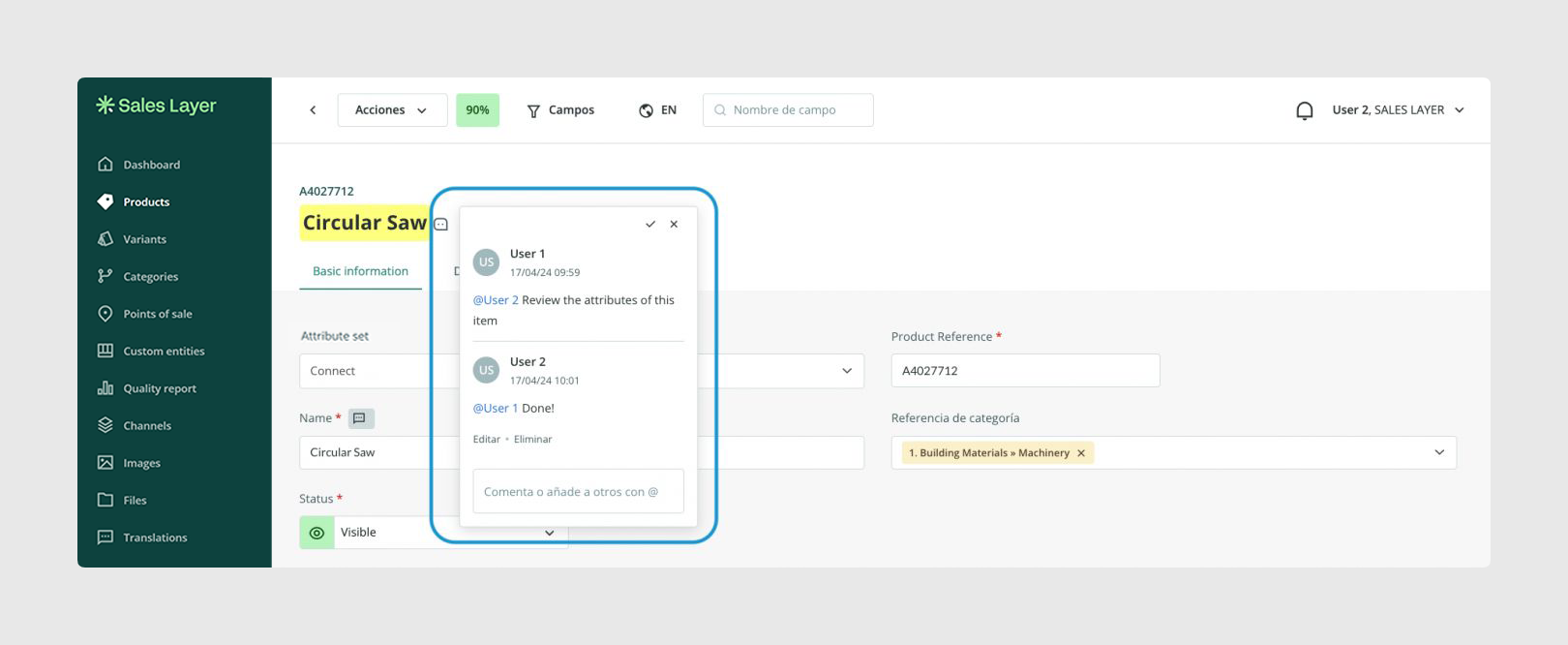
After checking the answer, the user can decide to continue commenting, to solve a problem or close the chat.
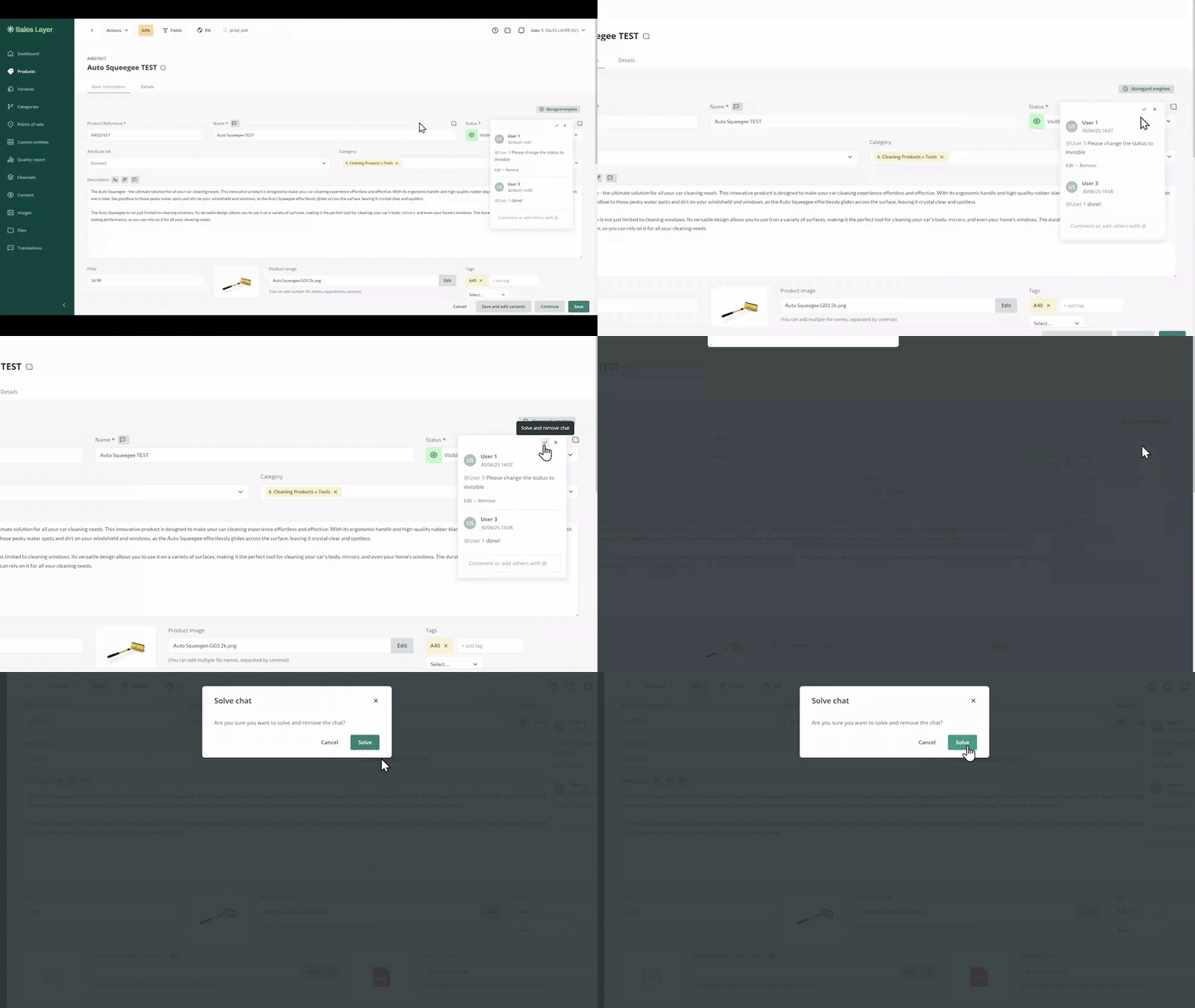
In summary:
To mention a user, use the character “@” followed by the name to see the list of users who match to your search and to be able to select it.
The chats icon will be always visible in items with comments. By clicking on the icon, the chat will open with existing comments.
You will receive notifications if you are mentioned. By clicking on the notification, the appropriate chat will open.
You can edit and remove all the comments which you have created.
By solving the chat, it will be removed.
You can review all comments made on the items in your accounts by accessing the comments icon located at the top right. By selecting the mention or the general comment, you will be directed to the specific item. Keep in mind that only comments made in the last 30 days will be visible.
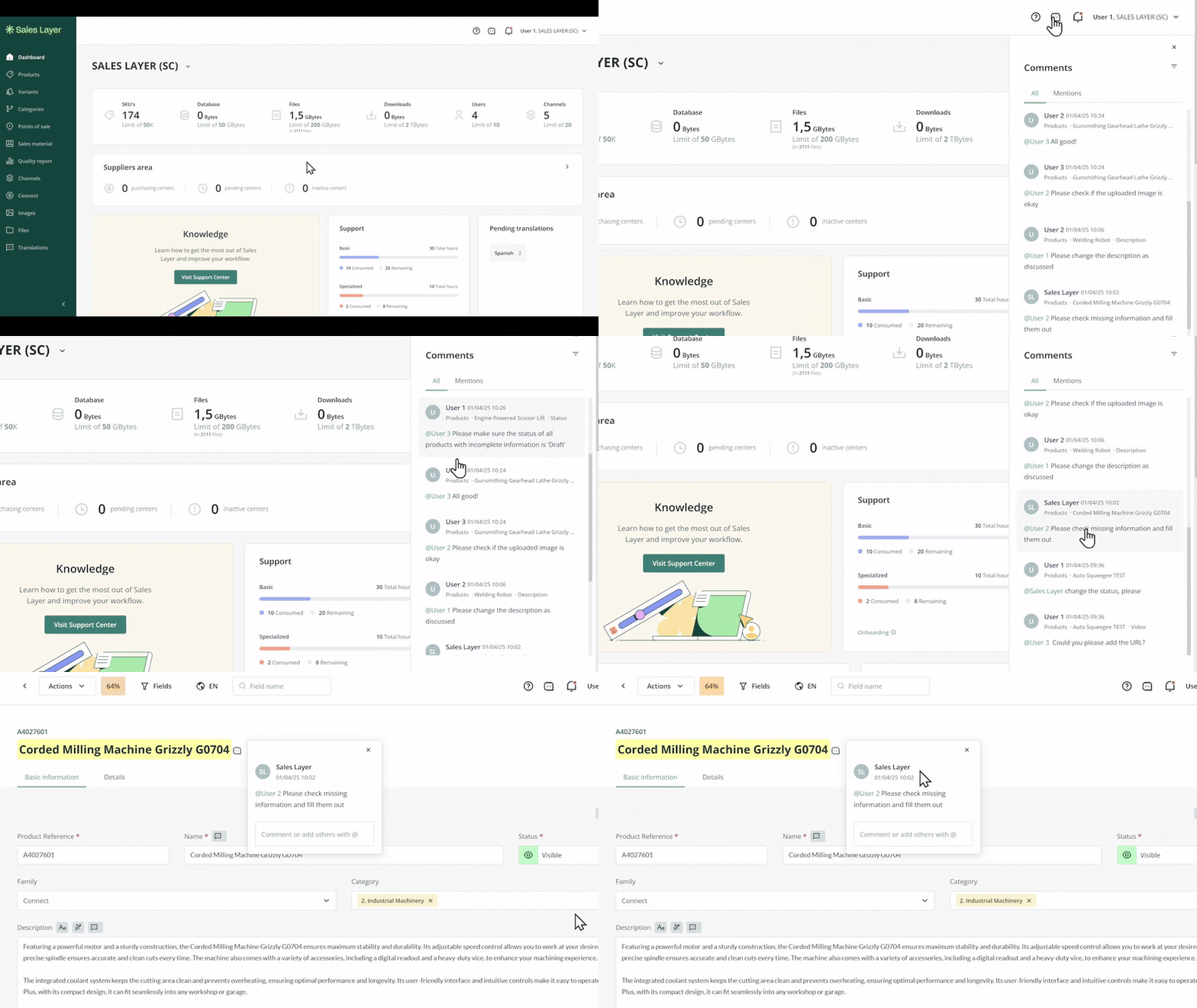
Warning: In this first version of Collaborative Tracking, the activities are not recorded in “Recent activity” and also do not retrieve a previous status of comments after retrieving a copy from “Time Layer”. The comments made would be kept.
Common Use Cases
Collaborative Tracking is useful when several users work on the same catalog entry and need to coordinate changes. For example, one user can ask another to review a title, confirm a value in a field, or explain why a specific update was made, all from inside the item itself.
This makes it easier to keep conversations tied to the exact record and field being discussed instead of managing those questions outside the platform.
Best practices
Use field-level comments when the question is about one specific value, and item-level comments when the message affects the whole record. Mention the right user with @ so the notification reaches the correct person, and resolve chats once the issue is finished so open conversations stay meaningful and easy to review.
Since only the last 30 days of comments are visible from the top-right comments panel, it is also a good idea to keep important final decisions reflected in the item data itself.
Was this article helpful?
That’s Great!
Thank you for your feedback
Sorry! We couldn't be helpful
Thank you for your feedback
Feedback sent
We appreciate your effort and will try to fix the article