Data entry and structure
Through the API and the SDK, it is possible to import data directly into Sales Layer by using SalesLayer_Conn(). This allows you to automate imports from systems such as an ERP and send the data straight to the platform.
In this example, the SDK is used to import information into a test account, updating existing records and creating new items at the same time.
Before working on this example, it is advisable to review the API documentation and configure a generic import connector in the Channel Marketplace.
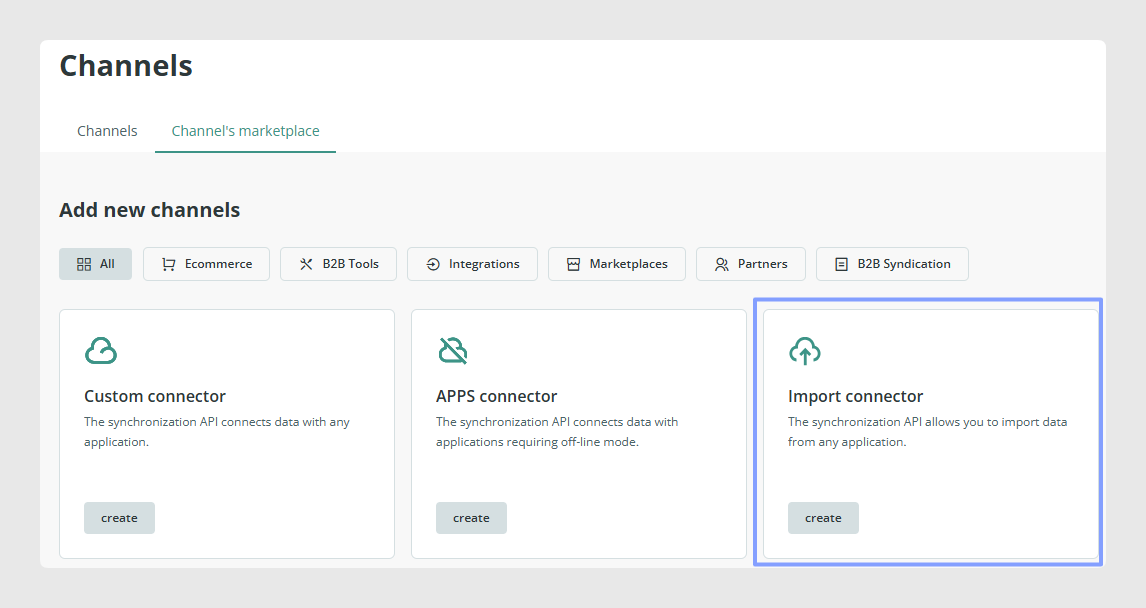
The first step is to define a private key and choose the languages to connect.
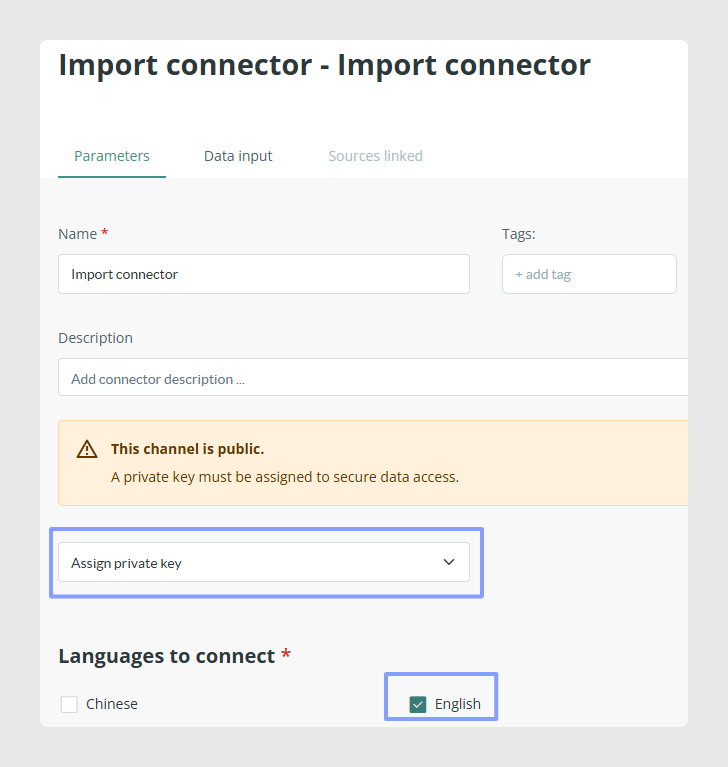
The Always overwrite when importing option is used for CSV synchronization through Linked Sources, so it is not relevant for this SDK example.
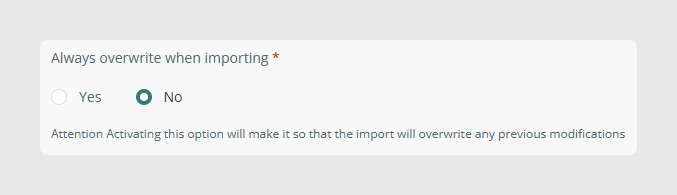
After the initial setup, configure the tables you want to import. In each table, add the fields you want to update or create.
In the example, categories, products, and variants are configured with the fields needed for the test import.
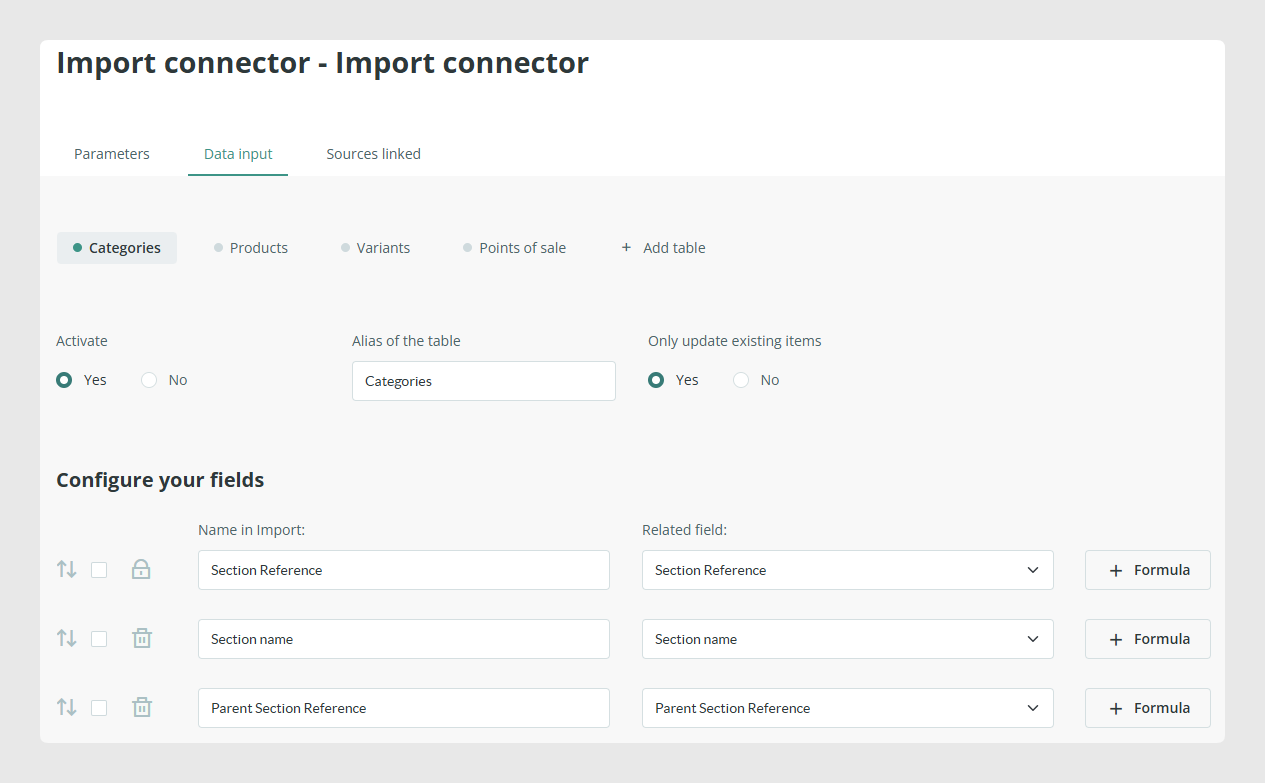
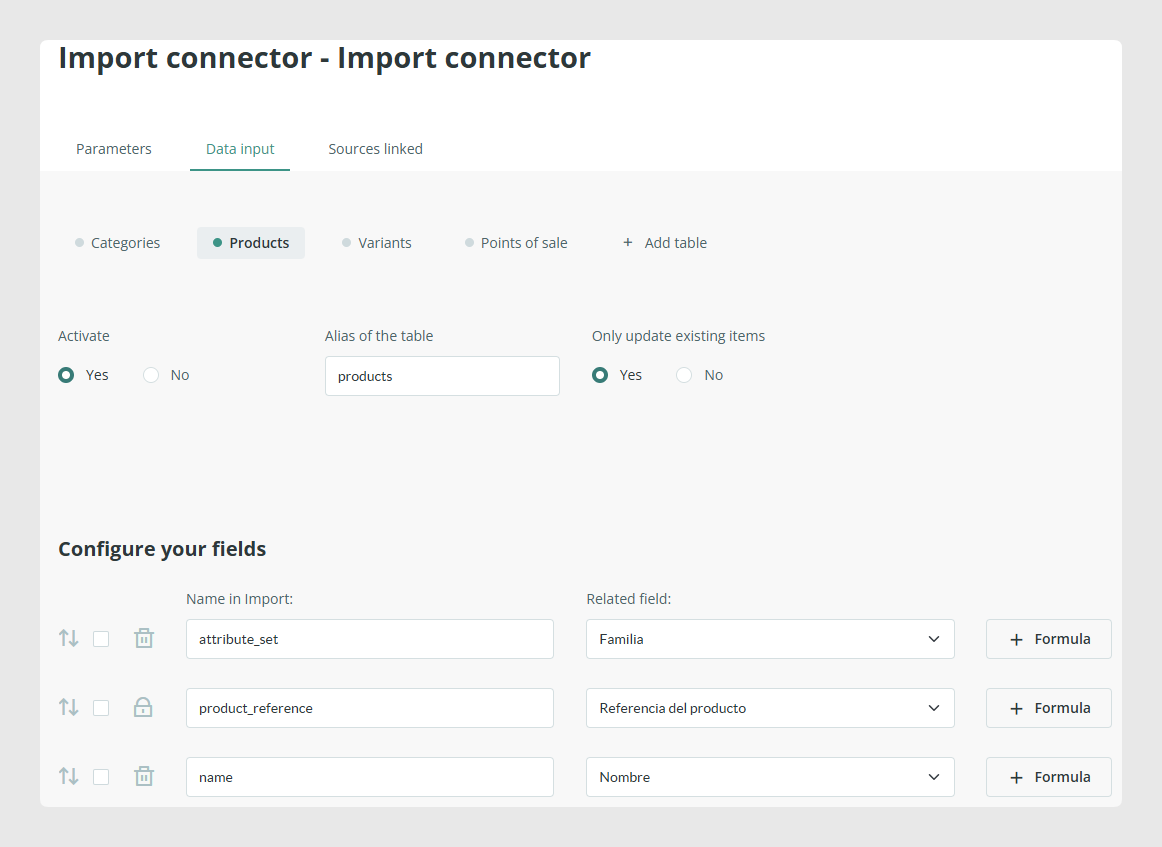
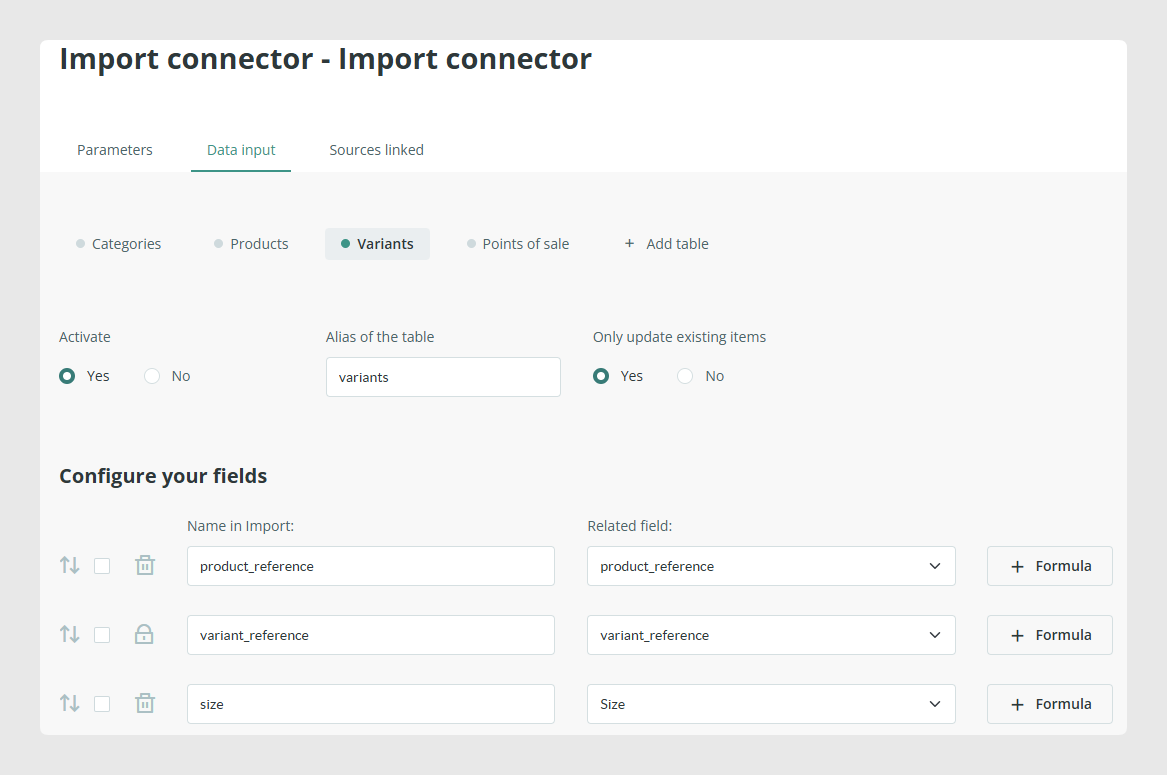
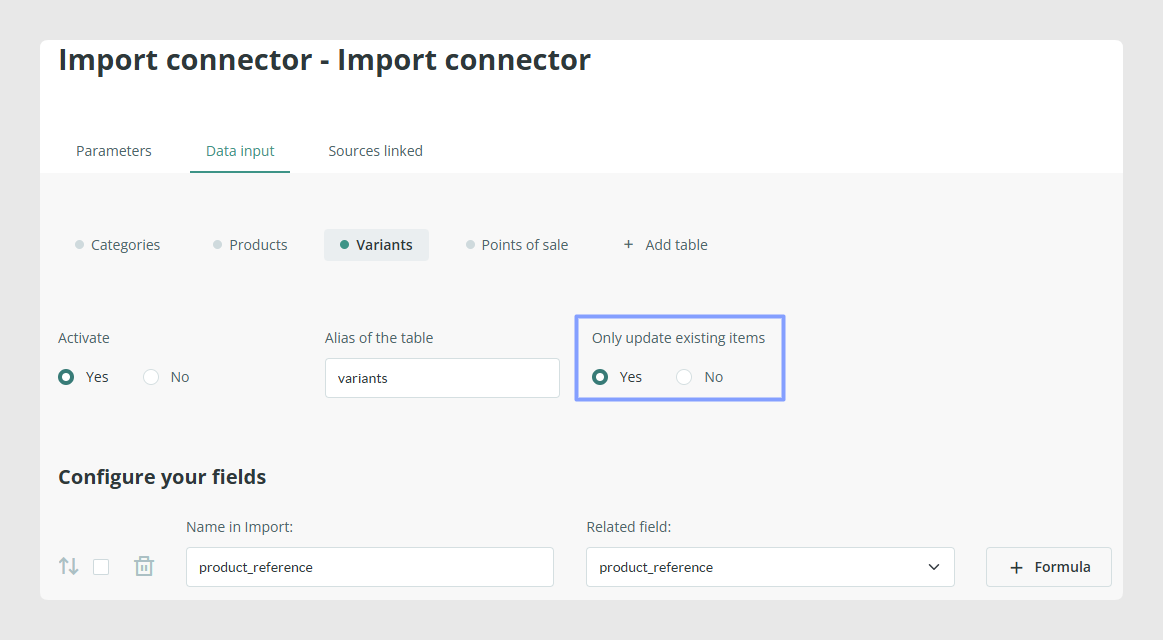
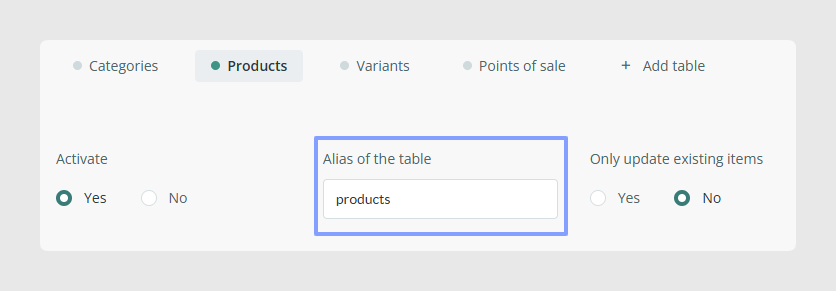
If you only want to update existing items, choose Yes in the connector option for existing items only. If you also want to create new items, choose No.
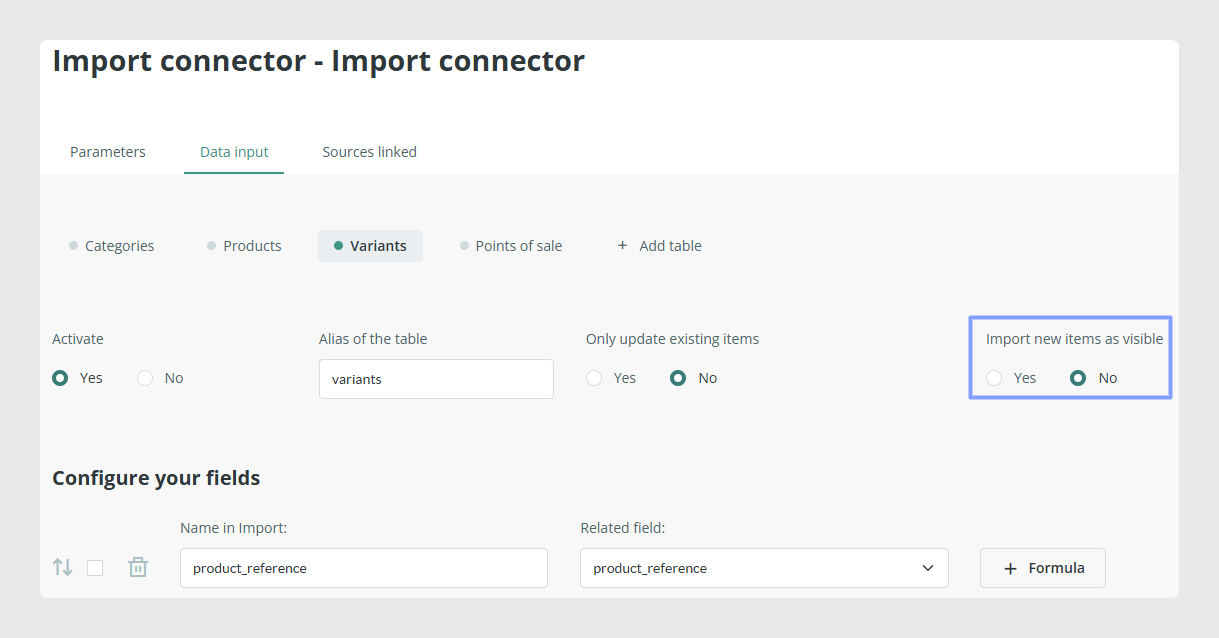
When you choose No, a second option appears so you can define the status of the new items. New items are created as draft in this scenario.
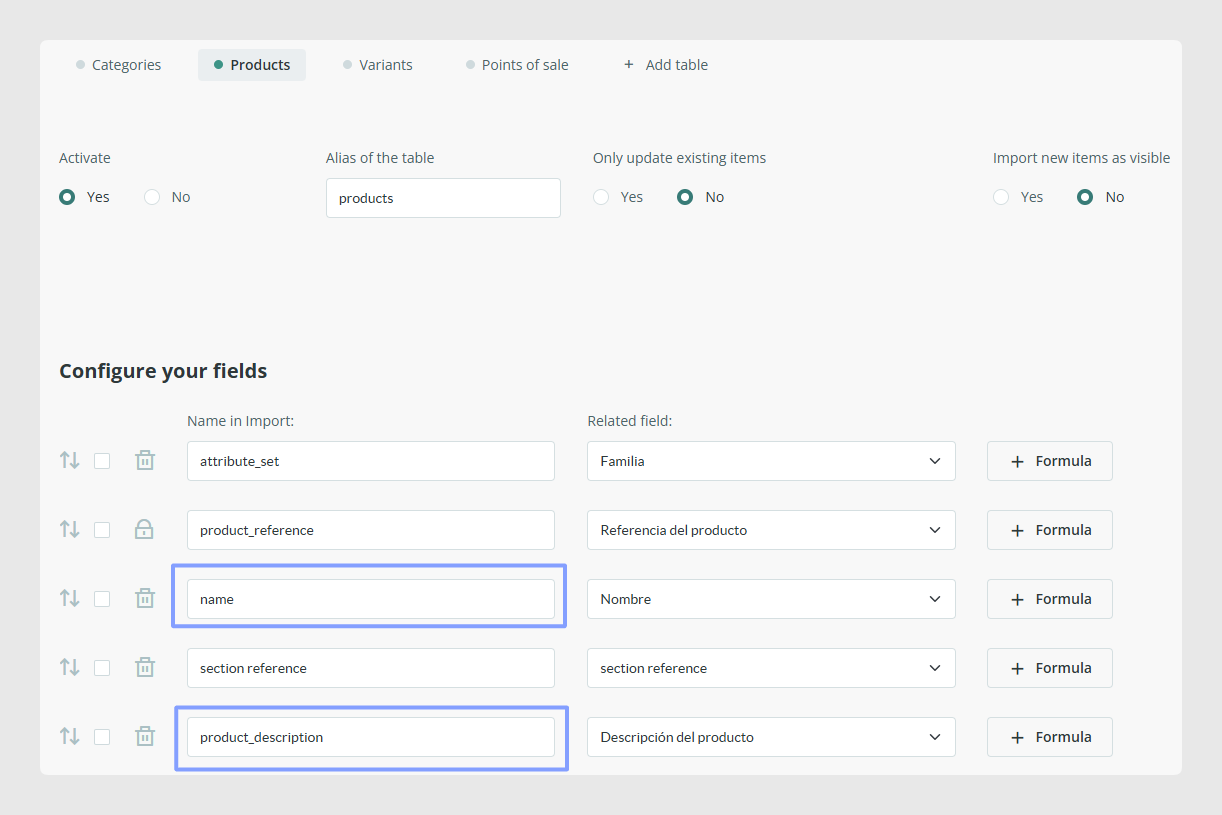
In the left column of the connector you must define the exact field names that you will later send through the SDK. These names must match the import structure exactly, including spaces, capital letters, and punctuation.
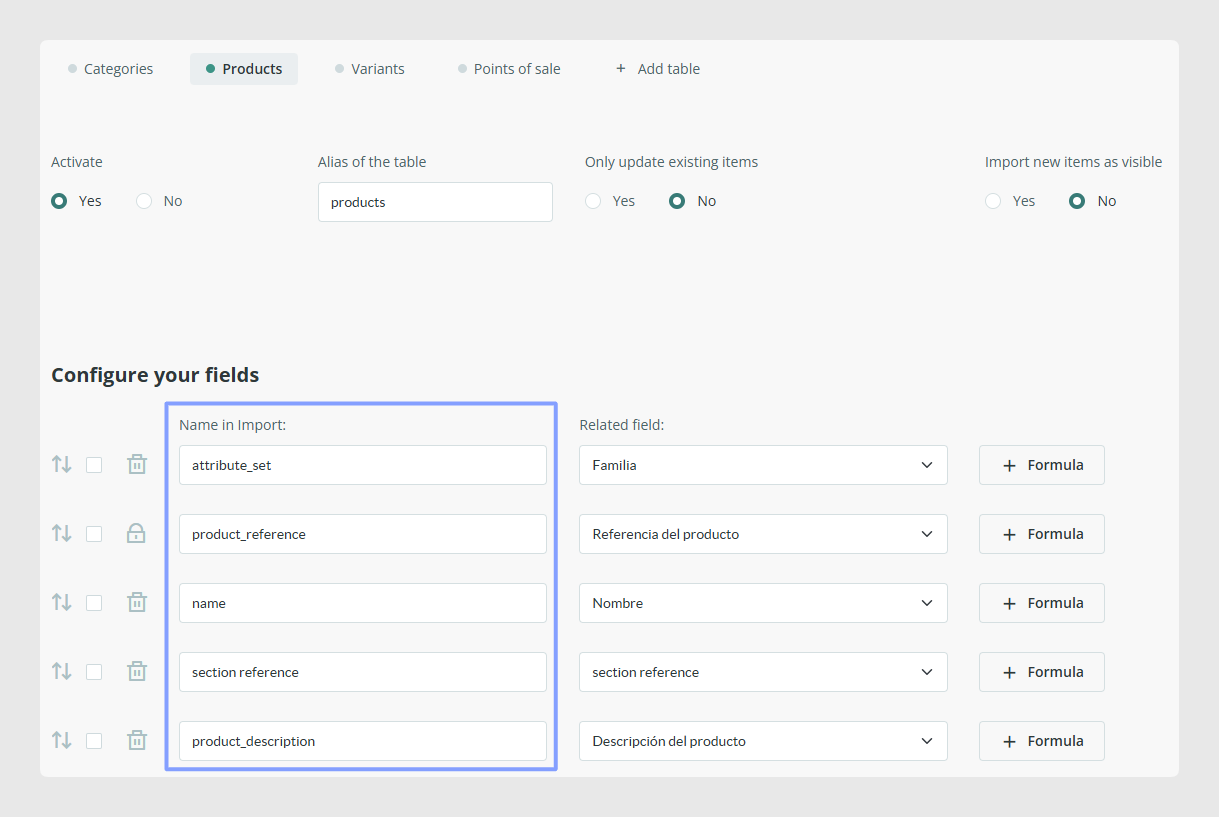
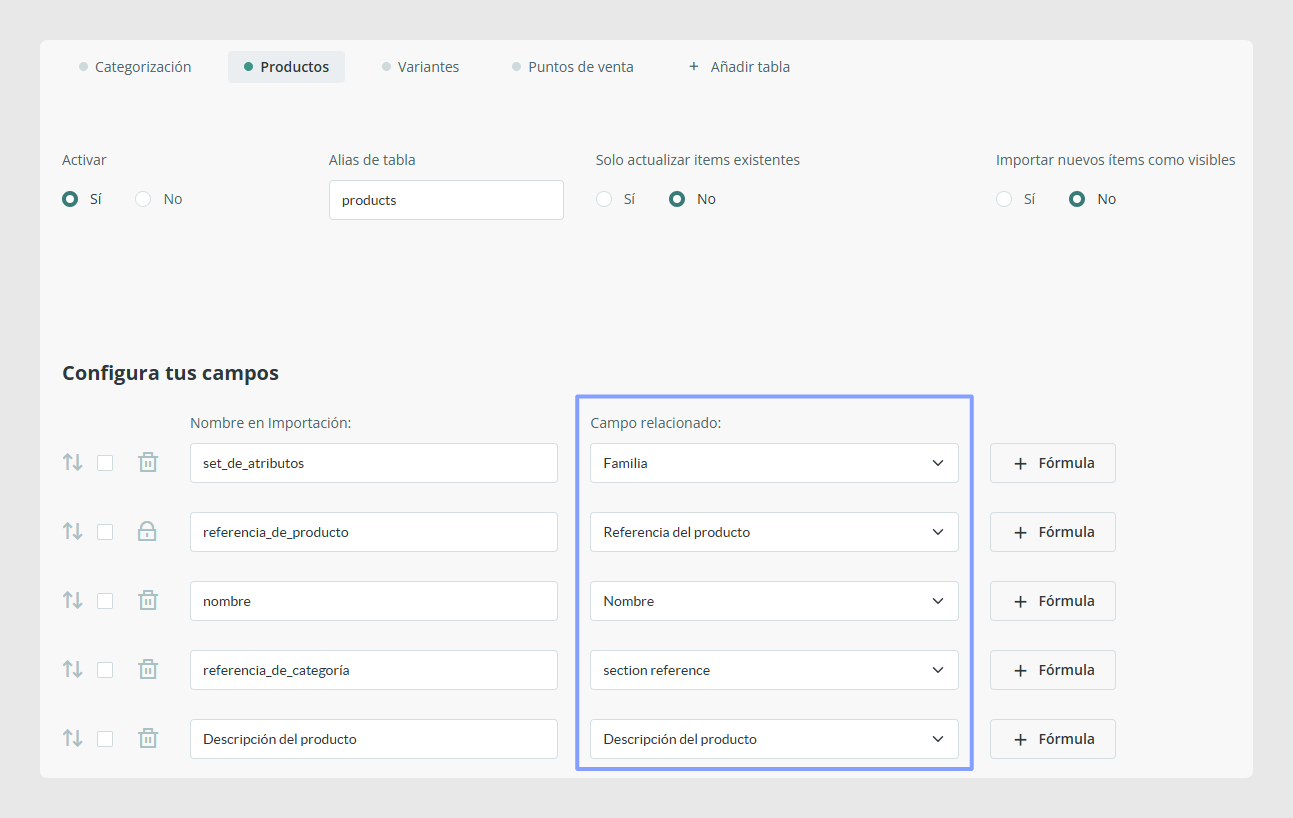
Once the tables are configured and saved, the connector is ready. Since this example uses the API, the Linked Sources tab is not used.
Code
The script below defines the connector credentials, creates the connection object, sets the API version to 1.18, prepares the input_data structure, and sends it with set_info().
<?php
define('LOC_BASE', dirname(__FILE__) . '/');
require(LOC_BASE.'SalesLayer-Conn.php');
require(LOC_BASE.'lib/nice_r-master/Nicer.php');
?>

<!DOCTYPE html>
<html dir="ltr" lang="en-US">
<head>
    <link rel="stylesheet" type="text/css" href="lib/nice_r-master/nice_r.css?version=<?php echo filemtime(LOC_BASE.'lib/nice_r-master/nice_r.css'); ?>"/>
    <script type="text/javascript" src="lib/nice_r-master/nice_r.js?version=<?php echo filemtime(LOC_BASE.'lib/nice_r-master/nice_r.js'); ?>"></script>
</head>

<body>
    <?php
    //SL import connector
    $connector_id = "CN17533H3908C4486";
    $secret_key = "cd6a8653823248296079e595e772f9b2";

    //Create object with the credentials of the connector
    $SLConn = new SalesLayer_Conn ($connector_id, $secret_key);

    //API Version
    $SLConn->set_API_version('1.18');

    //Import Data
    $input_data = [
        "categories" => [
            [
                "Section Reference" => "CHAQ01",
                "Section name" => "Jackets 2022"
            ],

            [
                "Section Reference" => "CAMI03",
                "Section Description" => "Summer T-shirts, Collection of 2022! The best choice..."
            ],

            [
                "Section Reference" => "SH01",
                "Section name" => "Shoes",
                "Section Description" => "Summer Shoes Collection. Choose the best that suits you!",
                "Parent Section Reference" => "VERA01"
            ],

        ],

        "products" => [
            [
                "Product Reference" => "42PM020100483",
                "Product Description:en" => "Brown mohair coat with detachable funnel neck, raglan sleeves and concealed clip button fastening."
            ],
            [
                "Product Reference" => "AAPA10L63534",
                "Product Name:en" => "Phone Cover",
                "Product Name:es" => "Funda Móvil",
                "Section Reference" => "ACCE02",
                "Product Description:en" => "Phone cover that will protect your phone even with the strongest falls. The phone cover you need!",
                "Product Description:es" => "Funda para tu movil que protegerá incluso con las caídas más fuertes. ¡La funda de que necesitas!",
                "Product Color" => "Black"
            ],
        ],

        "variants" => [
            [
                "Product Reference" => "42PM020100483",
                "Variant Reference" => "FR1342",
                "Variant Size" => "L",
                "Variant Price" => "24.99"
            ],
            [
                "Variant Reference" => "F234944",
                "Variant Price" => "49.99"
            ],
        ]
    ];

    // set_info function
    $response = $SLConn->set_info($input_data);

    //error verification
    if ($SLConn->has_response_error())
        echo "<h4>Error:</h4>\n\n Code: ".$SLConn->get_response_error().
             "<br>\nMessage: ".           $SLConn->get_response_error_message();
    else {

        echo "<h4>Response OK</h4>\n".
             "<p>".
             "API version: <b>".$SLConn->get_response_api_version()."</b><br />\n".
             "Connector ID: <b>". $SLConn->get_identification_code()."</b><br />\n".
             "Time: <b>".       $SLConn->get_response_time()       ."</b> (GMT 0)<br/>\n".
             "</p>";

        //tracking functions
        do {
            $status = $SLConn->get_input_tracking_status();
            echo "Status: ".    $status.
                 ', percent: '. $SLConn->get_input_tracking_percent().
                 '%, message: '.$SLConn->get_input_tracking_message()." <br>\n";
            flush(); ob_flush(); sleep(1);
        } while (!in_array($status, ['error', 'end']));

        //Resume of Total Information
        echo "<br />\n".
             "Total information: ". print_r($SLConn->get_data_returned(), 1);
    }
    ?>
    </body>
</html>
The structure of input_data always follows this pattern:
$input_data = [ "table" => [ [ "reference" => "", "field1" => "", "field2" => "" ], ... ], ... ];
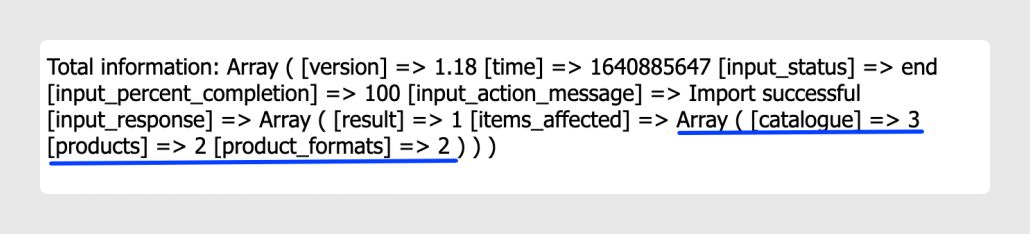
In the category records of the example, two categories are updated and one new category is created. It is not necessary to send all category fields when creating a new record, only the fields required by the connector and the reference field.
In the products block, one product description is updated in English and a second product is created with multilingual values for name and description.
Warning:
The related reference field is mandatory in every table. It is required when creating new items and it is also the field that lets Sales Layer recognize existing items that need to be updated.
To import multilingual values, the corresponding languages must be enabled in the connector parameters and the field names in "input_data" must include the correct ISO suffix, such as "Product Name:en" or "Product Description:es".
In the variants block, one variant is created and another variant is updated by changing only the price field.
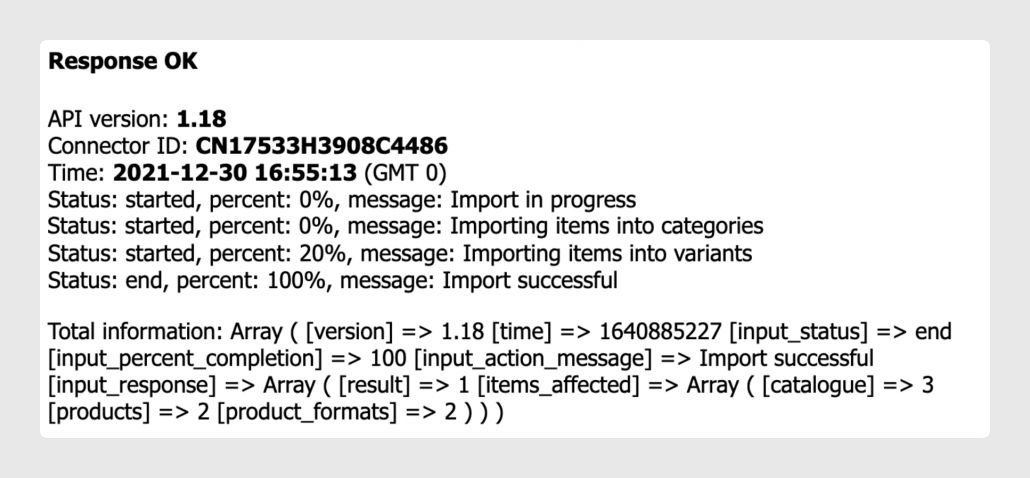
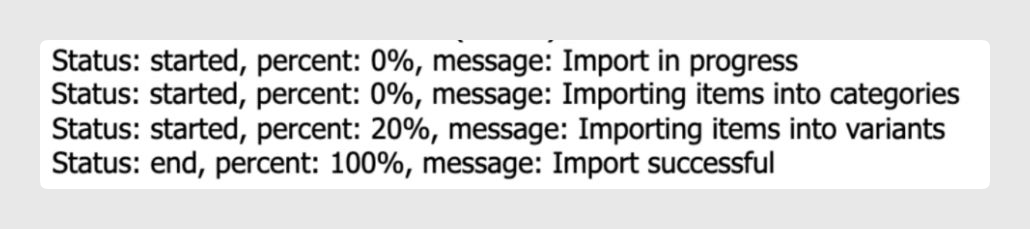
After the import request is sent, the script checks for errors and then uses the tracking functions to monitor the progress: get_input_tracking_status(), get_input_tracking_percent(), and get_input_tracking_message().
Execution and results
When the script runs, the connector returns the API version, connector ID, request time, tracking status, and the total amount of imported information.

Once the process finishes, you can verify the imported data in Sales Layer by checking the categories, products, and variants tables.
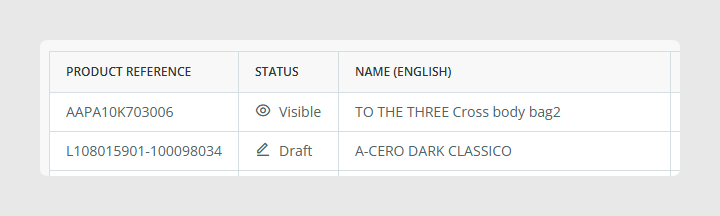
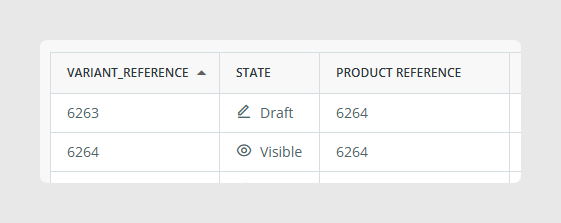
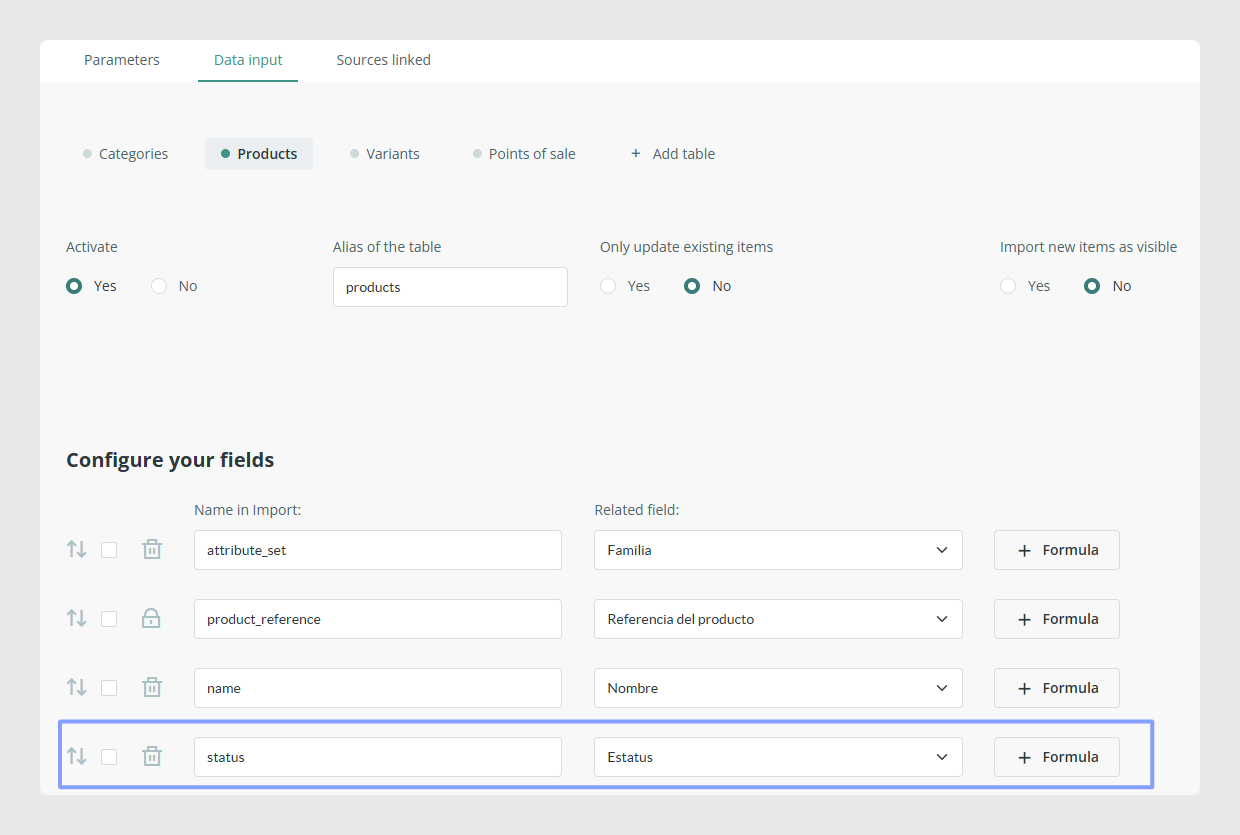
The API can also be used to delete existing information. To do that, include the Status field in the connector and send the value X for the reference you want to remove.
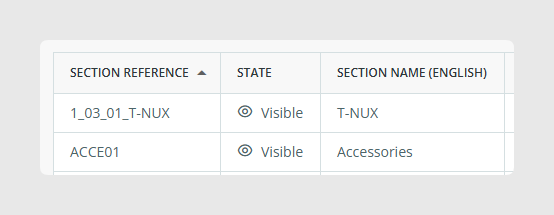
After executing that import, the item is removed and it no longer appears in Sales Layer.
Finally, instead of sending an inline input_data structure, the SDK can also import a CSV file hosted on a server. In that case, the request includes the file URL and any required connection data such as user, password, and port.
Was this article helpful?
That’s Great!
Thank you for your feedback
Sorry! We couldn't be helpful
Thank you for your feedback
Feedback sent
We appreciate your effort and will try to fix the article