What locking a field does
Locking a field prevents users from changing its value in the form. This is useful when you want to protect specific information from accidental edits, especially when several users work in the same account.
In practice, a locked field becomes inactive, so users cannot edit it until it is unlocked again.
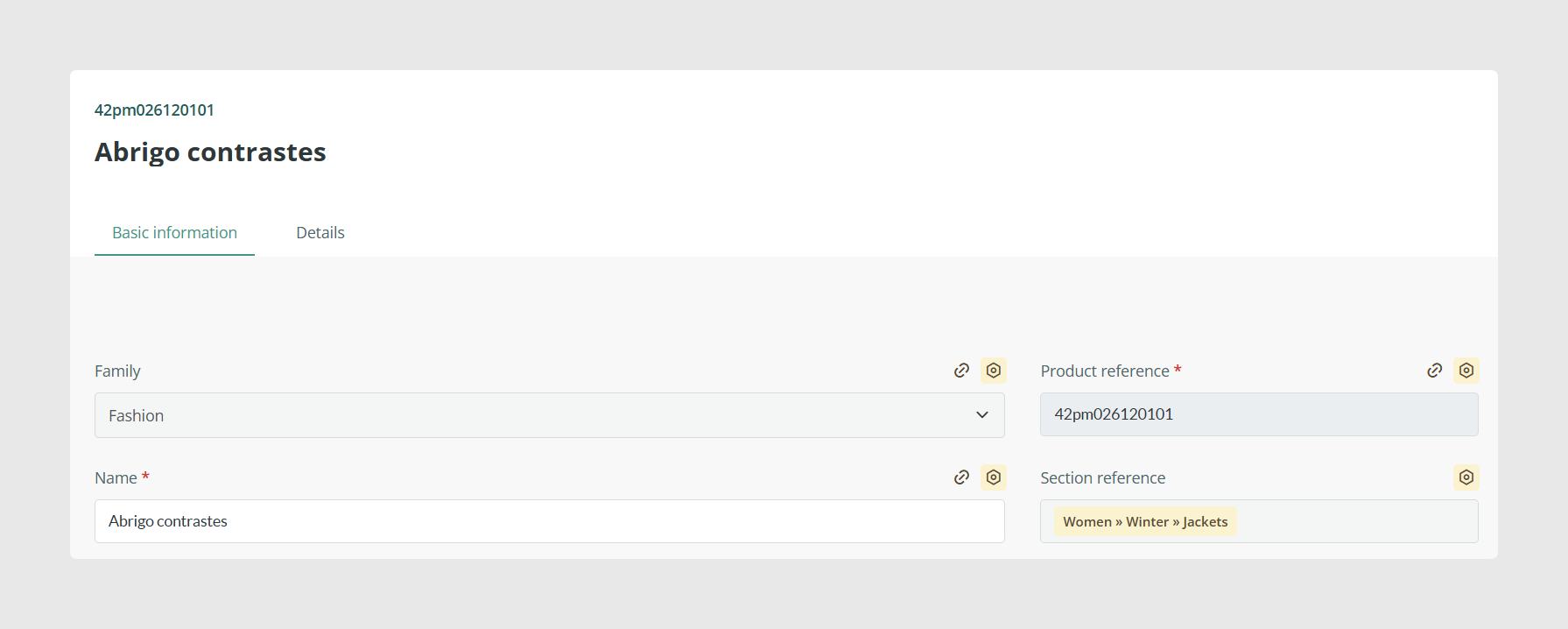
When locking fields is useful
Locking fields is especially useful when some information should stay protected because it comes from another source, such as an ERP or an import connector.
For example, if a connector updates stock, prices, or other synchronized fields automatically, locking those fields helps prevent users from making manual changes that would later be overwritten.
How to lock a field
To lock a field, go to Products, open Actions, and click Redesign form. Then click Modify next to the field you want to protect.
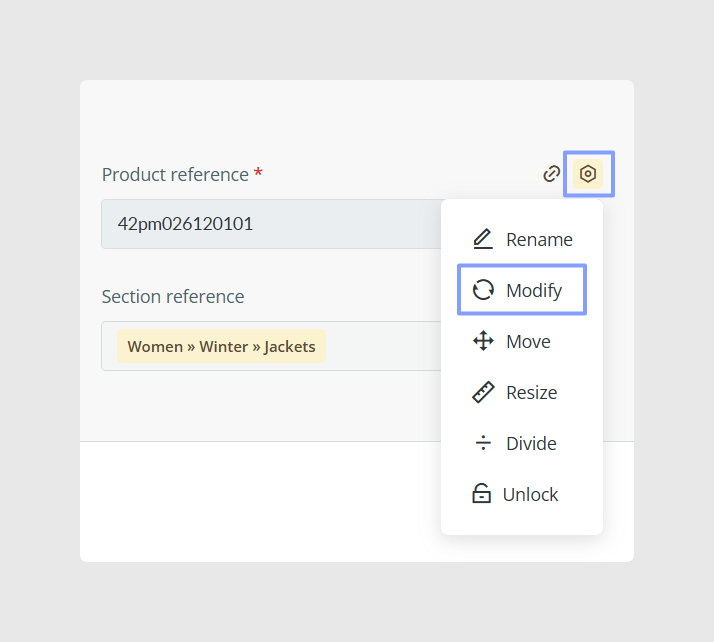
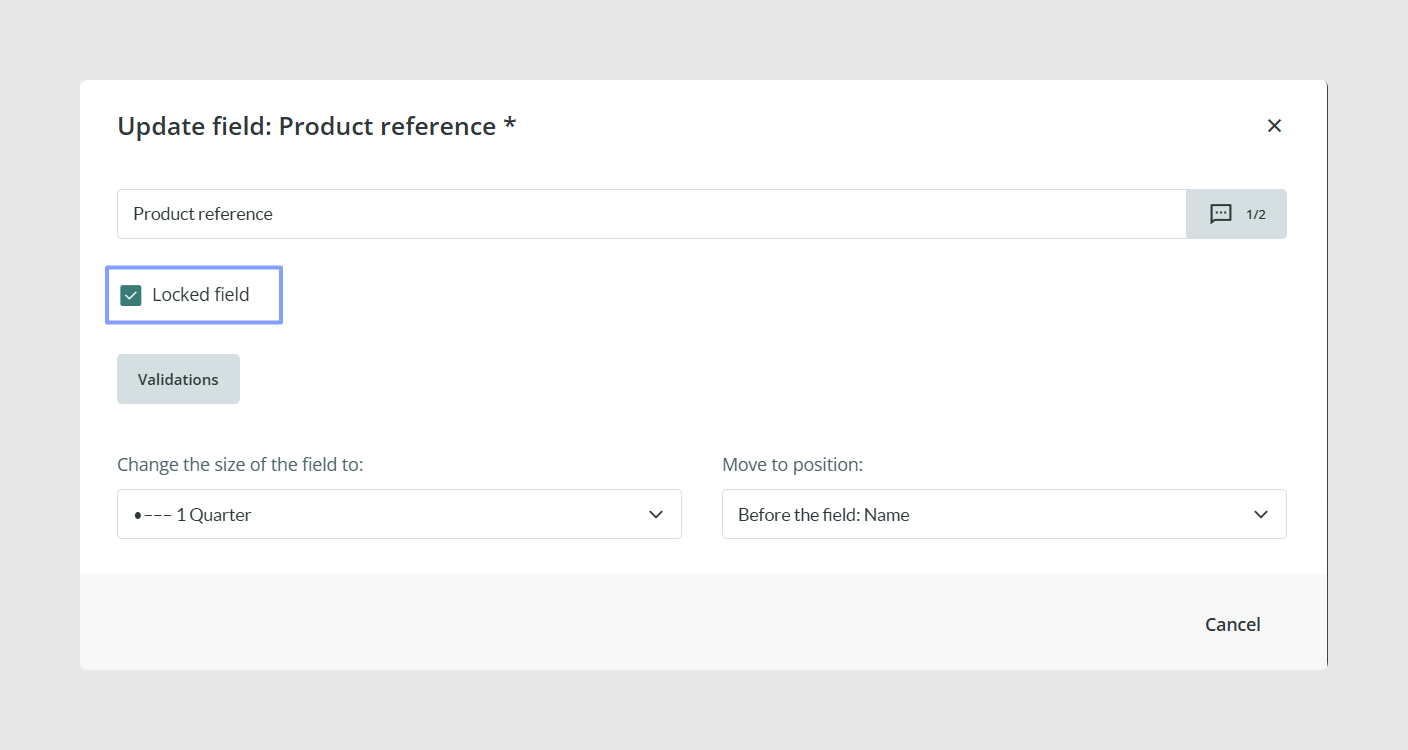
Inside the field settings, select the option called Field locked. Once you save the change, that field becomes inactive in the form.
How to unlock a field again
If you want the field to become editable again, follow the same steps and deselect the Field locked option.
This removes the protection and allows users to edit the field normally again.
Unlock a field temporarily when needed
If you only need to change the value once, Sales Layer also offers an Unlock option from the field actions while you are in Redesign form.
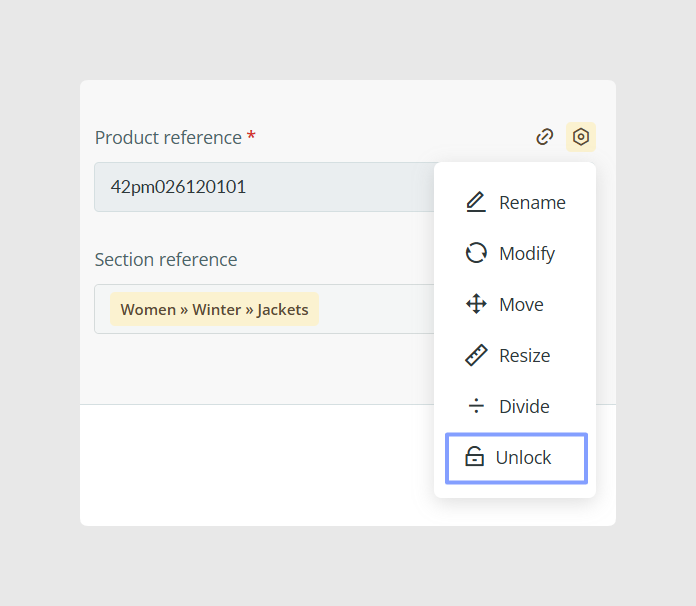
This is useful when you need to make a one-off change without removing the lock for everyone permanently and then locking it again later.
Understand how imports behave with locked fields
Locked fields are also respected during reimports. If you import data into Sales Layer and some of the target fields are locked, those fields will stay unchanged unless you explicitly allow the import to update them.
During the import process, Sales Layer can show the option Force import in locked fields. If you select it, the imported values will also update locked fields. If you leave it unchecked, the locked fields remain untouched.
This gives you more control when you need to protect synchronized fields most of the time, but still allow a controlled update in a specific import.
Use permissions to protect the locking setup
If you do not want some users to lock or unlock fields, you can also limit their permissions so they cannot redesign the form.
This can be configured from Manage Users by updating the user’s permissions. That way, only the right users can change the field structure or the locking settings.
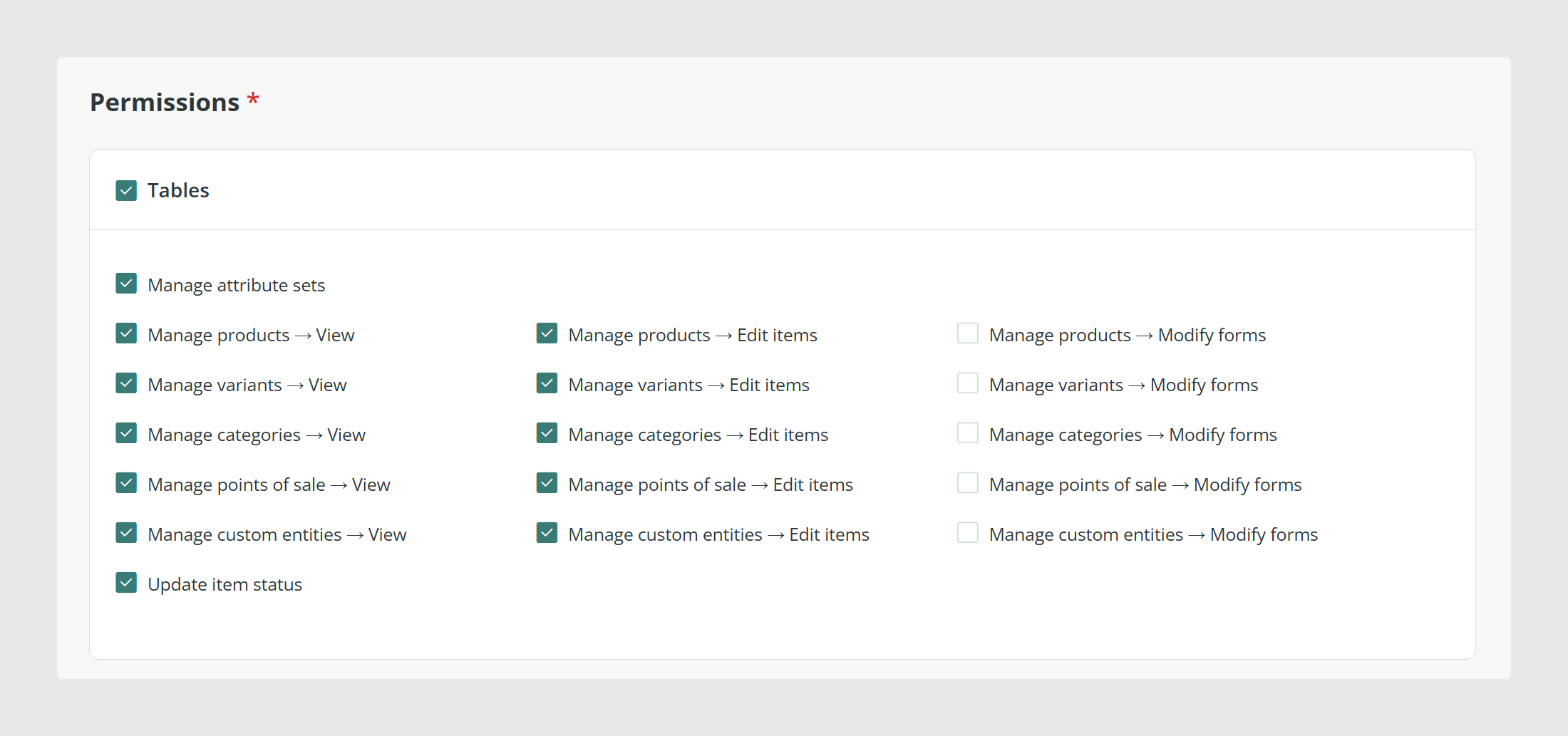
Locking fields vs Workflows
If your account includes Workflows, you may prefer to use them for more advanced control. Workflows make it easier to define which users can access or modify specific information, and they can also help control approvals and supervision.
Locking fields is still a useful option when you need a simpler field-level protection directly in the form.
Common use cases
- Protect ERP-synchronized fields from manual edits
- Prevent accidental changes in shared accounts
- Allow temporary edits only when needed
- Keep form control in the hands of admin users
- Combine locking with import rules for safer updates
Best practices
Lock fields when the value should be protected, not just because it is important. This works especially well for fields maintained by connectors or external systems. If only a few users should control those fields, combine locking with user permissions so other users cannot redesign the form. For reimports, check carefully whether you really want to enable Force import in locked fields, because that option overrides the protection for that import.
Was this article helpful?
That’s Great!
Thank you for your feedback
Sorry! We couldn't be helpful
Thank you for your feedback
Feedback sent
We appreciate your effort and will try to fix the article