In Sales Layer, a field can exist in the platform without appearing in the form. This usually happens when the field is created during an import, but none of the imported items has a value for it.
This is the main difference between an unused field in the form and an unused field outside the form. A field in the form is already part of the visible structure, while a field outside the form exists in Sales Layer but is not currently placed in that form.
How these fields are created
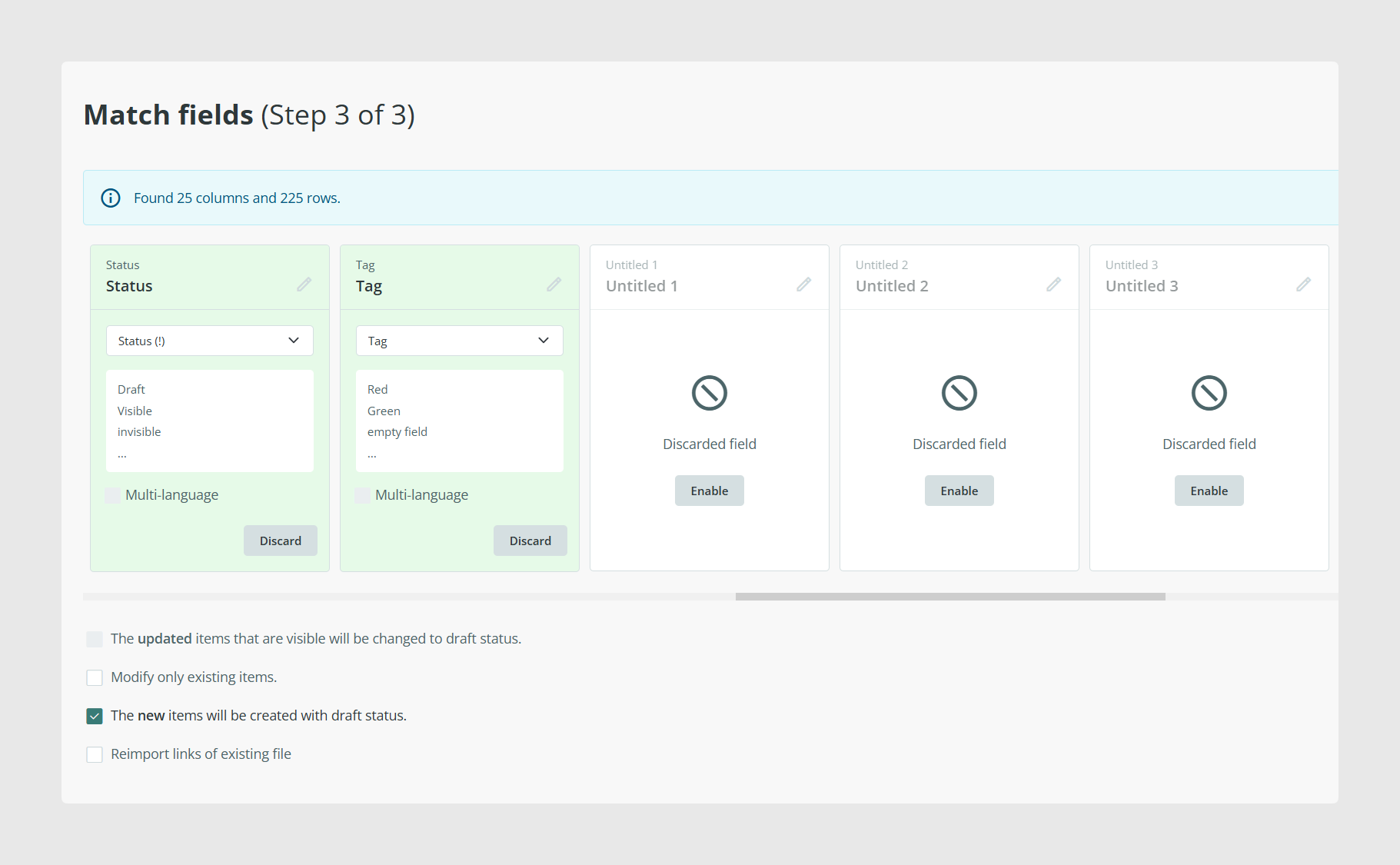
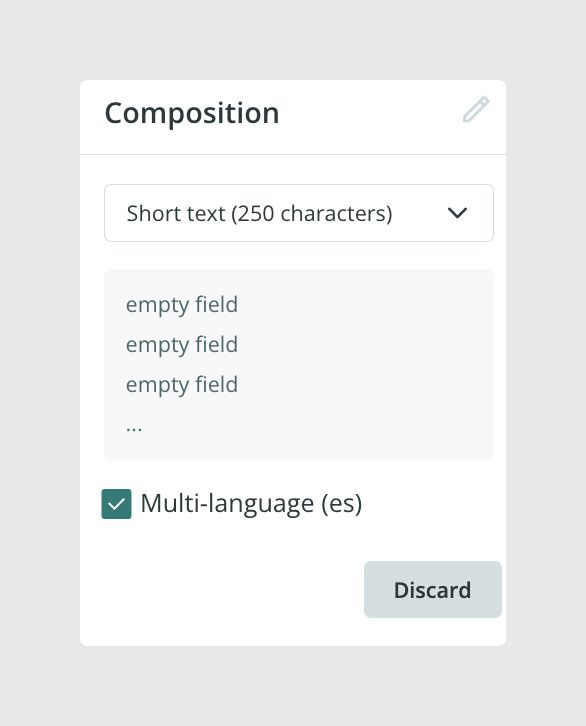
When you import fields into a form or Attribute Set, Sales Layer can create fields even if they have no value yet. By default, a column with no values appears disabled during import, but you can enable it manually.
If you enable that empty column, Sales Layer creates the field, but it stays outside the form until you decide to add it to the visible structure later.
Why this is useful
This behavior is useful when you want to prepare a structure in advance before the real values are available. For example, you may already know that a field will be needed later, even if the first import still has no content for it.
It also allows you to keep the platform ready for later imports without forcing every new field to appear immediately in the form.
Add the field to the form later
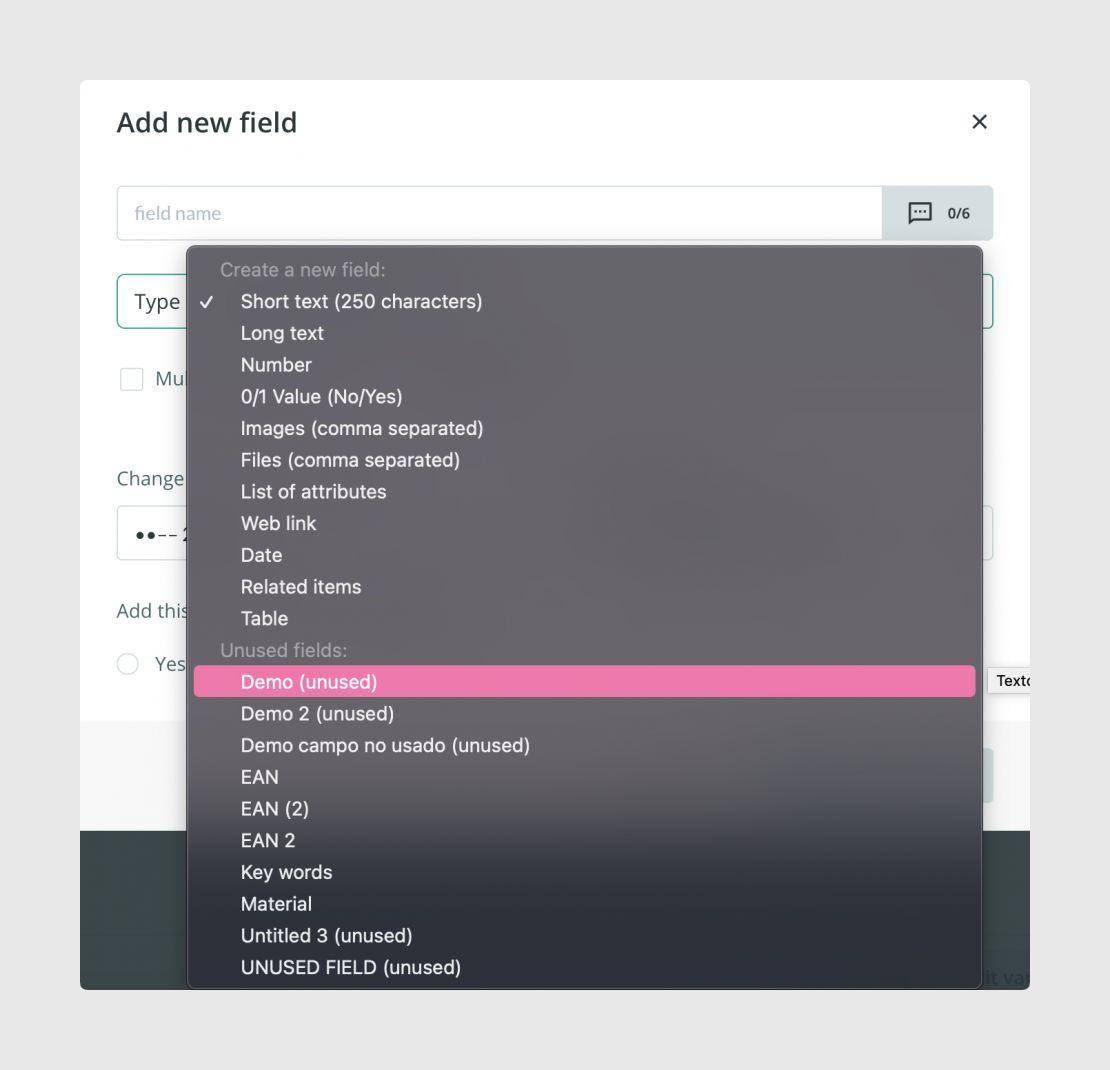
If you want to use that field later, open the form editor and add it from the existing unused fields instead of creating a new one from scratch.
This is important because the field already exists in Sales Layer. You only need to place it in the form so users can see and use it there.
Recover several unused fields in bulk
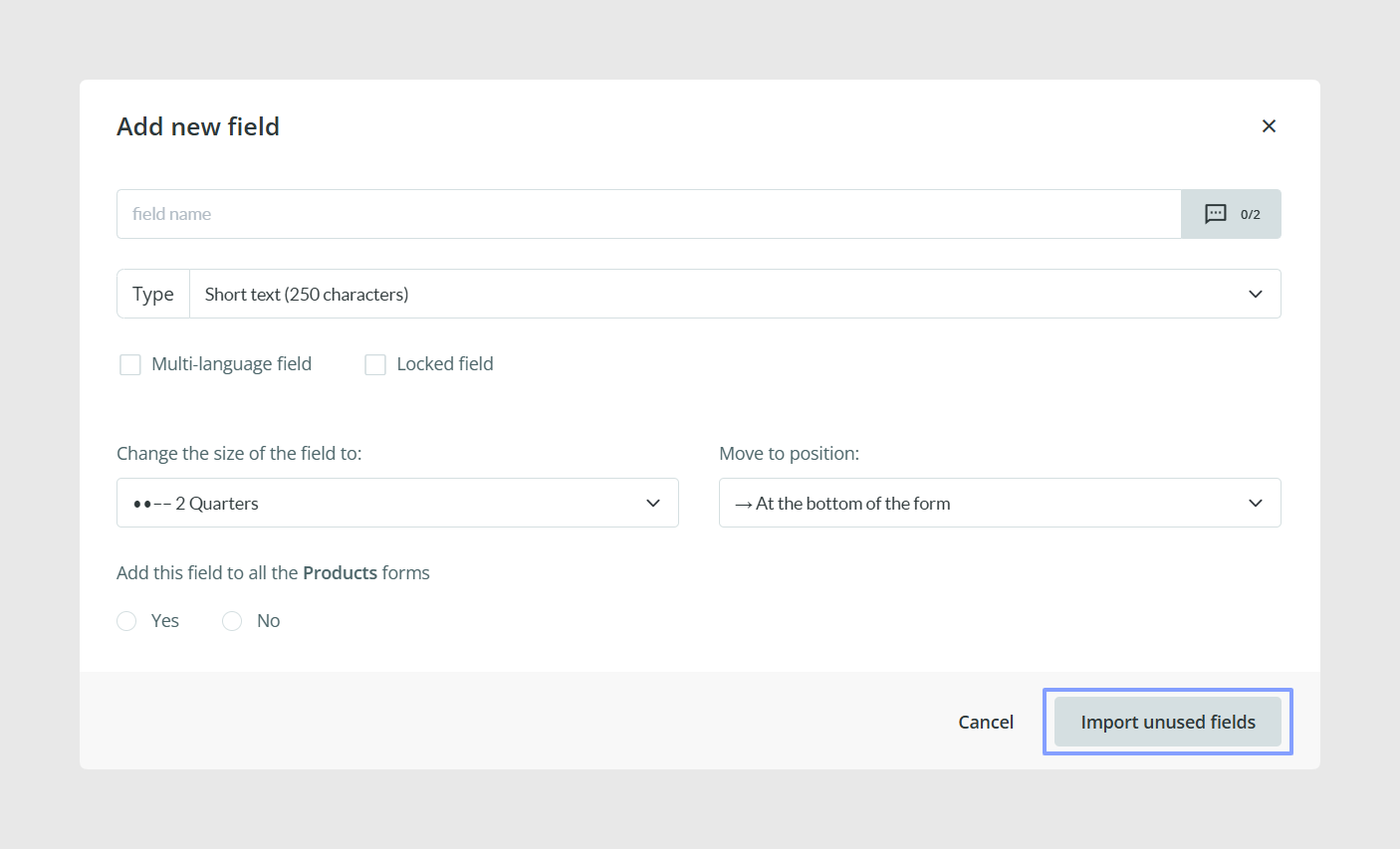
If there is more than one unused field outside the form, Sales Layer shows an Import unused fields option. This allows you to recover several fields at the same time instead of adding them one by one.
You can choose which of those fields you want to bring back into the form structure.
Match fields during import
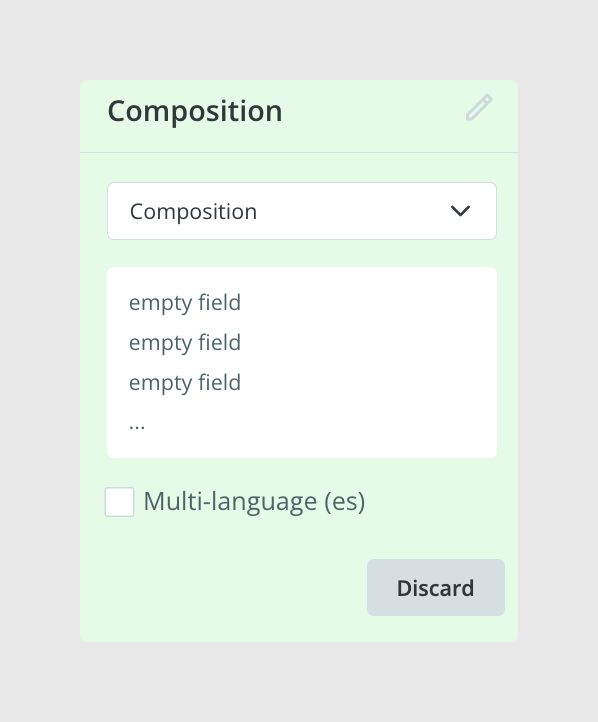
If you later import values for one of those fields, you can also recover it during the import process by matching the incoming column with the field that already exists outside the form.
This is one of the safest ways to avoid duplicates, especially when the field was created earlier but never added visibly to the form.
Duplicated fields
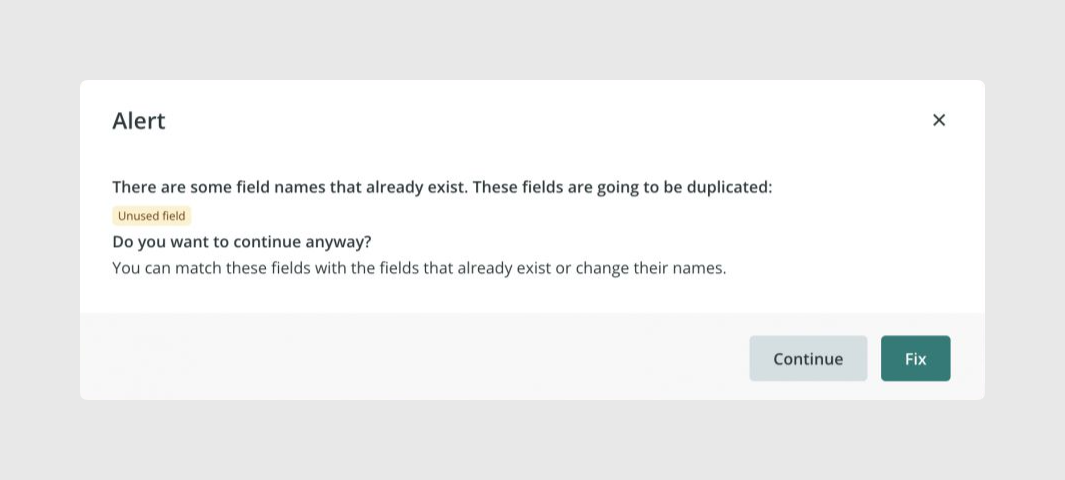
Remember to avoid creating duplicated fields. If the field already exists in Sales Layer and you later import values for it, you should match the incoming column to that existing field.
If instead you create a brand new field with the same meaning, Sales Layer will treat it as a different field and you will end up with duplicates in the platform.
This can make the structure confusing and the duplicate field count will remain until the repeated field is removed.
How this happens
When you import a form or Attribute Set and none of the items has a value in a specific field, Sales Layer can still create that field outside the form if you enable it during the import.
Later, when you import items that finally contain values for that field, you need to remember that the field already exists. If you do not match it correctly and create it again, the field will be duplicated.
Unused fields can keep their previous content
If a field was removed from one form but still exists in another Attribute Set, it remains in the Sales Layer database as an unused field and can be recovered later.
When you recover that field, Sales Layer can also recover its previous content, because the field was never fully deleted from the platform.
This is useful when you want to simplify one form temporarily without losing data that may still be needed later.
Deleting a field
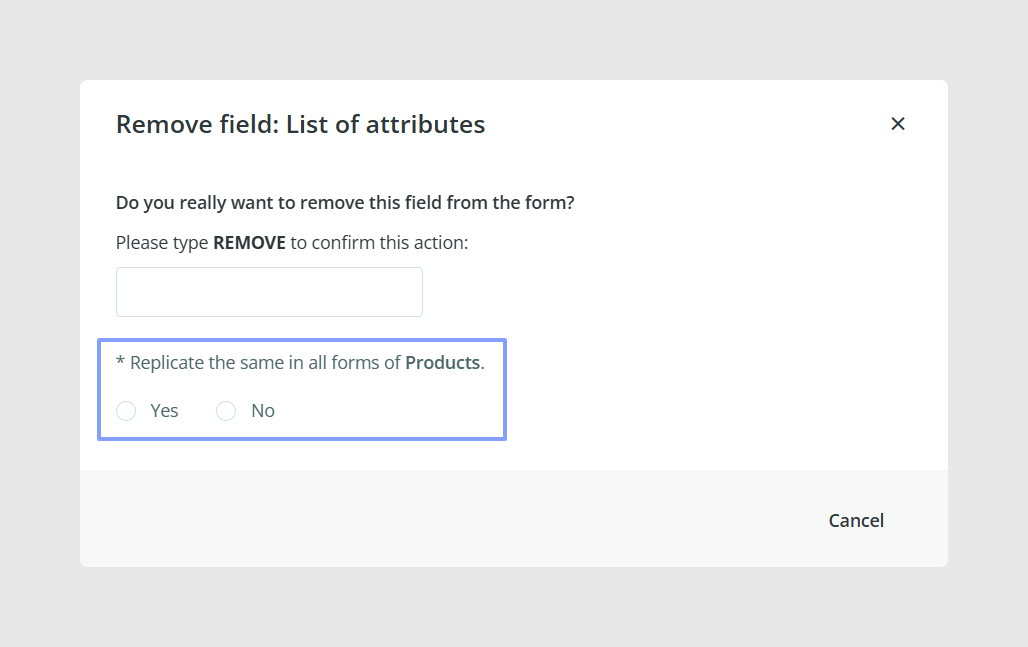
If you delete a field from a product form and choose not to apply that deletion to all product forms, the field can remain as unused if it still exists in another Attribute Set.
In that case, you can still recover it later through Import unused fields or by selecting it when adding a field again.
If you apply the deletion to all product forms, there will be no recovery option later because the field will be deleted permanently.
If you no longer need those fields at all, you can remove them permanently from the table through the available form editing actions and cleanup options.
Before doing that, it is a good idea to review whether the field still exists in another Attribute Set or whether its previous values may still be useful.
The documentation also recommends deleting the values in the field before removing it from an Attribute Set if you do not want those old values to continue being exported through connectors.
Unused field outside the form vs "not applicable" field
A field outside the form is not the same as a field marked as not applicable.
A not applicable field is already in the form and is excluded from the completeness calculation for a specific item. An unused field outside the form is not currently part of the visible form layout at all.
Common use cases
- Prepare fields in advance before real values are available
- Recover fields that were created during import but never placed in the form
- Restore fields removed from one Attribute Set but still available elsewhere
- Match later imports to existing hidden fields instead of creating duplicates
- Clean up old unused fields when they are no longer needed anywhere
Best practices
Whenever you import a field with no values, remember that it may have been created outside the form. Before creating any new field with a similar name later, first check whether that field already exists as unused and recover it instead. This helps keep the platform clean, avoids duplicates, and preserves any earlier content that may still be attached to the field.
Was this article helpful?
That’s Great!
Thank you for your feedback
Sorry! We couldn't be helpful
Thank you for your feedback
Feedback sent
We appreciate your effort and will try to fix the article