Importing products from Excel is one of the fastest ways to load product data into Sales Layer. This method is useful both when you are adding products for the first time and when you want to update products that already exist in your catalog.
To start, go to Products from the left-hand menu, click Import, and then choose Excel Document.
Prepare your Excel file
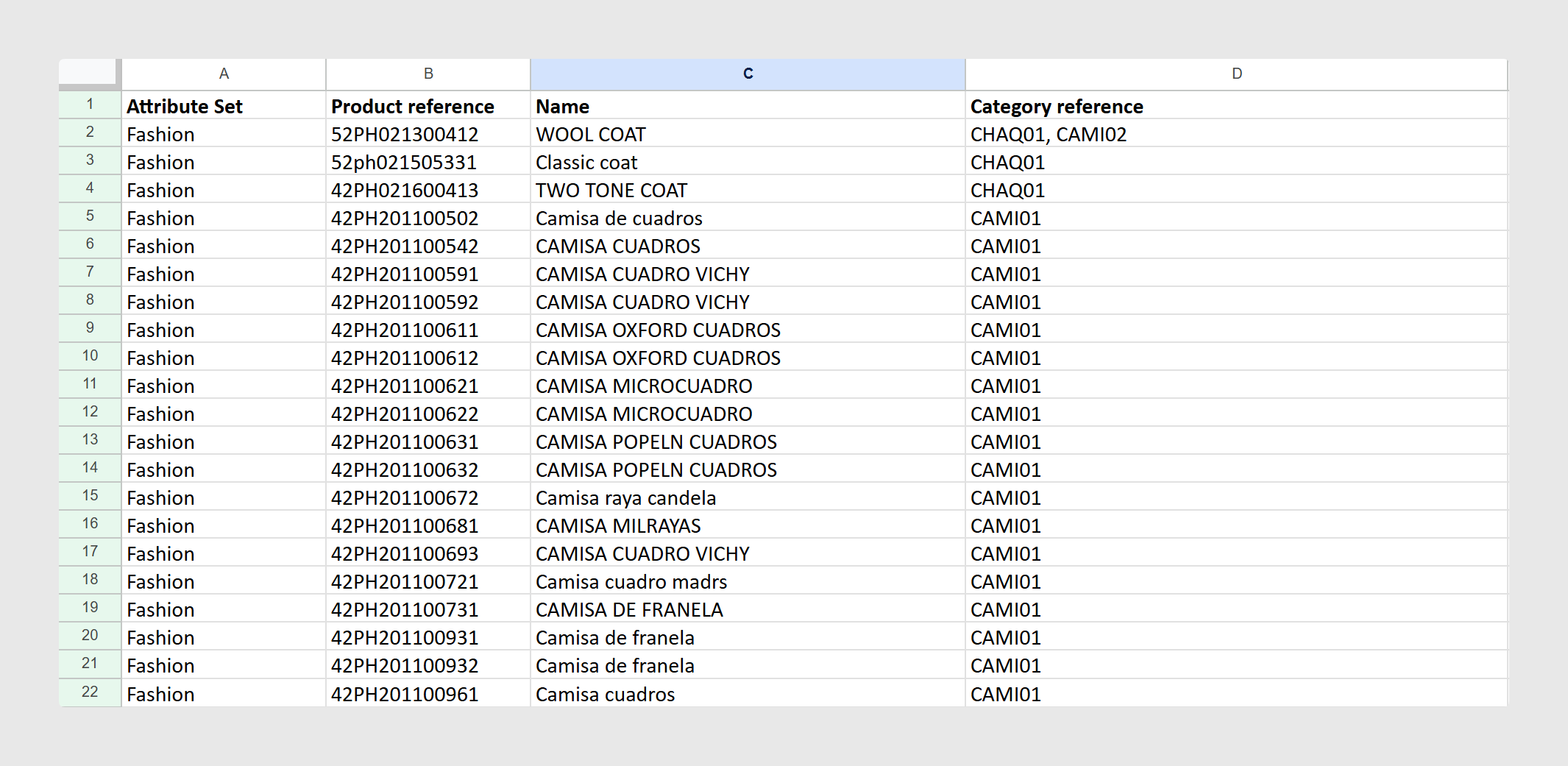
Before importing, make sure your product information is already organized in columns in your spreadsheet. Each row should represent one product.
Sales Layer supports Excel imports of up to 25,000 products at a time. You can also import up to 750 columns in a single Excel or CSV import.
Once your spreadsheet is ready, copy the product rows from Excel and paste them directly into the import window in Sales Layer.
Include the key product fields
Sales Layer identifies several product fields as basic fields during import. The main ones to keep in mind are:
- Product Reference, used as the unique product identifier
- Section Reference, used to link products to categories
- Attributes set, used to assign the product to an Attribute Set
- Product Name
- Product Description
- Product Image
For product imports, the most important fields are Product Reference and Product Name. These should always be included in your file.
The product reference should stay consistent across imports because Sales Layer uses it to decide whether a row should create a new product or update an existing one.
Keep references consistent
When you import a product reference that already exists, Sales Layer updates that product instead of creating a new one.
It is important to keep in mind that references are case-sensitive. This means values such as ABC001 and abc001 are treated as different references.
Also note that if the same reference appears more than once in the same Excel file, Sales Layer will import the first occurrence and ignore the following ones.
Import multilingual columns
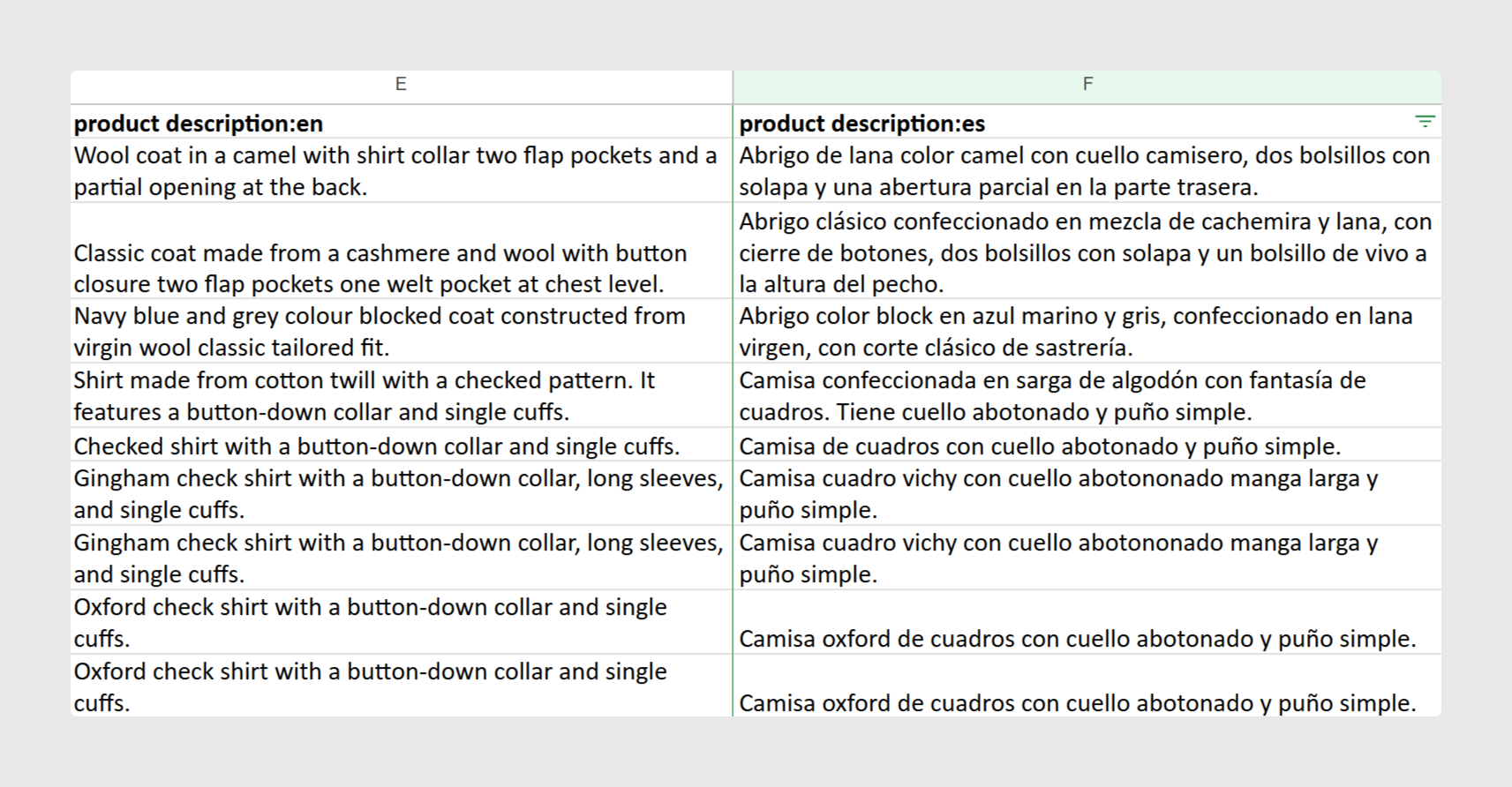
If your catalog uses more than one language, each language version of a field should be in its own column.
For example, if you have a title in Spanish and English, you can use column names such as Product Name:es and Product Name:en. When Sales Layer detects this pattern, it creates or matches a multilingual field automatically.
During import, these fields are identified as multilingual, so you can review them before confirming the upload.
Review field mapping before importing
After you paste the data, Sales Layer shows the detected columns so you can review how each one will be imported.
At this stage, Sales Layer uses color to help you understand what it has detected:
- Fields with a green background are recognized as existing or known fields
- Fields with a white background are new fields that still need review
- An empty column may also appear as blank and can be enabled if you want to import it into the structure
Before finishing the import, you can:
- match a column to a different existing field
- create a new field
- change the field title
- change the field type
- discard a column you do not want to import
This is an important step because it helps you build the right product structure from the start.
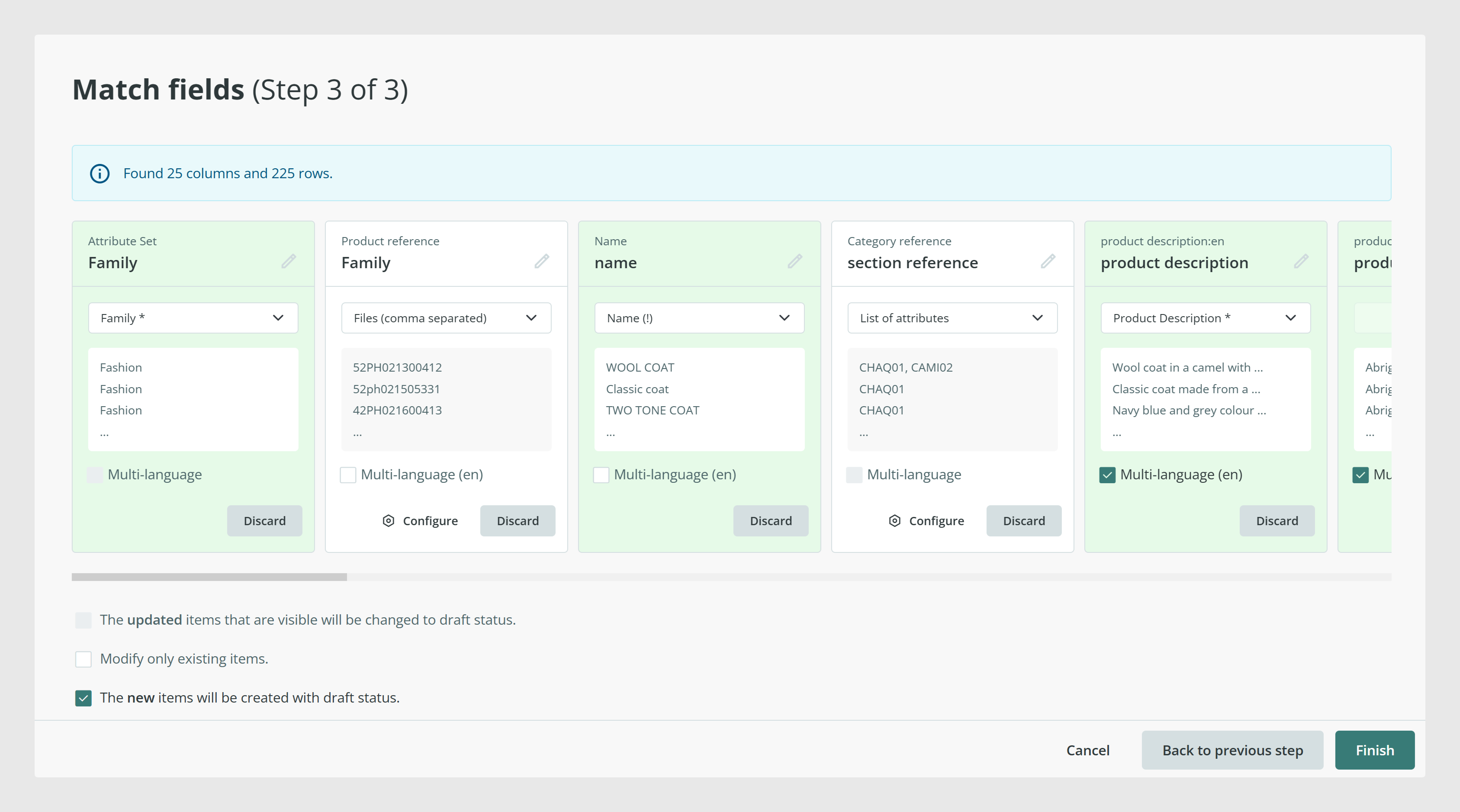
When a column is new, check that the selected field type matches the content you are importing. For example, an image column should use an image field type, and a text column should use a suitable text field type.
Reviewing field types carefully during the first import helps avoid cleanup later.
Once you have reviewed the fields and their mapping, click Import to create or update the products.
Sales Layer remembers the field associations you choose during the import process. This makes future imports faster because the system can reuse the same mapping logic the next time you upload a similar file.
Update existing products
You can use the same Excel import flow to update product data later. To do this, go again to Products, click Import, choose the import method, and paste the updated rows.
To update a product, include the Product Reference column together with the field or fields you want to change. If the reference already exists, Sales Layer updates that product record.
This is useful when you only want to change specific fields without rebuilding the whole product row.
Understand the re-import options
When you reimport products, Sales Layer may show additional options at the bottom of the import window depending on your data and configuration.
- New items will be saved as draft: new products created by this import will be added in draft status
- Force import in locked fields: updates locked fields as well
- The updated items that are visible will be changed to draft status: visible products that are updated will move to draft after import
- Modify only existing items: updates existing products only and ignores any new references in the file
- Reimport links from existing files: reprocesses images from the Excel or CSV as new while keeping existing links
- Generate backup: creates a backup copy if there is no recent one
These options are especially useful when you are working on updates in a live catalog and want more control over what changes during the import.
Common use cases
- Load an initial product catalog from an existing spreadsheet
- Update names, descriptions, images, or other fields for existing products
- Create multilingual product content during import
- Build your first product structure while creating fields at the same time
- Run controlled reimports without creating new products
Best practices
Before importing a large product file, check that your reference values are clean and consistent, your columns are clearly named, and multilingual fields follow a consistent naming pattern. On the first import, take a moment to review field types and mapping carefully. That setup work will save time on every later reimport because Sales Layer remembers the associations you confirmed.
Was this article helpful?
That’s Great!
Thank you for your feedback
Sorry! We couldn't be helpful
Thank you for your feedback
Feedback sent
We appreciate your effort and will try to fix the article