List-type fields let you control the values that can be assigned to products and other items. They can be configured as single-selection or multiple-selection fields.
Sales Layer provides three global policies that determine what happens when a value that is not already among the available options is entered in one of these fields:
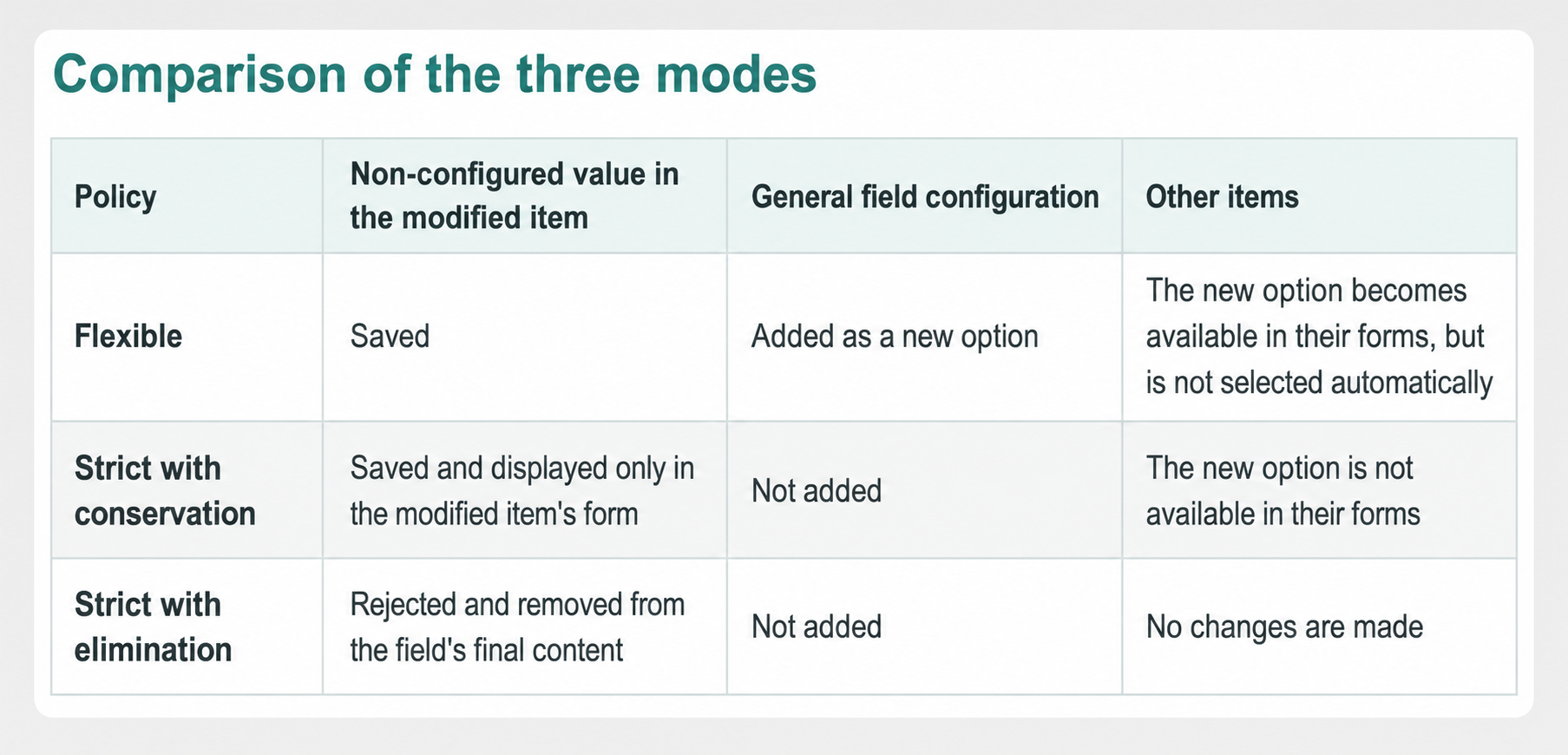
- Flexible: saves the value and adds it as a new option available to all items.
- Strict with conservation: saves the value only in the modified item, without adding it as a general field option.
- Strict with elimination: rejects the value, does not add it as an option, and removes it from the content saved in the field.
The policy is configured at company level and applies to all list-type fields. Flexible mode is the default option and maintains the traditional Sales Layer behavior. Existing companies therefore experience no change unless they explicitly select one of the strict policies.
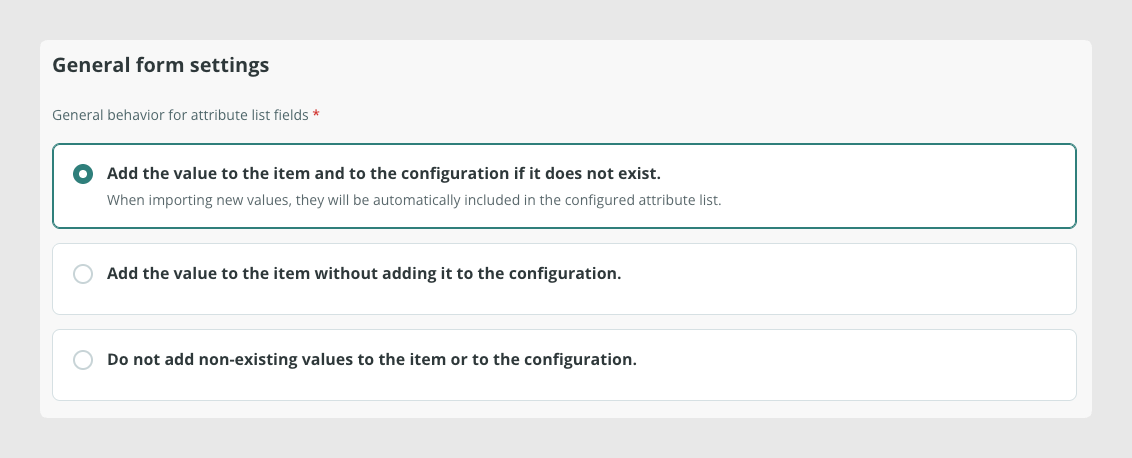
Configure the list-field policy
To select the general behavior of these fields:
- Open the user menu in the upper-right corner of Sales Layer.
- Select Edit company.
- Locate the General form settings section.
- Under General behavior of attribute list-type fields, select one of the three available options.
- Save the changes.
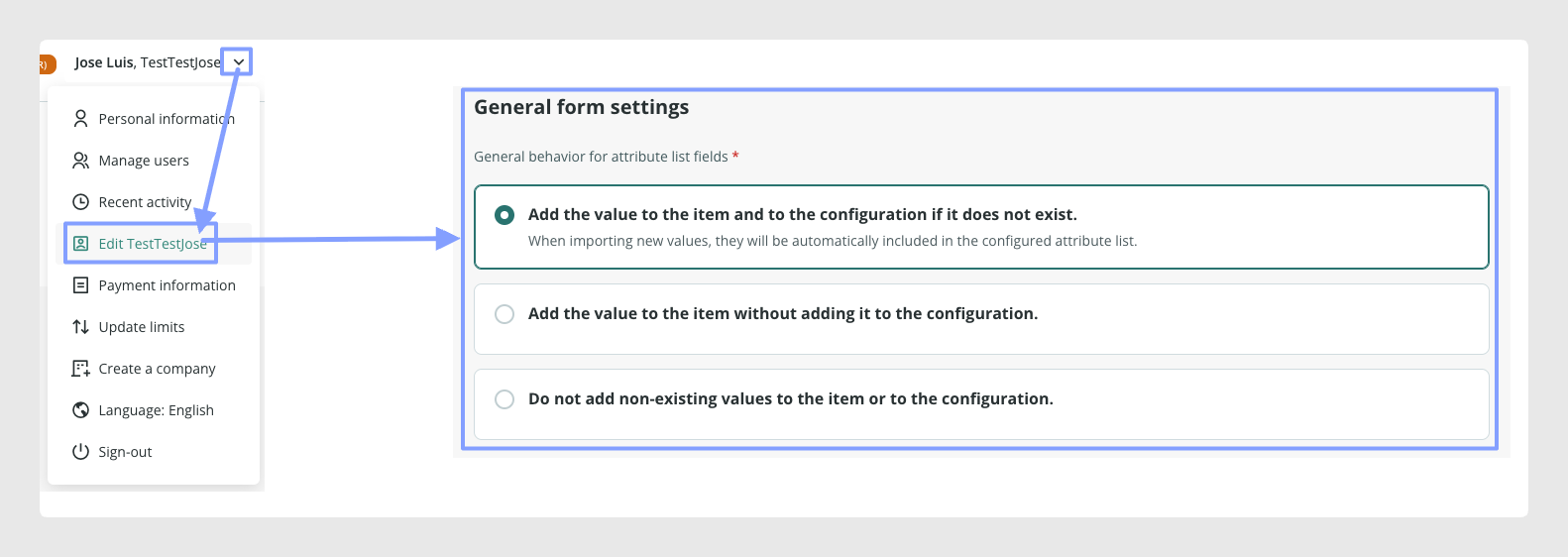
The selection affects the entire company. Before changing it, review how each team or integration enters and updates data.
Comparison of the three modes
Initial example
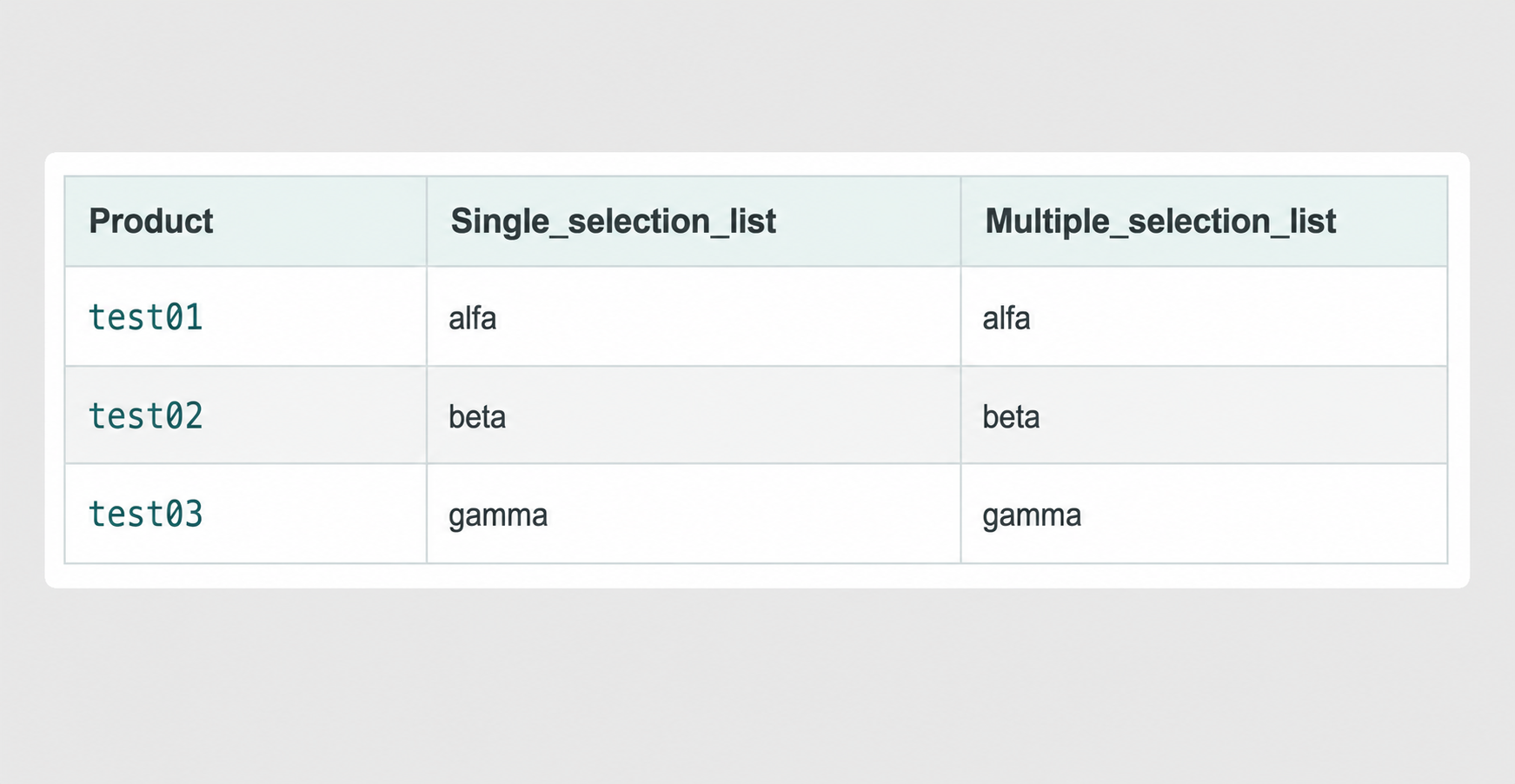
The following examples use two fields:
- Single_selection_list, configured to allow a single value.
- Multiple_selection_list, configured to allow multiple values.
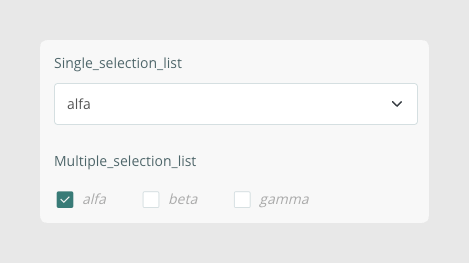
Both fields initially contain the options alfa, beta, and gamma.
In each example, the value omega is imported. This value is not among the options initially configured.
Flexible mode
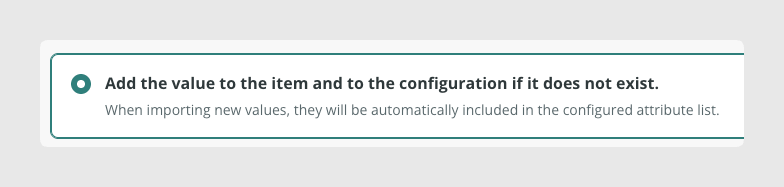
This is the traditional and default behavior of list-type fields.
When a value that does not exist in the field configuration is entered, Sales Layer:
- Saves the value in the modified item.
- Adds the value as a new option in the field’s general configuration.
- Makes the option available in the forms of all other items.
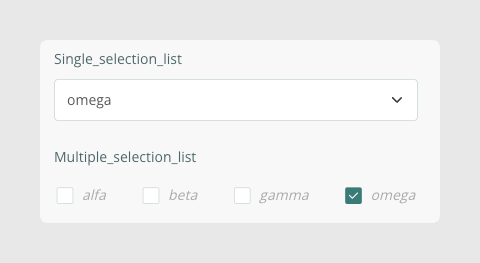
If omega is imported into both fields of test01, both fields then contain omega. In addition, omega is added to the general configuration of Single_selection_list and Multiple_selection_list.
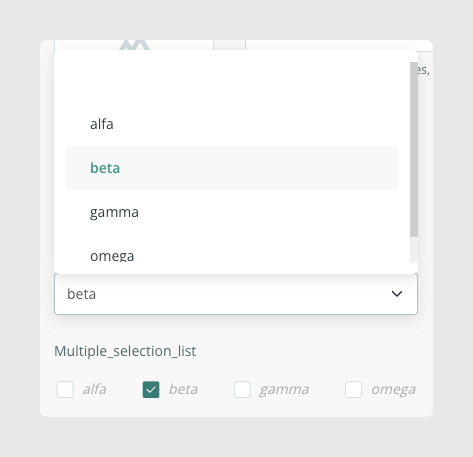
The values in test02 and test03 do not change. However, their forms now show omega as an option that can be selected later.
test01 after importing omega.
test02 after the import.
When to use it
Flexible mode is suitable when input sources may provide new values and you want to automatically expand the options available in list fields without requiring a user to configure them beforehand.
Strict mode with conservation

This mode retains received values in the item even when they are not included in the field’s general configuration, but prevents them from becoming options available throughout the catalog.
If omega is imported into both fields of test01, Sales Layer:
- Saves omega in the product.
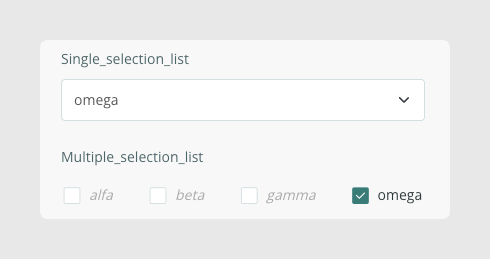
- Displays omega as an option available only in the test01 form.
- Keeps the general configuration of both fields unchanged.
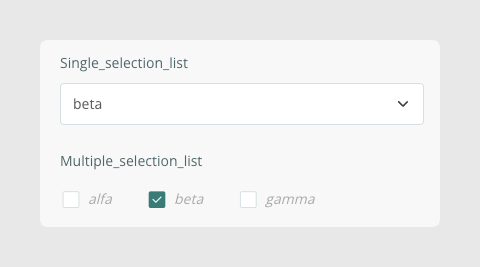
- Does not display omega as an option in the forms of test02 or any other products.
test01 in Strict mode with conservation after importing omega: the value is added as an option available only to this product.
test02 in Strict mode with conservation after importing omega into test01. test02 retains its configuration without adding the test01 exclusive value.
Remove an exclusive value
A non-configured value remains in the product form only while it is still assigned to that product.
- In a single-selection list, if omega is replaced with a configured option such as alfa, omega disappears from the form when the changes are saved.
- In a multiple-selection list, if omega is deselected, this option also disappears from the form when the changes are saved.
- To add values instead of replacing them, enter ++ before the value to add, as described in the “Updating content” article.
Once removed, the value cannot be selected manually again because it is not part of the field’s general configuration. To make it available again, add it to that configuration or enter it again using one of the input methods supported by this policy.
When to use it
Strict mode with conservation is useful when you need to retain content received from an external source but want to prevent each new value from automatically expanding the field’s general options.
Strict mode with elimination

This mode only accepts values that already exist in the field’s general configuration.
When a non-configured value is received, Sales Layer:
- Does not save it in the item.
- Does not add it to the field configuration.
- Does not retain the field’s previous content if it is replaced by the invalid value.
- Logs rejected values when the update method provides an activity report.
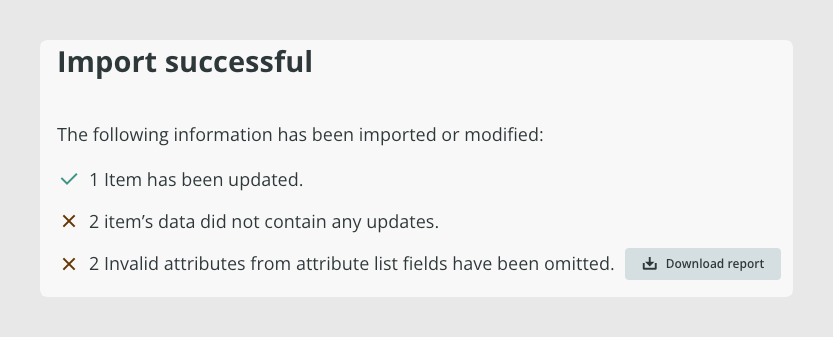
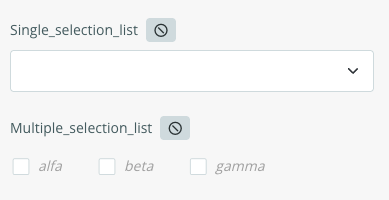
If test01 initially contains alfa and omega is imported as the new content of both fields, omega is rejected and the fields are left empty. The previous value alfa is not retained.
Important: rejecting the received value does not mean that the product remains unchanged. If the operation replaces the previous content and no valid value remains, the final field value will be empty.
test01 after importing omega in Strict mode with elimination.
Multiple-selection fields
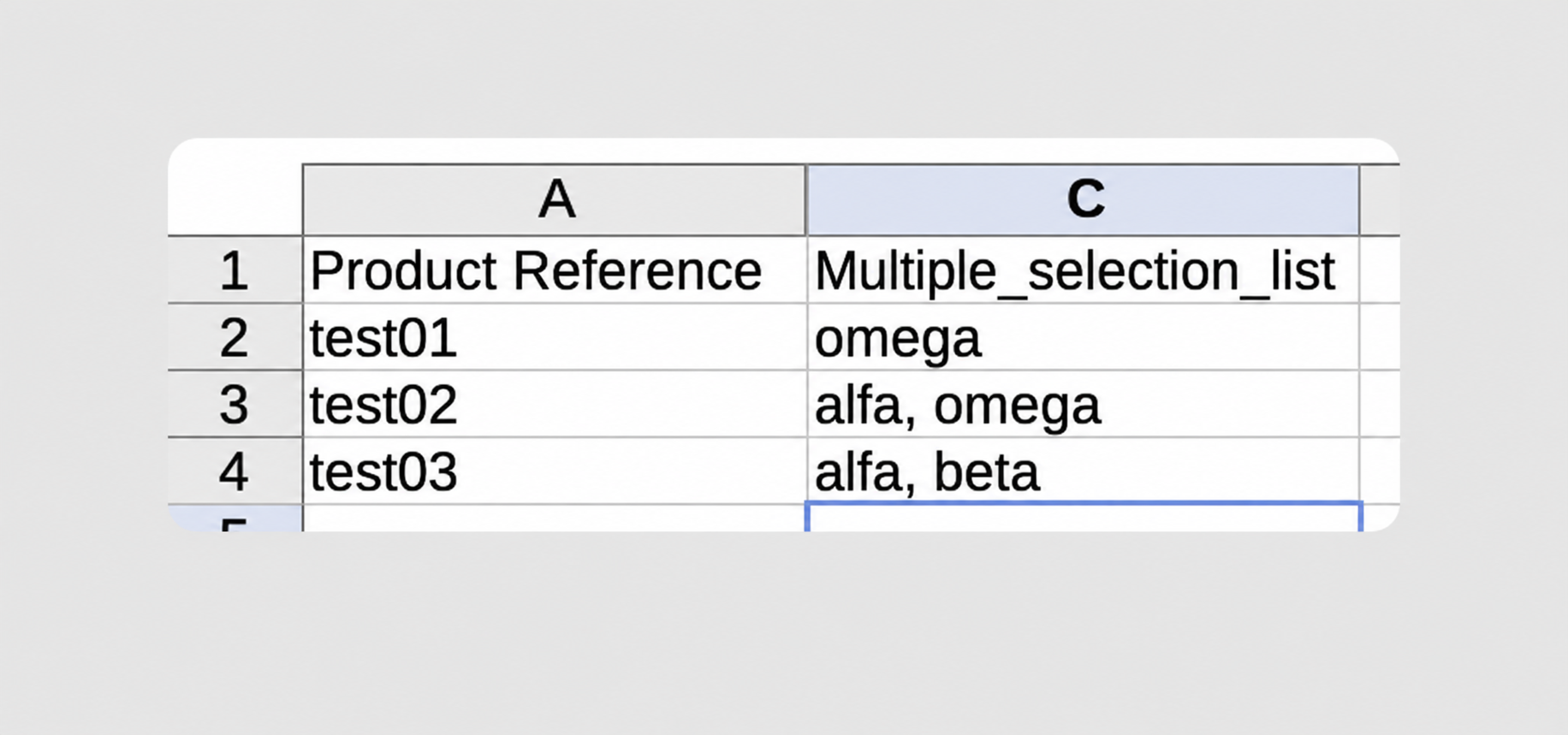
In multiple-selection fields, Sales Layer evaluates each received value separately:
- Imported values:
- Received values and final result:
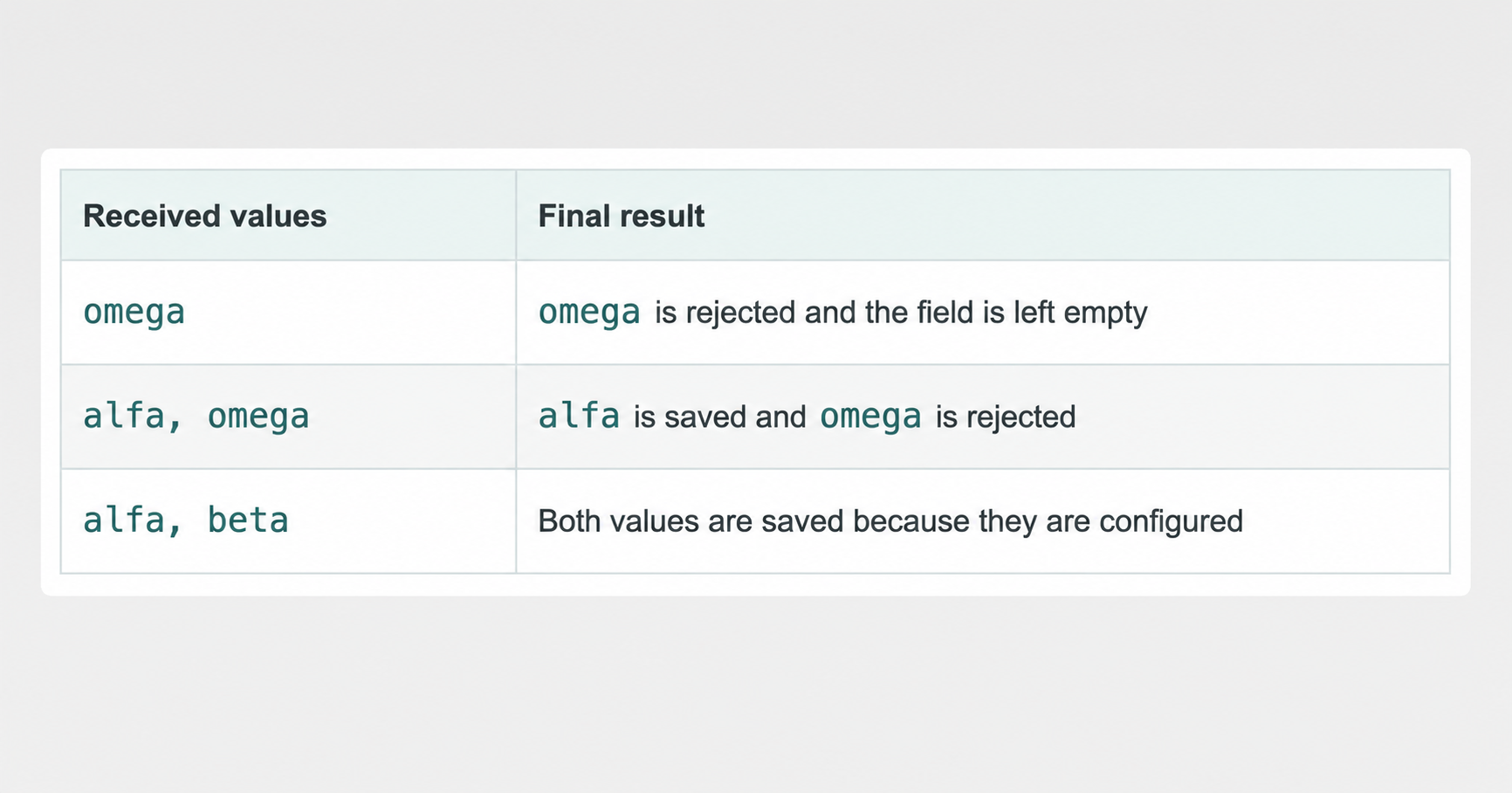
If at least one received value is valid, the field retains the valid values. If none are valid, the field is left empty.
Rejected-value reports
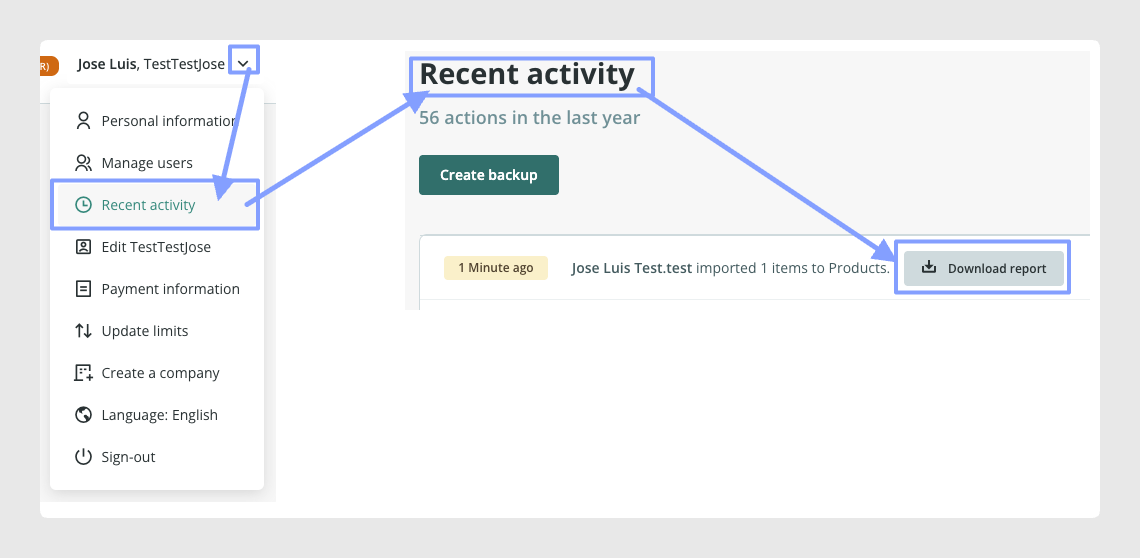
After any import is completed (manual, through an import connector, or via FTP), the results screen indicates how many invalid list-field values were omitted and lets you download a CSV report.
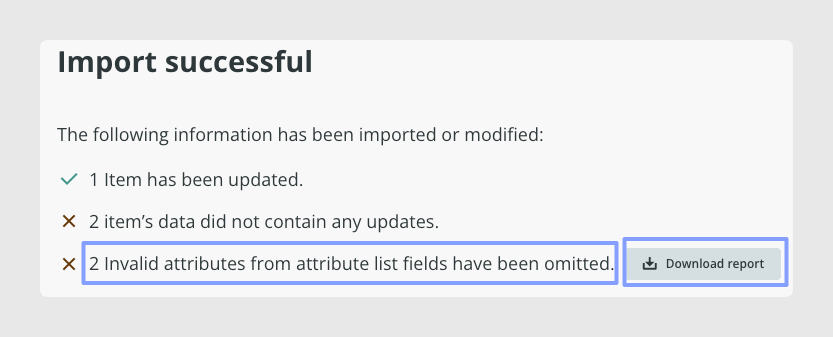
The report contains:
- The values received in the import, which may include several comma-separated values.
- The values identified as invalid.
- The final content saved in the field after the policy is applied.
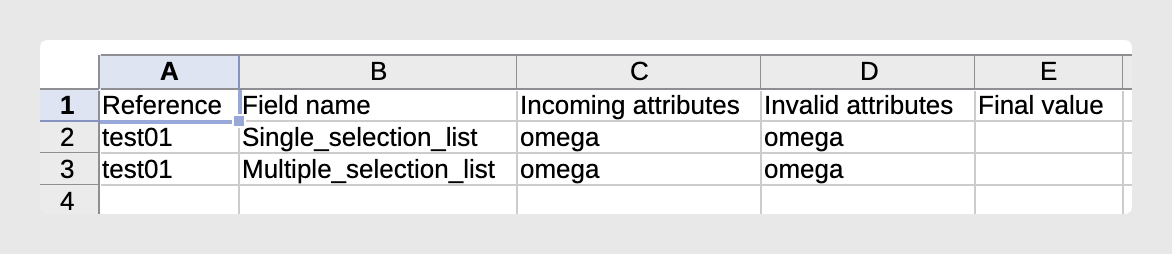
The report is also available from Recent activity.
When to use it
Strict mode with elimination is suitable when only previously approved values should be stored and you want to prevent both the automatic creation of options and the retention of uncontrolled external values.
Behavior by update method
The selected policy applies to the following data entry points:
- Manual editing from the item form.
- Manual import.
- Direct CSV or Excel imports.
- CSV or Excel imports via FTP.
- Import connectors.
- Bulk edits from the PIM.
- Editing from table mode or Excel mode.
- Changes made through API 1.18.
The visible result and the way errors are reported vary depending on the method used.
Manual import
In Strict mode with elimination, non-configured values are omitted. The results screen displays the error and lets you download the corresponding report. The same report is available from Recent activity.
Import connectors and bulk edits
They apply the same validation rules. However, the rejected-value report is not displayed on a results screen. It must be accessed from Recent activity.
Manual form editing
Manual editing does not allow values that are invalid for the field to be saved. The user must select one of the options available in the form.
In Strict mode with conservation, the form may also display an exclusive value previously received by the product. If it is replaced or deselected and the product is saved, the value disappears from the form.
Editing in table mode
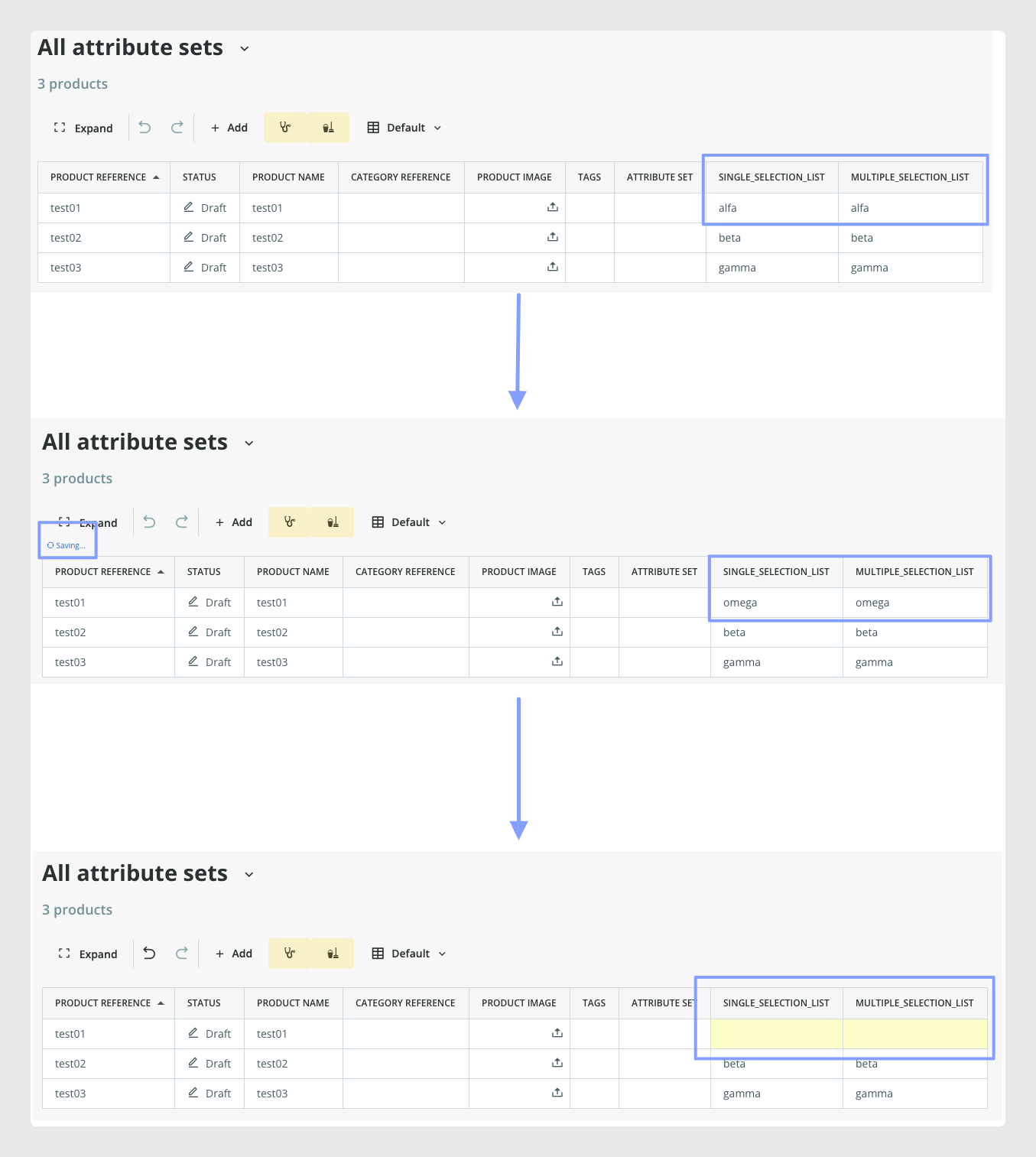
In Strict mode with elimination, if non-configured values are entered, Sales Layer processes the change and discards those values. If no valid value remains, the cells are left empty and highlighted in yellow.
API 1.18
Changes made through API 1.18 follow the global policy selected for list-type fields.
Translating and exporting list values
Unlike standard multilingual fields, list-type fields manage translations at the level of individual list values.
When configuring a list field, each option has a default value, and you can add translations for the different languages available in your account. By default, the value entered when creating an option is also used as its translation in the account's main language.
To export the translated values of a list field through a connector, use the GET_LIST_TRANSLATION() formula and specify the language you want to export.
For example, to export the Spanish translation of a list field:
GET_LIST_TRANSLATION({my_list_field}, "es")Replace {my_list_field} with your list field and "es" with the language code you want to export.
Limitations
- The setting applies globally to the company. You cannot select a different policy for each list-type field.
- The new REST API does not yet apply this setting. Changes made through this API should not be used to validate the behavior described in this article.
- The availability of a visible report depends on the update method. For import connectors and bulk edits, it must be accessed from Recent activity.
- In Strict mode with elimination, an invalid value may leave the field empty and cause its previous content to be lost.
- In Strict mode with conservation, an exclusive value is no longer available in the item form after it is replaced or deselected and the changes are saved.
Common use cases
Catalogs that automatically accept new values
Use Flexible mode when external sources can create valid options and you want them to be immediately available to all items.
Retain external values without expanding the general options
Use Strict mode with conservation when you need to retain the received value in the source item but do not want to add it as a global option for other items.
Work only with approved values
Use Strict mode with elimination when fields must contain only configured options and any other value must be discarded.
Best practices
- Review the existing list-field options before activating a strict policy.
- Check which connectors, imports, bulk edits, or integrations update these fields.
- Test the new behavior with a small set of products before applying it to regular workflows.
- In Strict mode with elimination, review the reports to identify spelling differences, capitalization, accents, spaces, or other non-configured values.
- Download and review the report from Recent activity after an import through a connector or a bulk edit.
- Make sure that all source systems use the exact approved values when working in Strict mode with elimination.
Was this article helpful?
That’s Great!
Thank you for your feedback
Sorry! We couldn't be helpful
Thank you for your feedback
Feedback sent
We appreciate your effort and will try to fix the article