Sales Layer lets you manage content in more than one language by storing different language versions inside the same field. This is useful when you want to keep product information organized while working with several markets or regions.
The languages in your account are set when the account is created, but you can update them later if your catalog needs to support additional languages.
Add or remove languages in your account
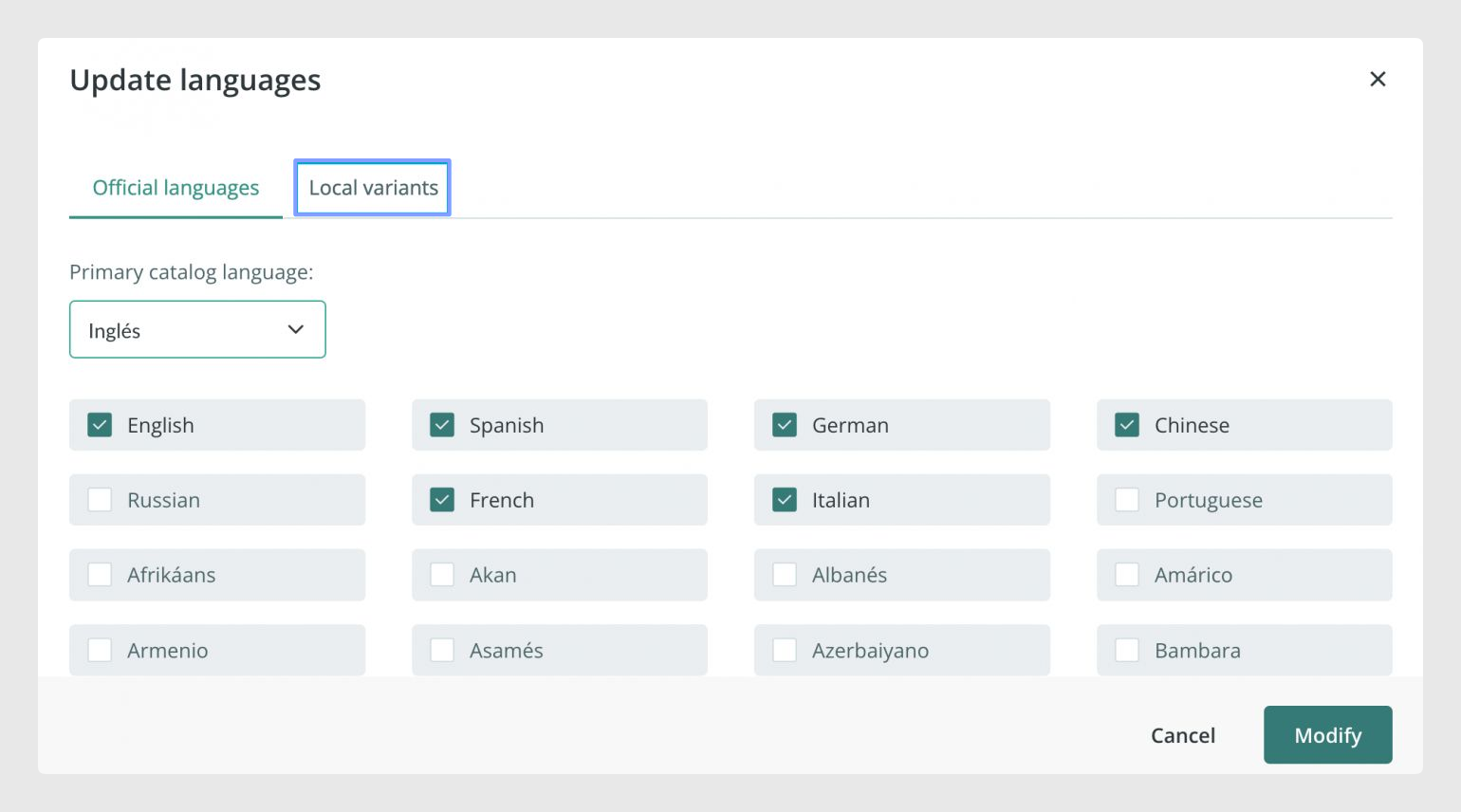
To manage the languages available in your catalog, go to the Translations section and click Actions > Modify languages. From there, you can add or remove languages as needed.
Sales Layer also lets you add local variants of a language, such as US English or Argentinian Spanish, from the Local Variants tab. In the same window, you can choose the main language of the catalog, which will be used as the default language when entering or editing content.
Turn a field into a multi-language field
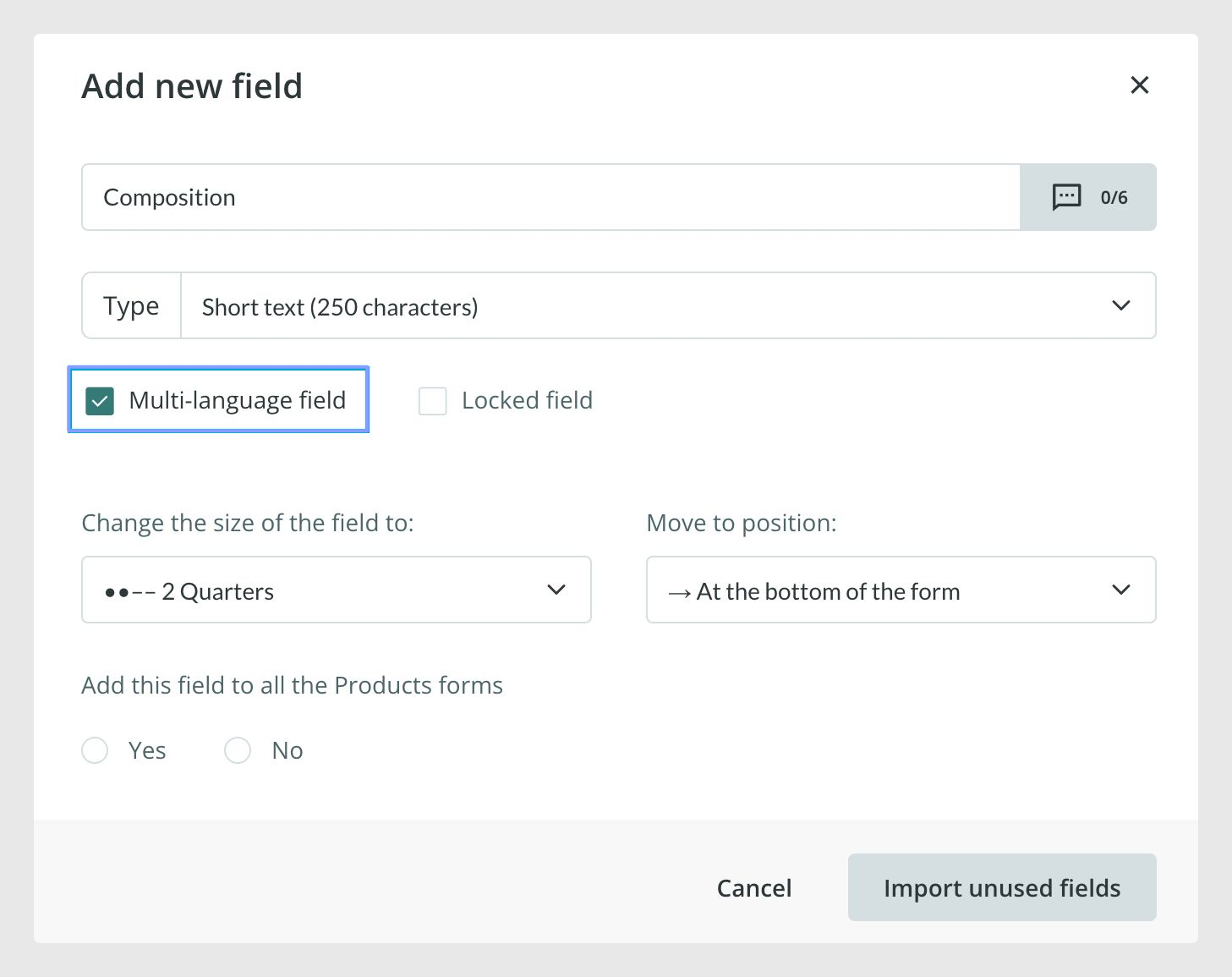
If you want a field to store content in multiple languages, open a product and go to Actions > Redesign Forms. Open the Modify option for the field and enable It is a multi-language field, if the field type supports it.
Once enabled, the languages configured in your account will appear in that field so you can enter content for each one. This setup is useful for fields such as the product name or description when the same product needs localized content for different audiences.
Import multi-language content using Excel
A quick way to add content in several languages is through an Excel import.
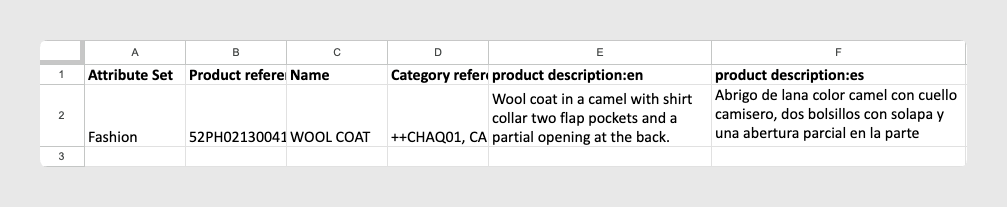
If you have a file containing your product information, you can add the translations for each field in separate columns, one for each language. To do this, enter the field name followed by a colon and the language ISO code. For example, use Name:es for Spanish and Name:en for English.
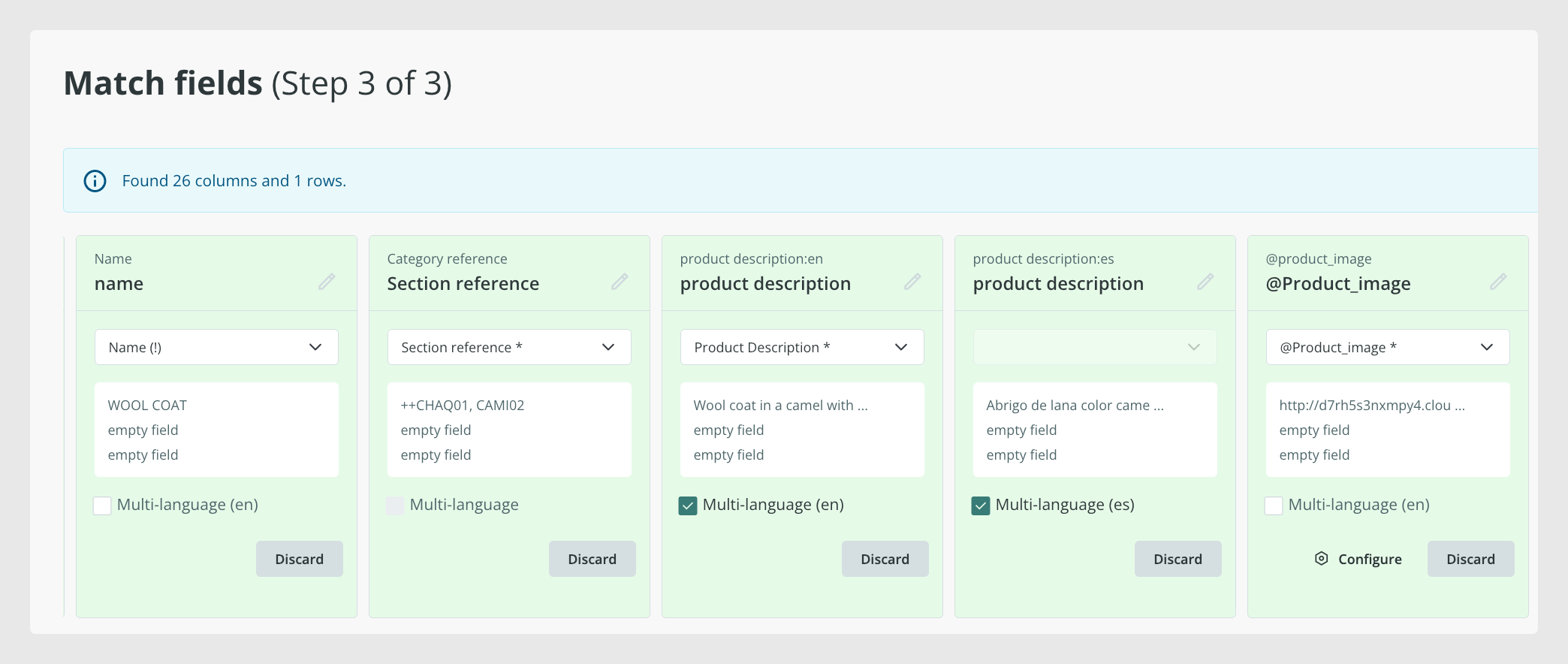
Important: make sure the language codes are correct and that there are no spaces between the field name, the colon, and the ISO code. Before confirming the import, you can check on the mapping screen that the field appears once for each language you are importing.
Translate attribute list values
Attribute List fields are an exception. You cannot enable the multi-language option for these fields, but you can translate their values manually. These translations cannot be added through an import.
To translate the values, go to Redesign Forms and select the Configure option for the field. In the window that opens, click Translations.
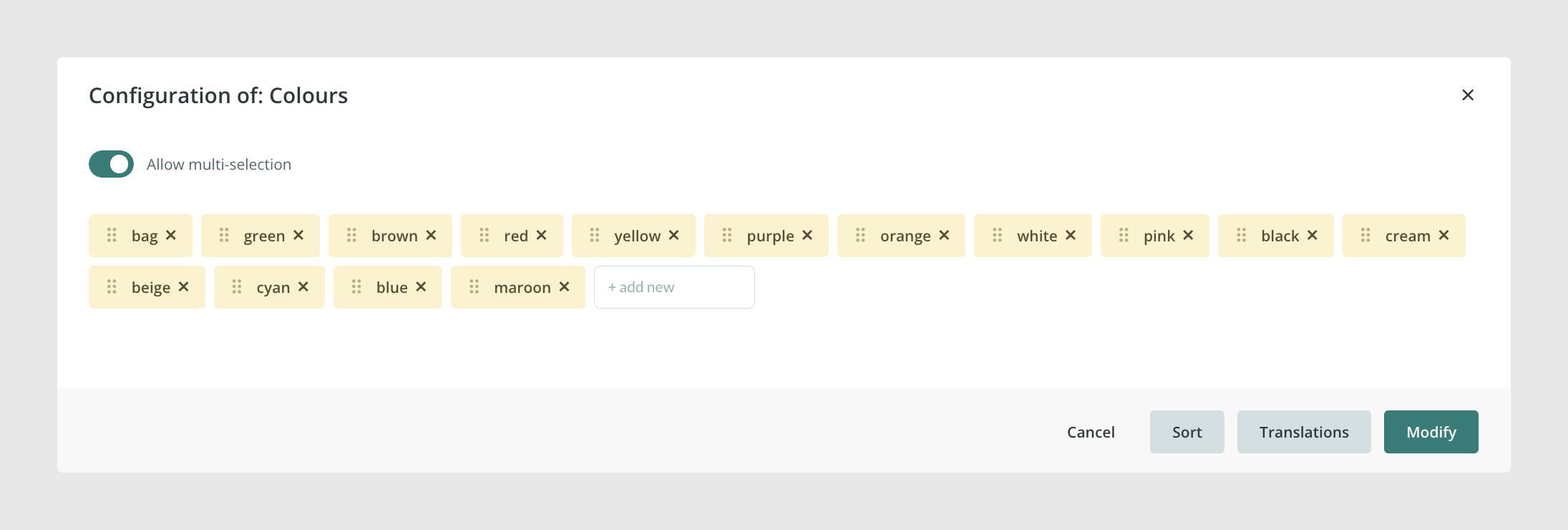
Next, select the language from the dropdown menu and enter the translation for each value in the list.
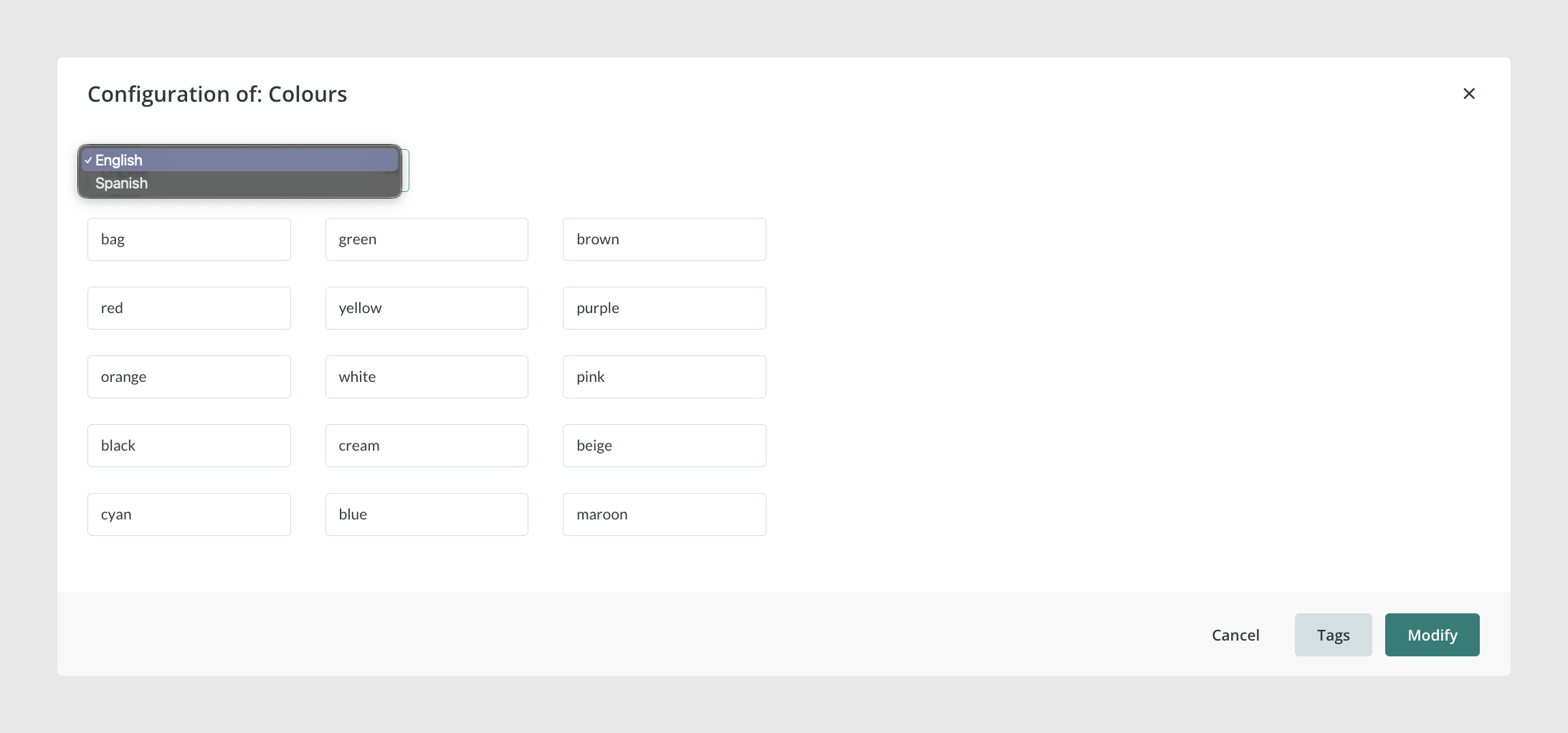
Once the values have been translated, the translations will be available for every product that shares the same field. You do not need to enter them separately for each product.
For more information about how list-type fields work, including how to manage their values and export translations through connectors, see List type field behavior.
Edit field names by language
In addition to translating field content, you can also make the field names multi-language. To do this, go to Redesign Forms > Modify for the field and click the grey icon next to the field name. This lets you define a specific name for each language.
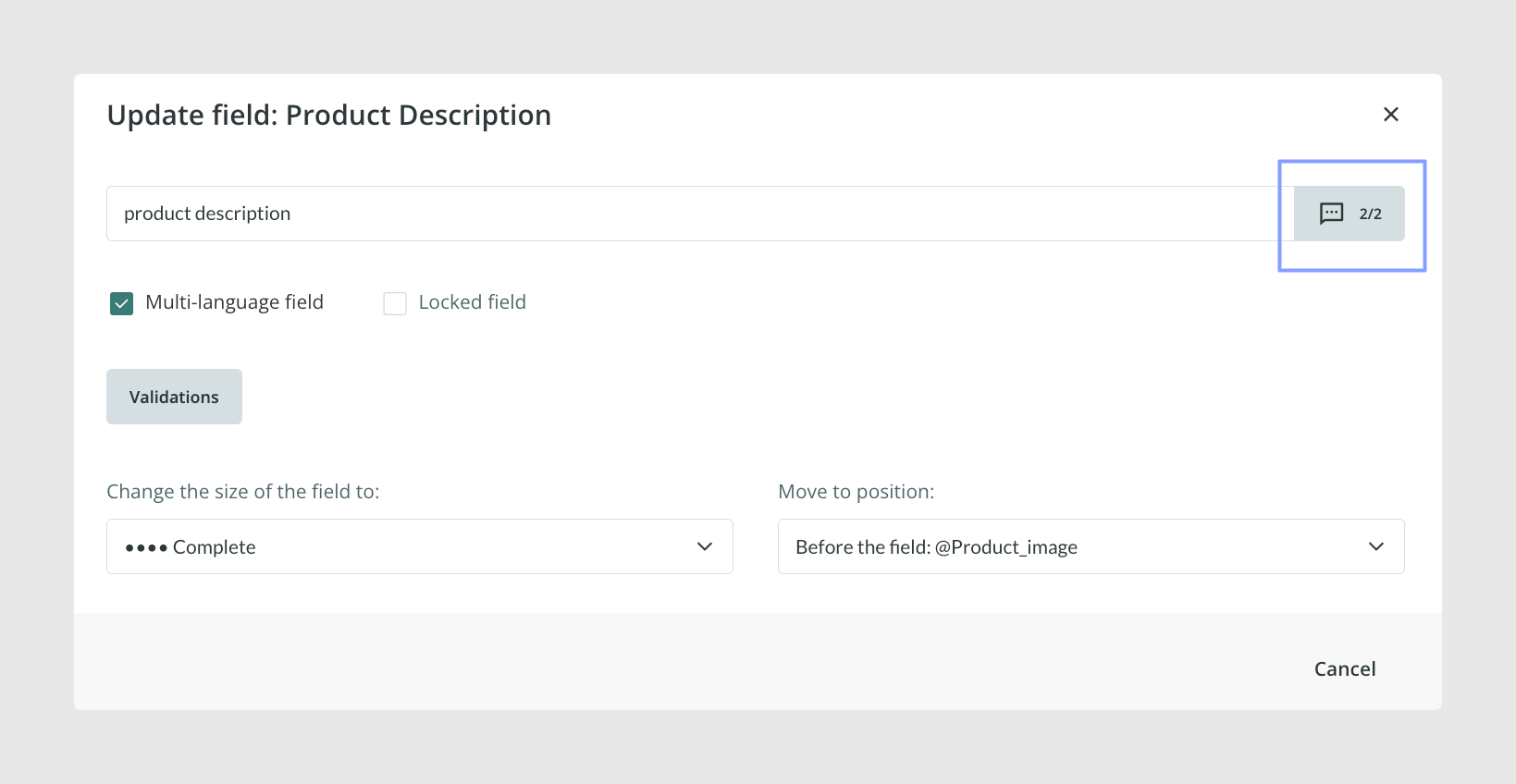
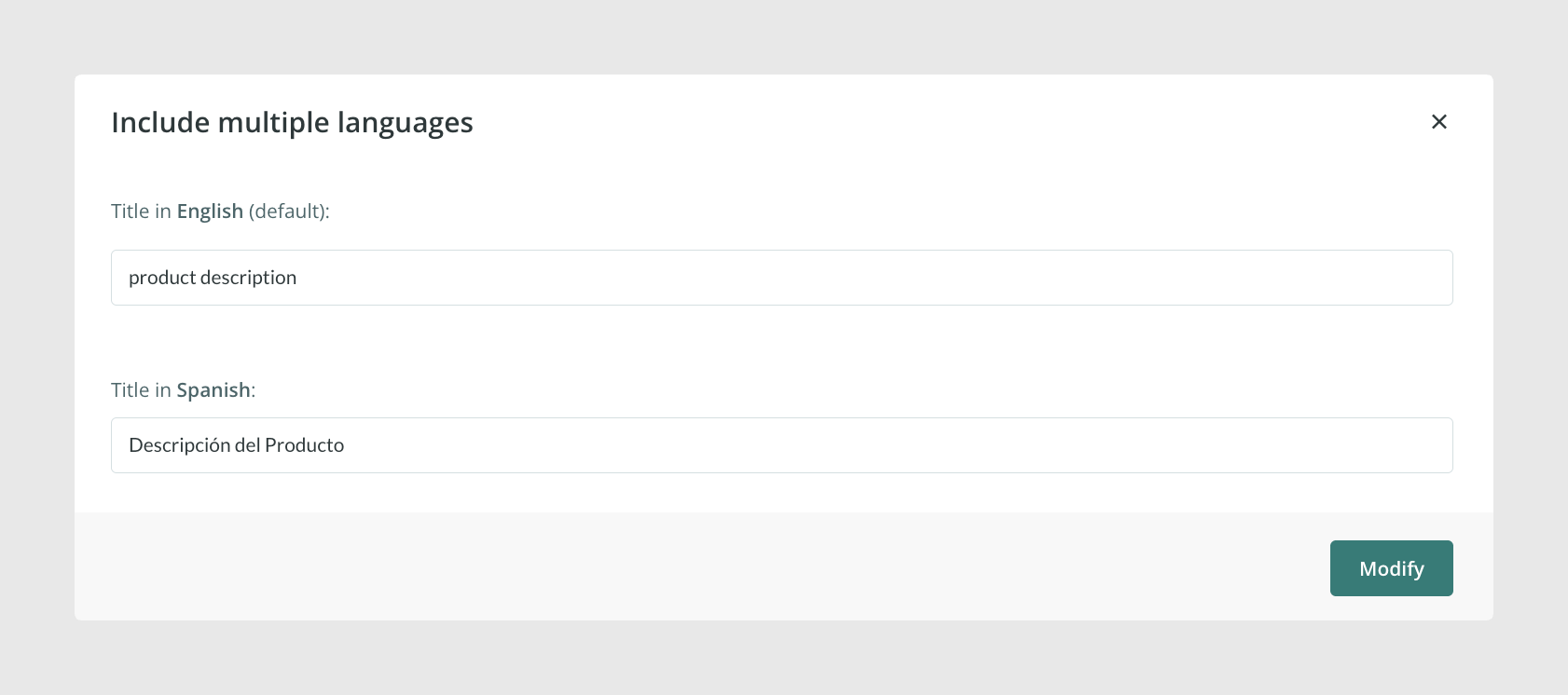
This option can be especially useful when several teams in different countries use the same account, because each user can see the field titles in the language they need.
To change the language of the field titles, use the language selector at the top of the form.
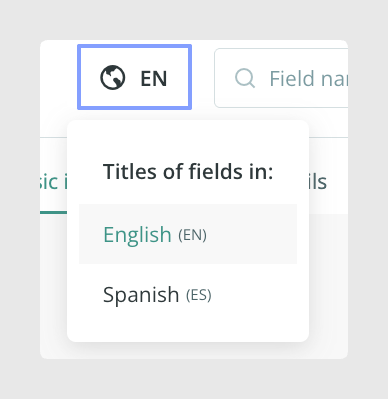
Having these translations also lets you export the complete catalog with the field titles in the corresponding language.
Use multi-language content in exports
The multi-language setup also affects how content is exported through Channels. When exporting, you can choose not only which languages to include in the output, but also the language used for the column titles.
This is useful when the exported file needs to be shared with teams, partners, or systems that work in a specific language.

Automatic translation
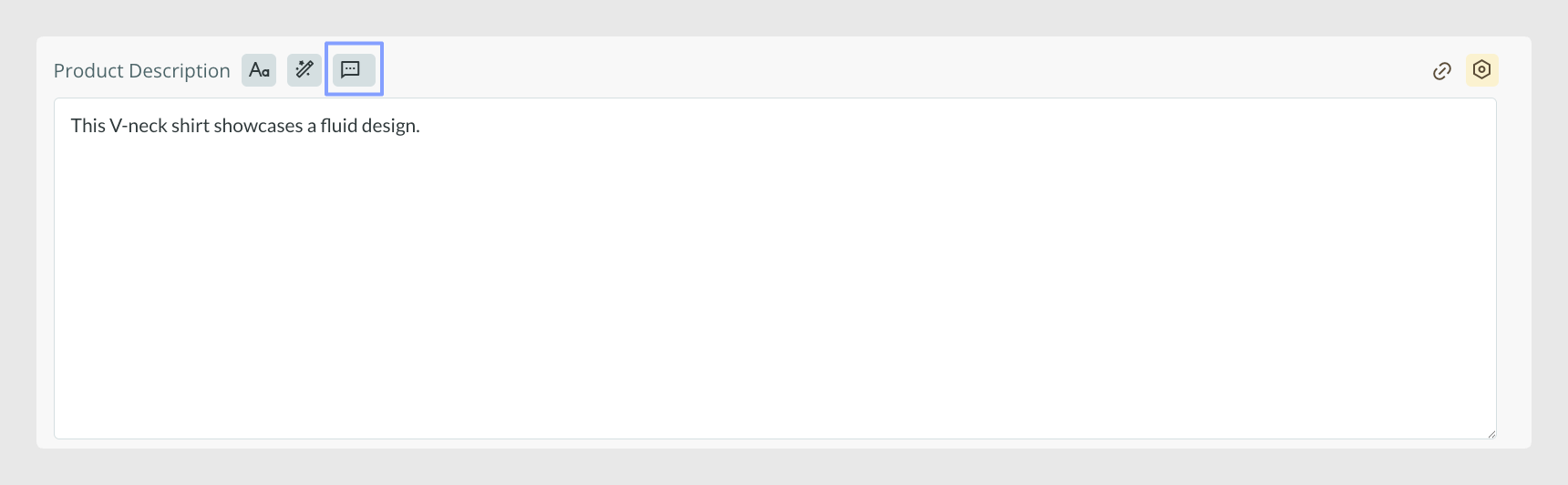
Sales Layer includes an option for creating automatic translations with Google Translate. An icon appears in fields configured as multi-language fields, which you can use to request a translation of the content.
The feature lets you translate up to 100,000 characters free of charge. Once that limit has been exceeded, its use has a cost. You can find more information by clicking the automatic translation icon.
Common Use Cases
Manage one catalog for several countries or regions.
Store translated versions of product names and descriptions in the same field.
Show translated field labels to users working in different languages.
Export content in selected languages for external channels or teams.
Best practices
Before adding more languages, decide which fields really need translation and which can remain in one language. Keep the main language of the catalog clearly defined, and use consistent naming for local variants so your team always knows which version they are editing or exporting.
Was this article helpful?
That’s Great!
Thank you for your feedback
Sorry! We couldn't be helpful
Thank you for your feedback
Feedback sent
We appreciate your effort and will try to fix the article