Pattern validations let you use a specific pattern or regular expression to control the content entered in a short text or long text field.
This is useful when a field must follow a fixed format, such as a code, a date, or a numeric structure.
How to configure a pattern validation
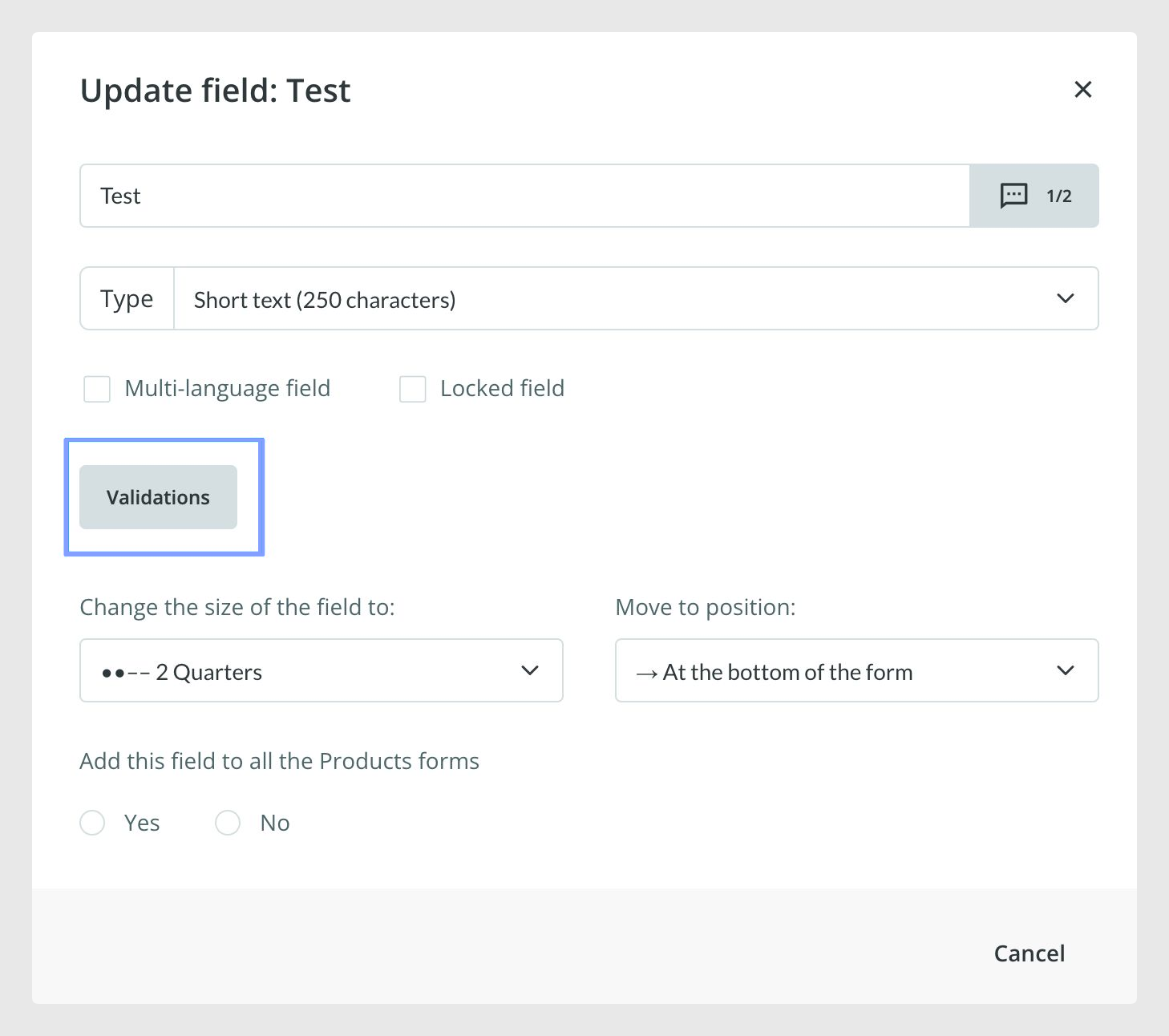
As with any other validation, go to Actions > Redesign form, select the field where you want to apply the rule, click Modify, and then open Validations.
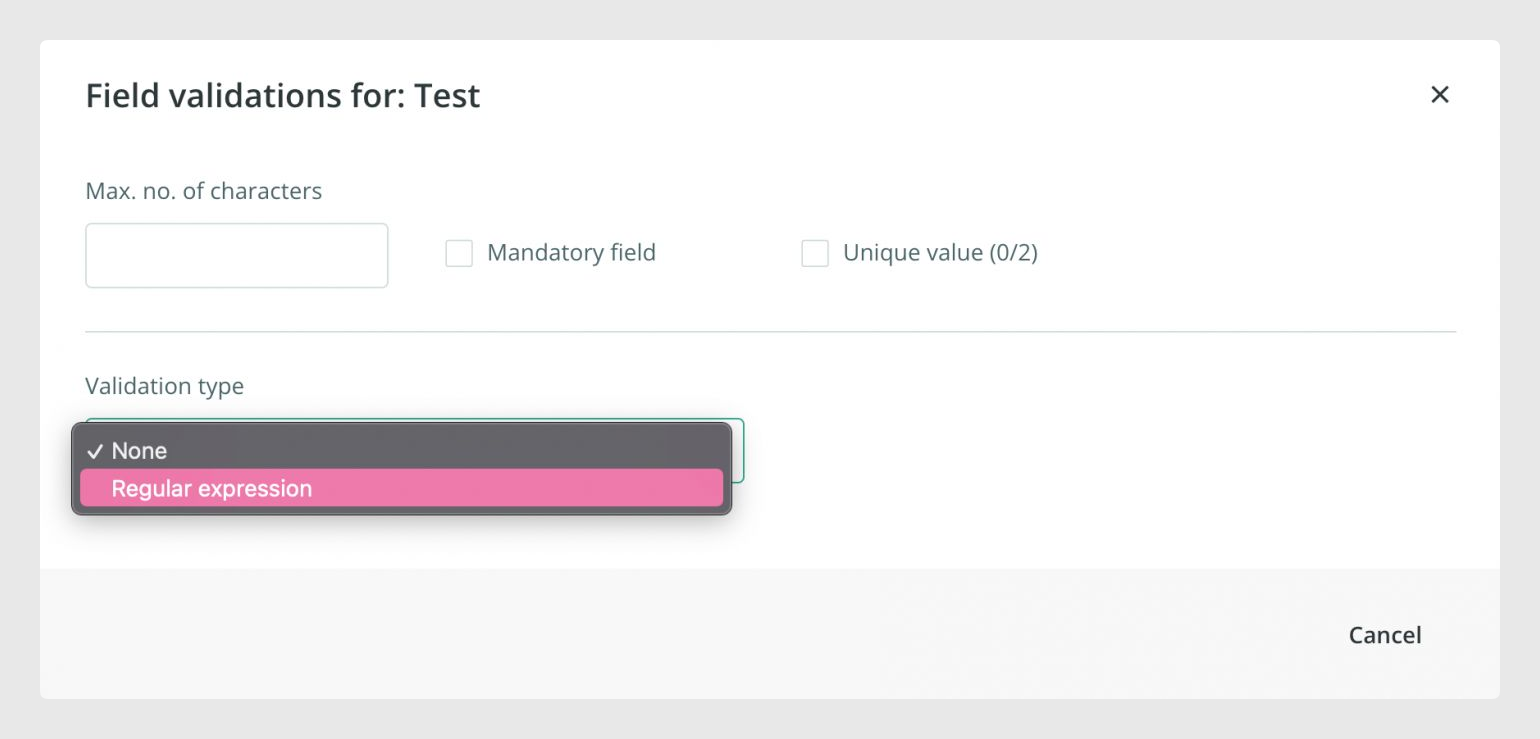
In the Validations section, choose Regular Expression as the validation type to define the pattern.
Pattern types for validations
You can choose different pattern types for your validation and define them with regular expression syntax.
When you place characters inside square brackets, the pattern accepts a single character from the list you specify. For example, [abc] recognizes only a, b, or c.
To define a negated character, place the caret symbol ^ immediately after the opening bracket, as in [^abc]. In this case, a, b, and c are not accepted.
You can also define a range of characters by using a hyphen inside the brackets. For example, [0-9] accepts any single digit from 0 to 9.
Regular Expression | Description |
|---|---|
[abc] | It accepts any of the characters a, b, or c. |
[^abc] | It accepts any character other than a, b, or c. |
[a-z] | It accepts any character from lowercase a to lowercase z. |
[A-Z] | It accepts any character from uppercase a to uppercase z. |
[a-Z] | It accepts any character from lowercase a to uppercase Z. |
[0-9] | It accepts a single digit between 0 and 9. |
[a-z0-9] | It accepts a single character between a and z or 0 and 9. |
Using braces for repetition
You can also use braces to control how many times a character is repeated. The syntax {m,n} sets the minimum and maximum number of repetitions for the character placed before the braces.
For example, using the letter p:
Regular Expression | Description |
|---|---|
p{2} | It accepts exactly two repetitions of the letter p. |
p{2,3} | It accepts at least two repetitions of the letter p, but not more than three occurrences of the letter p. |
p{2,} | It accepts two or more repetitions of the letter p. |
p{,3} | It accepts three repetitions of the letter p at most. |
Additional regular expression characters
You can also use the following characters to complement your regular expressions:
+ accepts one or more repetitions of the character that precedes it.
* accepts zero or more repetitions of the character that precedes it.
? accepts zero or one repetition of the character that precedes it.
Regular Expression | Description |
|---|---|
p+ | It accepts one or more repetitions of the letter p. |
p* | It accepts zero or more repetitions of the letter p. |
p? | It accepts zero or one repetition of the letter p. |
Autocomplete
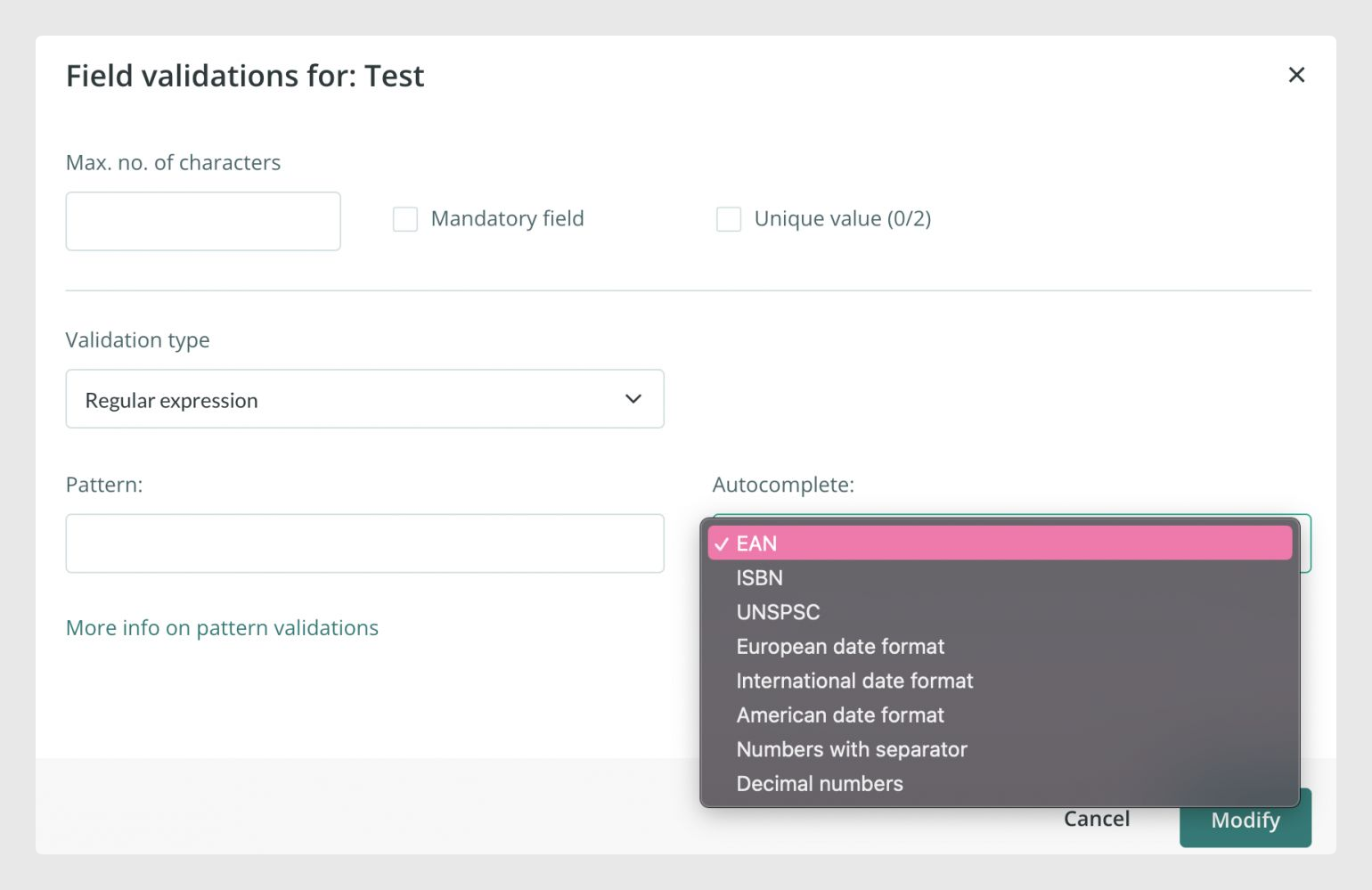
If you want to use a predefined pattern, you can do it through the Autocomplete parameter.
This dropdown list includes useful predefined patterns that are filled automatically when you select them.
Option | Regular Expression |
|---|---|
EAN | [0-9]{13} |
ISBN | [0-9]{13} |
UNSPSC | [0-9]{8} |
European date | [0-3][0-9]/[0-1][0-9]/[0-9]{4} |
International date | [0-9]{4}-[0-1][0-9]-[0-3][0-9] |
American date | [0-1][0-9]/[0-3][0-9]/[1-2][0-9]{3} |
Numbers with separators | [0-9]+[-][0-9]+ |
Decimal number | [0-9]+[.,][0-9]+ |
How to test the pattern
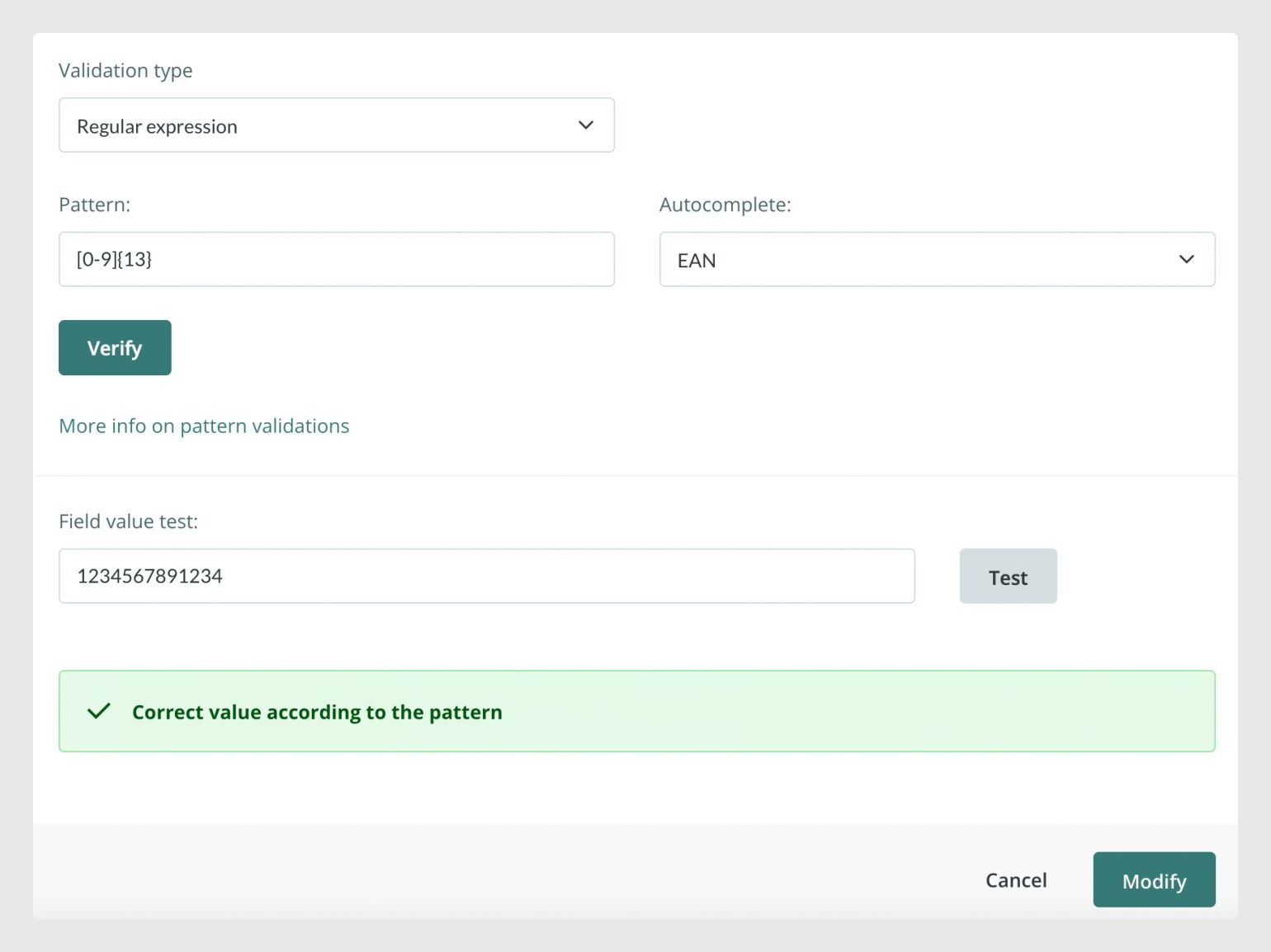
Once the pattern is set, click Verify. This opens a new text box called Field value test, where you can enter a sample value to check whether it matches the pattern.
Then click Test to see the result. This helps you confirm whether the pattern is ready to be saved.
For example, if you select EAN in Autocomplete, the field pattern becomes [0-9]{13}, which means 13 digits from 0 to 9.
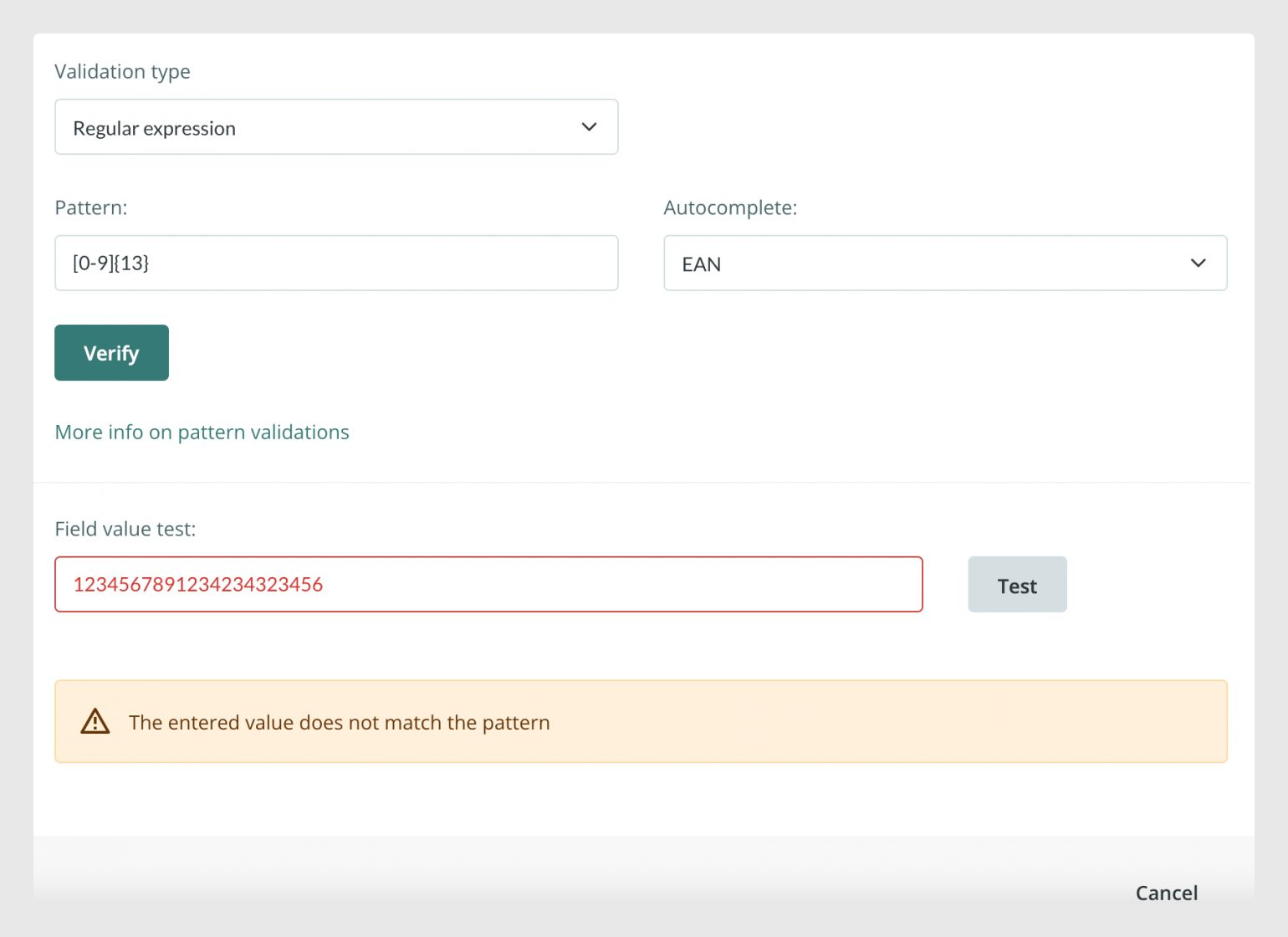
Note: The test is only used to help define the pattern. It does not change the content of any field, and any value entered in Field value test is not saved as part of the item data.
How to save and review the validation
Once the pattern is set and tested, click Modify to save it.
From that moment on, each value entered in the field will either be marked as correct or shown with a validation error.
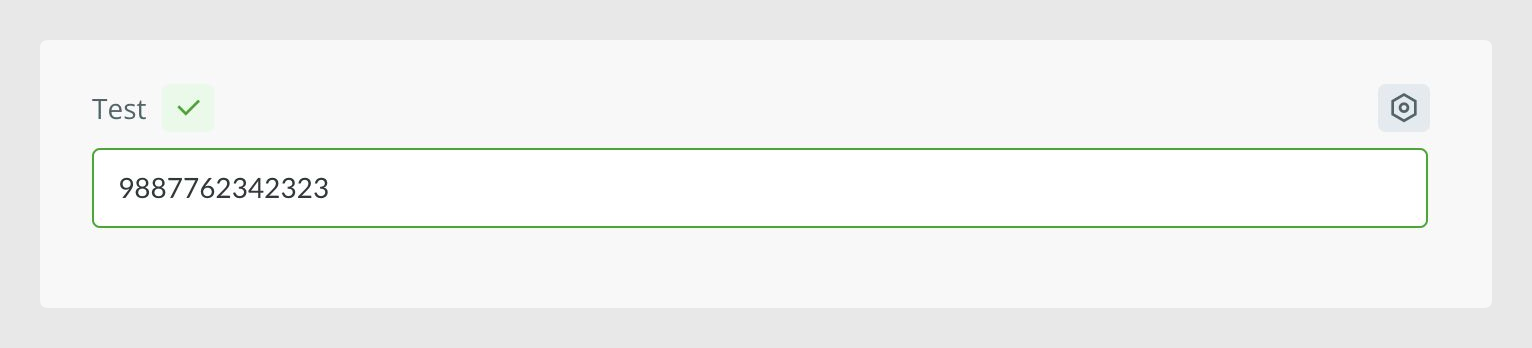
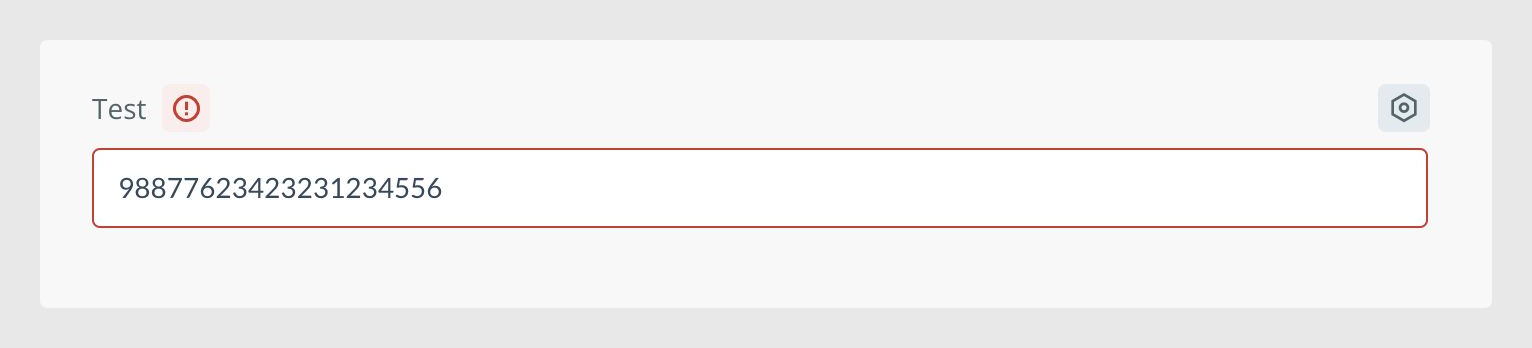
Tip: If you click the green or red check mark next to the field name, Sales Layer shows a pop-up with the validation or validations defined for that attribute.
Common Use Cases
Pattern validations are useful when values must follow a strict format, such as product codes, dates, external identifiers, or standardized numeric structures. They help users enter information consistently and make it easier to detect formatting issues early.
Best practices
Before saving a pattern, test it with several valid and invalid examples to confirm it behaves as expected. If a predefined pattern in Autocomplete fits your use case, use that first to reduce errors when building the rule manually.
Was this article helpful?
That’s Great!
Thank you for your feedback
Sorry! We couldn't be helpful
Thank you for your feedback
Feedback sent
We appreciate your effort and will try to fix the article