Field validations let you define rules for how information should be entered in a field. This helps users add data correctly and consistently across the PIM.
Validations work in the same way across all tables, including Products, Variants, Custom Entity tables, and Categories. They also apply when data is created manually inside the platform, imported manually, imported through a linked source, or imported through the API.
You can apply more than one validation rule to the same field, as long as that field type supports it.
Warning: The number and type of validations, together with the number of SKUs in the account, can affect performance. The impact may be greater depending on the other processes configured in the PIM.
Feature Activation
This functionality is available for Enterprise Accounts, but it can be contracted separately. If you are interested or for further information, contact us through the usual support ways.
Available validation types
Maximum number of characters in a text field: lets you define the maximum number of characters allowed in a text field, including the Name field.
Required field: lets you make a field mandatory in a form. This applies to all fields except Status and Tags.
Range in numeric values: lets you define an accepted number range in a numeric field. It works with integers, decimals, and negative values.
How to configure a validation
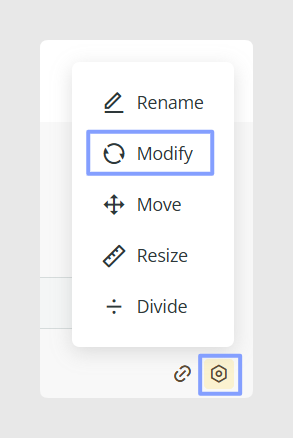
To configure a validation in a product form, go to Actions, click Redesign form, and select Modify on the field where you want to apply the rule.
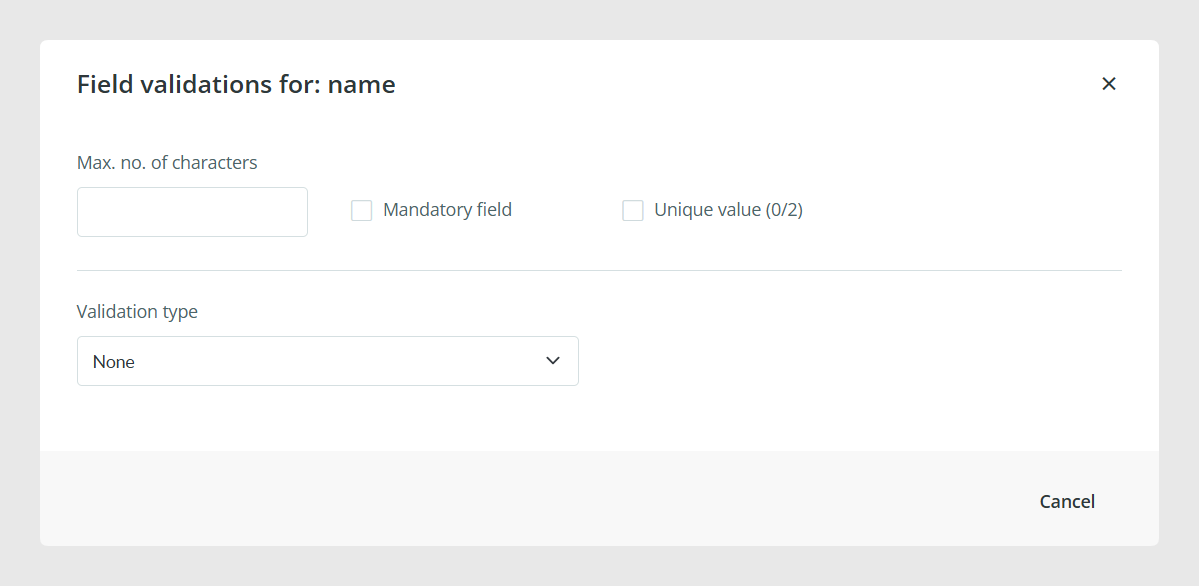
Then open the Validations option and choose the rule or rules you need. After saving the configuration, Sales Layer shows a green check when the field value meets the rule and a red icon when the value does not.
How validation errors appear
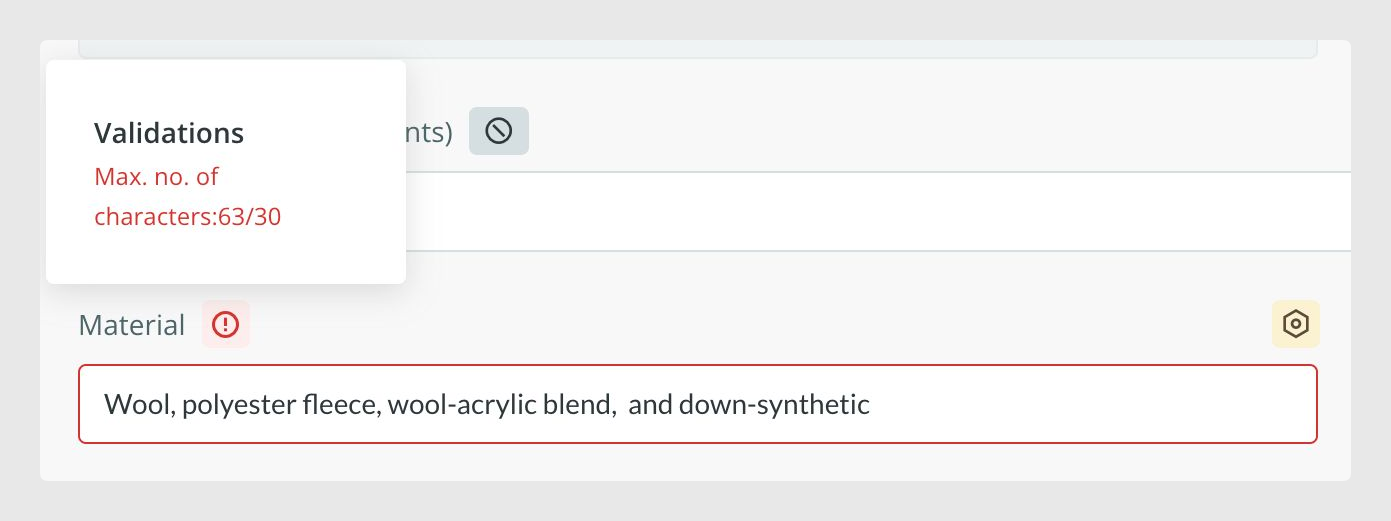
When a field does not meet the selected rule, Sales Layer marks it with a red error icon. If you click that icon, you can see more details about the issue so you can correct it.
How to remove a validation
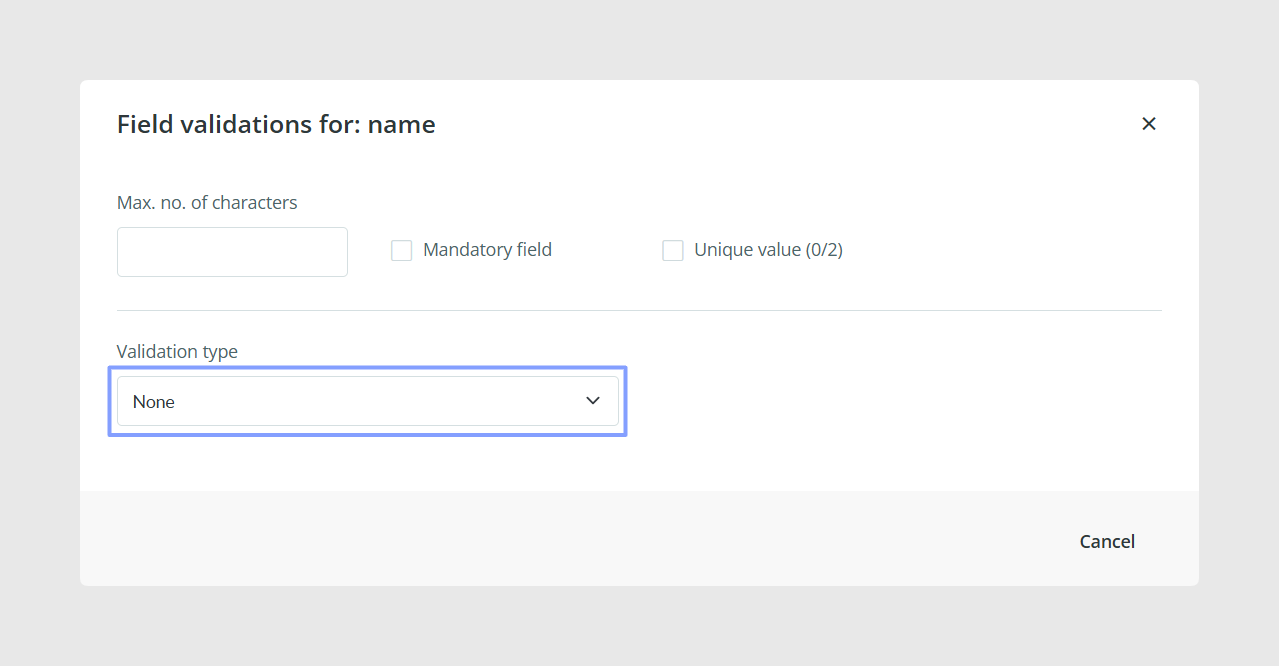
To delete a validation rule, leave the corresponding validation field empty and click Modify again. If the validation is based on a numeric range, set that validation type to None.
How to find items with validation errors
You can use the platform filter to get a quick list of items with validation errors, or items without them, so they are easier to review.
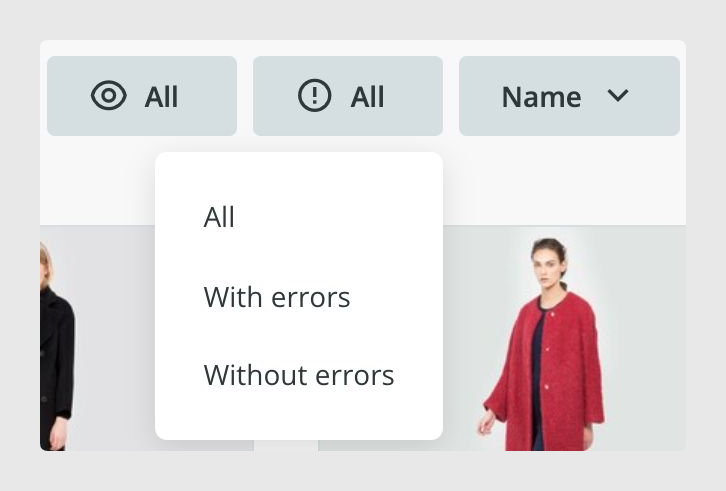
Note: Validations affect the Quality Report for each item. If a field is empty or has a validation error, it is treated as incomplete in the Quality Report section.
What validations do not block
Validations define the correct content for a field, but they do not block the user from saving the form.
You can still import data manually, use connectors, export content, and work with workflows as usual. If an imported value does not meet an existing validation, the error will appear inside the form in the platform.
If you want to exclude items with validation errors from an export, you can detect them with the CONTAINS_ERRORS() formula and combine it with other rules. For example, you can combine it with REMOVE_FROM_LIST to exclude items that contain errors.
Unique value validation
Unique value validation is useful when a field must not contain duplicates. This is especially helpful for values such as EANs, manufacturer references, exclusive product colors, or any other identifier that should remain unique.
When this validation is active, Sales Layer checks whether a value is repeated. If duplicates exist, the field is marked with an error, but the platform still does not block editing or exporting.
This validation can be applied to short text and number fields.
To configure it, go to Actions > Redesign form from the item form, open the field settings, and select the Unique validation checkbox.
Warning: You can use up to two unique validations per table, such as two in Products and two in Variants.
The same checkbox shows the count of validations already used and how many are still available. If the field contains a repeated value, Sales Layer marks it with an error icon to show that it does not meet the unique value rule.
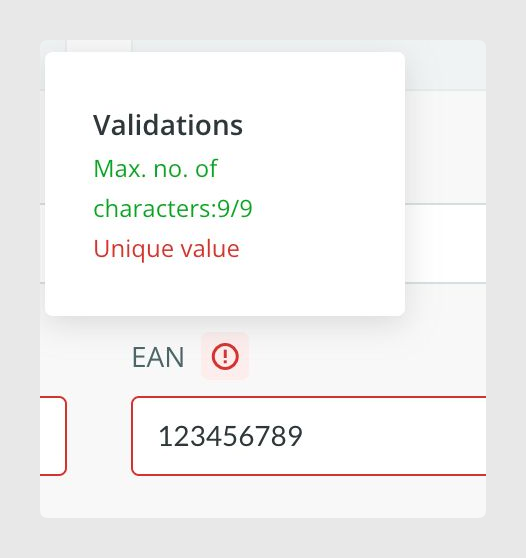
Note: Unique Value Validation does not apply to multi-language fields, even if those fields are accepted inside the feature.
Tip: This functionality belongs to the extended validation pack. If you need more information, contact Sales Layer through the usual support channels.
Import validation configuration
If you need to export and re-import your validation setup, you can do it in xly format.
Open the Attribute Set you want to export, go to Actions > Redesign form, and click the gear icon. Then choose Export Configuration.
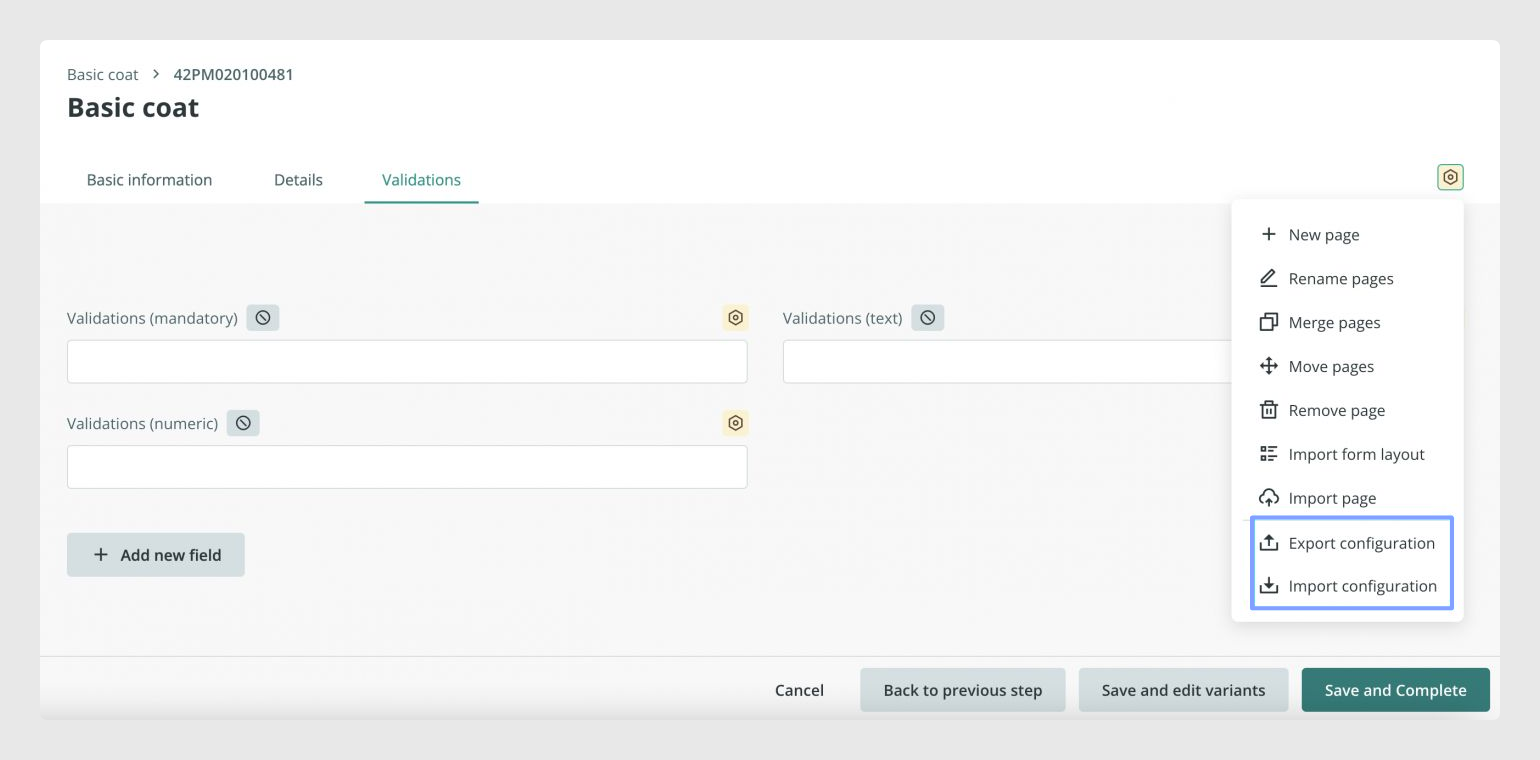
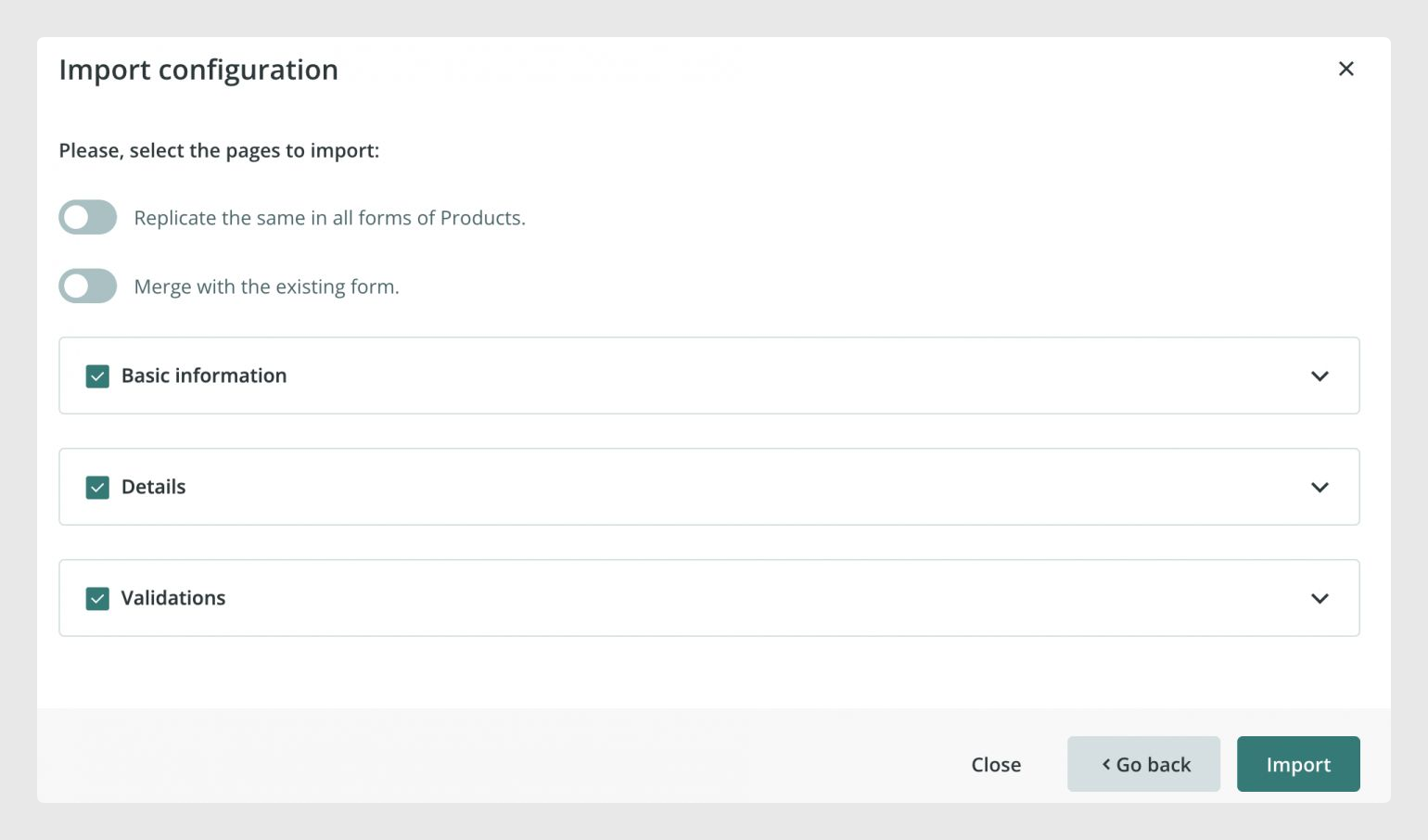
After that, import the xly file into the Attribute Set or form where you want to apply it. You can choose which fields to export or import and keep only the ones you need.
In the import settings, you can decide whether the configuration should also be replicated in all forms, and how the imported settings should behave:
Merge with the existing form: this updates the validations of the field while respecting the maximum number of allowed validations. If a field already has a validation, the imported one overwrites it instead of being added on top of it.
Do not merge with the existing form: this adds new attributes and their validations while respecting the maximum number of allowed validations. If the xly includes a validation for an existing field, it will not be imported when merge is disabled.
Common Use Cases
Field validations are useful when you need to standardize how users fill in key information, reduce manual mistakes, and identify incomplete or incorrect values before that content is used in exports, connectors, or internal workflows.
Best practices
Start with the most important validations first, such as required fields, character limits, and unique values for critical identifiers. Before applying many rules across a large catalog, test the impact on a smaller structure so you can confirm the behavior and avoid unnecessary performance issues.
Was this article helpful?
That’s Great!
Thank you for your feedback
Sorry! We couldn't be helpful
Thank you for your feedback
Feedback sent
We appreciate your effort and will try to fix the article