Sales Layer includes tools to help you review changes, identify who made them, and recover previous information when needed. This is especially useful when several users are working in the same account or when imports and connectors are updating product data.
These security and recovery features are available on Premium and Enterprise accounts.
Review changes on a single item
If you want to check the history of one product, category, variant, or Custom Entity, open the item and go to Actions > Show Editors.
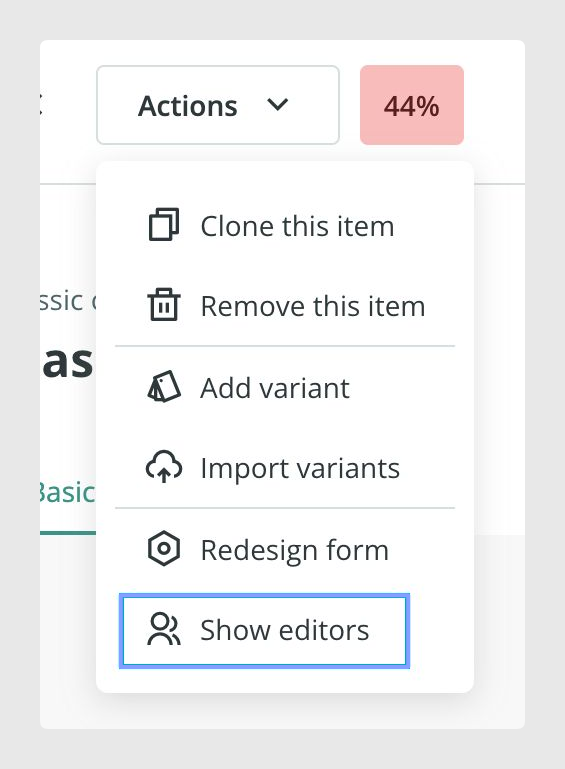
Sales Layer opens a panel on the left side showing the changes made over time, including which user or connector made the update and what was changed. From the same panel, you can recover a previous state of that item.
When you are finished, go back to Actions and click Hide Editors.
Open Recent Activity and Time Layer
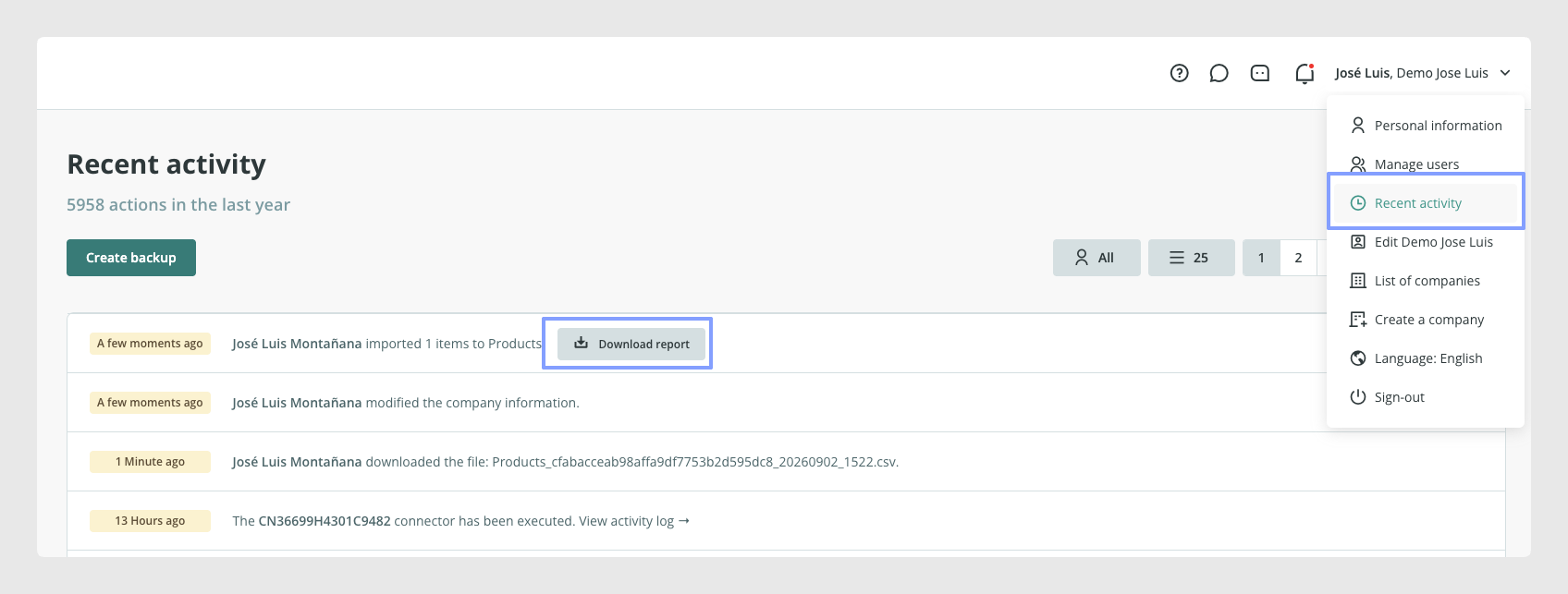
If you need a broader view of what has happened in the account, open the menu in the top right corner and go to Recent Activity.
This area shows account-wide activity and also gives you access to Time Layer, where you can create a backup or restore a previous one.
Recent Activity can also include reports associated with certain processes. For example, when "Strict with elimination" is used for list-type fields, you can download the rejected-values report generated by processes such as import connectors or bulk modifications from this section.
Understand how backups work
Sales Layer creates backups automatically after important actions that could affect product information, such as an Excel import, unless a backup already exists for that same day.
You can also schedule daily backups for a specific time, or create a manual backup as long as there have been changes since the previous one.
Time Layer stores up to 30 backups, and each backup remains available for 30 days. If you go beyond that limit, the oldest backup is deleted first.
If you need a backup at a very specific time, contact the support team.
Restore the whole account
When you restore a backup in Time Layer, the entire account returns to the state it had at the date and time of that backup. This means the recovery does not affect only products. It can also affect other account settings and configurations from that point in time.
There are a few important limits to keep in mind. Once a backup has been recovered, you cannot go back to backups created after that point, and the same backup cannot be recovered twice.
Also, creating a backup can temporarily affect account performance, especially if the account contains a large amount of data.
If your account uses image-level synchronization lists, those lists are not removed when you recover a backup. The images are updated according to what existed at that time, but the lists remain as they are now.
This is especially important if you have also changed connector settings for a website or another external channel, because restoring the account could bring back an older export configuration and cause problems later.
Keep recent work before restoring a backup
If you need to restore the account but do not want to lose all your recent work, first check the date of the last backup in Recent Activity.
Then go to Products or Variants and filter the items that were created or modified after that date. Sales Layer documents examples such as:
select:modified>"16-02-2022 00:00:01"
select:created>"16-02-2022 00:00:01"
After filtering the list, go to Actions > Export to Excel, choose the fields you need, and click Only the current list so the export includes only those recent records.
You can later reimport those changes after the backup has been restored.
Note: It is not recommended to continue collecting data after restoring a backup and then try to return to a later state. Before restoring the whole account, review whether the issue can be solved at the item level first through Show Editors. If your account includes several users, connectors, or scheduled imports, always check the wider impact of a full restore before applying it.
Common Use Cases
Restore a product after an incorrect edit.
Review which user or connector changed a field.
Create a safety backup before a major import.
Recover an earlier version of the account after a larger issue.
Best practices
Before restoring a backup, review carefully what else may change with it, especially connectors and image-related syncs. If the issue affects only one record, use Show Editors first before restoring the whole account. And if you may need to preserve recent updates, export the changed items before you recover the backup so you can import them again afterwards.
Was this article helpful?
That’s Great!
Thank you for your feedback
Sorry! We couldn't be helpful
Thank you for your feedback
Feedback sent
We appreciate your effort and will try to fix the article