Phase 1. Data preparation
The connector will use all the time necessary to prepare the data. After that, other queued connectors will get the server execution time and the connector will be queued again and continue data preparation in its next turn.
During data preparation, the following steps are followed:
- When the connector starts the execution, it reads all the existing data in the BigCommerce store. This reading step will take more or less time depending on the number of items on BigCommerce.
- Cleaning data: variants without products and products without valid weight or price.
- Once the reading step is done, the existing data in BigCommerce is compared with the data in Sales Layer. If the data between BigCommerce and Sales Layer coincide, it will be linked. If the Sales Layer data does not exist on BigCommerce, the system will create and link it.
- All the information is ready, including data and relations file, and is stored in the Sales Layer server for the next execution of the connector that will synchronize the data.
Phase 2. Data synchronization
- The connector downloads the data needed for synchronization, including the data and relations file.
- For 10 minutes, it will send items to BigCommerce and remove each processed item from the data that still has to be sent to BigCommerce.
After each synchronization, the results will be added to a temporal log file, showing the current synchronization status. At the end of the process, a definitive log will be created and included in the connector user interface in the Activity Register tab.
Warning: If you change the value of an additional attribute in Sales Layer for a variant, the BigCommerce API does not allow previously created variants to be updated. In that case, the previous variant is deleted and a new one with the new value is created. Fields that are not managed by Sales Layer will be left empty. For example, if Stock is managed by a separate system, when the new variant is generated, the Stock field will be created with its value set to 0.
Activity Register
After the connector ends the first synchronization, a new Activity Register section will appear with the synchronization record.
This section will include:
- A list of the last 19 synchronizations.
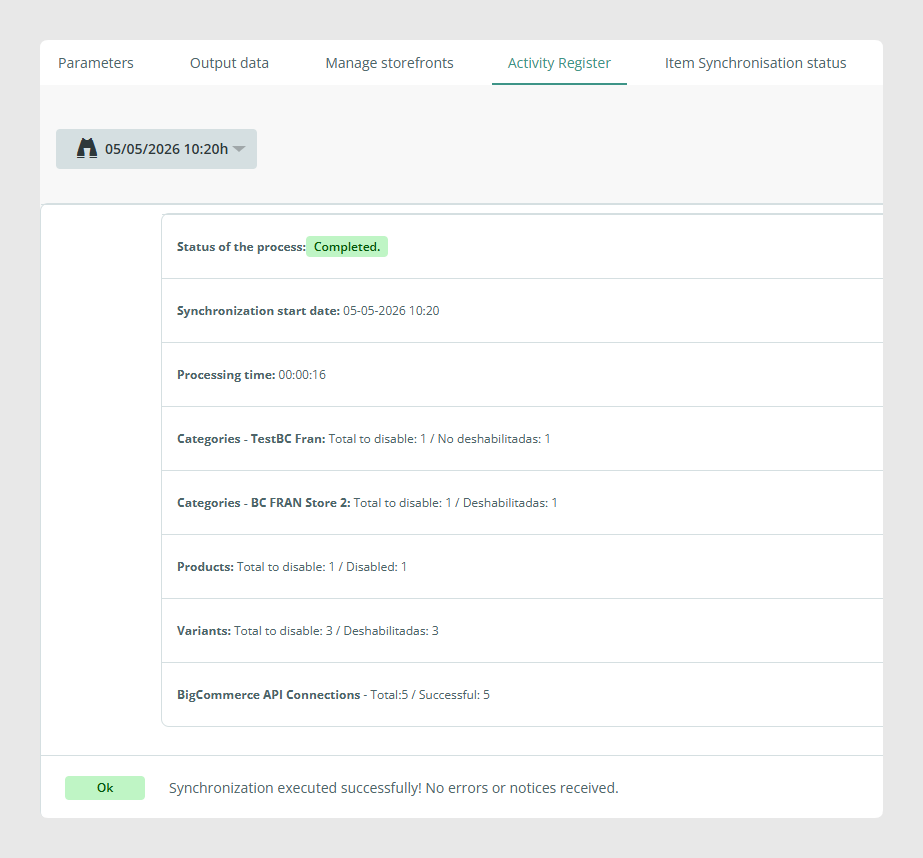
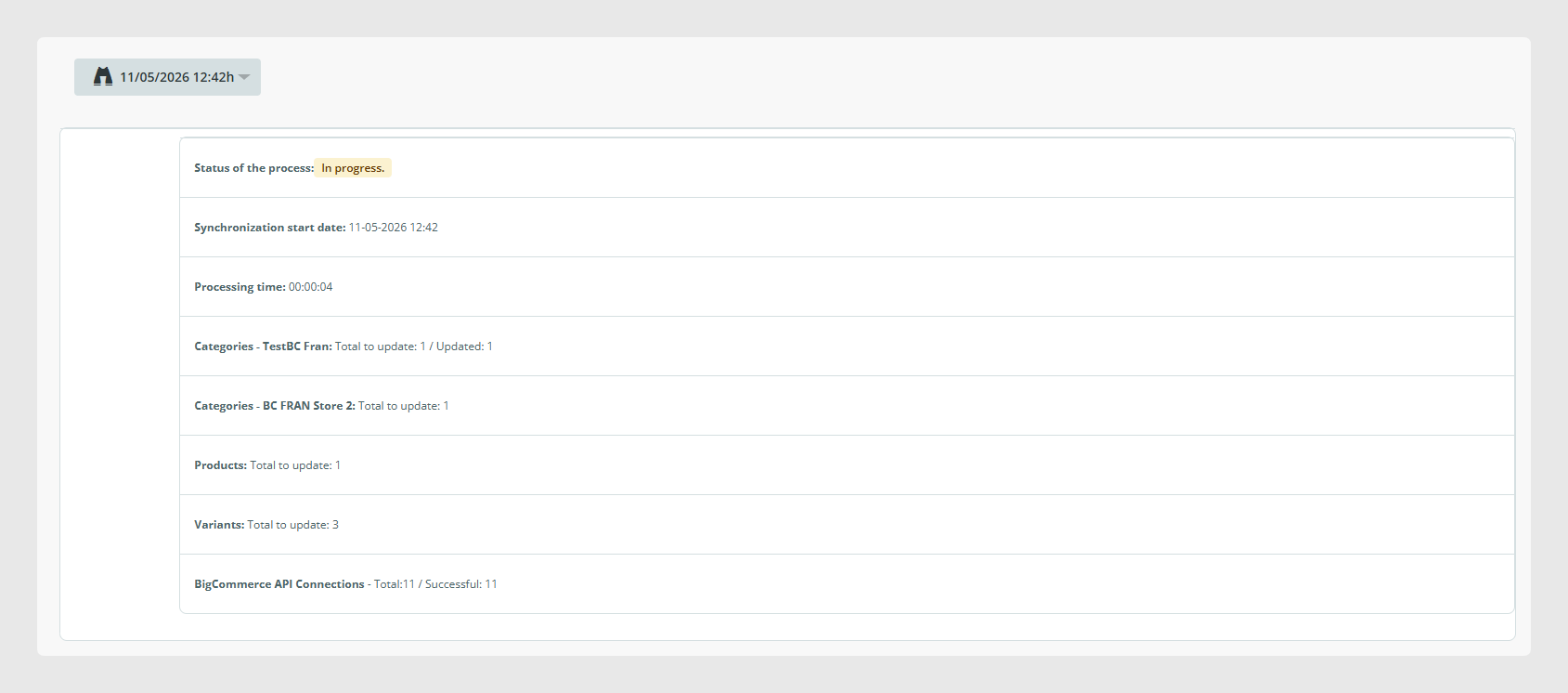
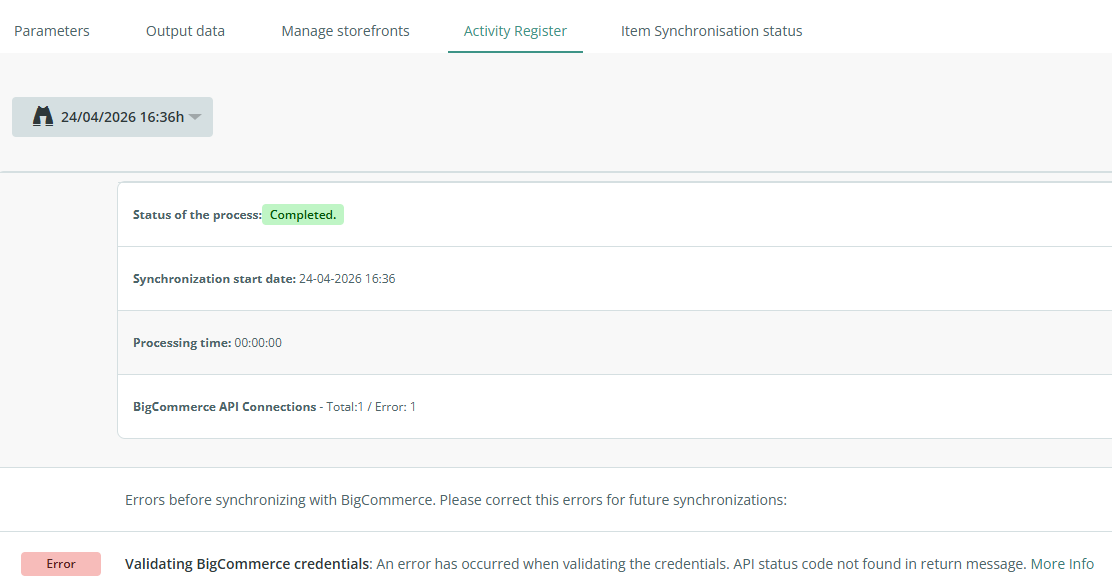
- Results: state of the synchronization process, synchronization start date, process duration, catalog item counters, and number of connections with the BigCommerce API. Categories with multiple storefronts will show information separately. Categories to be disabled are also shown separately from the categories that have to be created or updated.
Example 1: Synchronization ended correctly.
Example 2: Synchronization at the beginning of the process. At this moment, information to be exported to BigCommerce has been prepared in Sales Layer and is ready to be sent, but no item has been exported yet.
Example 3: Synchronization ended with some errors.
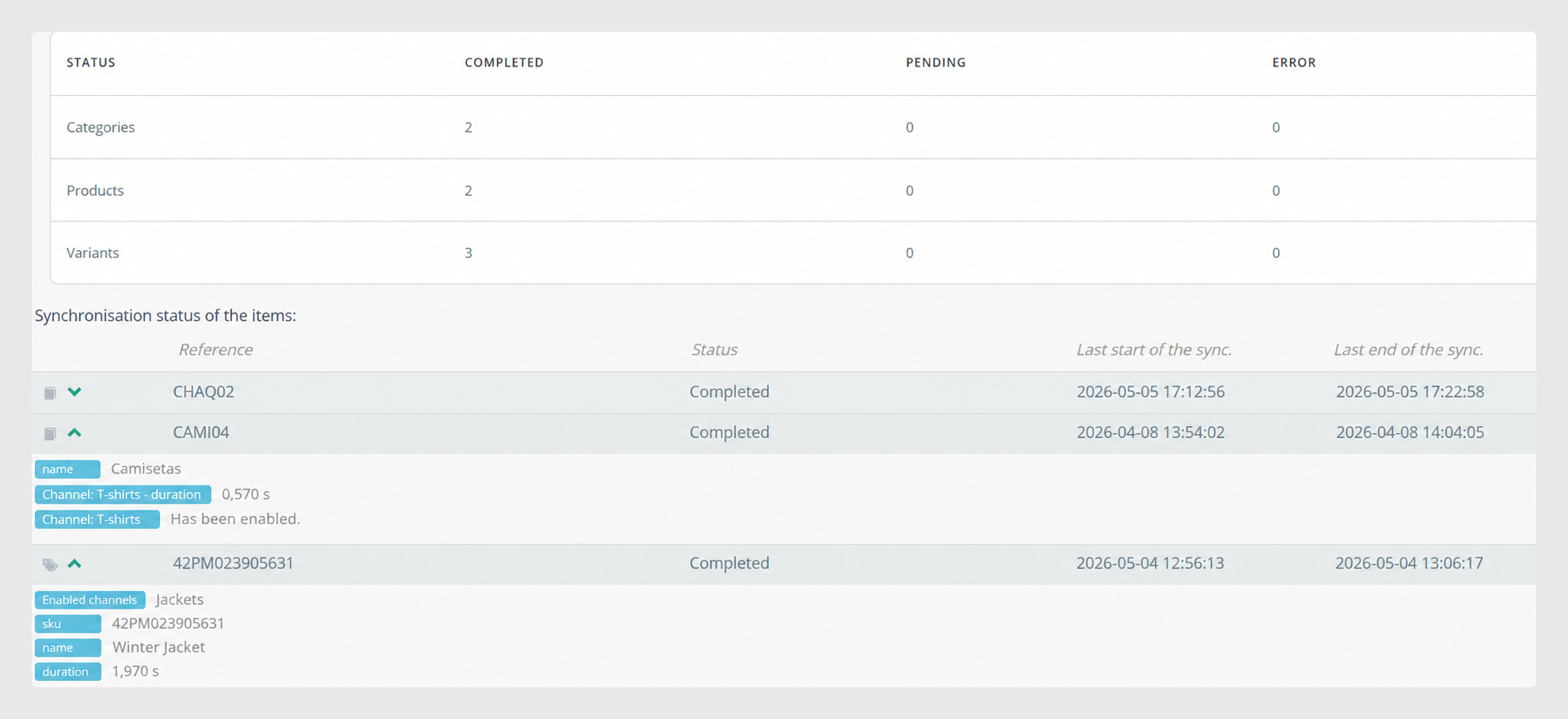
Synchronization status of the items
The BigCommerce connector provides a detailed description of the last sync status of each Sales Layer item.
Additionally, when a Sales Layer category has a relation with two storefronts, the category will contain feedback for each storefront.
Was this article helpful?
That’s Great!
Thank you for your feedback
Sorry! We couldn't be helpful
Thank you for your feedback
Feedback sent
We appreciate your effort and will try to fix the article