The CSV Export Connector allows you to transform, clean, and enrich your data during export by applying formulas to any mapped field in the Output Data section.
Formulas are useful when you want to:
- Format or modify field values
- Combine information from multiple fields
- Remove or replace unwanted characters
- Standardize text
- Build calculated or conditional outputs
This article provides a brief overview of the most common use cases.
Using formulas to modify field outputs
Formulas can be applied to any field in:
- Categories
- Products
- Variants
- Points of Sale
- Custom Entities
They allow you to alter the output without modifying the data in your PIM.
As mentioned earlier in the Configuration section, the Connector includes an integrated AI Macros Expert Assistant that can help you:
- Create new formulas
- Understand syntax
- Fix errors
- Build conditional or calculated fields
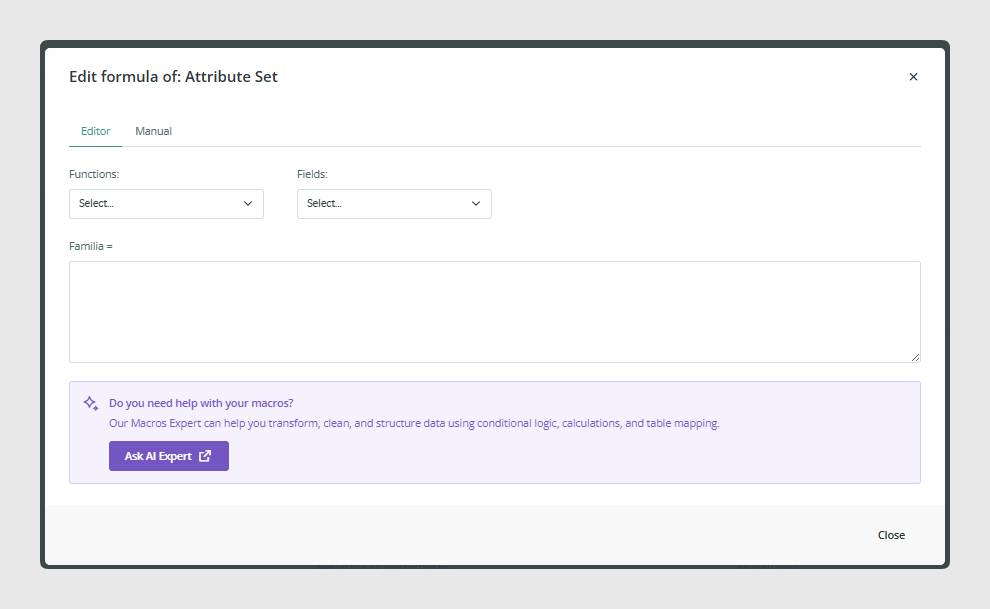
Typical examples
Uppercase or lowercase formatting:
UPPERCASE({Name})Removing HTML or formatting:
CLEAN_HTML({Description})Applying conditional logic:
IF(IS_EMPTY({Color}), "No color", {Color})These transformations only affect the exported CSV and do not alter your PIM data.
Combining fields
You can combine multiple fields to create enriched or cleaned values. This is especially useful when building:
- Composite names
- SEO-friendly text
- Custom identifiers
- Unified descriptions
Typical examples
Creating a combined product title:
CONCAT({Name}, " - ", {Brand})Combining product and variant information:
CONCAT({Product Name}, " ", {Size}, " ", {Color})Cleaning data
Formulas can also be used to remove unnecessary characters, normalize content, or prepare values for systems that require standardized input.
Common examples
Remove line breaks and extra spacing:
CLEAN_TEXT({Description})Strip unwanted HTML:
CLEAN_HTML({Long Description})Extract a number from text:
EXTRACT_NUMBER({Dimension})Replace or remove characters:
REPLACE({Field}, "-", "")Cleaning data at export time helps keep your CSV consistent and easier to process.
Formulas documentation
You can find the complete and updated references for all formula functions in the formulas documentation section.
You can also rely on the AI Macros Expert Assistant, integrated into the Connector, to help build or troubleshoot formulas directly within the interface.
Was this article helpful?
That’s Great!
Thank you for your feedback
Sorry! We couldn't be helpful
Thank you for your feedback
Feedback sent
We appreciate your effort and will try to fix the article