The Sales Layer Macros and Data Model Expert are available as an AI skill that can be installed in Claude. This article explains how to install the skill, verify that it is available, and start using it.
Before you start
Before installing the skill, make sure you have:
- Access to a Claude account: all plans support skills.
- The Sales Layer Macros and Data Model Expert skill zip file: contact the Sales Layer Support team to request the required skill files.
Install the skill
To add the Sales Layer skill to Claude:
- Open Claude and sign in to your account.
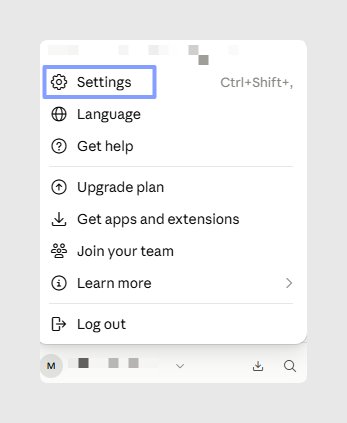
- Go to Settins.
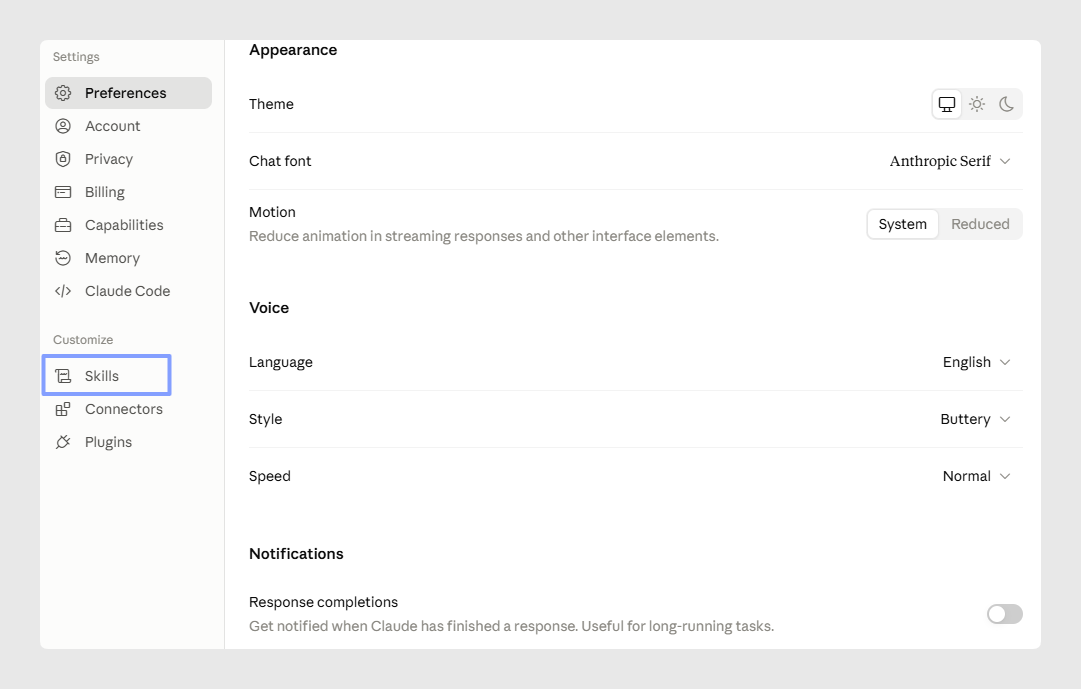
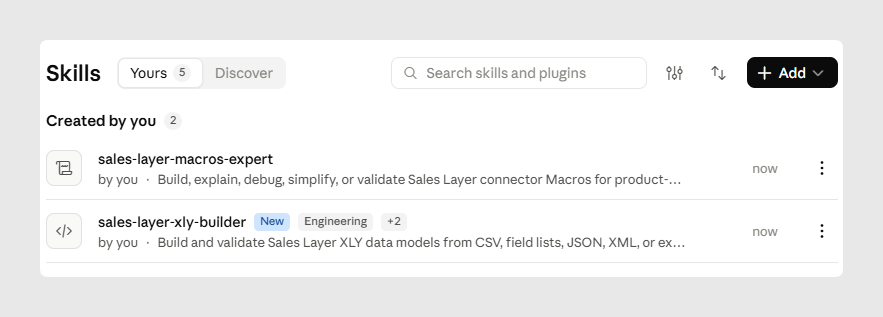
- Click Skills.
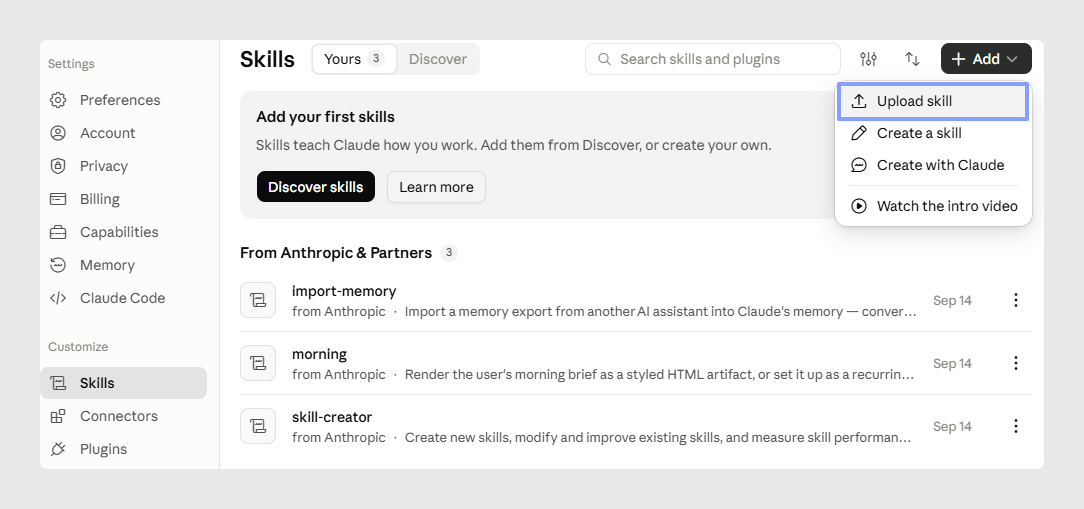
- Click the Add button, and select the option Upload skill.
- Upload the Sales Layer Macros or Data Model Expert zip.
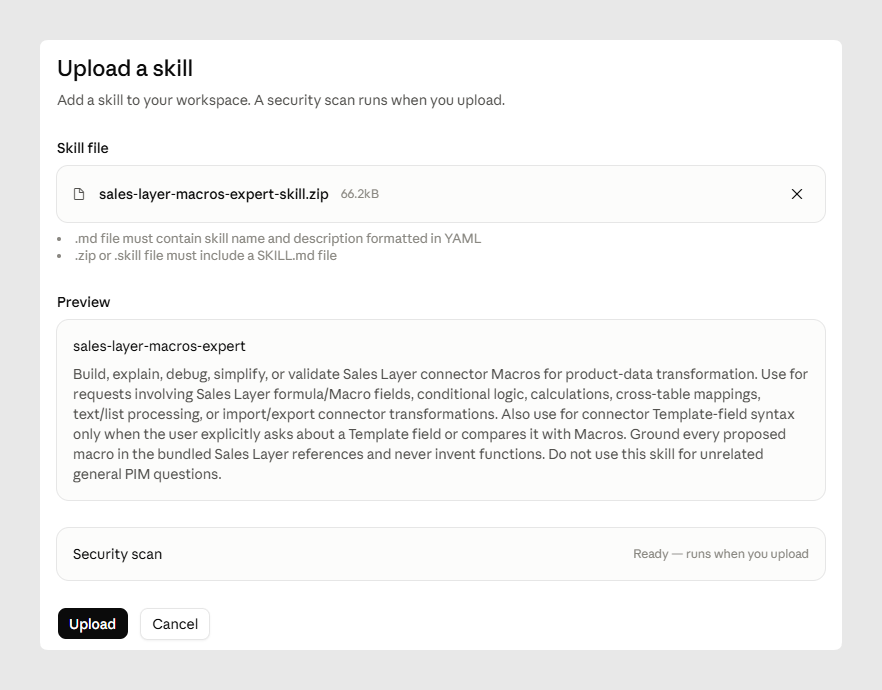
- Click Upload.
Check that the skill is available
After installation, verify that Claude can access the skill.
- Start a new chat in Claude.
- Click + button and search for the skill.
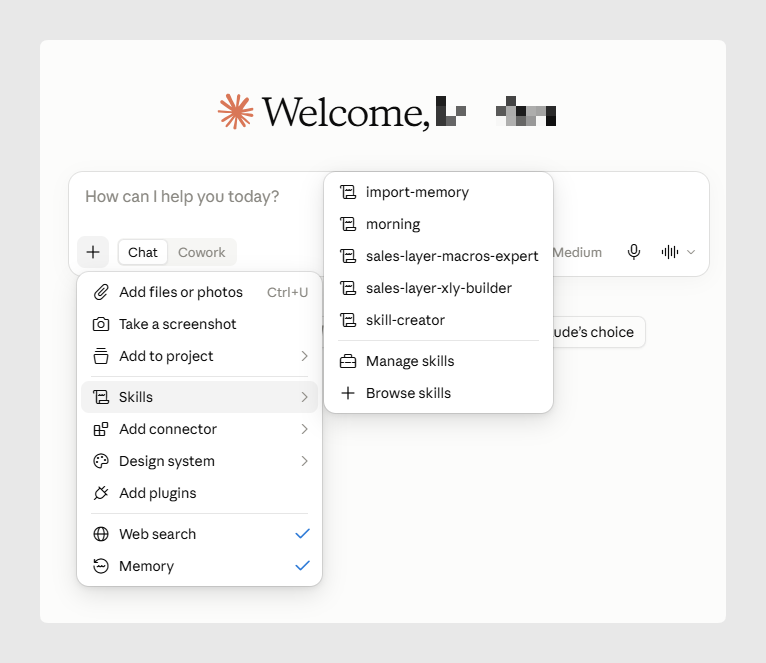
- Confirm that the skill appears, you can add the skill to the chat to use it by clicking on it.
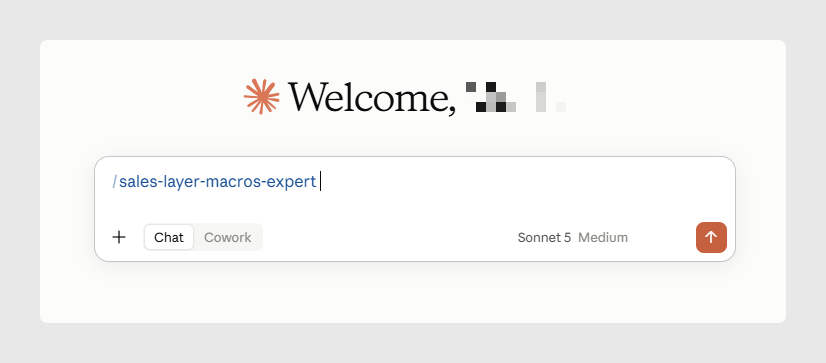
Test the installation
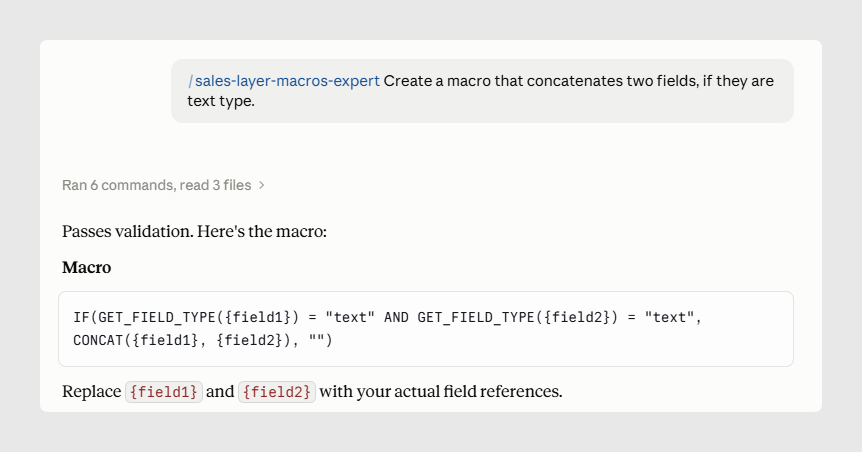
Once the skill is available, you can perform a simple test.
For example, in Macros Expert: "Create a macro that concatenates two fields, if they are text type."
Or, in Data Model Expert: "Prepare an .xly file to be imported as Attribute Sets in Sales Layer with basic product structure."
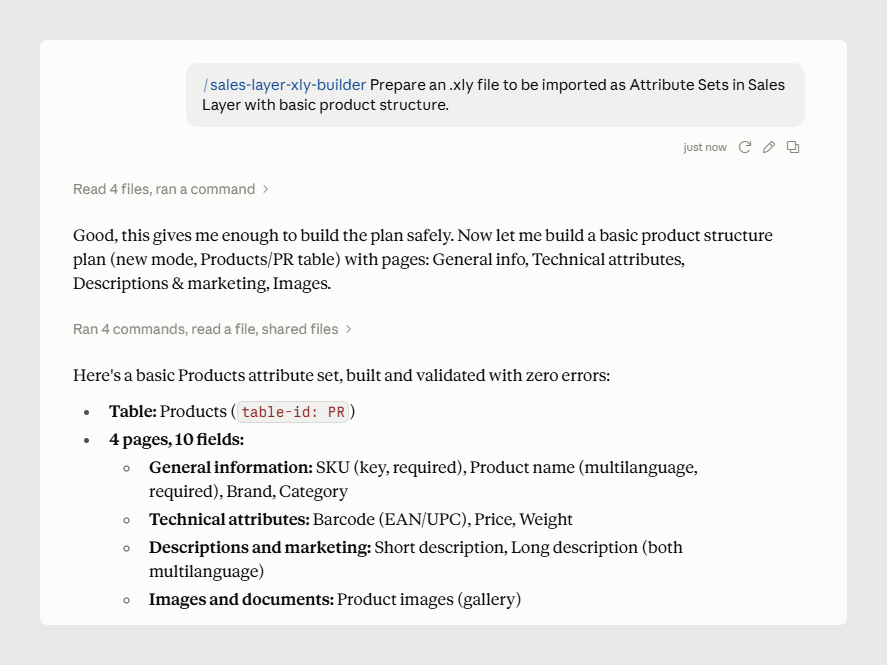
Check that the response uses the information or instructions provided by the installed skill.
Troubleshooting
If you cannot install or use the skill, check the following:
- Skills option not available: check with your Claude account workspace administrator if skills are enabled.
- The skill doesn't appear as available in the chat, or doesn't behave as expected: Remove the installed version and install the latest Sales Layer skill version again.
If the problem continues, contact Sales Layer Support.
Best practices
Keep the Sales Layer skill updated so that you are using the latest available instructions. After installing a new version, run a simple Macros or Data Model Expert test before using it for regular work.
Was this article helpful?
That’s Great!
Thank you for your feedback
Sorry! We couldn't be helpful
Thank you for your feedback
Feedback sent
We appreciate your effort and will try to fix the article