This article lists common Shopify connector errors and explains what each one means.
1. Communication with the Shopify store could not be established
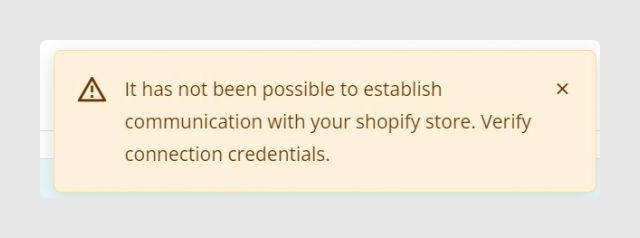
This error appears when Sales Layer cannot use the provided credentials to connect to the Shopify API.
The connection can fail if the credentials are incorrect, required permissions are missing, or no Shopify location is available.
Verification steps mentioned in the article:
- Verify the credentials in Shopify and confirm that they match the ones entered in the connector.
- Make sure all required permissions are configured correctly.
- Check that the Store Name entered in the connector is the actual store URL. Redirect URLs are not allowed.
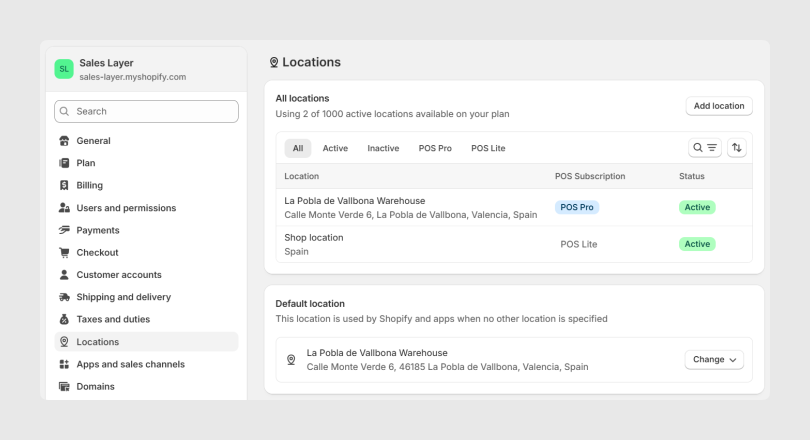
- Confirm that at least one location has been added in the Shopify store.
2. Connector turned off after repeated connection attempts
This error means the credentials are invalid or that required permissions are missing.
The connector automatically deactivates after 30 failed attempts to connect to the Shopify store.
3. Access denied for some scopes
This message appears when some of the permissions required for synchronization are missing.
The error itself lists the scopes that are missing, so you can review them in the Shopify app configuration.
4. Synchronization stopped to protect your data
If the connector detects more than 100 errors during synchronization, it stops automatically as a safety measure.
This is intended to prevent incorrect data from being synchronized to Shopify.
5. Error changing Markets visibility
This error occurs when the connector tries to activate or deactivate a Market and Shopify cannot apply the change.
For example, this can happen if the Market does not exist in Shopify.
6. The primary language could not be identified
This error appears when the connector cannot determine the main language to use in Shopify.
The cause may be missing permissions, or a mismatch between the language selected in the connector and the language configured in Shopify.
The article specifically mentions reviewing these permissions:
- read_locales
- read_translations
- write_translations
7. Not all variant images could be updated
This error appears when the images sent for variants do not comply with Shopify limitations.
Examples mentioned in the article include:
- More than one image being sent for a single variant
- Images exceeding Shopify’s maximum permitted size
8. Format information could not be updated because SKU is missing
This error means that the variant is missing one or more required attributes.
The article specifically points to missing option data in the variant configuration and highlights the SKU as a required value in this error message.
9. Internal server error, error 502, or update error with no response
This is an error returned by Shopify.
In most cases it is temporary and resolves in a later synchronization.
The article explains that making regular changes to products, or changing their visibility, can force a new synchronization of the affected item and help resolve the issue.
Best practices
- Always verify that the Shopify credentials in the connector exactly match the app credentials configured in Shopify.
- Review all required scopes if the connector reports access denied or repeated connection failures.
- Use the real Shopify store URL in the Store Name field, not a redirect URL.
- Make sure the Shopify store has at least one active location before testing the connection.
- If the connector stops after too many synchronization errors, review the catalog data before restarting the process.
- Check that Markets already exist in Shopify before trying to change their visibility from the connector.
- For language-related errors, confirm both the Shopify language setup and the translation permissions.
- For variant image errors, send only one image per variant and verify that image files comply with Shopify limits.
- If a 502 or similar server error appears, try again after the next synchronization cycle or trigger a new synchronization by updating the affected item.
Was this article helpful?
That’s Great!
Thank you for your feedback
Sorry! We couldn't be helpful
Thank you for your feedback
Feedback sent
We appreciate your effort and will try to fix the article