When you want to update categories in Sales Layer, the key field is Category Reference. Sales Layer uses this value to identify which category should be updated.
If the category reference already exists in the platform, the import updates that category instead of creating a new one.
To update a category, you only need to import the Category Reference column together with the field or fields you want to change.
How to update categories
To reimport category data, go to Categories, click Import, and choose the import method you want to use.
The update process follows the same flow as a normal manual import. You prepare the file, paste or upload it, review the field mapping, and then confirm the import.
You do not need to reimport the full category row every time. In most cases, it is safer to include only:
- Category Reference
- the field or fields you want to update
This makes the update easier to control and reduces the risk of changing something you did not intend to modify.
Changes in Parent Category Reference
If you update the Parent Category Reference field, you are changing the position of that category in the tree.
This means a category can move from one branch to another or become a main category if the parent reference is left empty.
Because this affects the structure of the tree, it is a good idea to review parent references very carefully before importing.
Field mapping
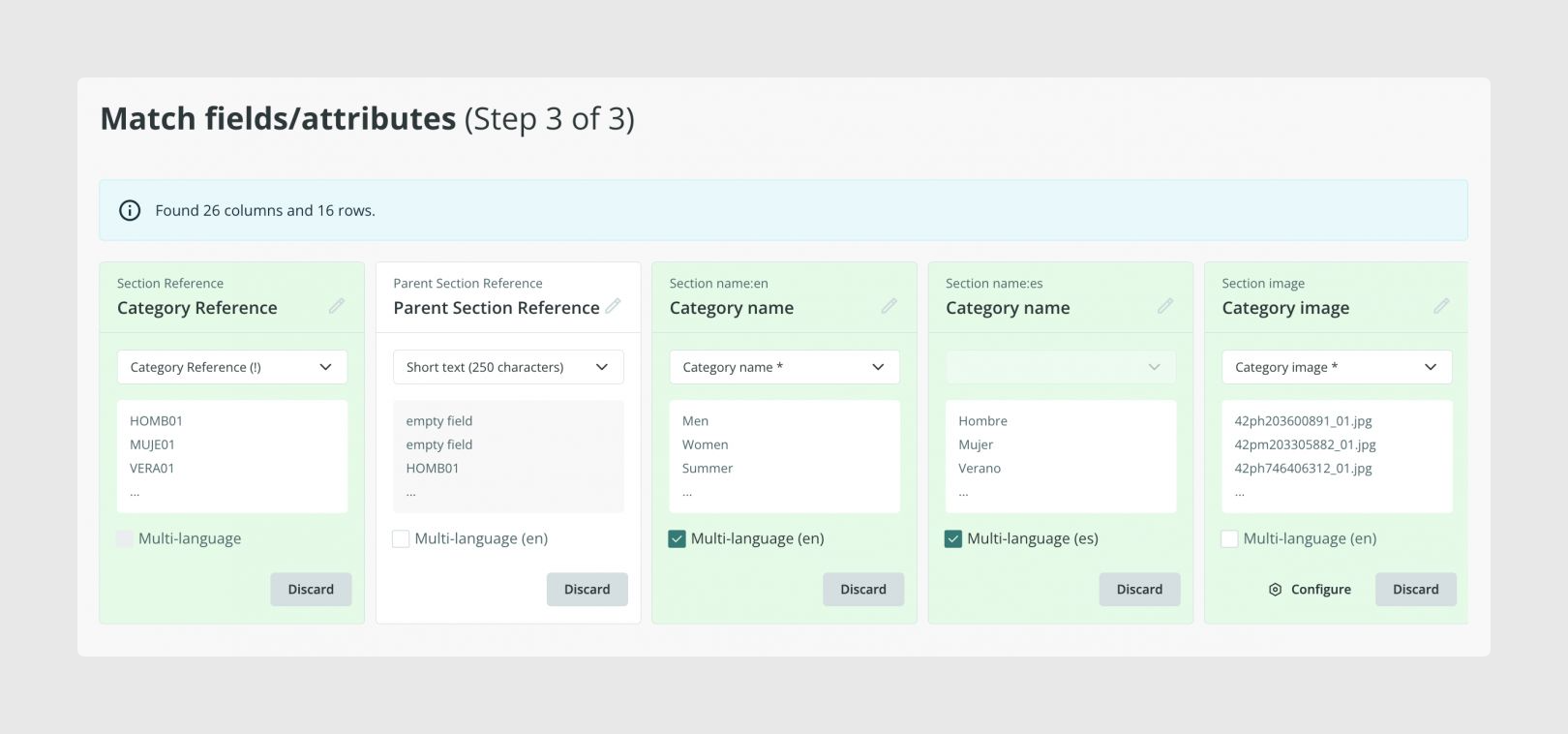
After you paste or upload the file, Sales Layer shows the detected columns so you can review how they will be imported.
Recognized fields appear with a green background, while new fields appear with a white background.
At this stage, you can still:
- match a column to an existing field
- create a new field
- change the field title
- change the field type
- discard a column you do not want to import
Sales Layer remembers the mapping you confirm, which makes future updates faster when the structure of the file stays similar.
Operators for updating multi-value fields
If you want to update multi-value fields, such as category references, images, files, related items, tags, or list fields with multi-selection enabled, you can use the ++ and -- operators.
Use ++ to add values
Add ++ before the new value when you want to append information without deleting what is already in the field.
This is useful, for example, when a category already has one image and you want to add another one without replacing the first.
Use -- to remove specific values
Add -- before a value when you want to remove that specific value from a supported multi-value field.
This allows you to clean up selected values without replacing the whole field content.
These operators should only be used in fields that support this behavior.
Implication for changing reference
References should stay consistent over time. If a reference changes, Sales Layer can treat it as a different item instead of the same category.
It is also important to keep references consistent in uppercase and lowercase, because Sales Layer treats text as case-sensitive.
Common use cases
- Rename existing categories without rebuilding the tree
- Move categories under a different parent category
- Update category descriptions or images in bulk
- Append or remove selected values in supported multi-value fields
- Run controlled updates without creating new categories
Best practices
Before updating categories, check that your category references are clean and consistent and that any parent category references point to the correct existing categories. For safer imports, update only the columns you really want to change and enable Modify only existing items when you do not want new categories to be created accidentally. If you are changing the hierarchy in a live catalog, generating a backup first is a good safety step.
Was this article helpful?
That’s Great!
Thank you for your feedback
Sorry! We couldn't be helpful
Thank you for your feedback
Feedback sent
We appreciate your effort and will try to fix the article