Parameters
The Parameters tab defines the global export behavior of the Connector.
All options affect the structure, language, merging logic, encoding, and format of the final output.
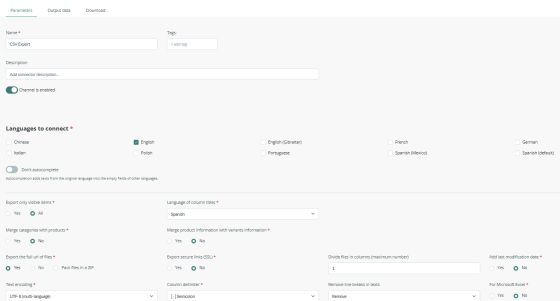
Below is a detailed explanation of each parameter.
Language to connect (multi-language export)
This Connector allows exporting multiple languages simultaneously.
- You can select one or several languages
- Each language will generate its own set of columns in the CSV (e.g., Name_en, Name_es, Description_fr, etc.)
- All text, names, descriptions and translatable fields will be exported in each selected language
Duplicate Channel
This option is available inside the Actions dropdown menu.
This option allows you to clone the Connector, preserving all existing settings.
It is especially useful when:
- You need similar exports for different users or workflows
- You want to test different configurations without modifying the original Connector
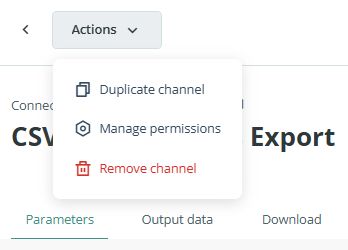
The duplicated Connector is created disabled by default, and must be activated after reviewing its parameters.

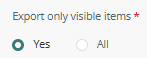
Export only visible items
Defines whether the Connector should export:
- Only visible items (recommended), or
- All items, regardless of visibility status
Useful when clients use visibility as a filter to control which items should appear in the output.
Important:
If enabled, the entire hierarchy must be visible:
- Category: must be visible
- Product: must be visible
- Variant: must be visible
If any element in the chain is not visible (invisible or draft), the item will not be exported.
For example:
- A visible product inside a non-visible category: not exported
- A visible category and visible product, but a non-visible variant: variant not exported
- A non-visible product with visible variants: nothing exported
Language of column titles
Determines the language used for column names in the final CSV header.
- Affects only the column names

Merge categories with products
When enabled, the Connector will include category-level fields in the same rows as the product data.
This allows generating a single table containing:
- Category information
- Product information
Use this when you want consolidated product and category data

Merge product information with variants information
When enabled, the Connector will include product-level fields in the same rows as the variant data.
This allows generating a single table containing:
- Product information
- Variant information
Use this when you want consolidated variant and product data

Combining Merge categories with products & Merge product information with variants information
When both are enabled the Connector will include all categories, products and variants information in a single row.
This allows generating a single table containing:
- Category information
- Product information
- Variant information
Use this when you want consolidated categories, products and variant data
Export full URLs of files / Pack files in ZIP
Determines how image and file URLs are exported.
Options:
- Yes: Export full URLs
- No: Export partial paths
- Pack files in ZIP: Packages all files inside a downloadable ZIP archive
ZIP export is ideal when:
- You must deliver all files together
- The target system requires manual uploads of documents or images

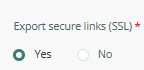
Export secure URLs (SSL)
Outputs HTTPS URLs for images and files.
Recommended for most marketplace platforms.
Divide files in columns
Allows splitting the output into multiple CSV files automatically, depending on:
- You want one image/file per column
- You want to avoid long comma-separated lists inside the same cell
Setting this to 1 keeps all values in a single column.

Add last modification date
Adds a column containing the last modification timestamp of each item.
Useful for sync checks and external automation.

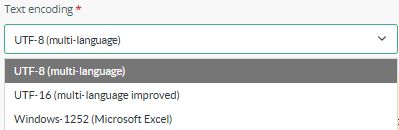
Text encoding
Determines the encoding of the exported CSV.
Typical choices:
- UTF-8 (multi-language): recommended default
- UTF-16 (multi-language improved)
- Windows 1252 (Microsoft Excel)
Choose the encoding required by your target system.
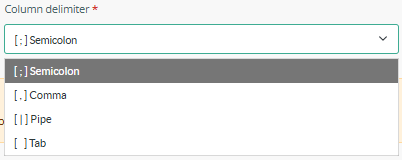
Column delimiter
Selects the character that separates columns in the CSV.
Common options:
- Semicolon
- Comma
- Pipe
- Tab
Selecting the correct delimiter is essential to ensure proper opening in tools like Excel.
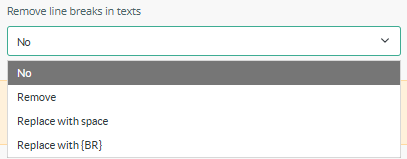
Remove line breaks in texts
Controls whether line breaks should be removed from text fields.
Options:
- No: Keep original formatting
- Remove: Remove line breaks completely
- Replace with space
- Replace with {BR}
Recommended when exporting to systems that break rows on line breaks.
For Microsoft Excel
When enabled, formats the CSV in a way that prevents common Excel import issues:
- Quotation character escaping
- Comma handling
- Large number formatting
Enable this option when the target user will open the file directly in Excel.