Configuration in Sales Layer
Parameters
Go to the Channels section in Sales Layer and create a new Stock2Shop connector.
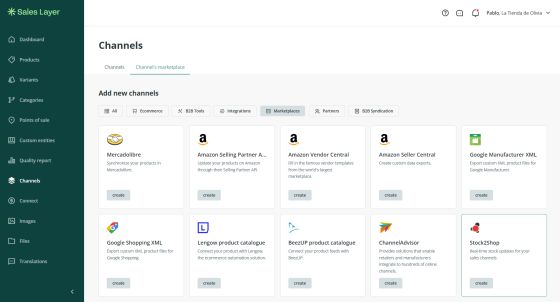
Basic Parameters
- Name
- Tags
- Description
- Enable / disable connector
Export Settings
Languages
Available only for the export option. Allows selecting which languages will be included in the generated CSV files.
Export only visible items
When enabled, only products marked as Visible in Sales Layer will be exported.
Merge product and variant information
Merges product-level and variant-level data into a single export file.
Output Data
The export behavior is identical to the CSV Export connector.
Two tabs are available for mapping and exporting data:
- Products
- Variants
Data input
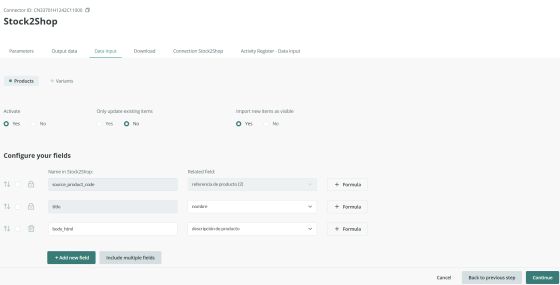
The Stock2Shop connector can import product data directly from Stock2Shop.
This tab can be enabled or disabled as needed.
When enabled, the following options are available:
Update existing items only
- Yes: new items created in Stock2Shop will not be imported into Sales Layer.
- No: new items created in Stock2Shop will be imported into Sales Layer.
Import new items as visible
- Yes: newly imported items will be created with Visible status in Sales Layer.
- No: newly imported items will be created as Draft by default.
Finally, map the corresponding input fields to the available fields in Sales Layer.
Download
The download behavior is identical to the CSV Export connector.
Connection with Stock2Shop
This tab contains the parameters used to import data from Stock2Shop. Specifically:
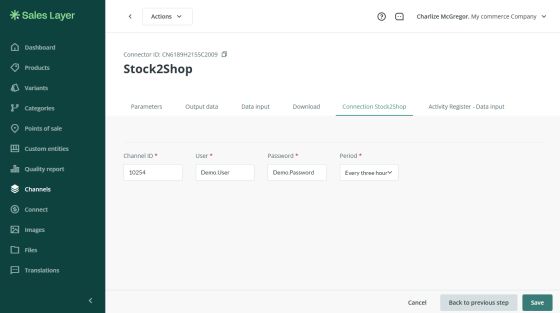
- User
- Password
- Channel ID for products
- Update frequency:
- Never
- Hourly
- Every three hours
- Daily
- Every three days
- Weekly
5. Connector execution
This connector performs both import and export operations.
Import process
The connector imports data from Stock2Shop starting from a specific reference date.
This date is determined according to the following rules, in order of priority:
Rule 1 – First synchronization or forced refresh
If it is a Force Refresh or the first synchronization of the connector, all data from Stock2Shop will be imported.
Rule 2 – Admin parameter “Import data from”
If the admin parameter Import data from (datetime) is defined, that datetime will be used as the reference point.
After the import process is completed, this value is reset automatically, so that future imports only retrieve recently modified items (Rule 3).Rule 3 – Last successful import
If no specific datetime is set, the connector uses the datetime of the last successful import from Stock2Shop.
Rule 4 - Partial import
If an error occurs while processing a product, after the previous products have already been processed, the next synchronization date-time would be updated to the modification date of that failed product. Therefore, during the next synchronization, the process would start again from the date-time of that product.
Note: This limitation is fixed, and currently there is no maximum item limit in the connector.
Additionally, it should be taken into account that there is a delay between the moment the import is registered and the moment all updated data becomes visible in the PIM. This delay can be monitored in the performance dashboard.
Export process
To export data, the connector generates a CSV file following the same behavior as the generic CSV Export connector.

